Workflow Plus - Browse and Reference Field
Overview
Section titled “Overview”Browse and reference fields extend request fields with additional lookup and display capabilities.
Before you start
Section titled “Before you start”| Requirement | Description |
|---|---|
| Workflow administrator access | Required to create and configure browsers and reference fields. |
| Request type configuration access | Required to add and configure fields in a request type. |
| Database query access | May be required when creating or modifying SQL queries for browsers and reference fields. |
Creating and configuring a browser
Section titled “Creating and configuring a browser”Create a request field
Section titled “Create a request field”Go to Workflow > Requests > Request types and select the request type you want to configure, for example Checked task.
In the Fields section, click Add to add a new field, and click Add (Section) if you want to add a new section.

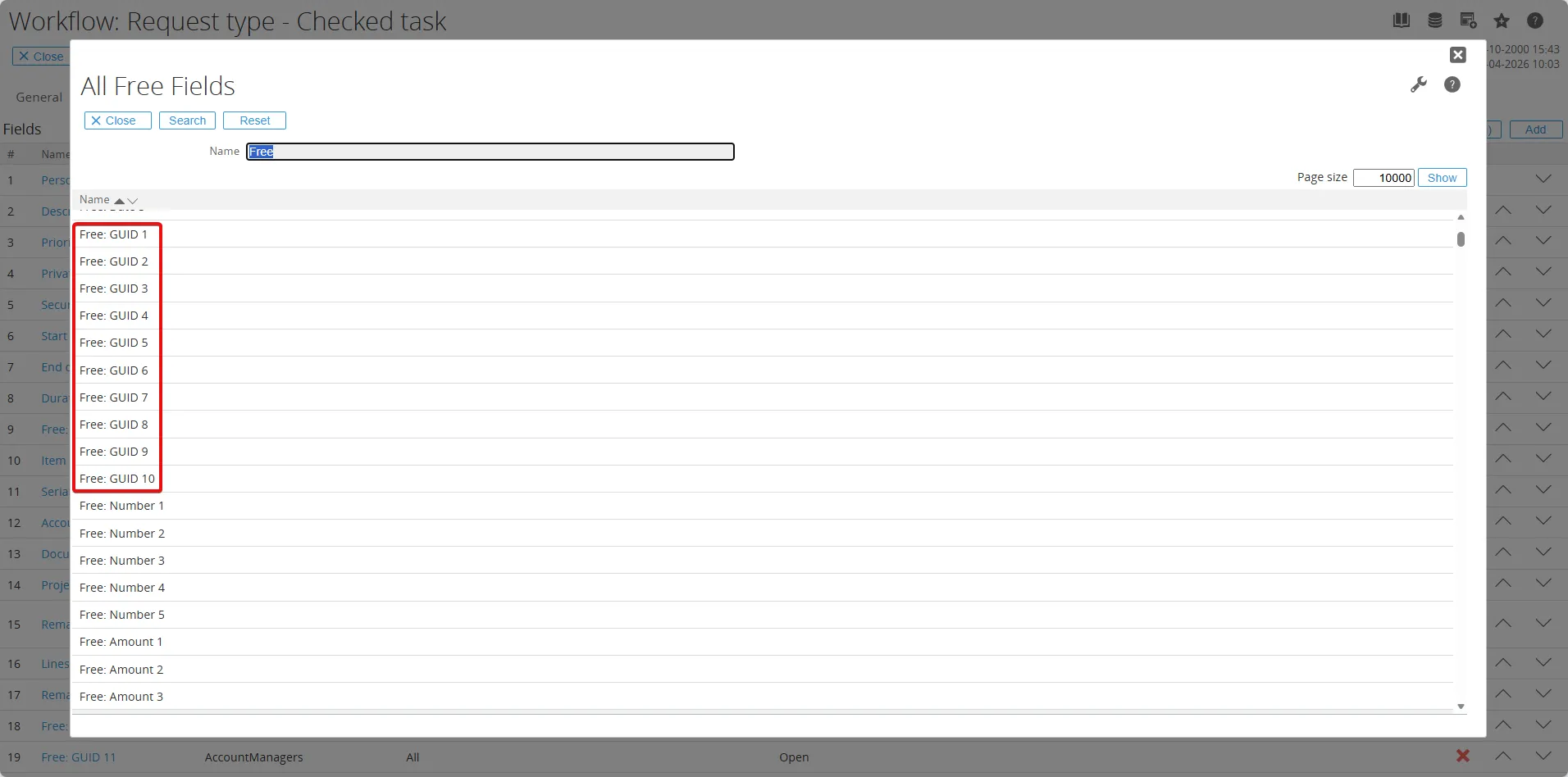
To add the browser field, select a field type according to your needs, for example Free: GUID.
Create or select a browser
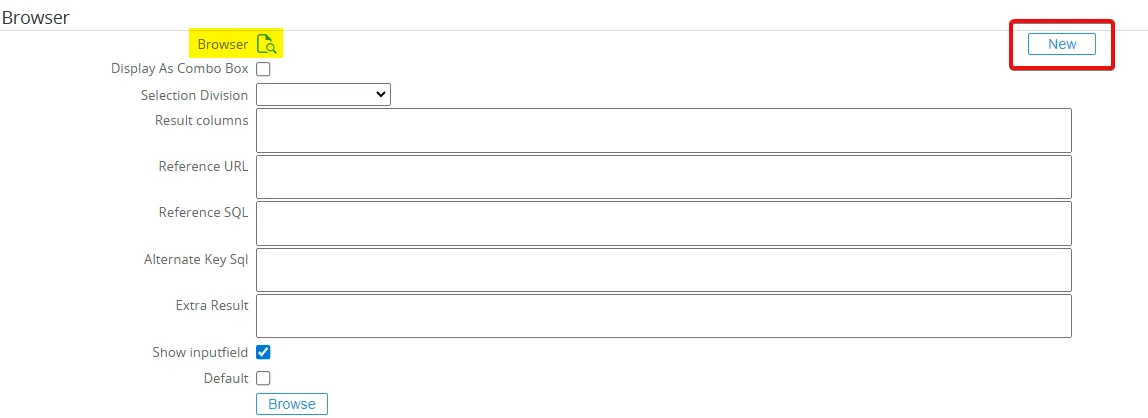
Section titled “Create or select a browser”After selecting the field type, scroll down to the Browser section and click the new button to create a new browser for this field.
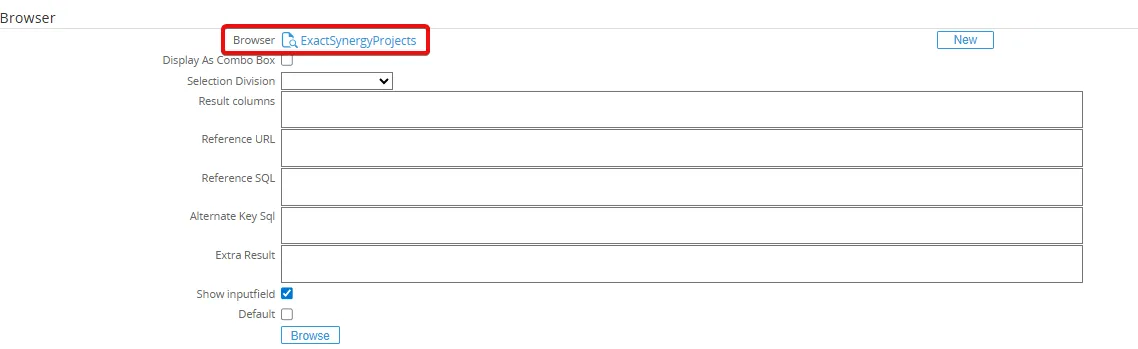
Alternatively, you can link an existing browser to the current view by selecting it from the list of available browsers, for example ExactSynergyProjects then click the Save button.
Test the browser
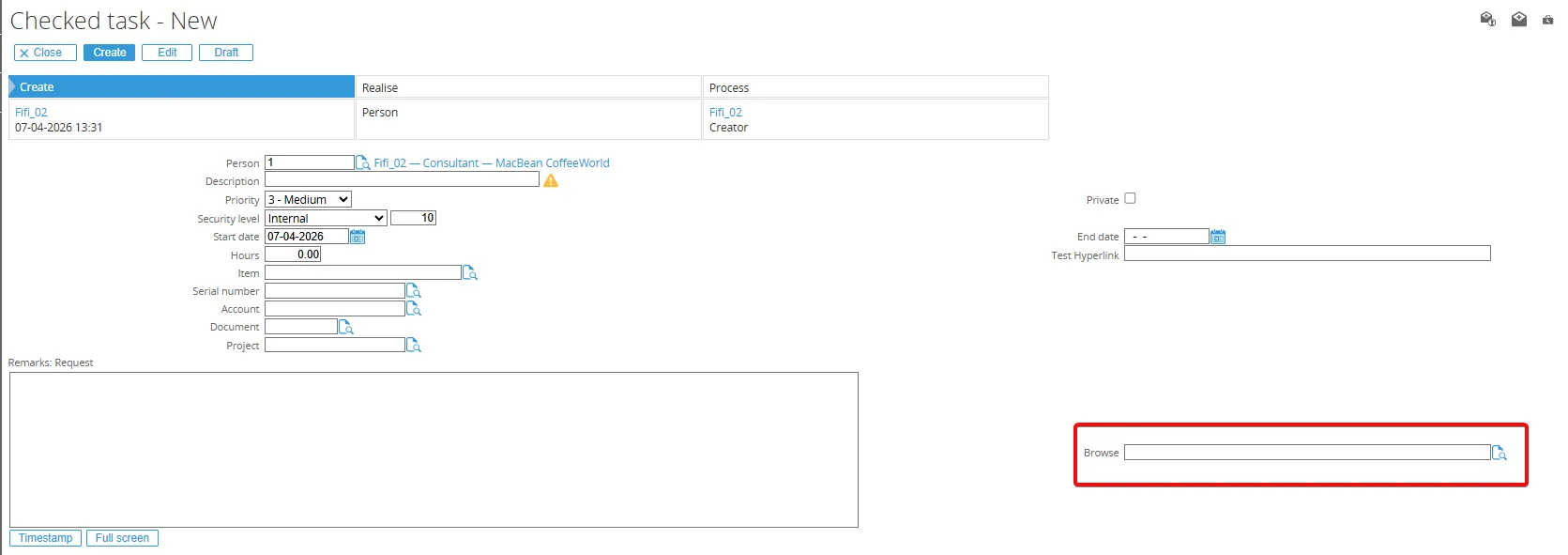
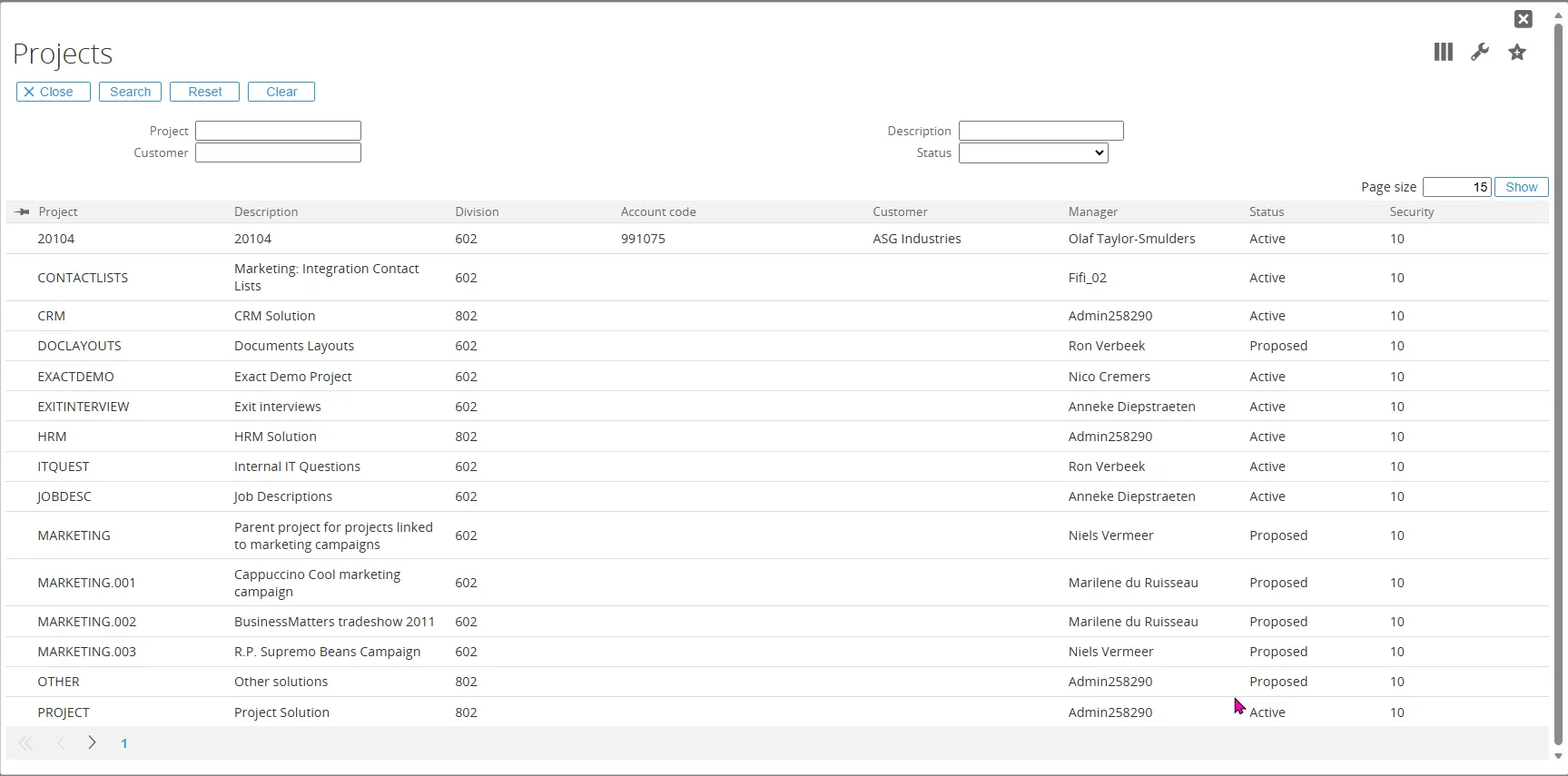
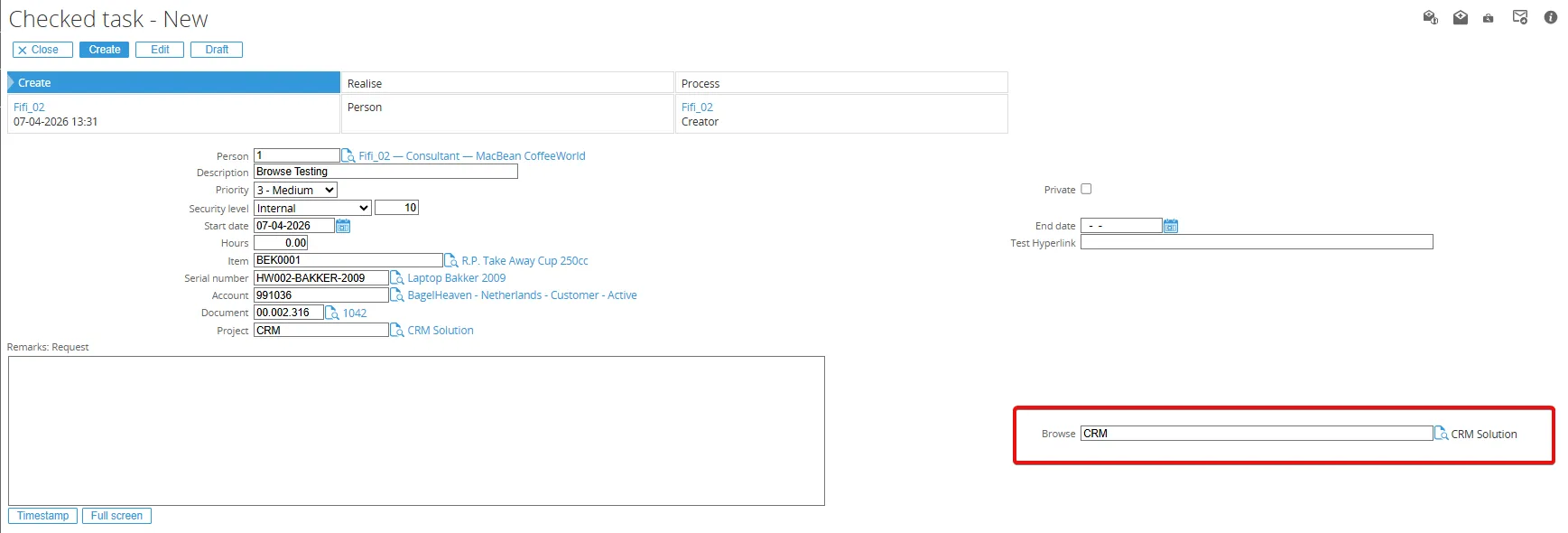
Section titled “Test the browser”After creating the request field, test it by creating a new request of the corresponding type, such as a Checked task, and confirming that the browser field appears in the form.
Browser settings
Section titled “Browser settings”When you create a new browser, fill in the following fields:
| Field | Description |
|---|---|
| Name | The technical name of the browser. It is used in the source code and repository to define which browser to use. |
| Caption | The text displayed as the browser title. |
| TermID | The term ID associated with the caption. |
| Query | The SQL query used by the browser. You can use parameters; if you do, you must also fill the Query parameters field. |
| Column info | Defines the columns displayed in the browser and their display properties. This can be filled automatically by choosing Save + Edit column info. |
| Result columns | The columns returned to the calling code (key and description). The columns are separated by commas, for example: c.cmp_wwn,c.cmp_name. |
| Query parameters | The list of columns that require a parameter in the query, for example: h.res_id. |
| Table list | The list of tables used in the query, including aliases if applicable, separated by commas, for example: cicmpy c,humres h. |
| Security level | The minimum security level a user must have to use this browser. |
| Maintenance Application | The maintenance application that starts when the user presses the New button in the browser. |
| Enterprisesearch entity | The entity used for Enterprise Search, if applicable. |
| Security provider | The security provider definition for the browser. |
| Security provider parameters | The parameters used by the security provider. |
Browser column configuration
Section titled “Browser column configuration”After you have entered the Query, Column info, and other main fields, click Save + Edit column info to open the column configuration screen.
Changing the column order
Section titled “Changing the column order”In the left list box, you can change the order of the columns. On the right side, you configure the properties for the selected column. Make sure you select the column from the column drop‑down first.
Column properties
Section titled “Column properties”For each column, you can configure the following properties:
| Field | Description |
|---|---|
| Header / TermID | The column caption and its term ID. |
| Header – Suffix / TermID | The suffix caption and suffix term ID. |
| Visible | Sets the column to be visible or hidden. |
| Sorting | Enables sorting on this column. |
| Quick search column | Enables the column for searching in the browser’s quick search. |
| Checkmark | Converts a 0/1 value from the database into a checkmark in the browser. |
| Domain | The repository domain used by the column. The domain determines how the column is displayed and the maximum length for the related input field. |
| Scale / Currency column | Defines which currency to display for an amount when the currency is stored in another column. |
| Selection values | Predefined selection values for this column (used in the quick search). |
| Selection columns | Defines the column that contains the selection values (for example, for status codes). |
| TermID column | The term ID for the value in the result. Useful for status fields like A (Active), P (Proposed), where the database value is A but the browser displays “Active”. |
| Suffix / TermID column | The suffix and suffix term ID for the value in the result. |
| Right aligned | Right‑aligns string fields. |
| Human ID | Displays the value as a Human ID. For example, database value 15367 is displayed as 15.367. |
| Date/Time format | The display format for date/time fields. |
| Search option | Configures the search operator used in quick search (for example “Contains” or “Starts with”). |
Linking a Browser to a Free Field
Section titled “Linking a Browser to a Free Field”After the query and browser definition are created:
- You can select the browser in a free field whose key type matches the browser key type.
- Example: if the browser is built on table cicmpy with key
cmp_wwnof typeguid (uniqueidentifier), the browser is only available in request Free GUID fields.
Browser examples
Section titled “Browser examples”Accounts per manager
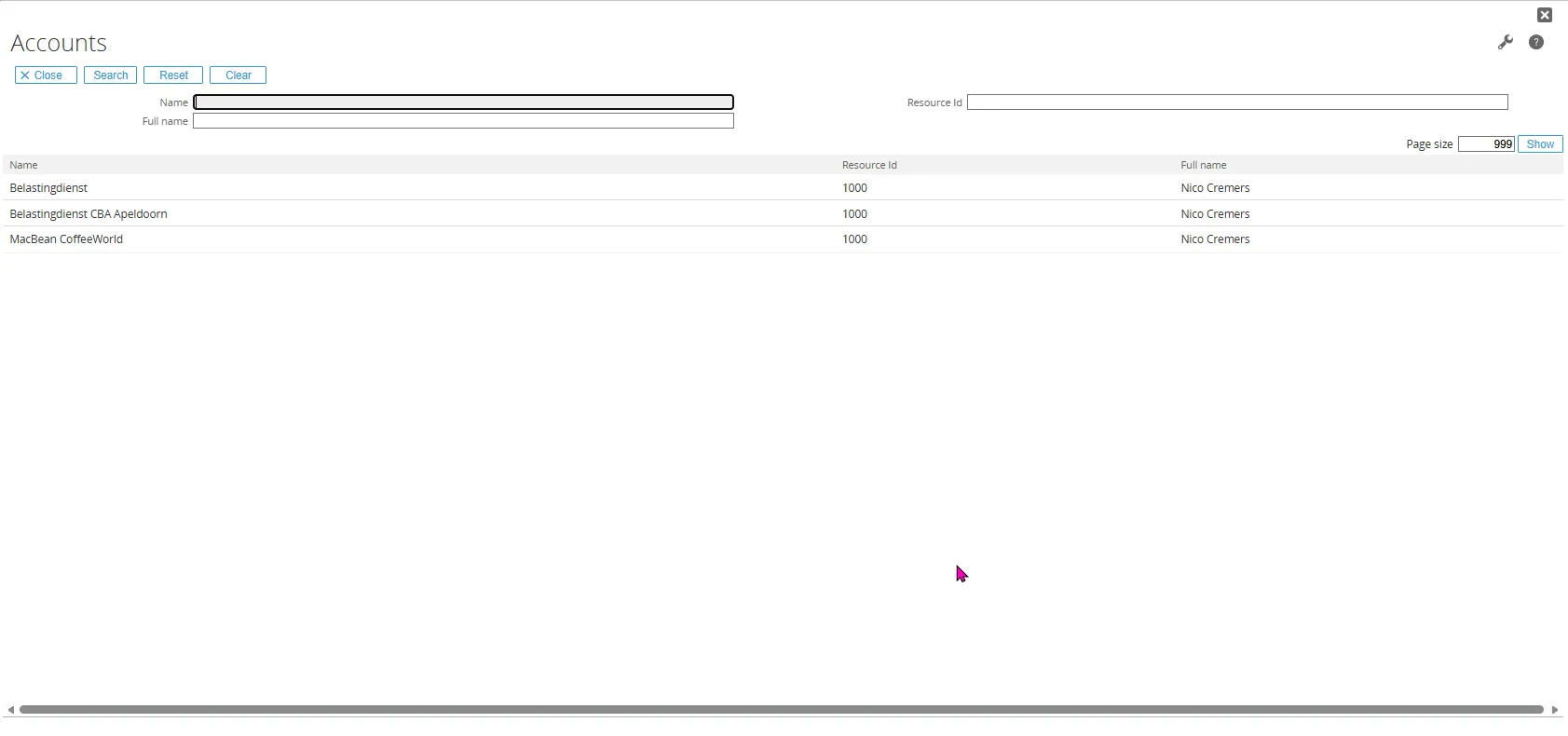
Section titled “Accounts per manager”This browser shows all accounts where the person in the request is the account manager.
Browser definition
Section titled “Browser definition”-
Name:
AccountManagers -
Caption:
Accounts -
TermID:
9(for “Accounts”, found via: System > Setup > Terms > Search). -
Query:
SELECT c.cmp_wwn,c.cmp_name,h.res_id,h.fullnameFROM cicmpy cINNER JOIN humres h ON c.cmp_acc_man = h.res_idWHERE h.res_id = ?ORDER BY c.cmp_nameThe
?parameter is the person (resource) taken from the request. -
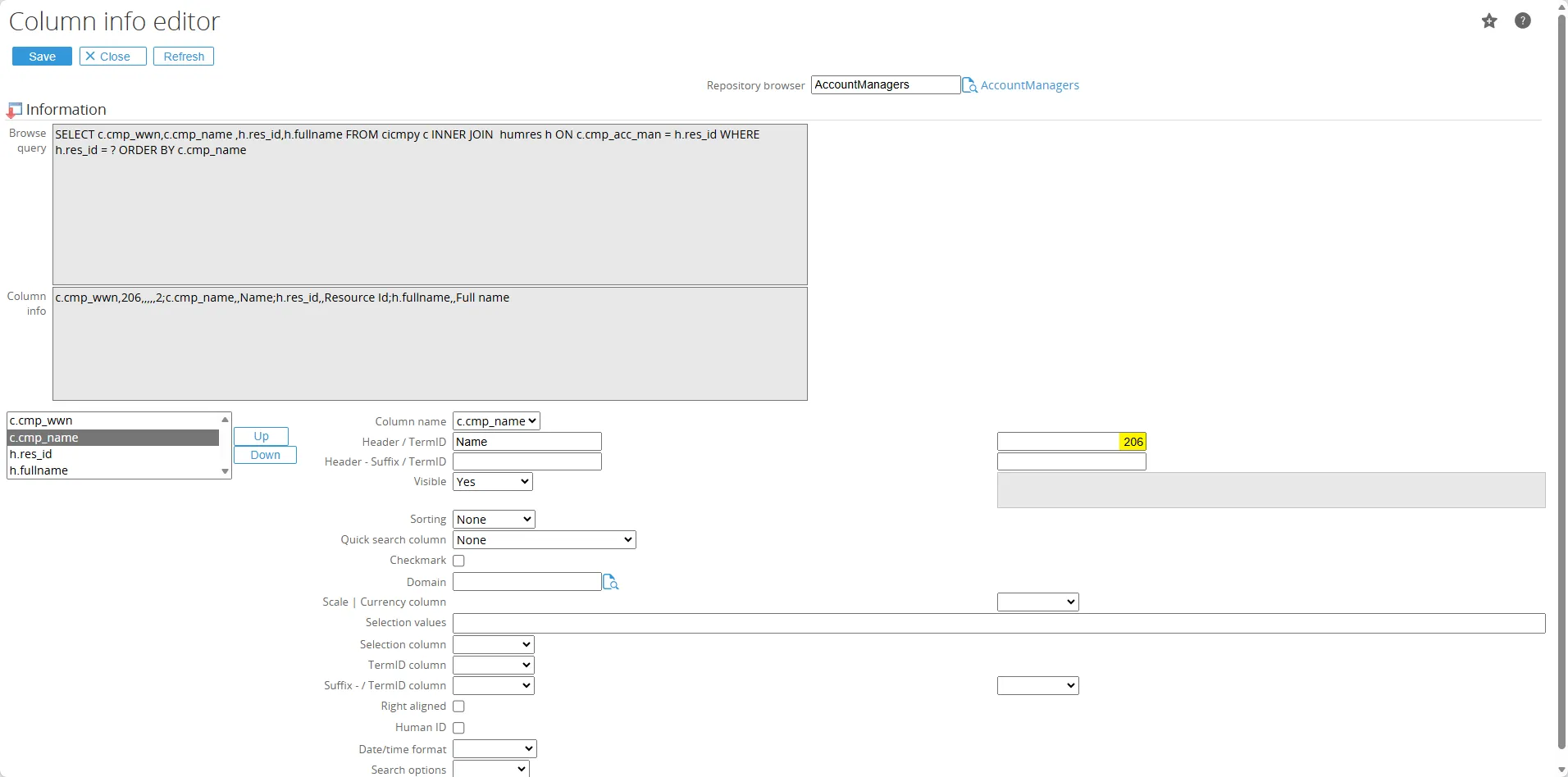
Column info (initial):
c.cmp_wwn;c.cmp_name;h.res_id;h.fullnameAfter you click Save + Edit column info, you can refine it to:
c.cmp_wwn,,,,,,2;c.cmp_name,,Name;h.res_id,,Resource Id;h.fullname,,Full name. -
Result columns:
c.cmp_wwn,c.cmp_name(key and description used in the browser). -
Query parameters:
h.res_id. -
Table list:
cicmpy c,humres h.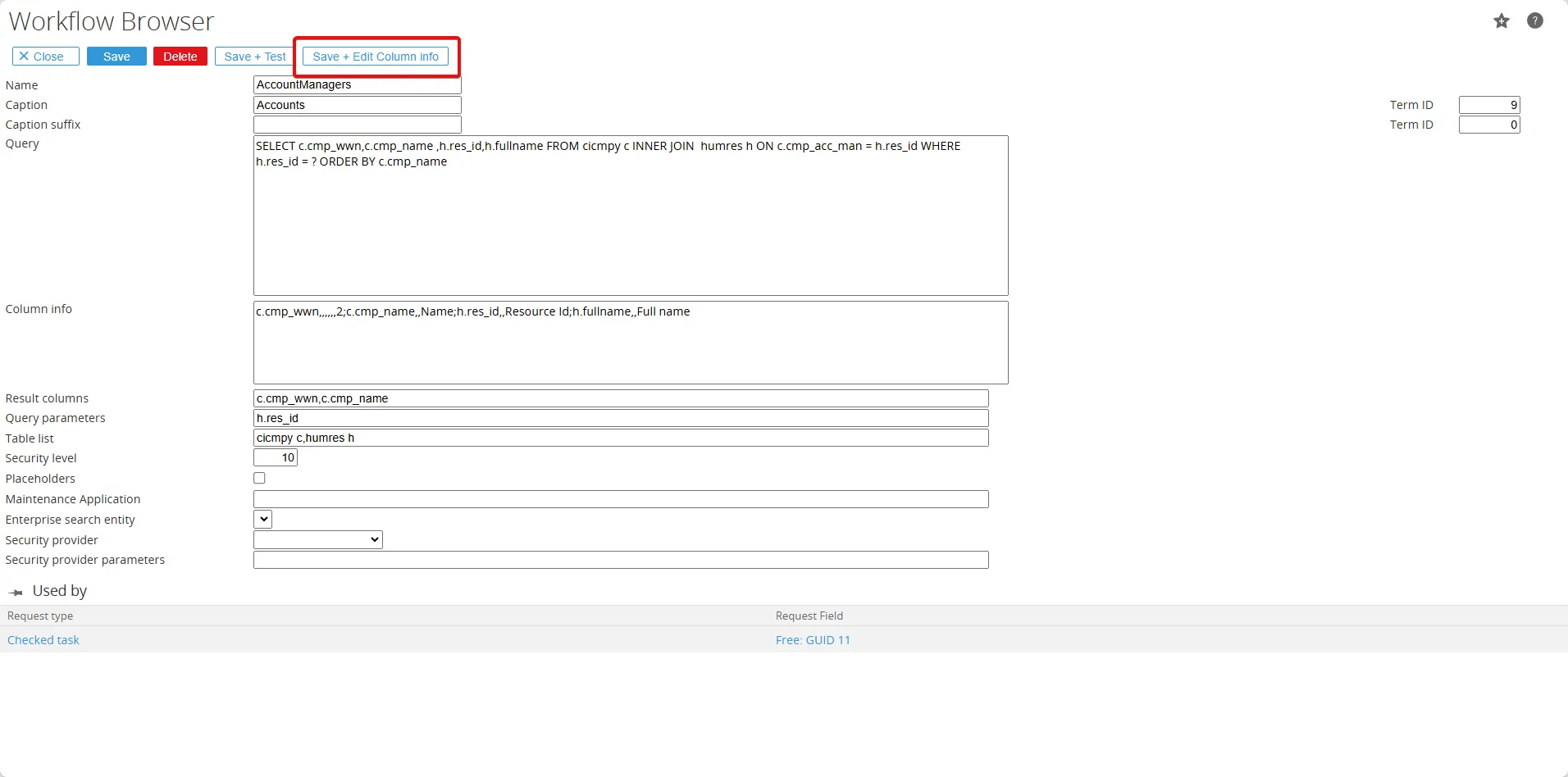
Column settings
Section titled “Column settings”In the Save + Edit column info screen:
-
For column
c.cmp_wwn- Visible:
No(the GUID does not need to be shown).
- Visible:
-
For column
c.cmp_name- Header:
Name - TermID:
206(term for “Name”).
- Header:
Using the browser in a free field
Section titled “Using the browser in a free field”-
In the Browser section, select the
AccountManagersbrowser in a suitable free GUID field.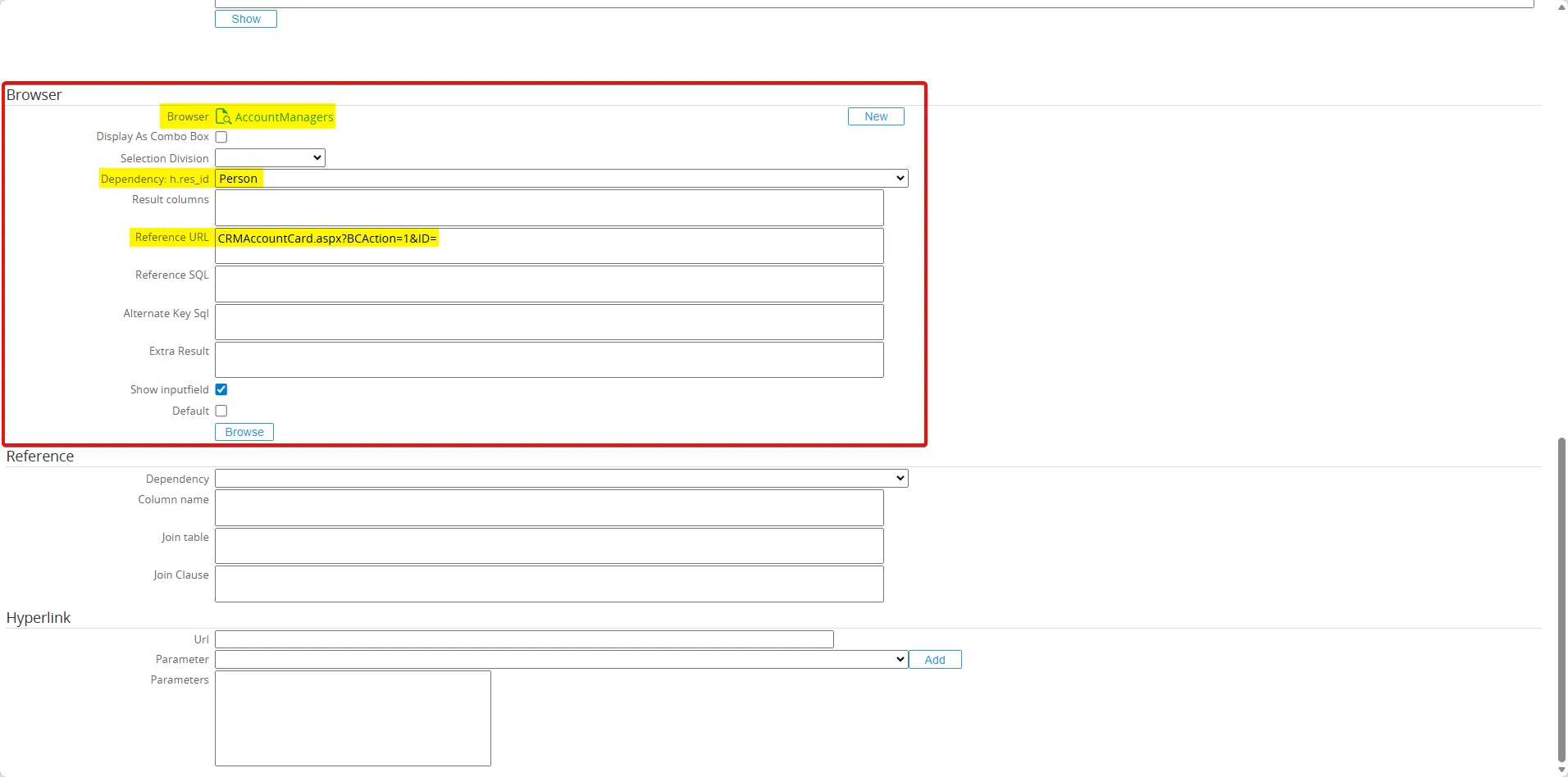
-
Because the browser has a parameter, an additional field Dependency: h.res_id appears with a drop‑down of available request fields. Select the Person field as the source for the parameter.
-
Leave Result columns empty in the free field, because they are already defined in the browser.
-
Reference URL:
CRMAccountCard.aspx?BCAction=1&ID=This link is shown after the browser. It opens the Account Card, andIDis filled automatically based on the selected account. -
Reference SQL: Leave this empty initially so it is generated automatically. If you get a query error with a standard browser, you can define your own query, for example:
SELECT c.cmp_nameFROM cicmpy cWHERE c.cmp_wwn = @P1@P1is automatically replaced by the selected account ID. -
Show inputfield: Automatically unchecked because the browser key is a GUID users select the value via the browser only. In the request, when the Person field changes, the browser results update accordingly.
Purchase orders from Macola back office
Section titled “Purchase orders from Macola back office”This browser shows purchase orders directly from the Exact Globe/Macola back‑office database.
Browser definition
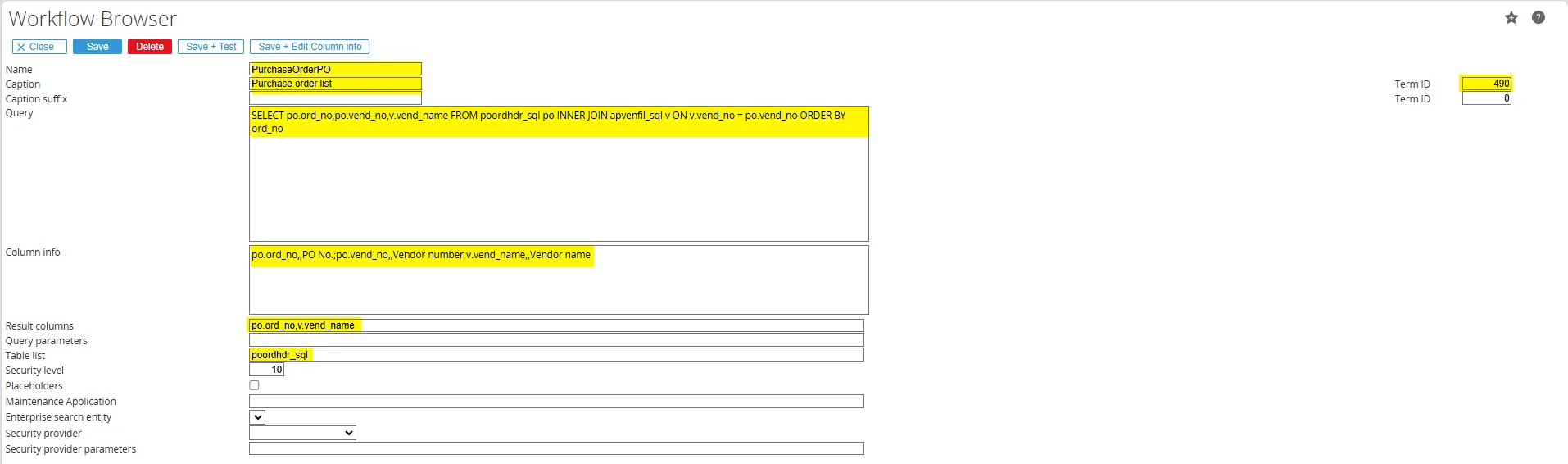
Section titled “Browser definition”-
Name:
PurchaseOrderPO -
Caption:
Purchase order list -
TermID:
490(for “Purchase order list”, found via System > Setup > Terms > Search). -
Query:
SELECT po.ord_no,po.vend_no,v.vend_nameFROM poordhdr_sql poINNER JOIN apvenfil_sql v ON v.vend_no = po.vend_noORDER BY ord_noThis query reads purchase orders from the Macola purchase order table and joins the vendor table to show the vendor name.
-
Column info (initial):
po.ord_no;po.vend_no;v.vend_nameAfter Save + Edit column info, you can set:po.ord_no,,PO No.;po.vend_no,,Vendor number;v.vend_name,,Vendor name. -
Result columns:
po.ord_no,v.vend_name(key and description). -
Table list:
poordhdr_sql.
Column settings
Section titled “Column settings”In the column settings screen:
Quick search column Set to
Both. If this is not set, manually typed purchase order numbers cannot be found in the browser.
Domain Set to
bkstnr_sub. The domain determines the field length; here, the length is 8, so the order number field is also length 8. If no domain is set, the length falls back to the default Free Text field length.
Using the browser in a Free Text field
Section titled “Using the browser in a Free Text field”Because the key ord_no is a text field, this browser can be selected in any Free Text field.
Additional configuration:
-
Division Set to
Creator (division). The purchase‑order browser will use the creator’s division. -
Result columns (in the free field)
po.ord_no,po.ord_no,v.vend_name- First
po.ord_nois the key. - The second
po.ord_noandv.vend_nameare used in the reference/link.
- First
-
Reference URL
ICEMPoOrder.aspx?OrderType=N&Division=@Division&OrderNo=This link opens the InterConnect purchase order application.@Divisionis automatically replaced by the creator’s division.OrderNois filled automatically based on the selected order.
-
Reference SQL
SELECT ord_no,v.vend_nameFROM poordhdr_sql poINNER JOIN apvenfil_sql v ON v.vend_no = po.vend_noWHERE LTRIM(RTRIM(ord_no)) = @P1@P1is automatically replaced by the order number. -
Show inputfield Checked. Users can type the order number manually or select it from the browser.
In the request, the browser shows purchase orders and a link to the back‑office application. When the value changes, the reference and displayed data are updated accordingly.
Sales orders back office Exact Globe
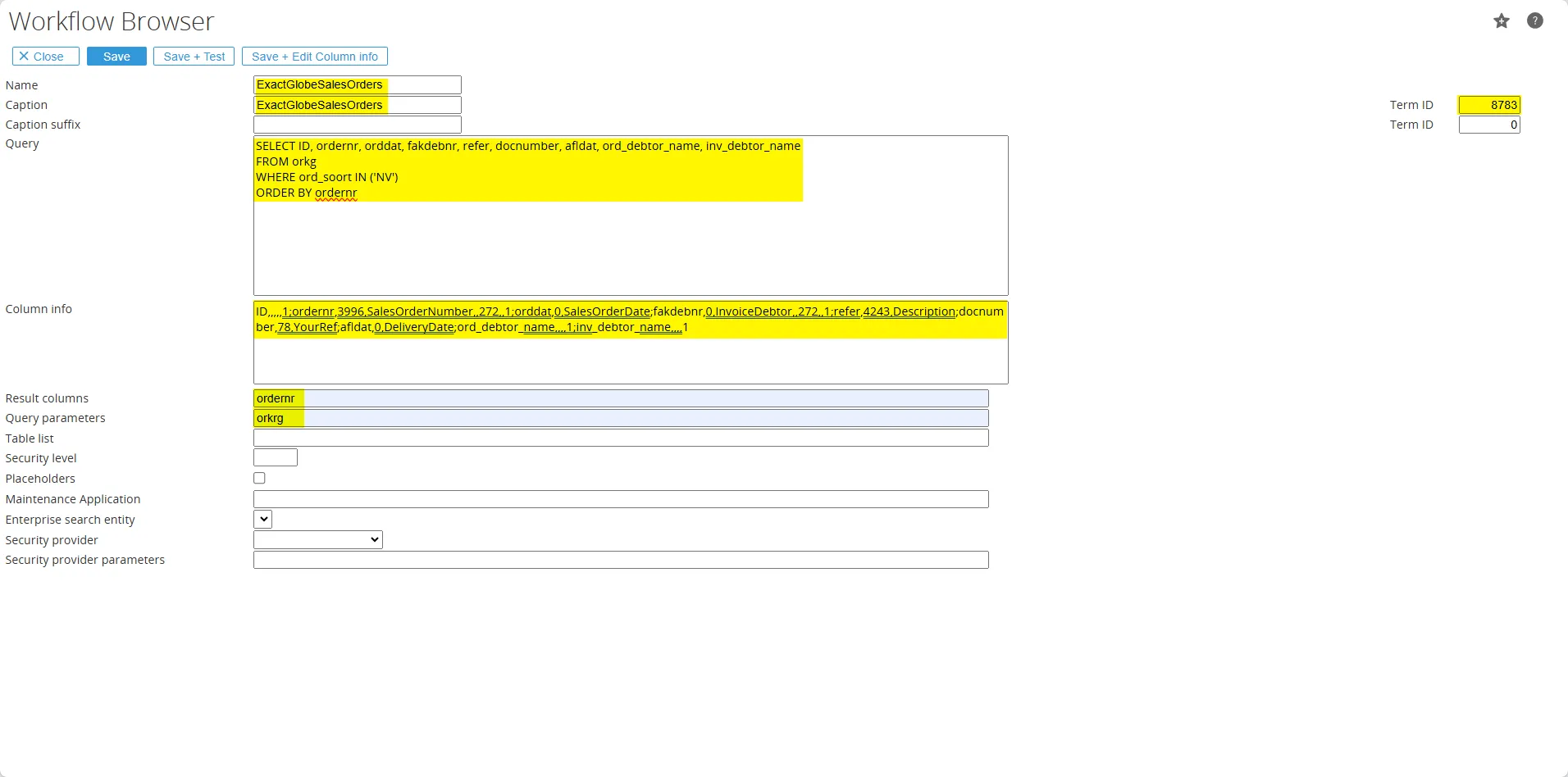
Section titled “Sales orders back office Exact Globe”A new Free Text field is added to the request, and the standard SalesOrder browser is selected for this field. The division used by the browser is based on the division of the person in the request.
When you open the browser, you can only view the information; you cannot change the browser details because this is a standard browser.
By default, the standard SalesOrder browser returns the ordernr column as the result. In this example, we change the behavior by setting Result columns in the request field definition to ordernr,refer. Without this change, the reference/link will display only the order number; after the change, it displays the sales order description instead.
Set the Reference URL to:
LogOrderBO.aspx?Type=V&Division=@Division&Number=

This URL opens the sales order from the Exact Globe back office in Synergy, using the selected division and order number.
In the request, the browser field will show the adjusted description based on the result and reference settings.
Item by assortment dependency
Section titled “Item by assortment dependency”You can add a standard Item request field with a fixed selection option. However, this standard selection cannot depend on other request fields. To make the item list depend on another field (for example, an assortment), you can use the browse field option.
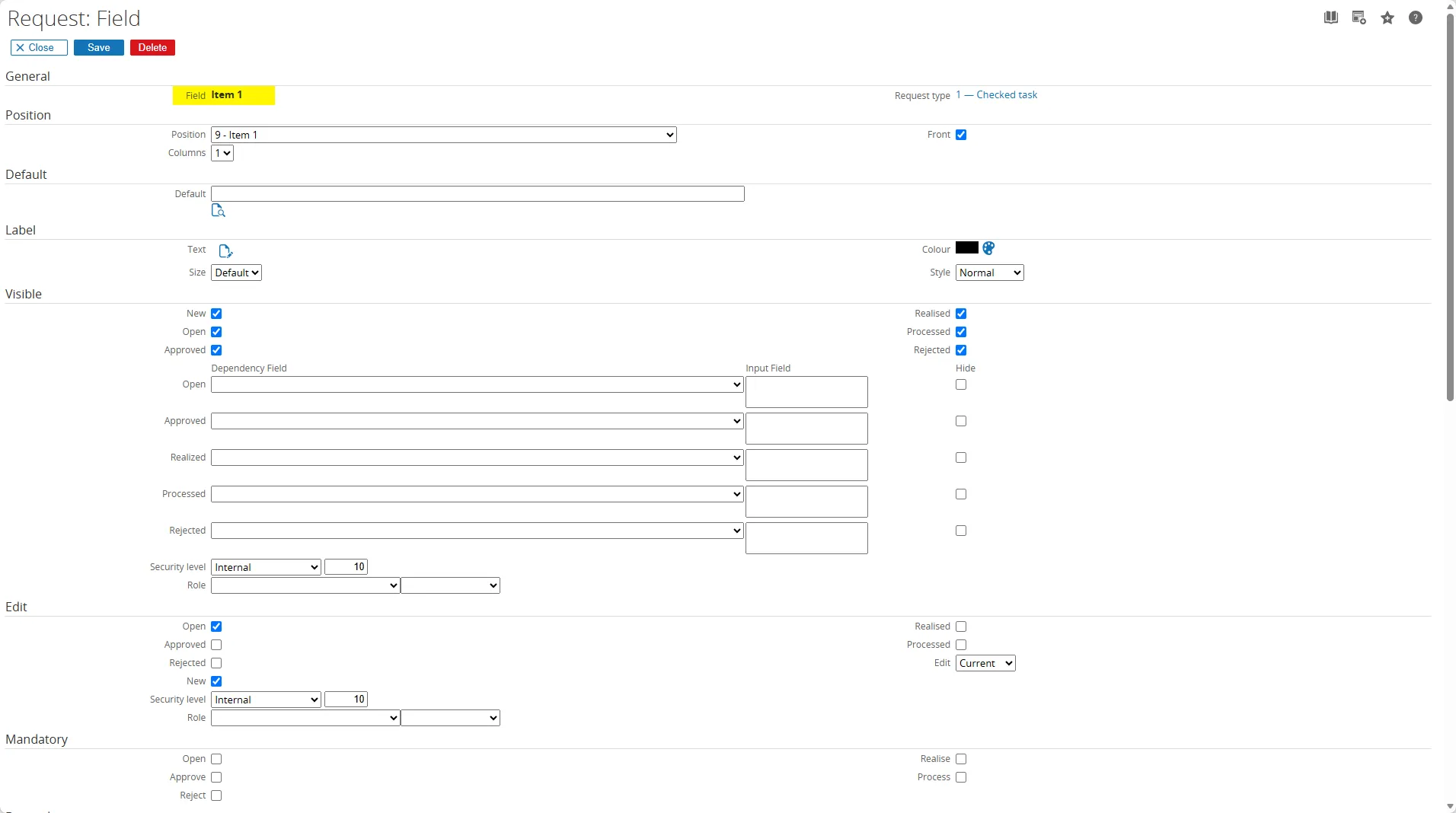
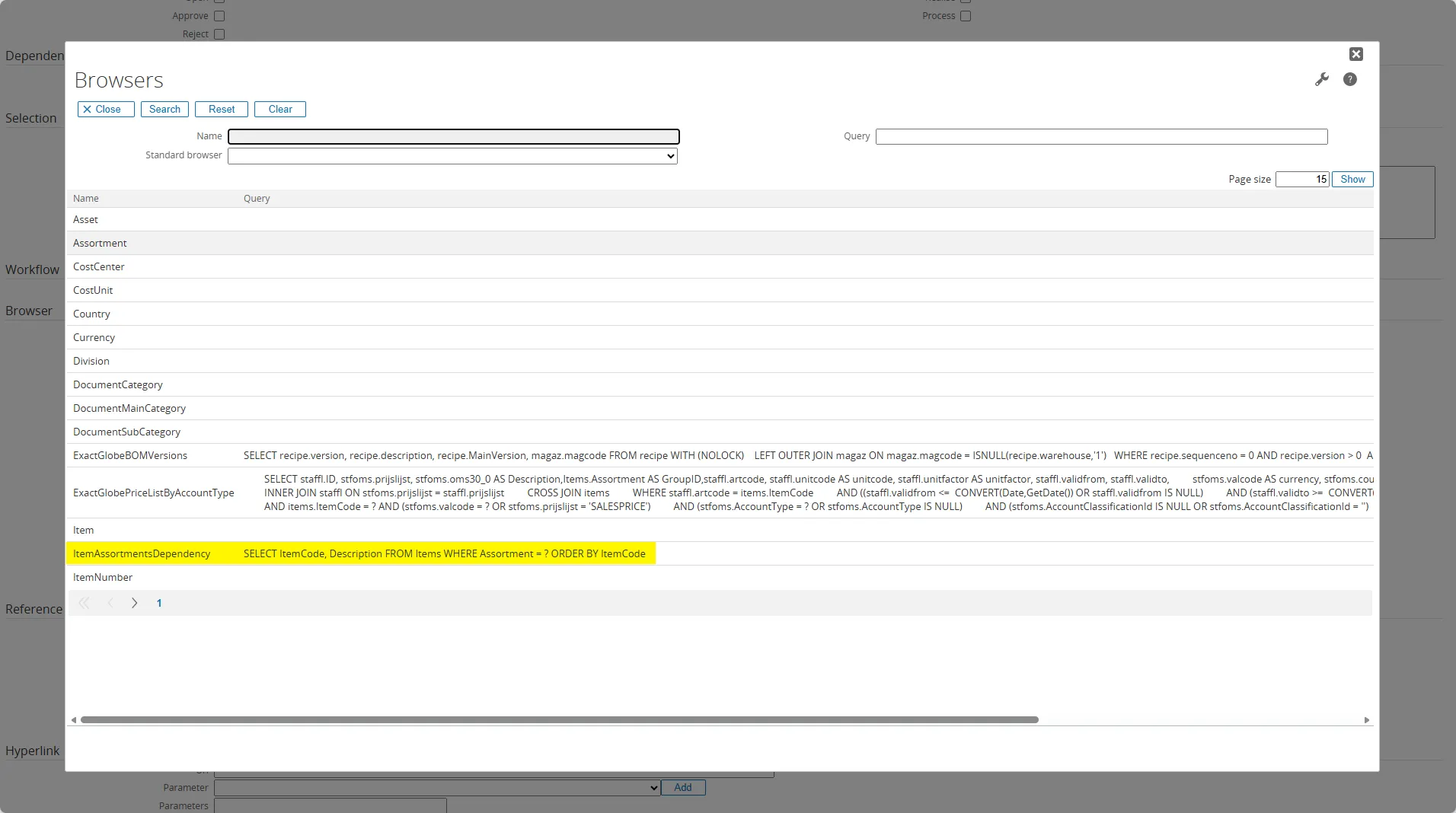
In this example, we create an item browser that depends on an assortment free field. When users browse, only items linked to the selected assortment will be shown.
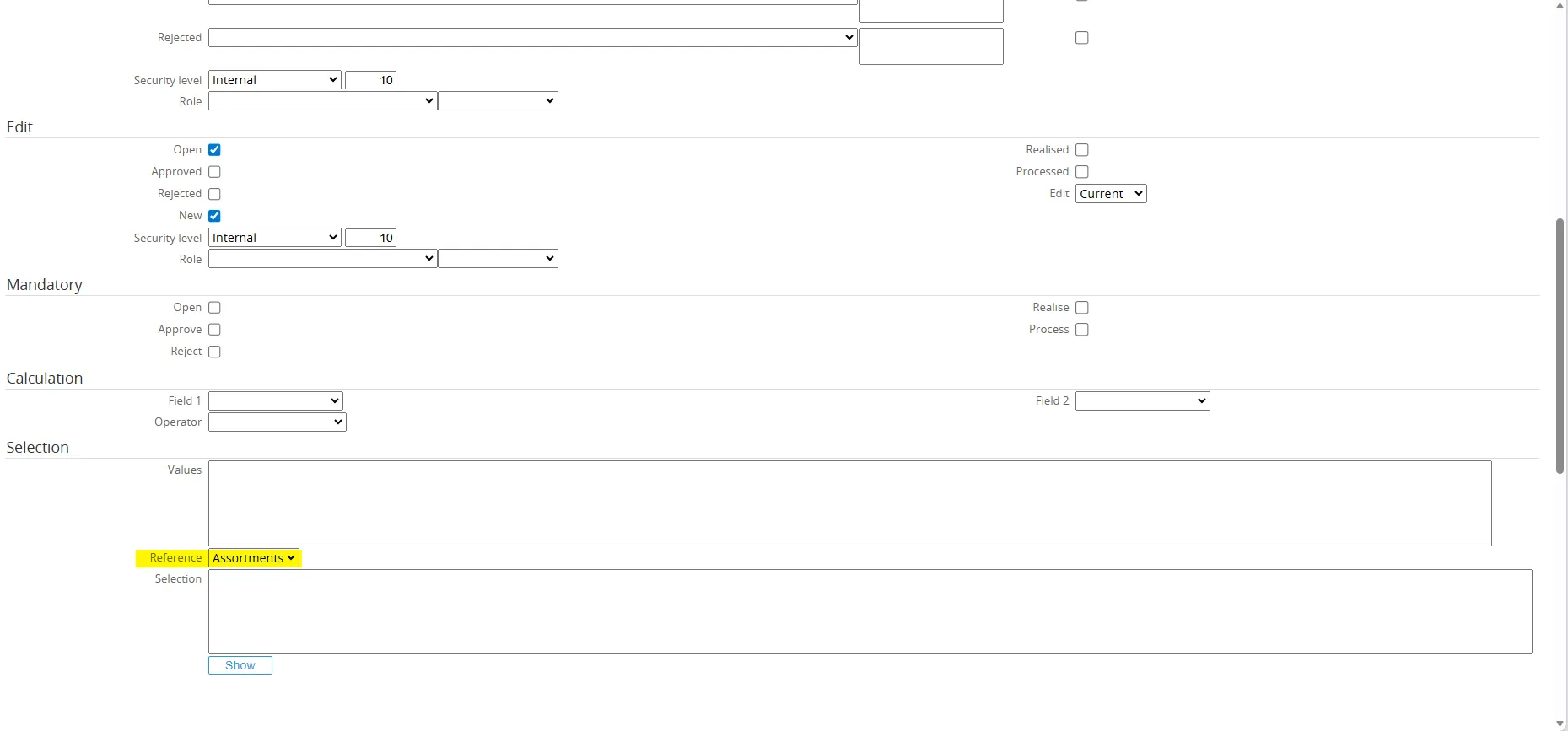
- Use Free number field 1 as the assortment field, with the standard reference selection Assortments.
- For the standard Item field, create a new item browser named
ItemAssortmentsDependency. This browser will replace the standard Item browser.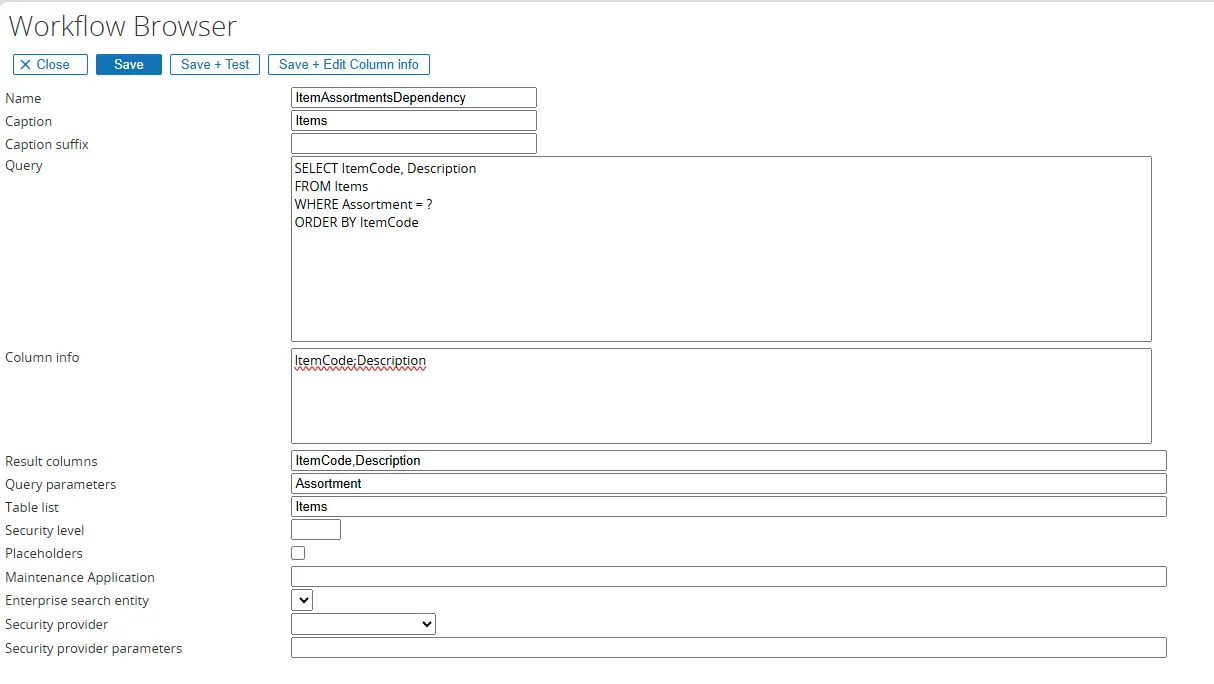
Configure the browser as follows:
- Query
SELECT ItemCode, DescriptionFROM ItemsWHERE Assortment = ?ORDER BY ItemCode
The ? parameter will be replaced by the value of the dependency field, in this case Free number field 1 (the assortment field).
-
Column info
ItemCode;DescriptionThis can be further edited via Save + Edit Column info. -
Result columns
ItemCode;DescriptionThese define the key and the description shown in the browser; the fields are separated by a semicolon. -
Query parameters
AssortmentThis is the column used with?in the WHERE clause. It must be linked to the field that the browser depends on (the assortment free field). -
Table list
ItemsThis is the table used in the query, including any aliases if required.
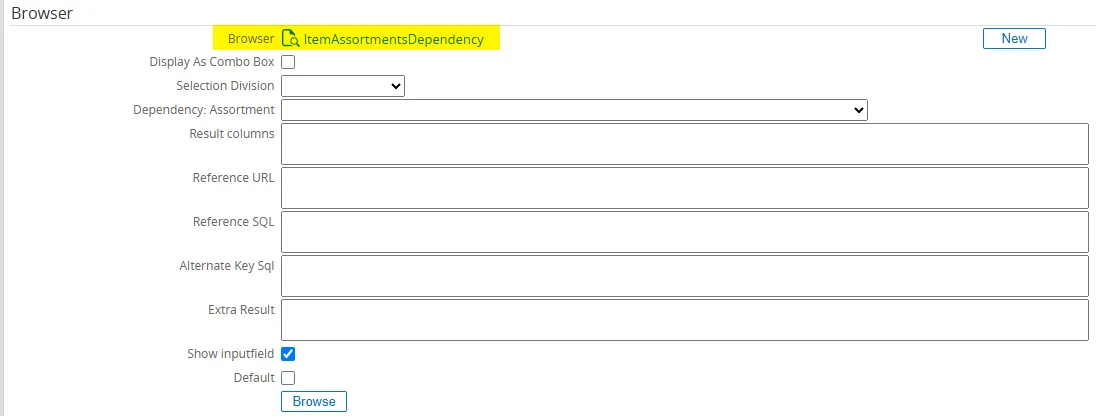
After you save the browser and open the Item request field, the Browser section will show a Dependency: Assortment field with a drop‑down list of available request fields. Select Free number field 1 (labeled “Assortment” in this example).
Reference Fields
Section titled “Reference Fields”The Reference Field feature shows additional data based on other fields in the request. It can be used without a browser, but it is often used together with a browser to show additional information based on the selected value.
For example, it can be used to show address data, phone numbers, email addresses, or other related information based on the selected value in the browser.
The Reference Field uses an SQL query to retrieve the additional information, and the query can use parameters based on other request fields.
When adding a new request Text field, the Reference Field section is available.
The available fields are:
| Field | Description |
|---|---|
| Dependency | The field on which the reference depends. |
| Column name | The column or SQL expression used to retrieve the data to be displayed in the request form. |
| Join table | The table to join when the data to be displayed is not available in the dependency table but is available in a related table. |
| Join clause | The join clause for the join table. |
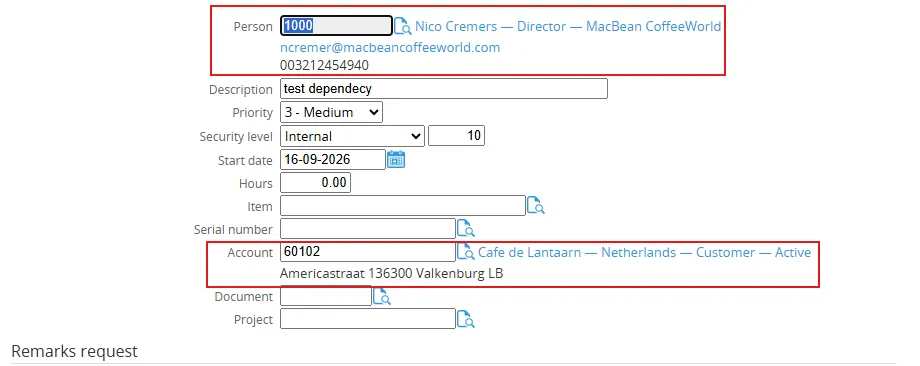
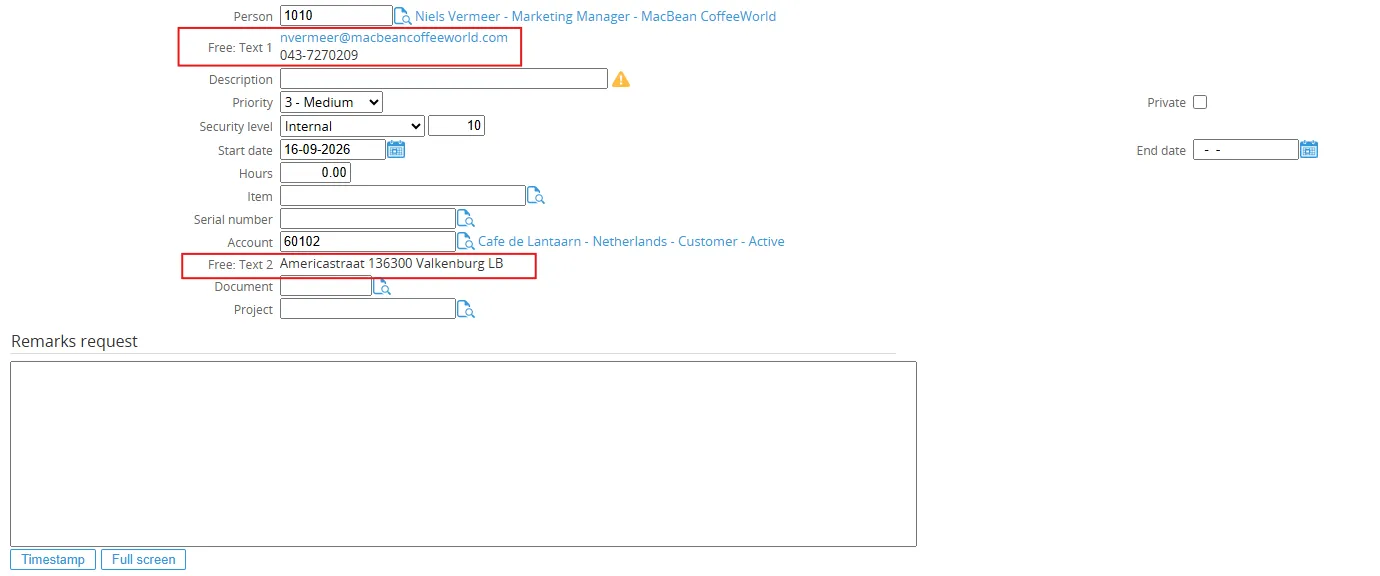
Example 1 – Email and phone number of a person

Mail and telnr_prv are columns in the humres table for the email address and phone number.
By separating them with + char(13) +, the phone number is displayed below the email address.
The Column name is:
mail + char(13) + telnr_prvAnd this is how it looks in the request form:
Example 2 – Address details for the parent account

Not every account has a parent account.
The Column name is:
ISNULL(c2.cmp_fadd1,'') + char(13) +ISNULL(c2.cmp_fadd2,'') + char(13) +ISNULL(c2.cmp_fadd3,'') + char(13) +ISNULL(c2.cmp_fpc,'') + ' ' +ISNULL(c2.cmp_fcity,'')Join table:
cicmpy c2
Join clause:
c2.cmp_wwn = cicmpy.cmp_parent
The ISNULL function is used in case one of the columns does not have a value, so the result does not return NULL.
And this is how it looks in the request form: