
AI Plus Agent
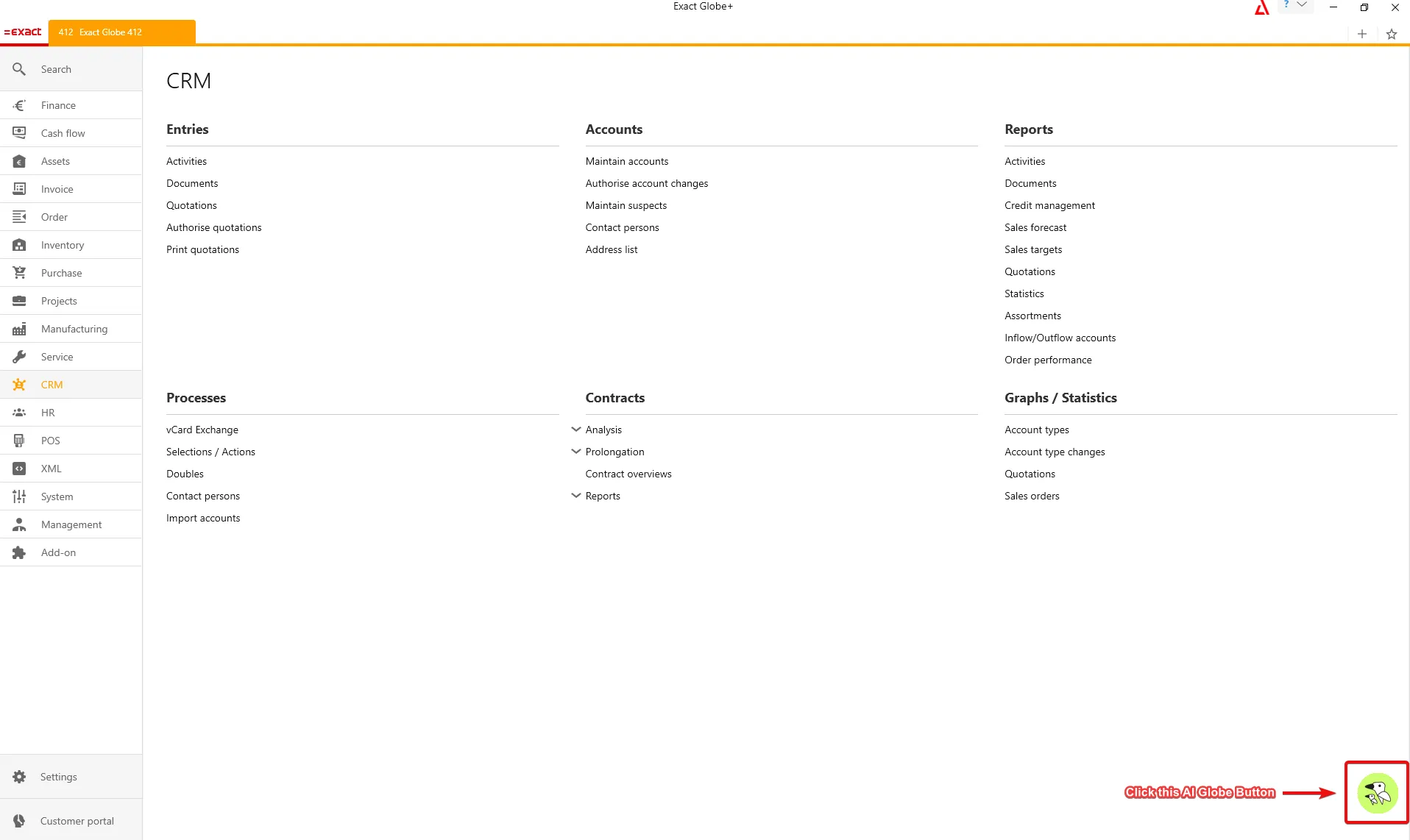
The AI Plus Agent is an AI assistant embedded directly in Exact Globe+. It appears as a floating chat button beside your Globe+ window, allowing you to interact with it using plain, everyday language no special syntax is required. Simply describe what you need. The Agent is context-aware. It understands the company you are working in, the Globe+ screen or record you have open, and the actions you are permitted to perform. It uses this context to provide relevant answers and assist you with tasks based on your current Globe+ environment.
Install AI Plus Agent
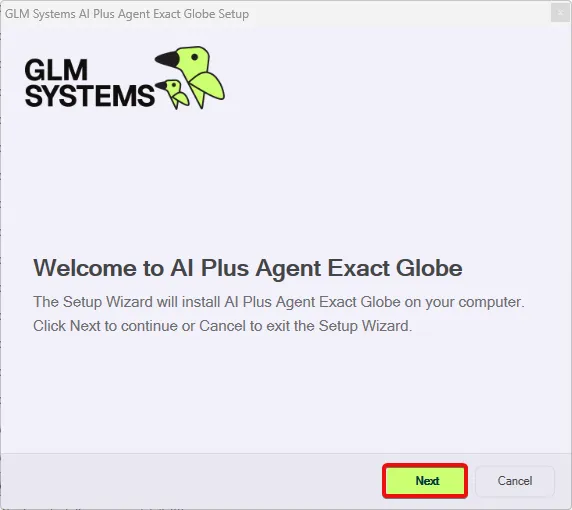
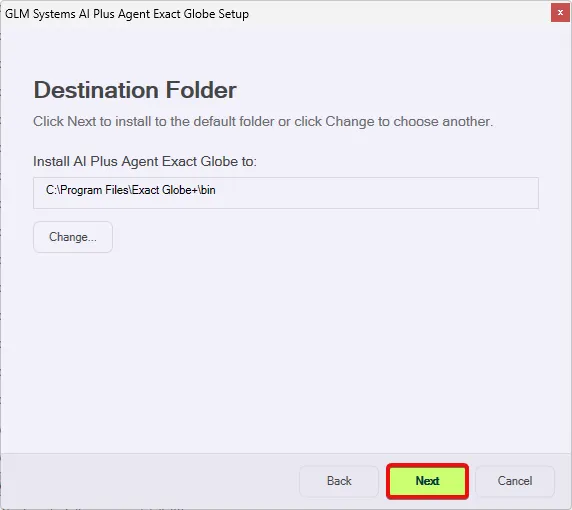
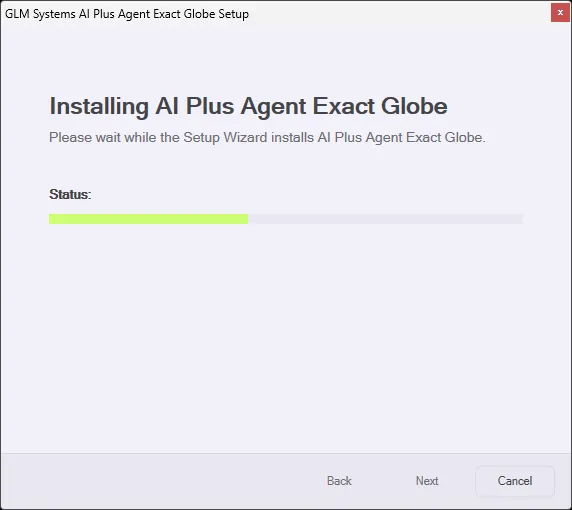
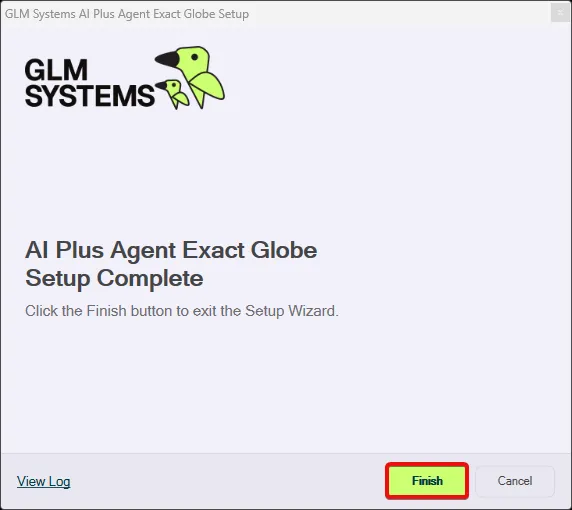
Section titled “Install AI Plus Agent”Open the GLMSys.AIPlus.Agent.ExactGlobe installer by double‑clicking it.

New Chat
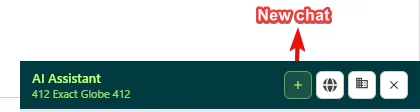
Section titled “New Chat”Click the New Chat button to clear the chat when you want to change the topic from what you asked in the prompt.
Settings
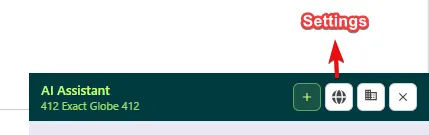
Section titled “Settings”The Settings menu allows you to configure and customize the AI Plus Agent.
Display
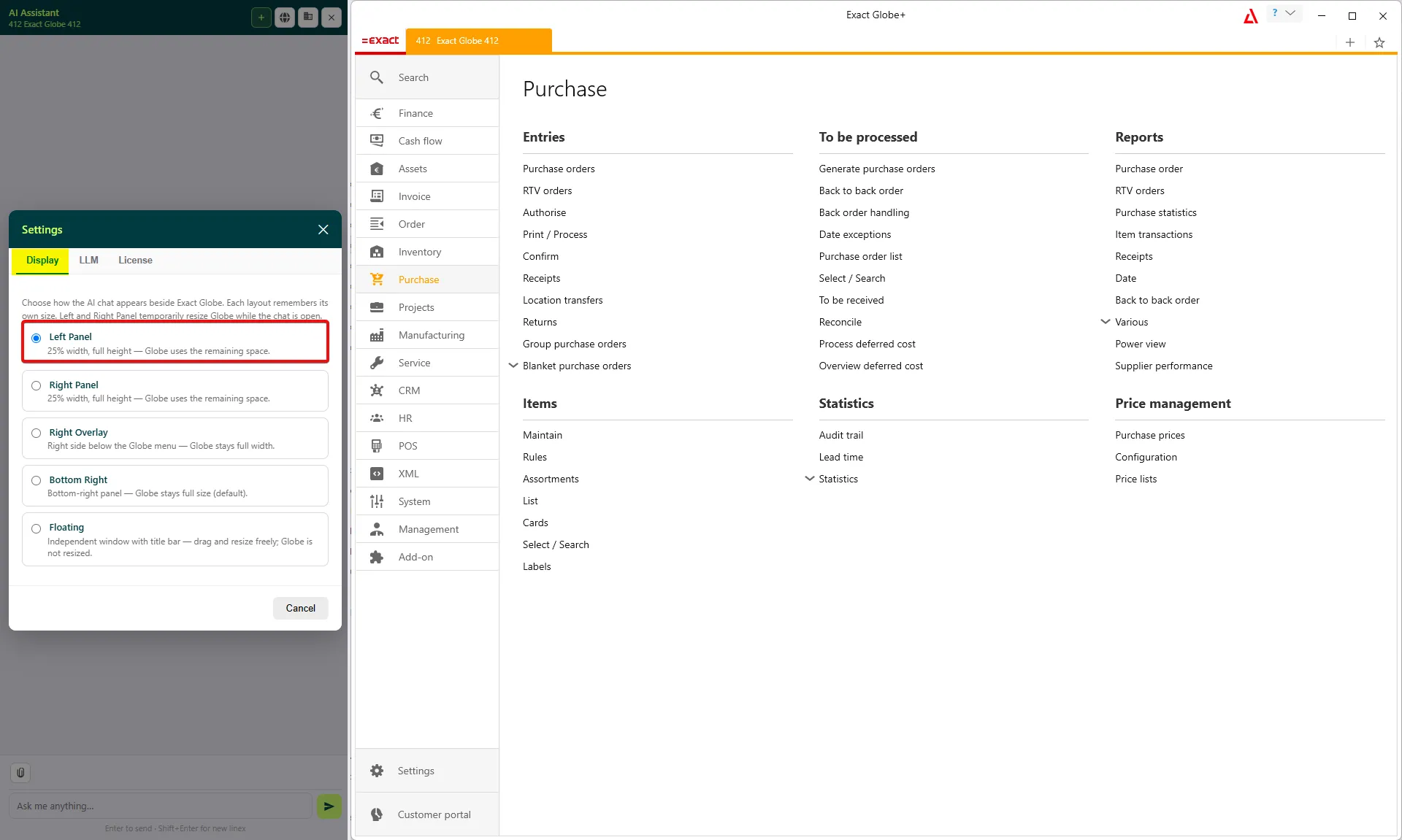
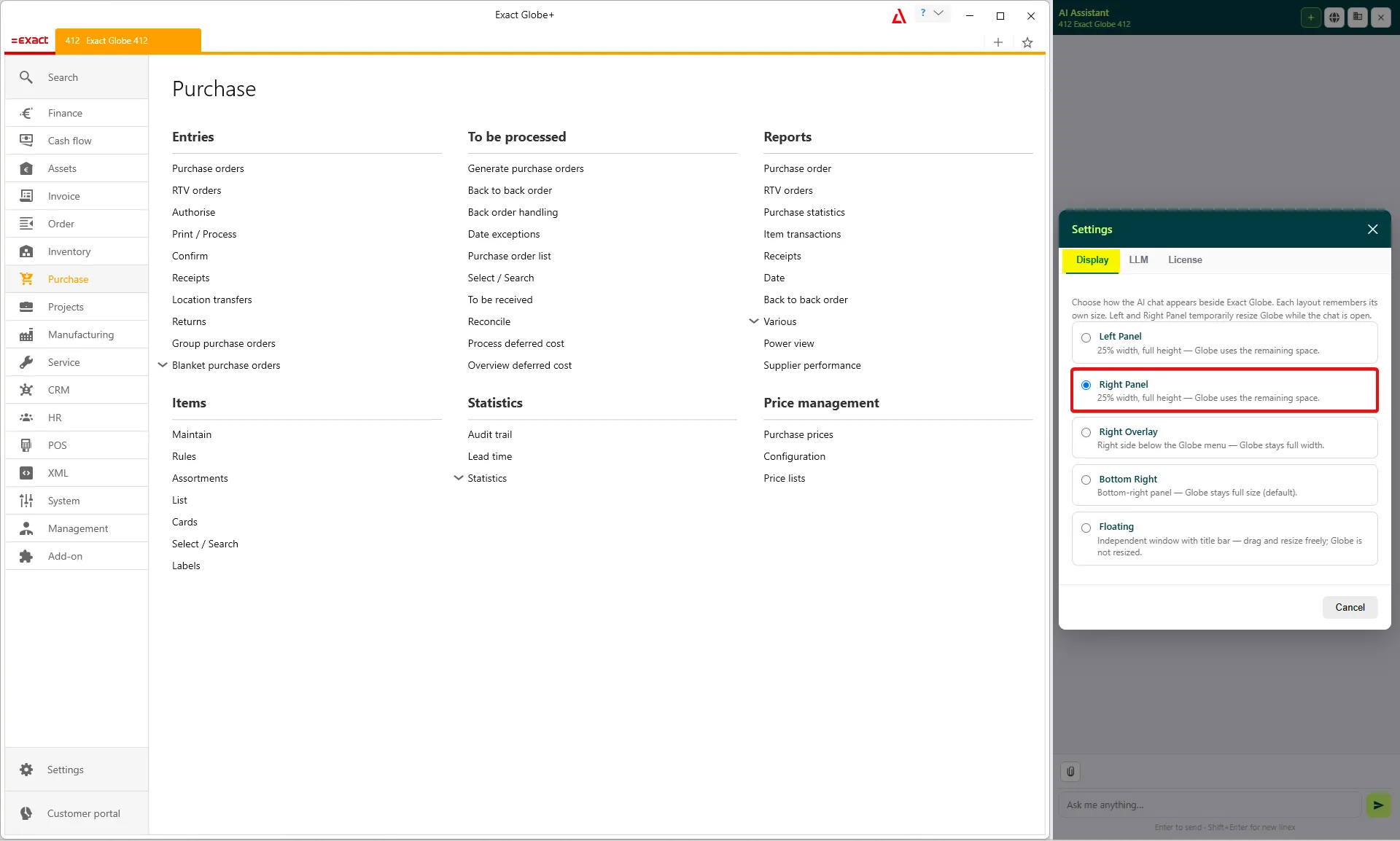
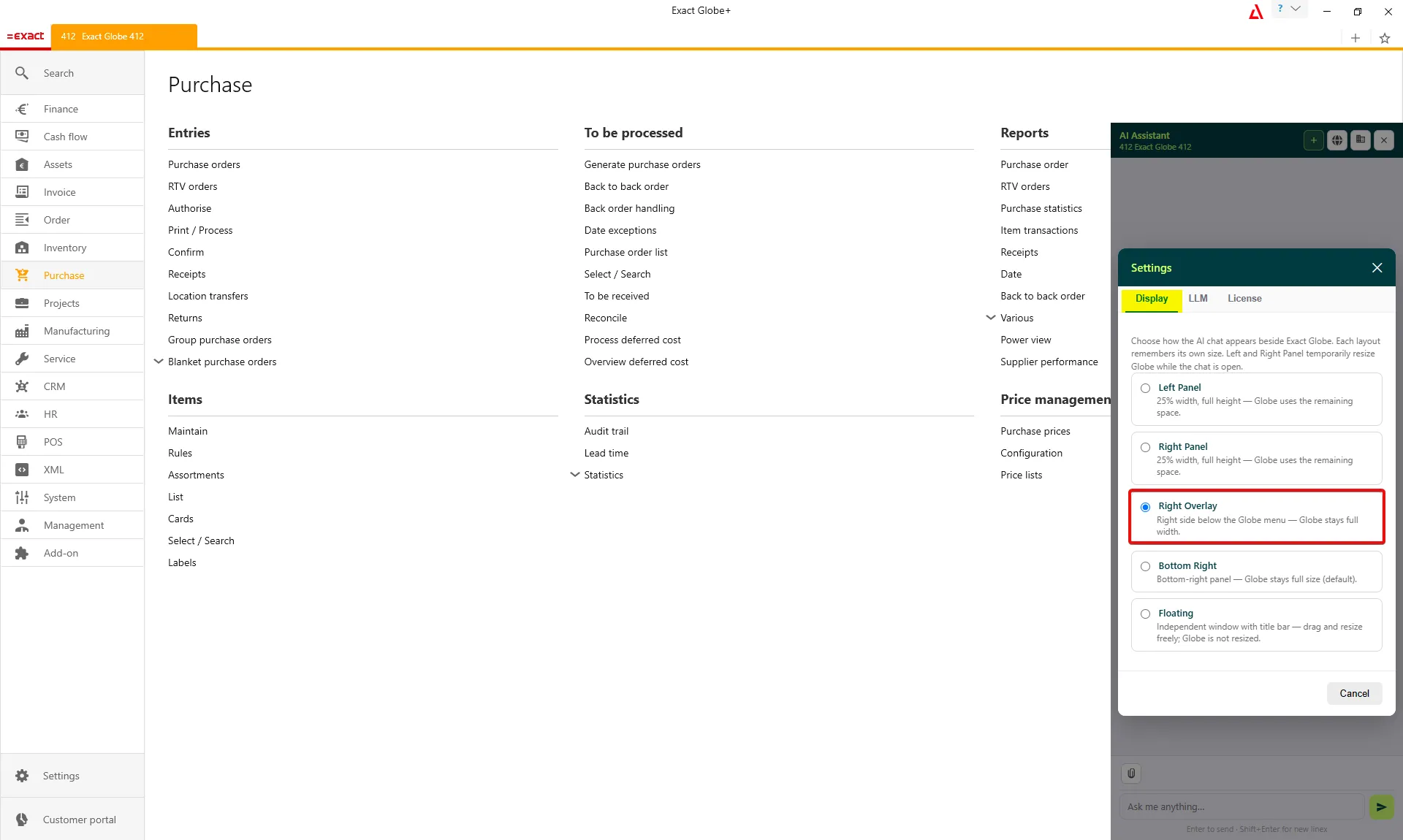
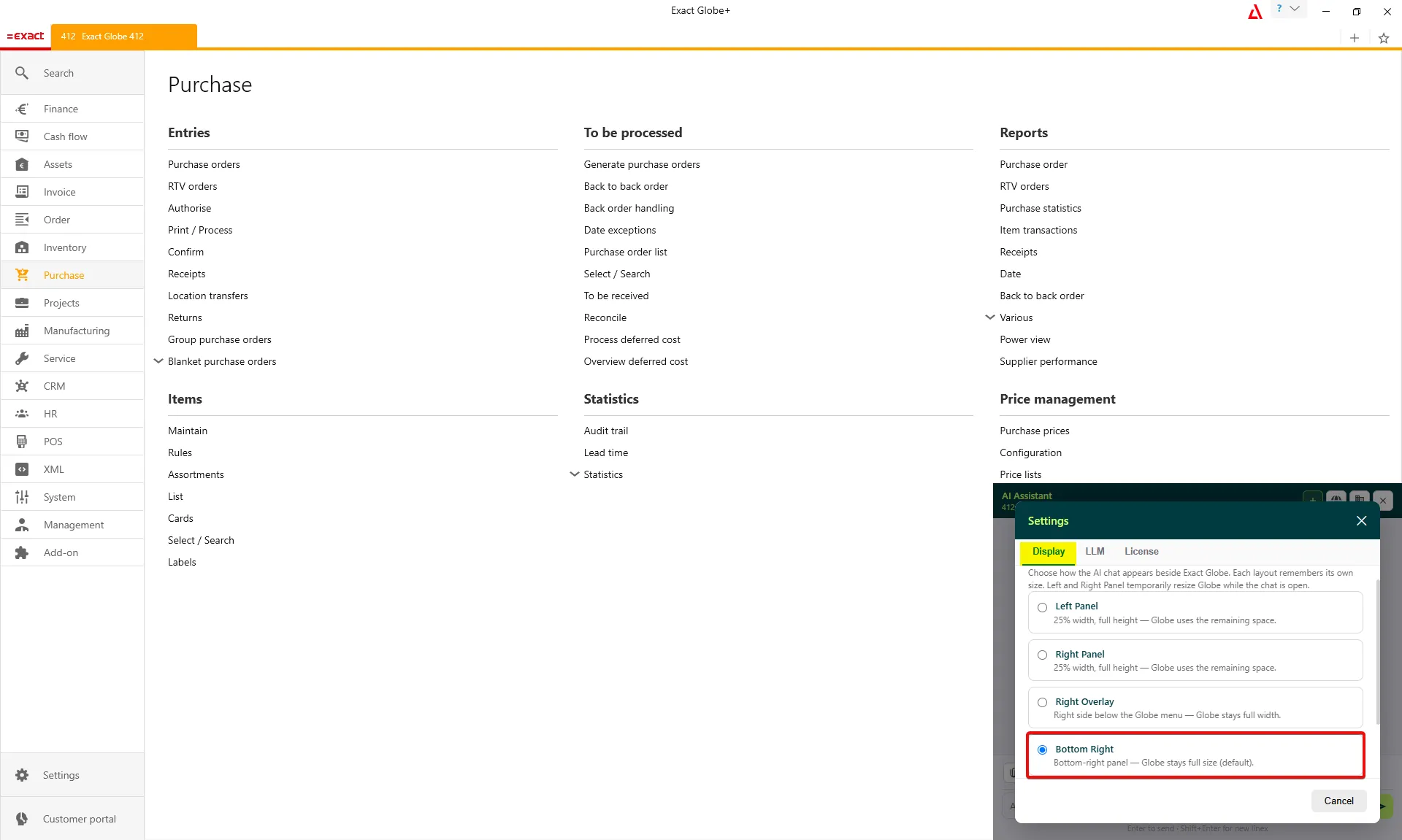
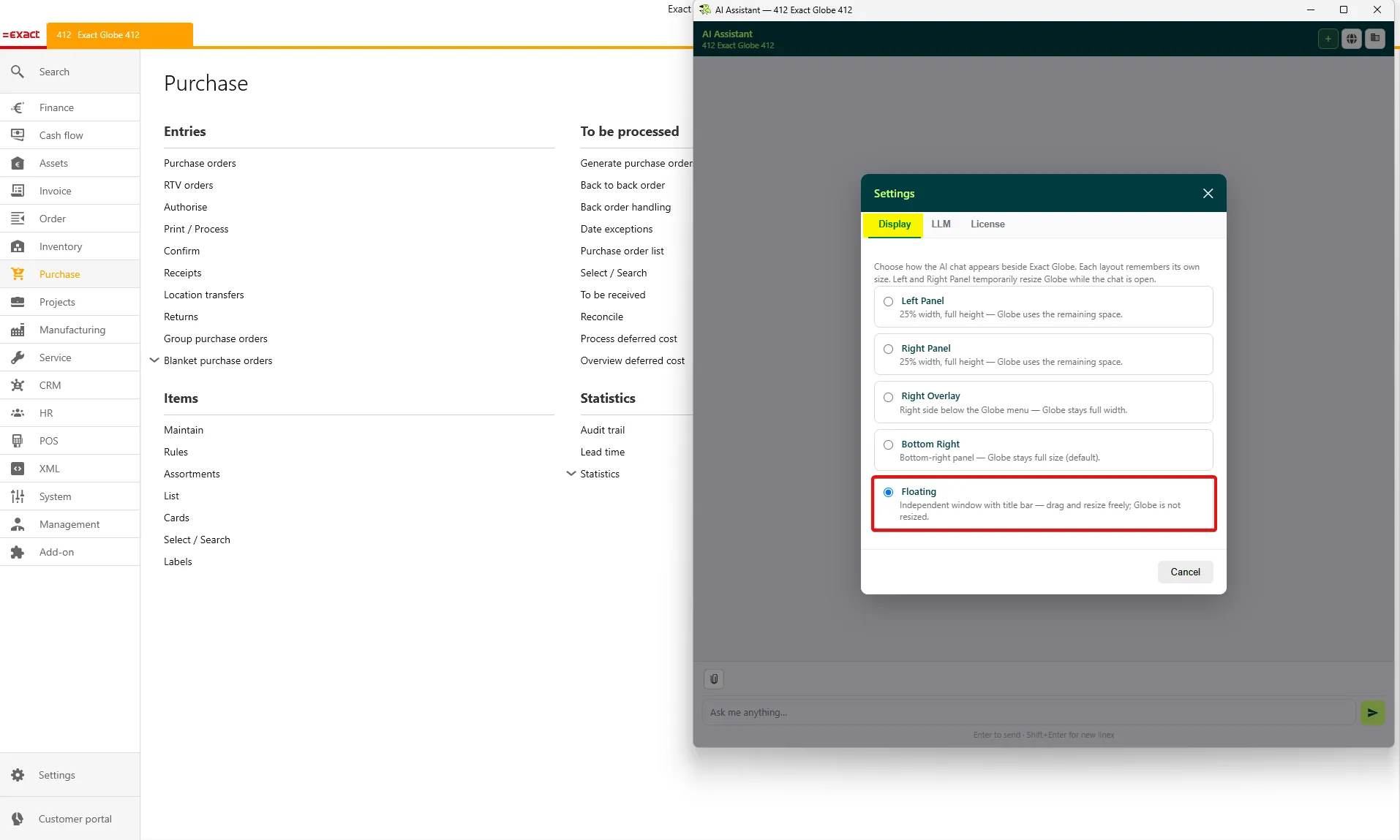
Section titled “Display”Customize the AI Plus Agent’s position in the Display section of Settings. Your selected layout is automatically saved and applied to future sessions.
Left Panel: Displays the AI Plus Agent on the left side of Exact Globe at 25% width and full height, while Globe uses the remaining space.
LLM (Large Language Model)
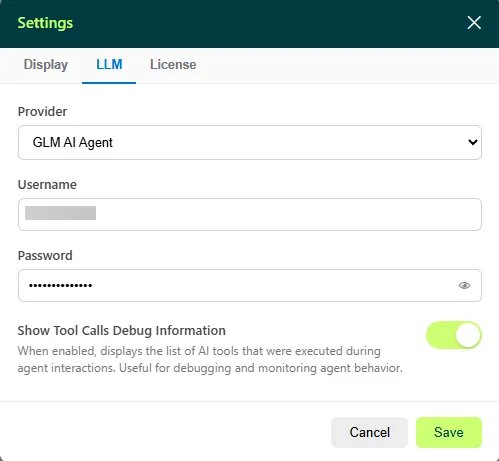
Section titled “LLM (Large Language Model)”To use the Flippy Agent, configure the LLM settings by going to Settings > LLM and entering the username and password provided by GLM Systems.
After entering your credentials, upload the license file provided by GLM Systems to activate the AI Plus Agent.
Enable the Show Tool Calls Debug Information option to display debug information for each tool call in the chat. This is useful for debugging and monitoring agent behavior. Click Save to apply the changes.
License
Section titled “License”Before using the AI Plus Agent, you must first upload the license file in XML format.
Open Settings > License and click the Upload button.
After uploading the license, check the following status:
Current user has role 501: Yes
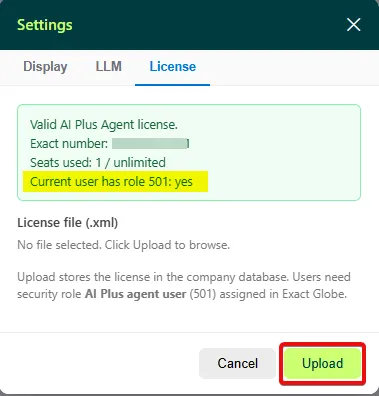
This status must be Yes for the AI Plus Agent to work correctly.
Select Company
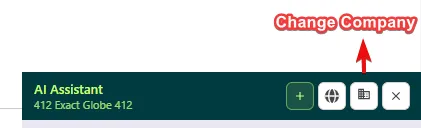
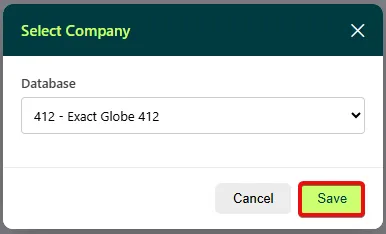
Section titled “Select Company”The agent uses the company currently selected in Globe+ for queries and other AI actions. To work with another company, switch to that company first. If there is only one company, the button will not be visible.
Open Settings > Change Company and select the company you want to work with.
Assign User Role
Section titled “Assign User Role”To add the required role:
In Globe+, go to System > HR & Security > People.
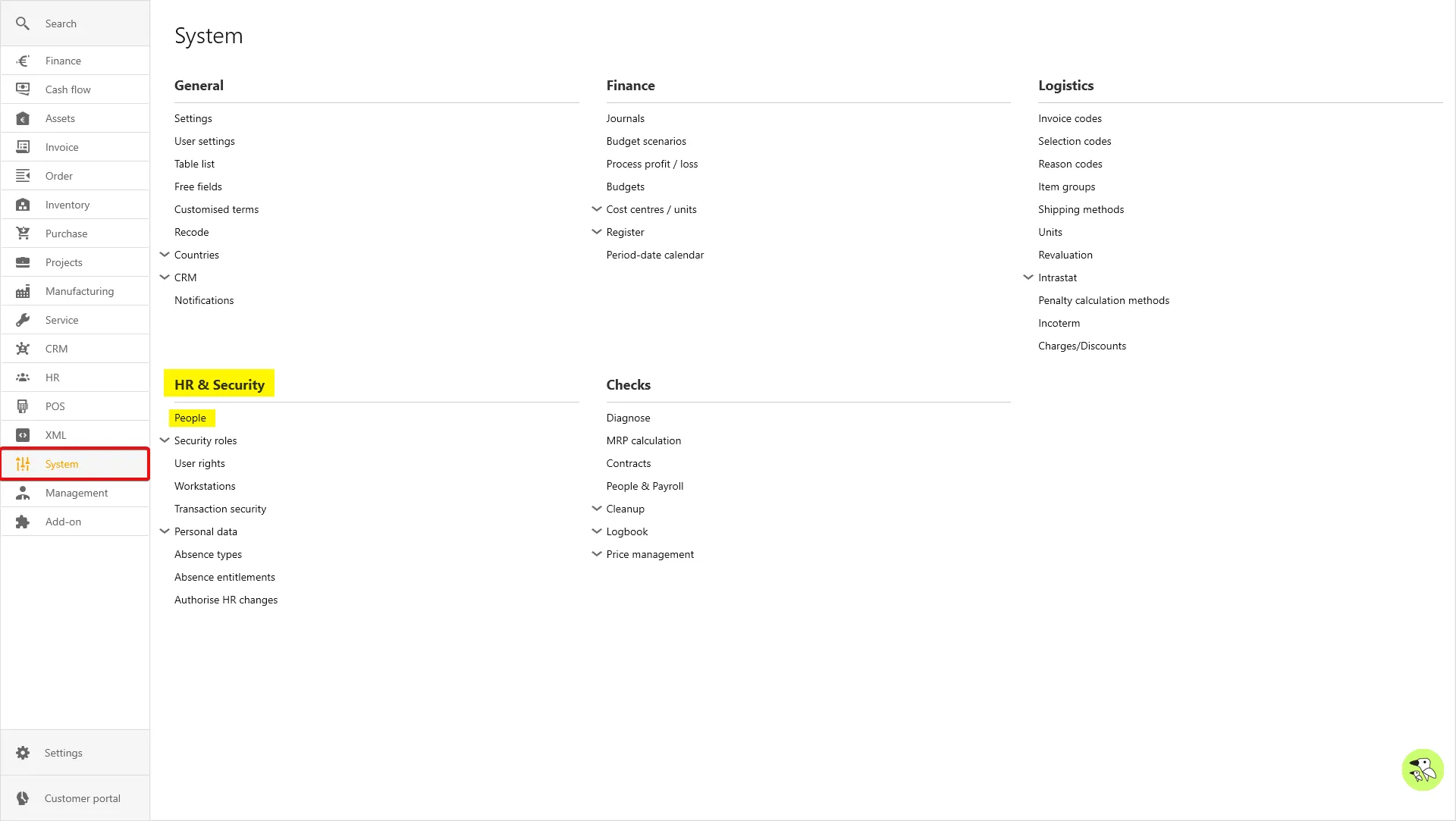
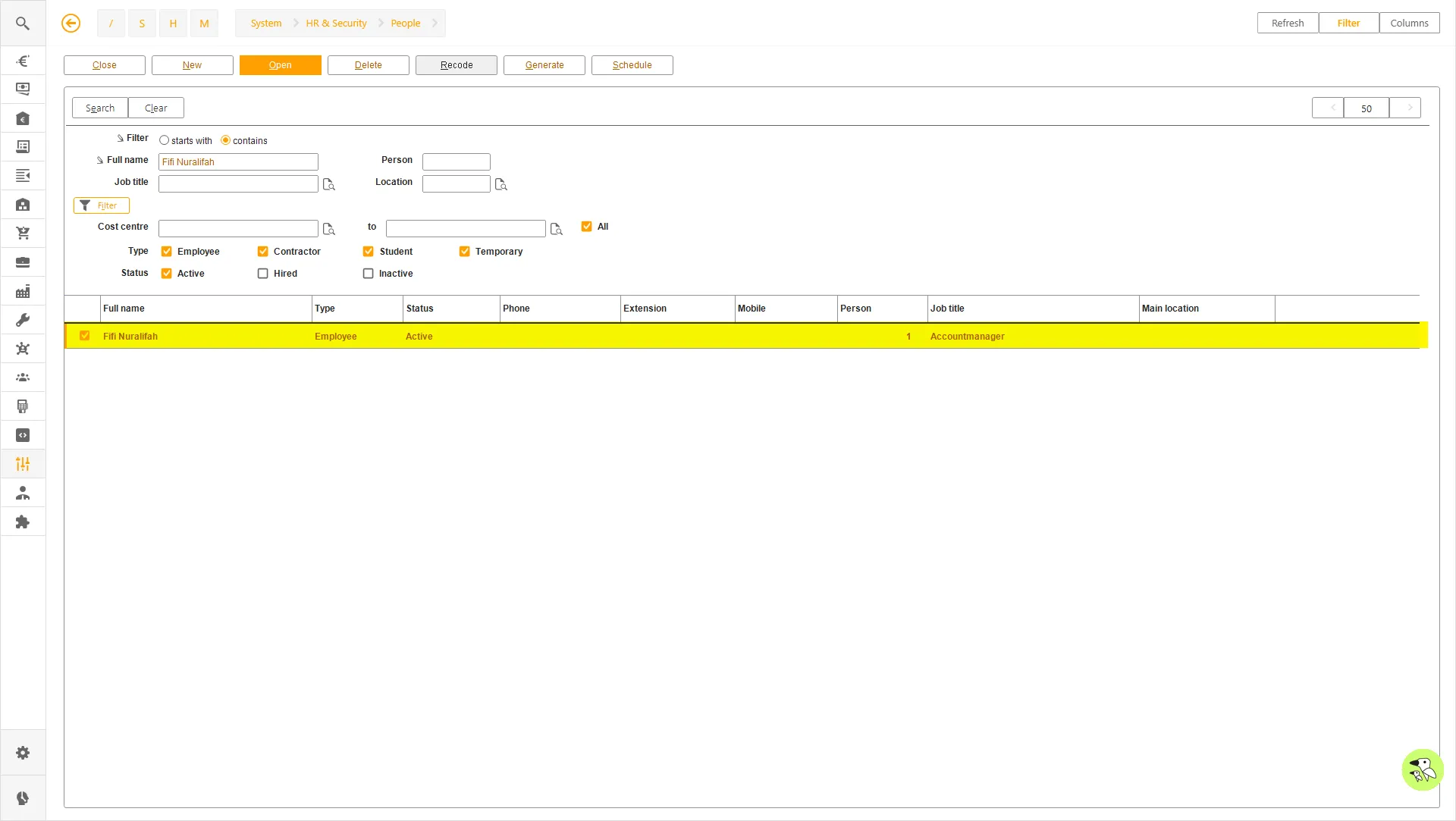
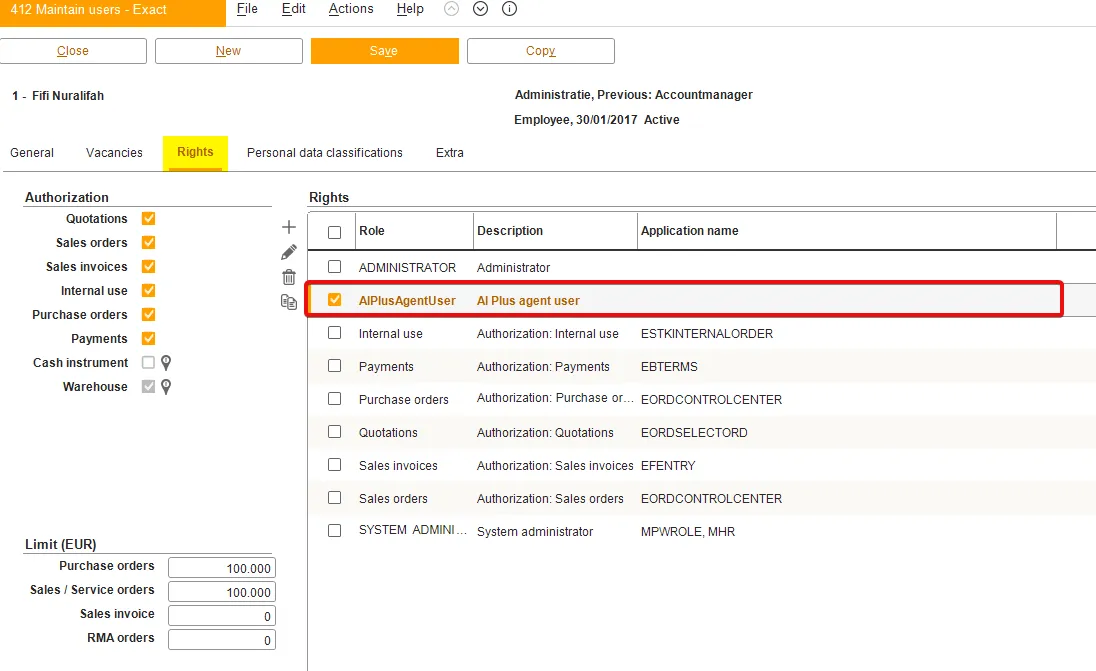
Current user has role 501: No will change to Current user has role 501: Yes in the License section of Settings.
Features & Example Prompts
Section titled “Features & Example Prompts”The AI Plus Agent provides a wide range of capabilities to assist you with your Globe+ tasks.
Security & Permissions
Section titled “Security & Permissions”The AI Plus Agent respects your existing Exact Globe function rights at all times. It can only query, navigate, recode, or perform actions that you are already permitted to do in Globe itself.
If you try something you don’t have rights for, the agent will clearly explain why, it will never suggest a workaround.
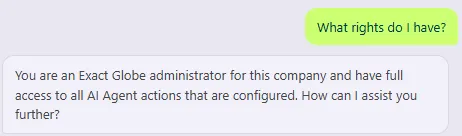
To see a readable summary of what you’re allowed to do, simply ask: “What rights do I have?”
Chat & Query
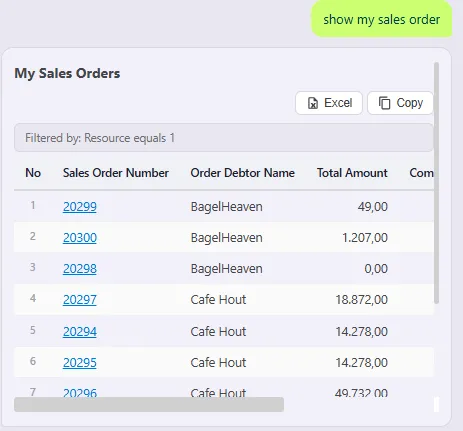
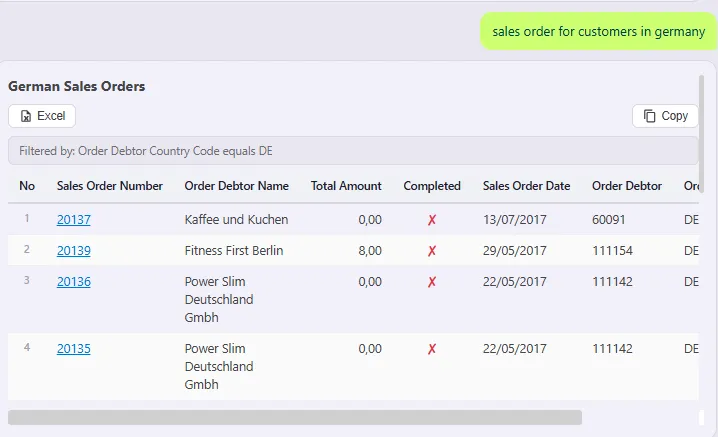
Section titled “Chat & Query”Ask the AI Plus Agent questions about your Globe+ data using natural language. The Agent retrieves the relevant data and displays the results directly in the chat, usually in an interactive table.
You can then continue the conversation to refine the results or request additional information.
For example, you can:
- Ask for specific data, such as sales orders, purchase orders, budgets, accounts, items, or invoices.
- Refine or modify the results using follow-up messages.
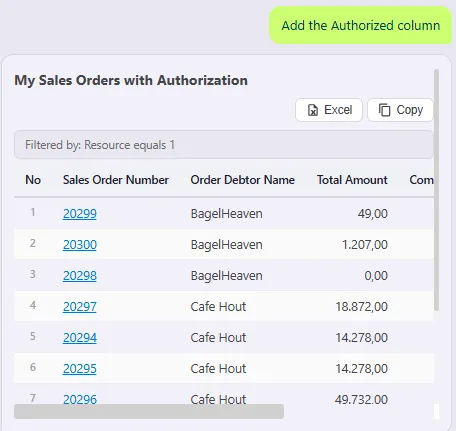
- Add or remove columns from the results table.
- Click a record link in the table to open the corresponding record directly in Globe+.
- Use phrases such as “my … orders” to automatically filter the results to the current user.
Try asking:
- Show my sales orders
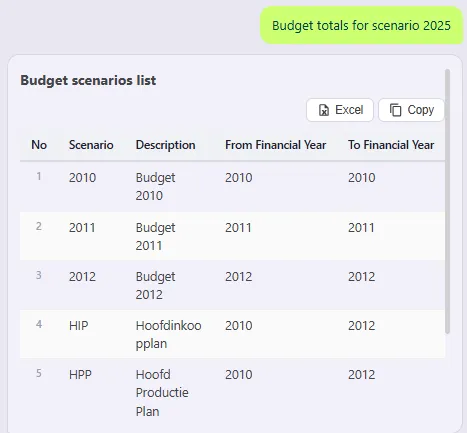
- Budget totals for scenario 2025
- Show sales order for customers in Germany
- Add the Authorized column
Stock & Inventory
Section titled “Stock & Inventory”Beyond simple lookups, the assistant offers dedicated stock tools:
| Capability | What it does |
|---|---|
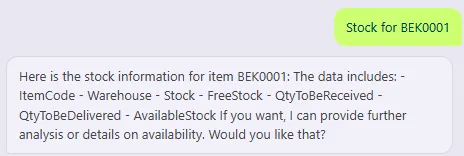
| Current stock | Shows levels and availability per item and warehouse |
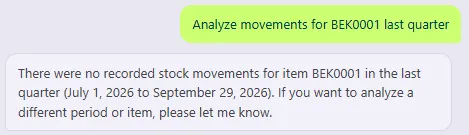
| Movement analysis | Explains why stock changed, shows trends, and highlights significant movements over a period |
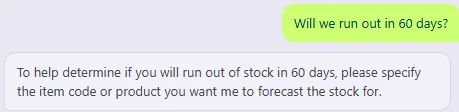
| Depletion forecast | Projects when an item may run out, with a risk indication and an optional chart view |
| Screen + stock | Combines the order currently on screen with a stock check |
Try asking:
- “Stock for BEK0001”
- “Analyze movements for BEK0001 last quarter”
- “Will we run out in 60 days?”
- “Do I have enough stock for this order?”
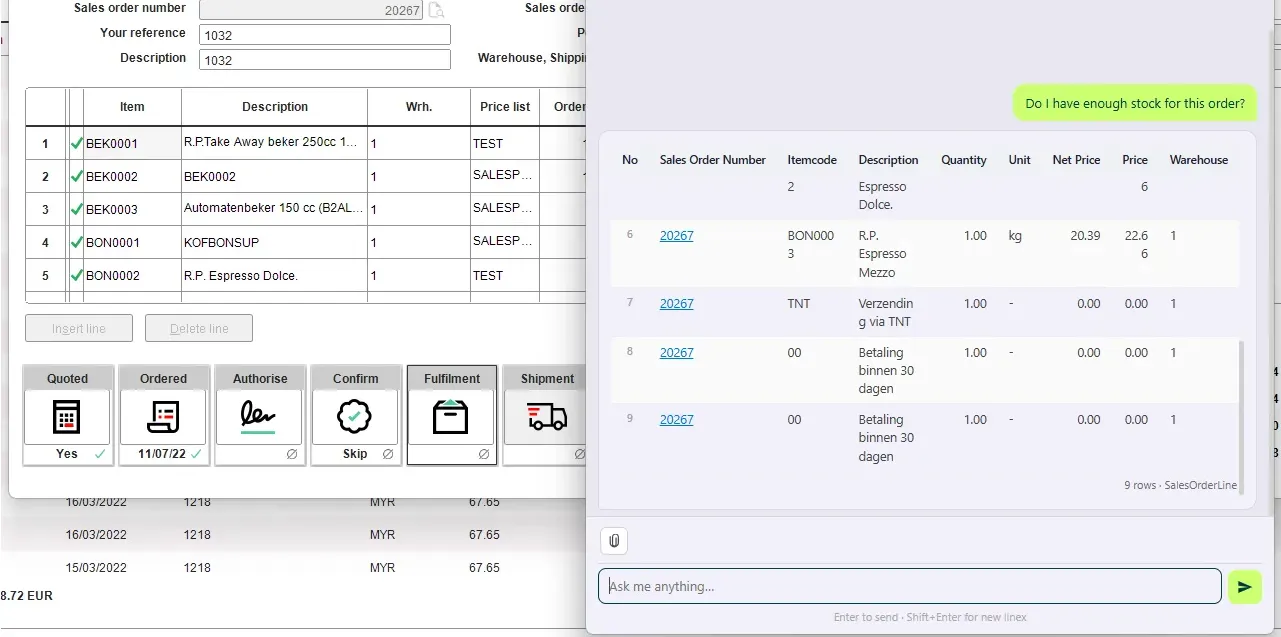
But for the question “Do I have enough stock for this order?”, you need to open a sales order or any related page first, because the tool calling uses the screen reader.
Navigation & Opening Records
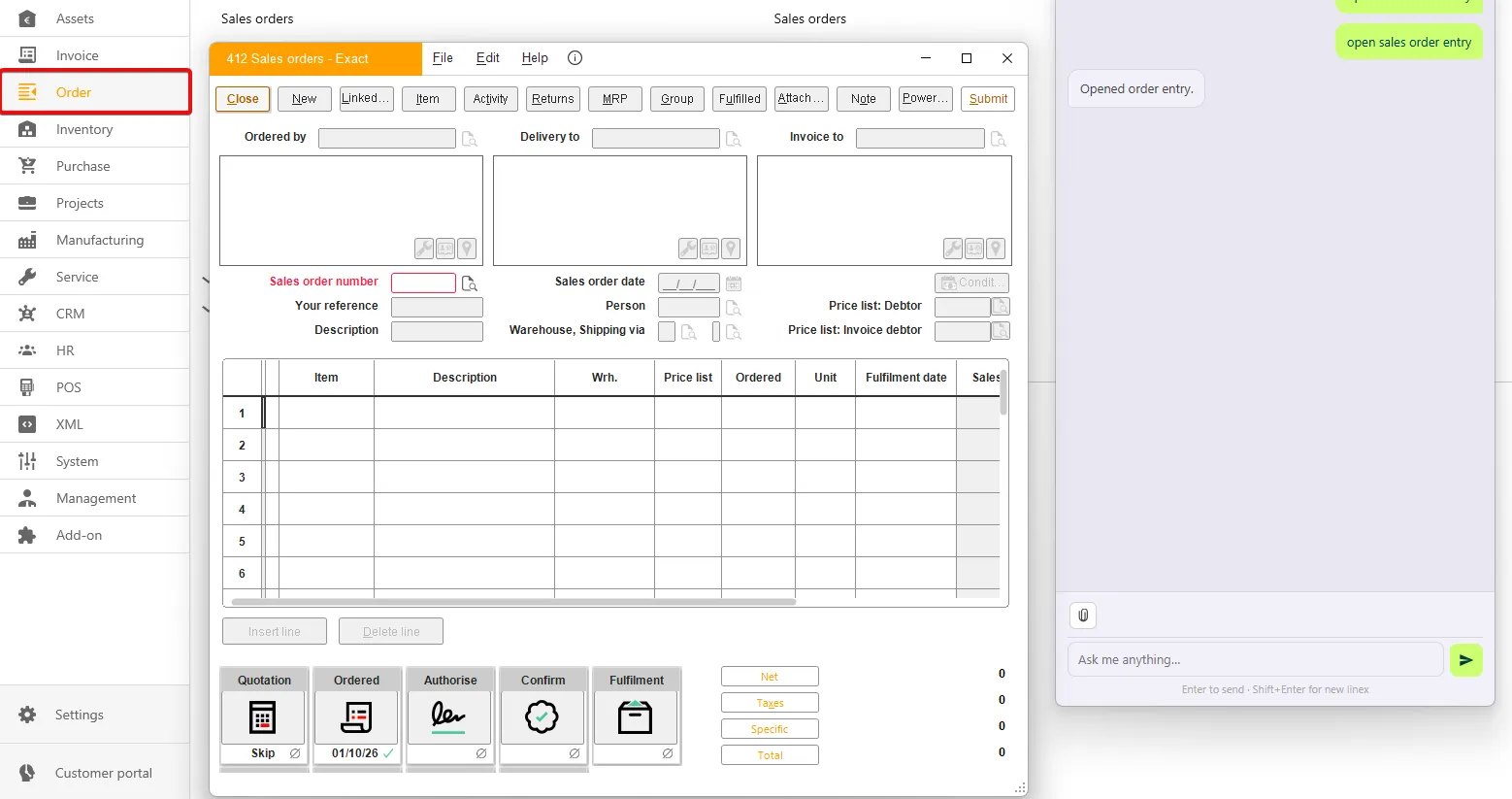
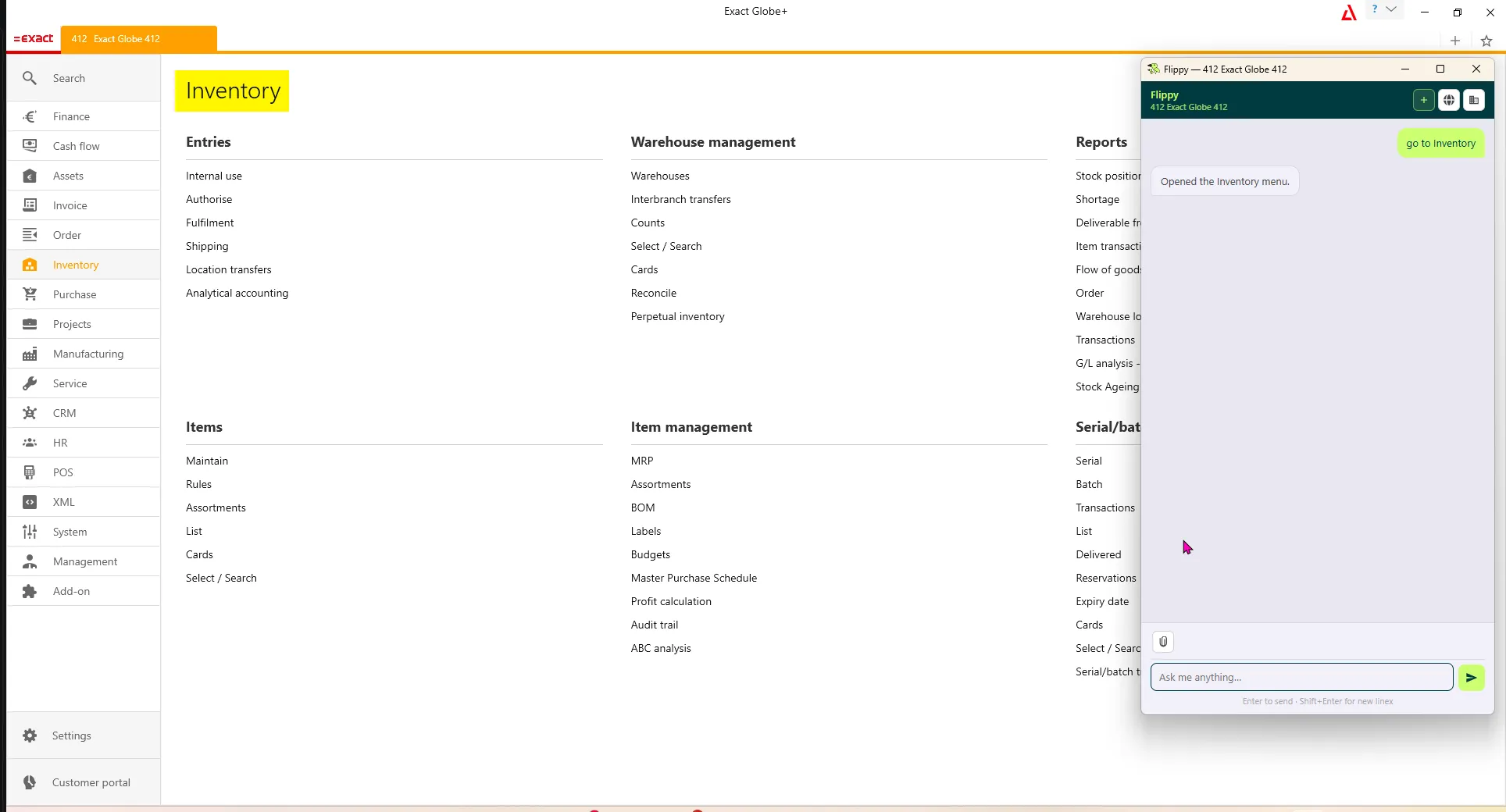
Section titled “Navigation & Opening Records”Skip manual clicking and ask the assistant to take you where you need to go.
Open main menus, e.g. “Go to Finance” or “Go to Inventory” (Dutch menu names are also supported).
Reading the Current Screen
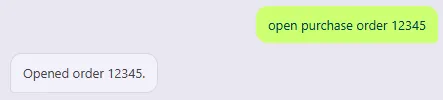
Section titled “Reading the Current Screen”Ask the assistant about whatever is on your screen right now.
Get a summary of, or ask questions about, the selected customer, order, item, or other on-screen data.
Sending Email
Section titled “Sending Email”You can send previously queried data directly by email using a follow-up prompt.
For example, you can ask: Send this to email <your email> with <subject>
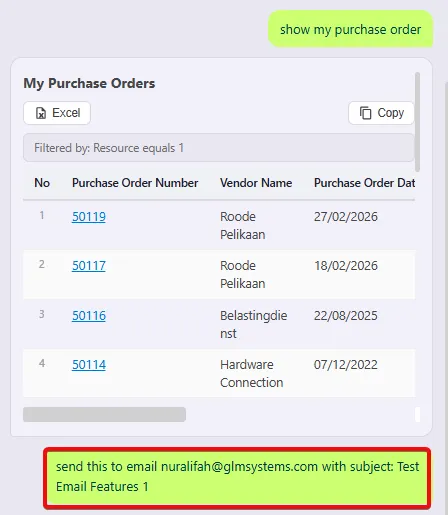
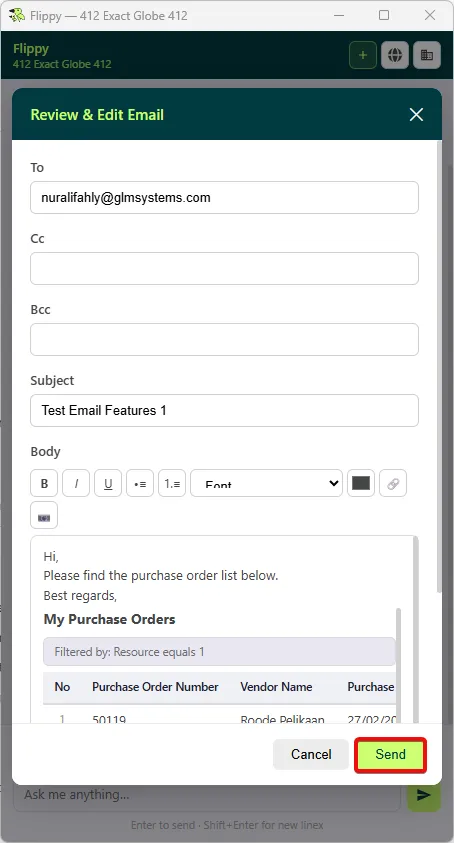
The AI Plus Agent then opens a Review & Edit Email tab where you can review the email before sending.
The email details are automatically prepared as follows:
- To Filled based on the email address specified in your prompt.
- Cc Filled if a CC recipient is specified in your prompt.
- Bcc Filled if a BCC recipient is specified in your prompt.
- Subject Filled based on the subject specified in your prompt.
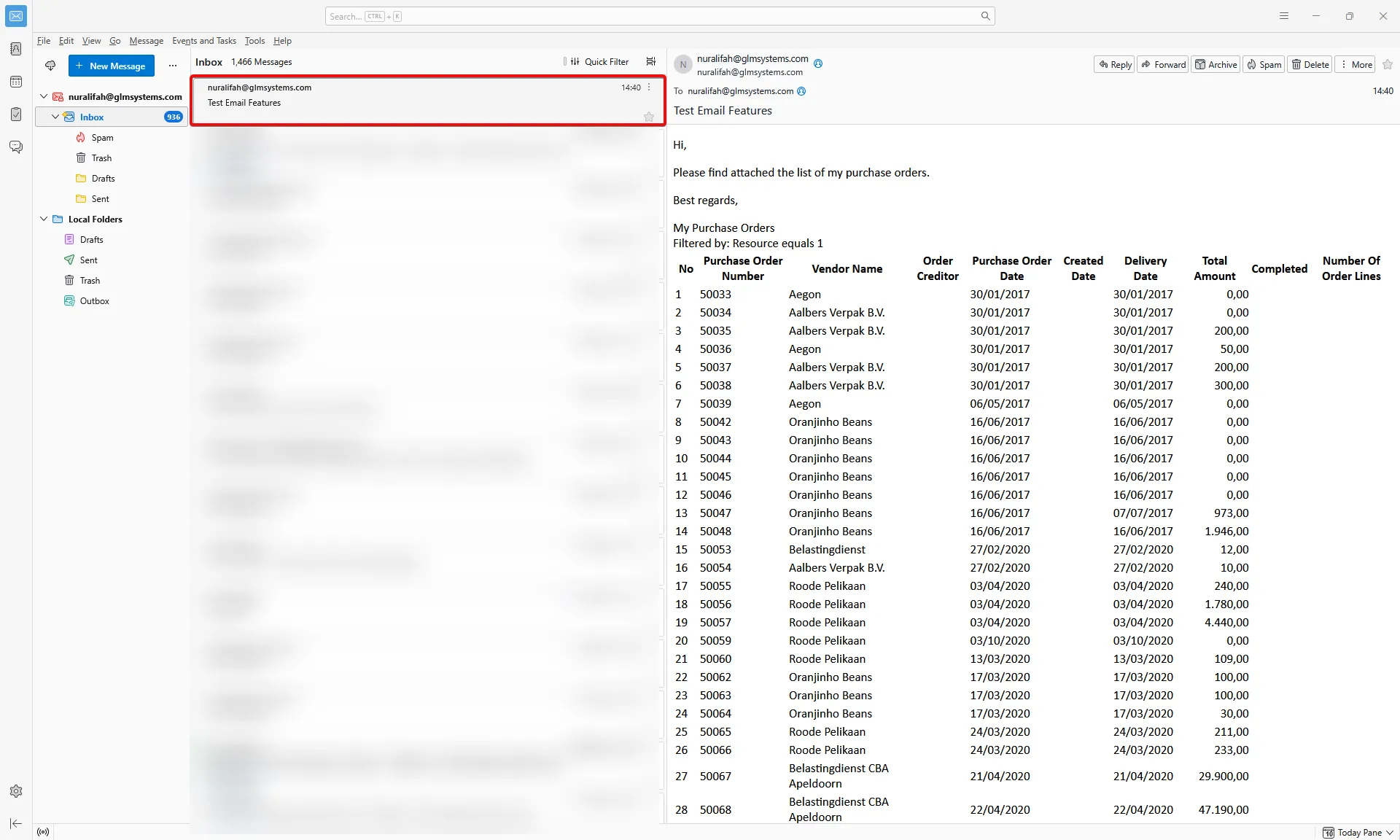
- Body Automatically generated based on the data being sent.
- Attachment The queried data is automatically attached based on the query and results.
Review and edit the email if needed, then click Send.
<your email>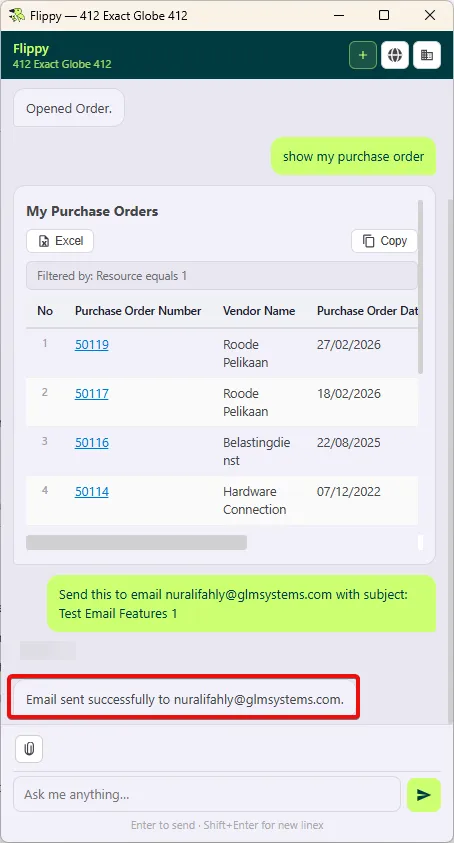
Recode
Section titled “Recode”Recode lets you rename master data codes across Globe+ as a controlled alternative to manual mass updates. It supports 15 topic types:
- Accounts
- Assets
- Cash instruments
- Cost centres
- Cost units
- General ledger
- Items
- Journals
- Projects
- People
- Selection codes
- Shipping methods
- GL categories
- Invoice codes
- Payment conditions
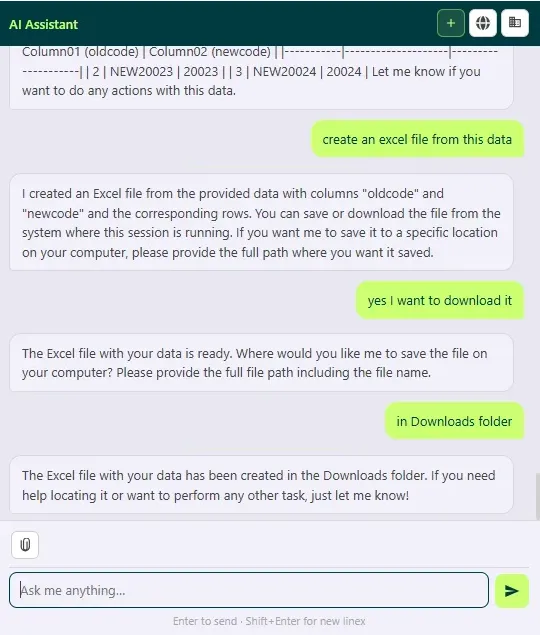
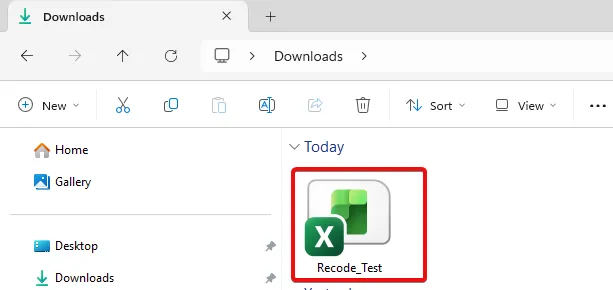
You can recode a single code or perform a bulk recode using an uploaded Excel file.
Excel Import & Export
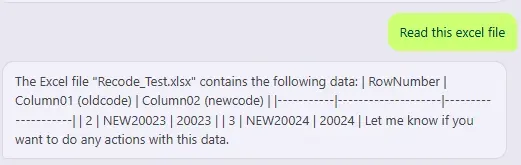
Section titled “Excel Import & Export”Read: Upload an .xlsx file and the assistant will extract its data useful for bulk recode jobs.
Web Search
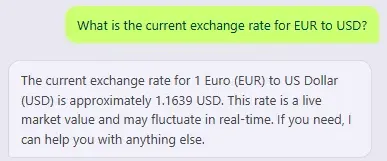
Section titled “Web Search”Need information outside of Exact Globe? The agent can search the web and combine the results with what’s on your current Globe screen. For example, you can ask about what is the current exchange rate, and the agent will provide a summary of the latest regulations.
Slash Commands
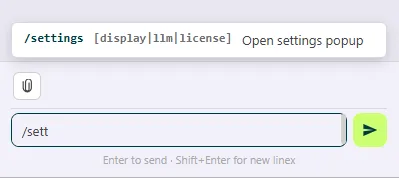
Section titled “Slash Commands”As you type in the chat, inline suggestions may appear for certain keywords. Just press / to see the available suggestions.
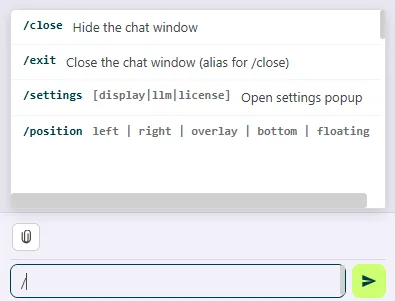
/sett and the Agent will suggest /settings along with the available submenus. Press Enter to accept the suggestion, or continue typing to ignore it.
When no data is found
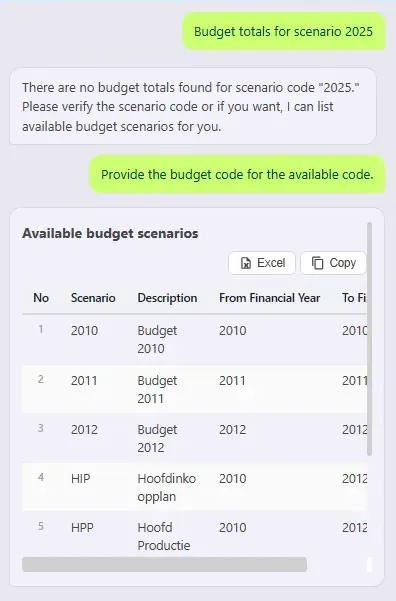
Section titled “When no data is found”If no matching data is found, the Agent can suggest available values for the requested field. You can use these values to refine your prompt. If the requested data cannot be found, the Agent can help identify the available values for the requested field.
For example, if you ask:
Show me the budget totals for scenario 2025.
and no budget data exists for scenario code 2025, the Agent may respond:
No budget totals were found for scenario code 2025. Would you like me to list the available budget scenarios?
If you confirm, the Agent can retrieve and display the available scenario codes, for example:
2010 - 2012
You can then use one of the available scenario codes in a new prompt:
Show me the budget totals for scenario 2012.
This helps you discover valid values and refine your request without having to know the available data beforehand.
Getting Help
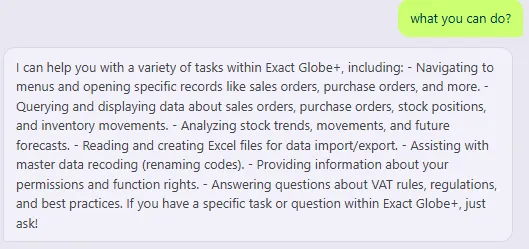
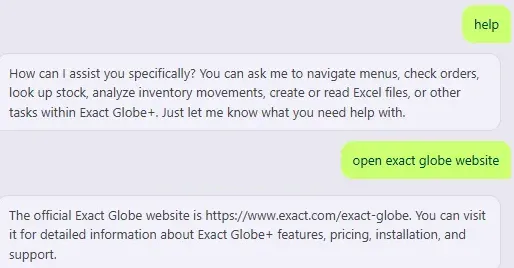
Section titled “Getting Help”Not sure what to ask, or how to phrase something? Ask the assistant directly:
“What you can do?” and it will show a list of supported capabilities and example phrases.
Quick Reference
Section titled “Quick Reference”| I want to… | Say something like… |
|---|---|
| See my sales orders | ”Show my open sales orders” |
| Check stock | ”Stock for BEK0001” |
| Go to a menu | ”Go to Inventory” |
| Summarize the current screen | ”Summarize this order” |
| Send a table by email | ”Email this list to John” |
| Rename a code | ”Recode item ABC to XYZ” |
| Import data | ”Read this Excel file” |
| Search the web | ”What are the latest VAT rules in the Netherlands?” |
| See my permissions | ”What rights do I have?” |
| Get help | ”What can you do?” |