
Document Plus - Free Fields
Overview
Section titled “Overview”The Free Fields (Additional) feature in the Document Plus module allows administrators to extend standard document types with custom fields. Free fields are configurable fields that can be added to document types. Depending on the selected field type, they can be displayed as text boxes, date pickers, Yes/No options, amount fields, number fields, GUID fields, or multiple-selection fields.
Available Free Fields
Section titled “Available Free Fields”The following free field are available in the system:
| Field Type | Free Fields | Version - Free Fields |
|---|---|---|
| Text | Text 1–5 | Text 1–5 |
| Date | Date 1–5 | Date 1–5 |
| Yes/No | Yes/No 1–5 | Yes/No 1–5 |
| Amount | Amount 1–5 | Amount 1–5 |
| Number | Number 1–5 | Number 1–5 |
| GUIDS | GUIDS 1–5 | GUIDS 1–5 |
| Multiple Selection | Items, Accounts, Projects | Projects |
Configuring Free Fields
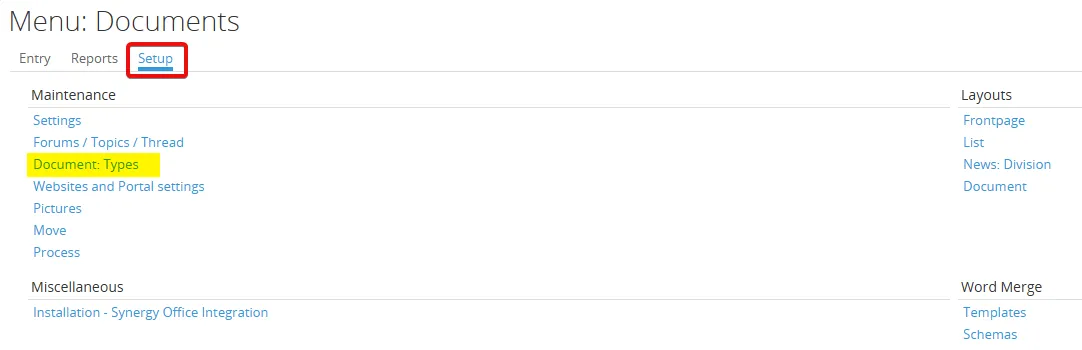
Section titled “Configuring Free Fields”- Go to Modules > Documents > Setup > Maintenance > Document Types.
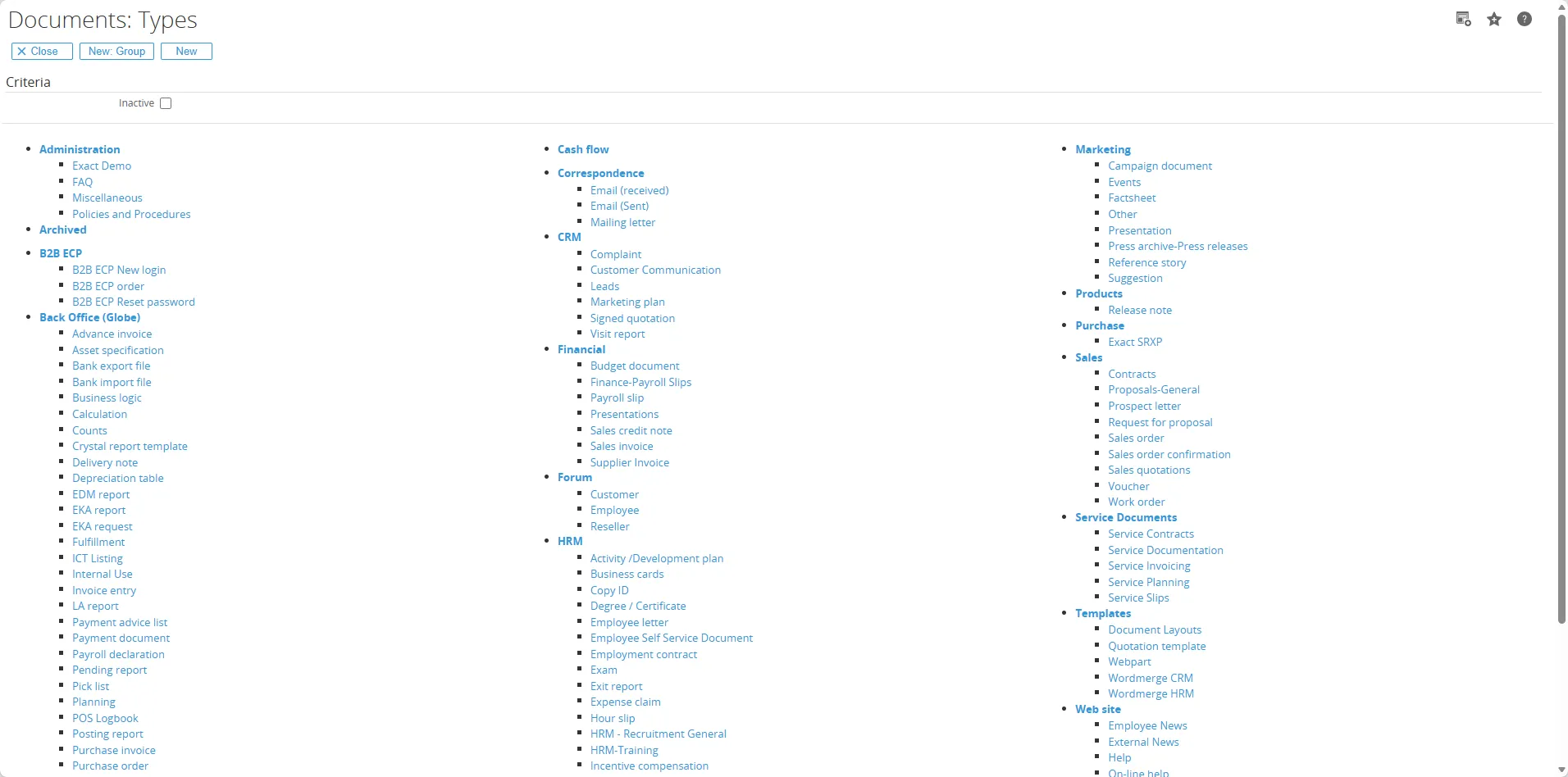
- Select the document type you want to configure (for example, Sales quotations).
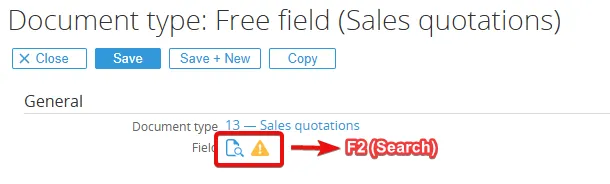
- Open the Free fields section and click Add to assign a free field to the document type.

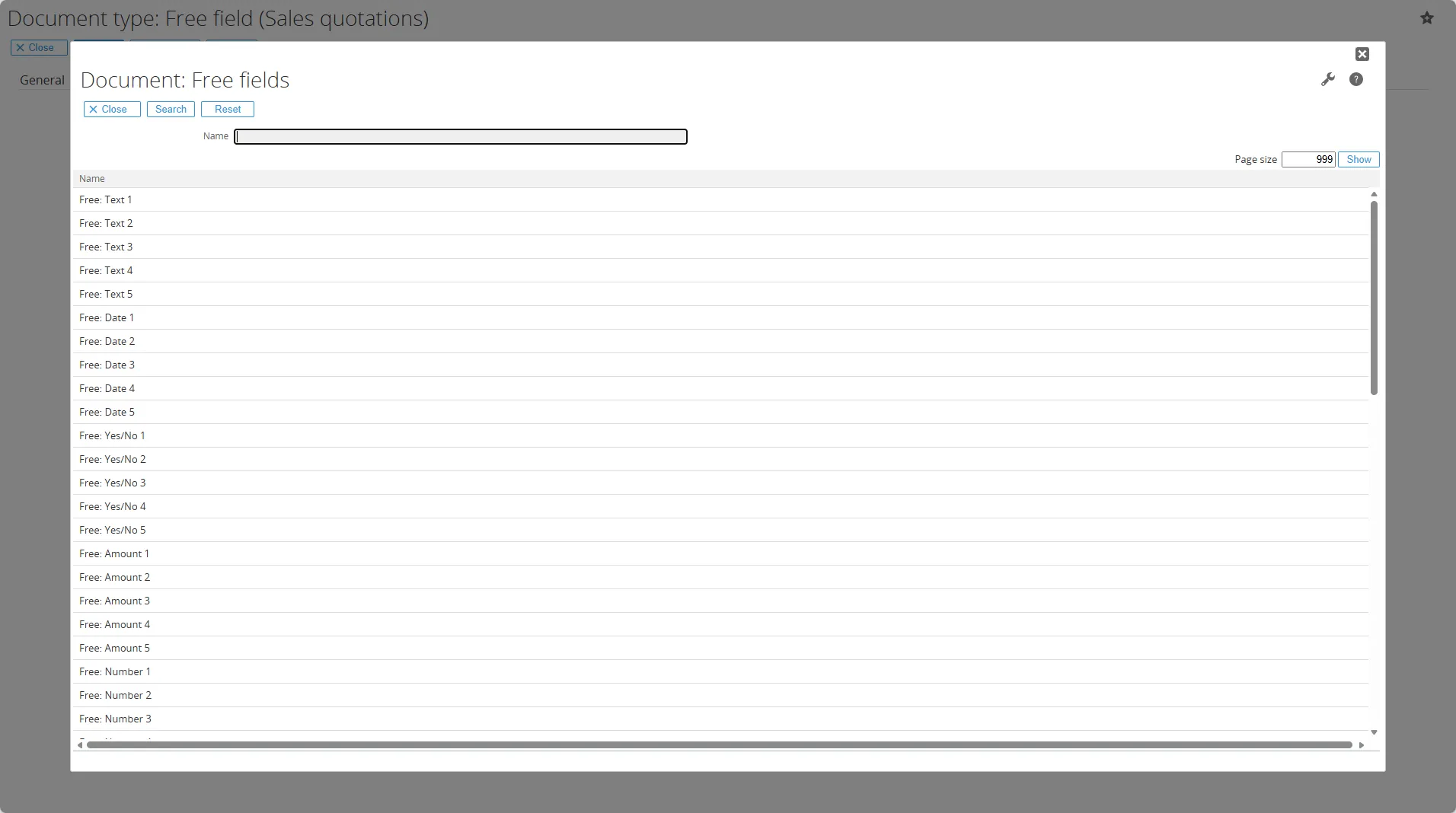
- Press F2 (Search) to open the list of available free fields and select the one you want to use.
Using Free Fields
Section titled “Using Free Fields”When you create a document using the configured document type, the assigned free fields are available in the Document Information section. Depending on the configuration, free fields can also be added to document lines. Multiple-selection fields allow users to select one or more items, accounts, or projects from the available list.
Free Field Types
Section titled “Free Field Types”Free: Text
Section titled “Free: Text”Use this free field type to store plain text information such as names, descriptions, or notes.
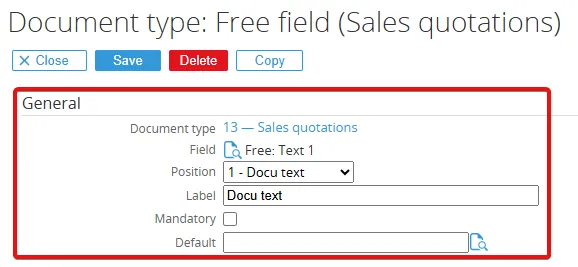
- Choose Free: Text as the field type. Optionally, you can link the Browser by selecting the view in Browser search, choose Reference, and enter the selection (you can also link the view in the other field that provide this service). To make the field a drop-down, select “Display as combo box.” You can also rename the label and change its position, and then click the Save button.
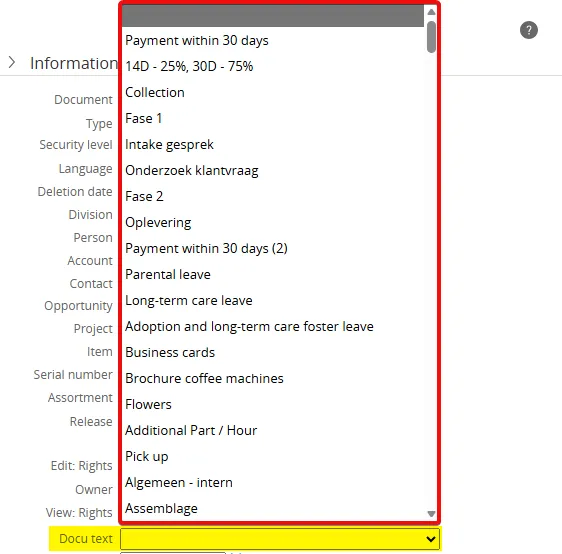
- You can now see the text field appearing in the Document Information and you will see the text field will display drop down and it will link to the item list.
Free: Date
Section titled “Free: Date”Use this free field type to capture date values such as order dates.
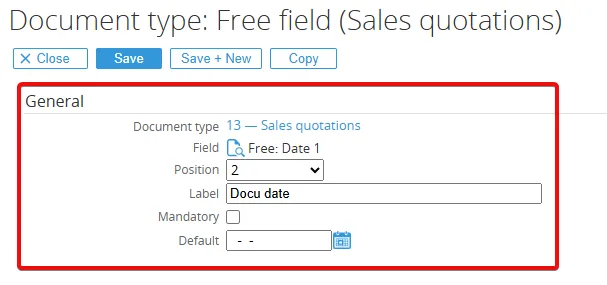
- Choose Free: Date as the free field. Optionally, rename the label, change the position then click the Save button.
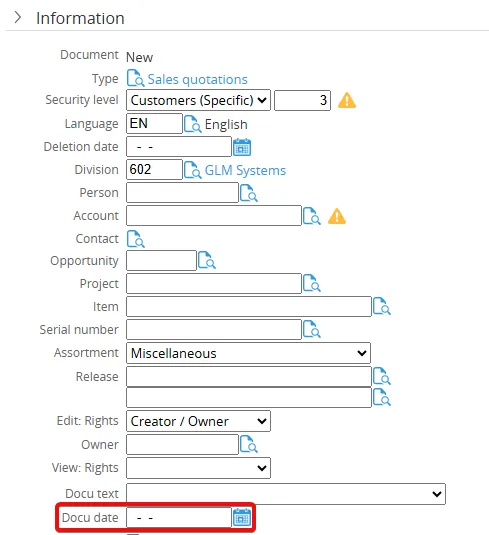
- And now you can see the date field is appear in the Document Information.
Free: Yes/No
Section titled “Free: Yes/No”Use this free field type if you want to store boolean values for simple yes or no decisions.
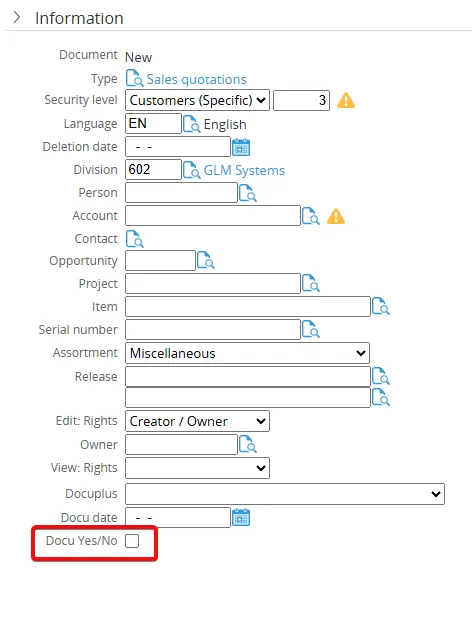
- Choose Free: Yes/No as the free field. Optionally, rename the label, change the position then click the Save button.
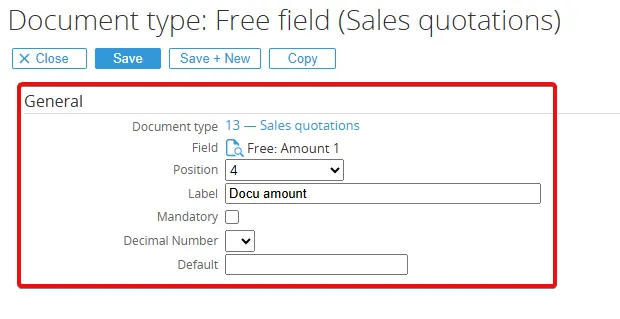
- The date field is now displayed in the Document Information section.
Free: Amount
Section titled “Free: Amount”Use this free fields type if you want to store monetary values like prices, totals, discounts or taxes.
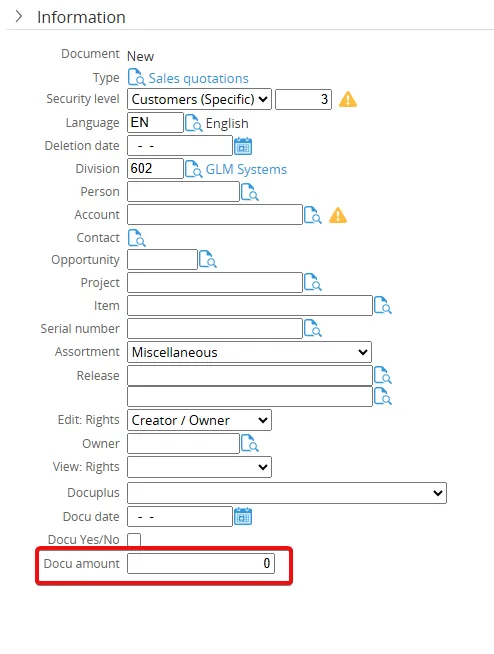
- Choose Free: Amount as the free field, optionally rename the label, change the position then click the Save button.
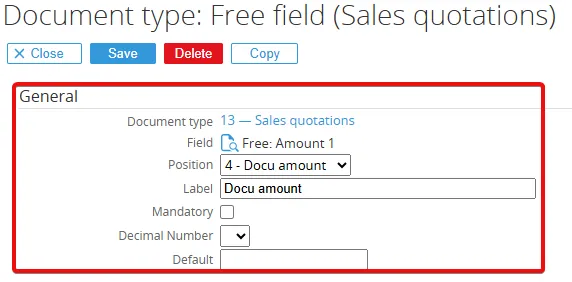
- And now you can see the amount field is now displayed in the Document information.
Free: Number
Section titled “Free: Number”Use this free field type to store numeric values that are not monetary, such as quantities or percentages.
- Choose Free: Number as the free field, optionally rename the label, change the position then click the Save button.
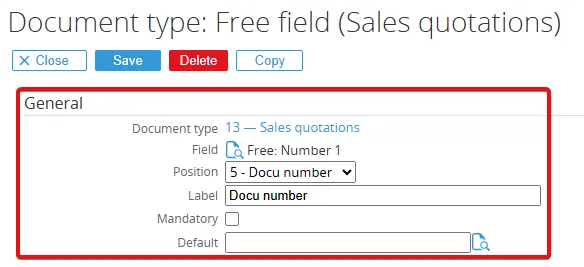
- And now you can see the number field is appear in the Document information.
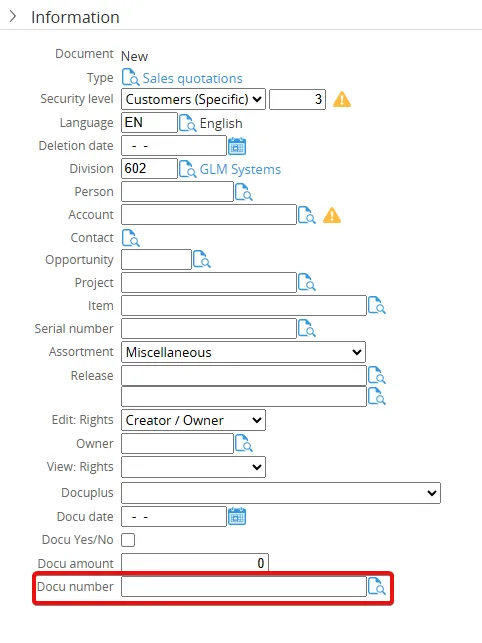
Free: GUIDS
Section titled “Free: GUIDS”Use this free field type to store unique identifiers (GUIDs) associated with a document or record.
- Choose Free: GUIDS as the free field, optionally rename the label, change the position then click the Save button.
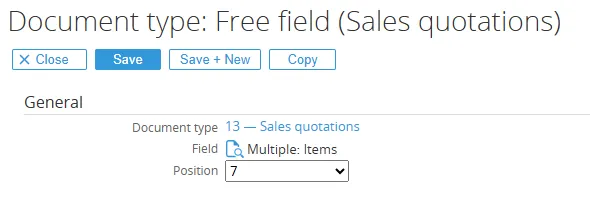
- And now you can see the GUIDS field is appear in the Document information.
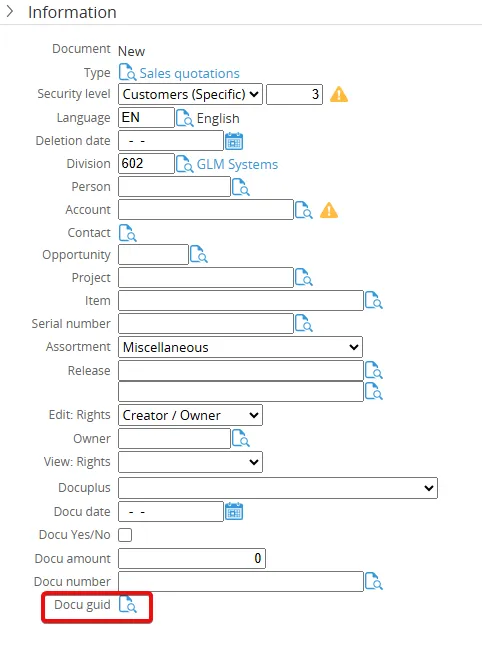
Multiple Selection
Section titled “Multiple Selection”Use this free field type to allow users to select multiple options from predefined lists in your system.
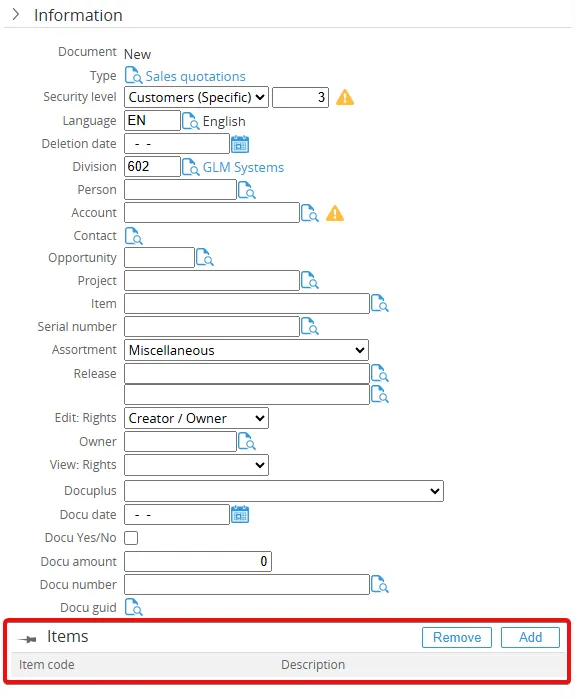
- And now you can see the Docu Multiple field is appear in the Document information.
Version free fields
Section titled “Version free fields”Version Free Fields work similarly to regular Free Fields but are associated with a specific document version. This allows different free field values or configurations to be maintained for different versions of a document.