
Workflow Plus - Multiple Approval
Setup Instructions
Section titled “Setup Instructions”Multiple approval configuration occurs in the request type maintenance under the Flow section:
- Navigate to Workflow > Setup > Requests > Request types.
- Select the required request type (for approval, realization, or processing).
- Open maintenance for that request type.
On the Flow tab, three checkboxes control multiple approval:
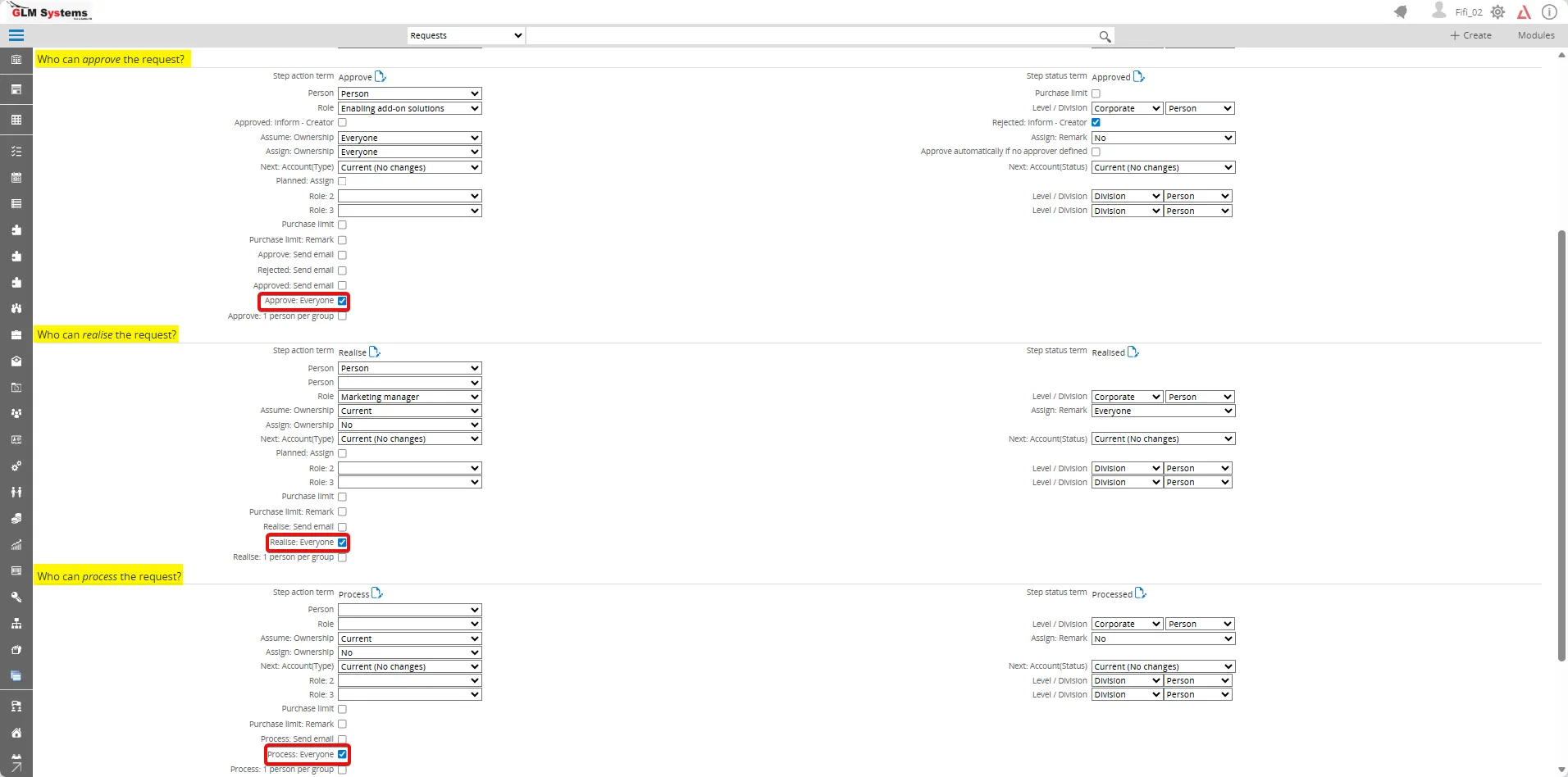
- Approve: Everyone
- Realize: Everyone
- Process: Everyone
Available Actions
Section titled “Available Actions”In workflow plus add-on, we have 2 actions available for the Multiple Approval:
- Approve: Everyone: This action will approve the request for all users who have the request in their workflow. This means that the request will move to the next stage immediately after this action is performed, regardless of how many users are involved in the approval process.
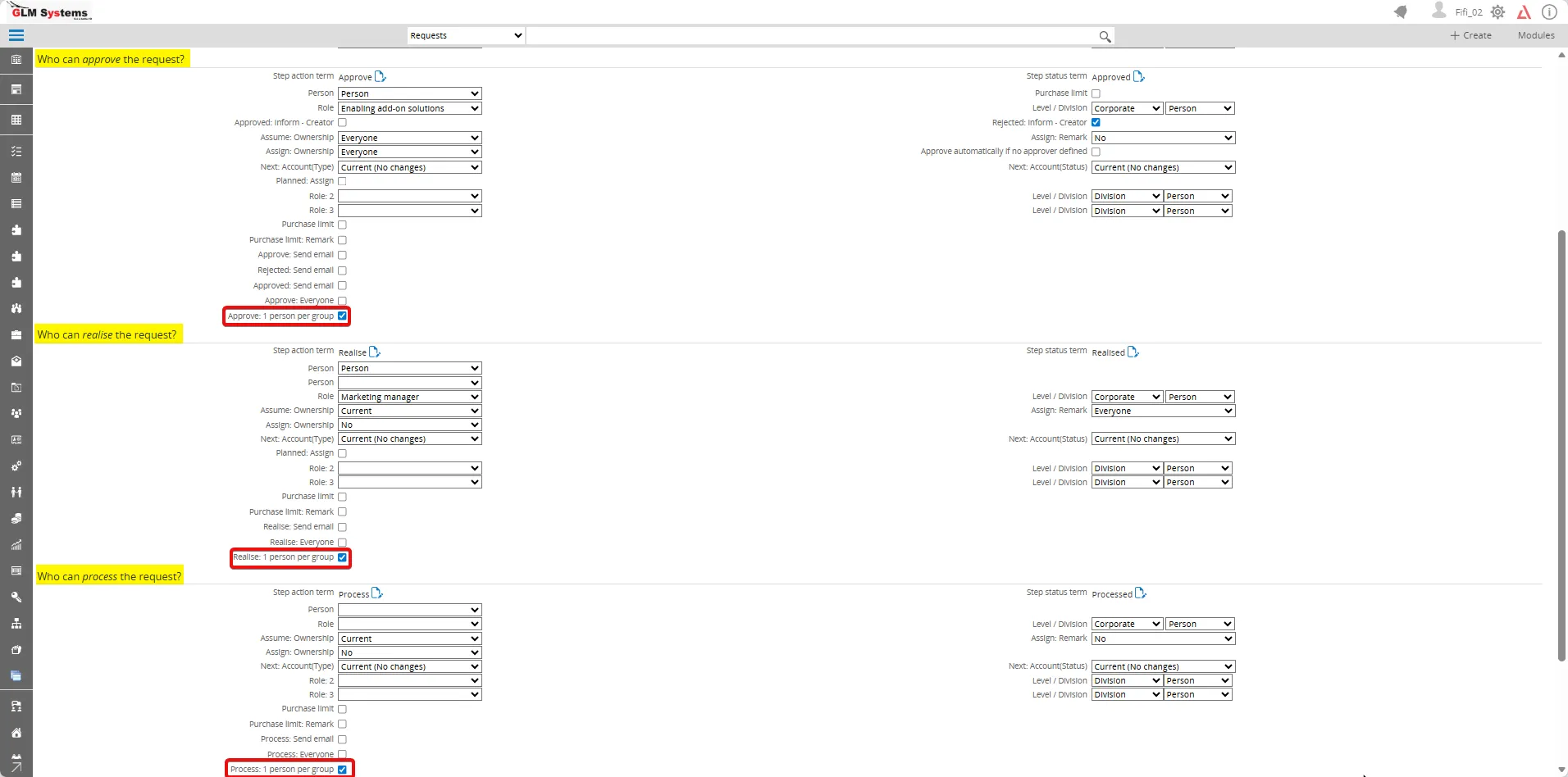
- Approve: 1 person per group: This action will approve the request for one user per group. This means that the request will only move to the next stage after at least one user from each group has approved the request. This allows for a more controlled approval process, ensuring that all relevant parties have had a chance to review and approve the request before it moves forward.
How it works
Section titled “How it works”Enabling any checkbox requires all involved users to complete their stage before progression. Based on business requirements, determine which process steps need compatible action:
- Approve: Everyone = All users must approve before realization or processing.
- Realize: Everyone = All users must realize before next stage.
- Process: Everyone = All users must process before completion.
Visual indicators
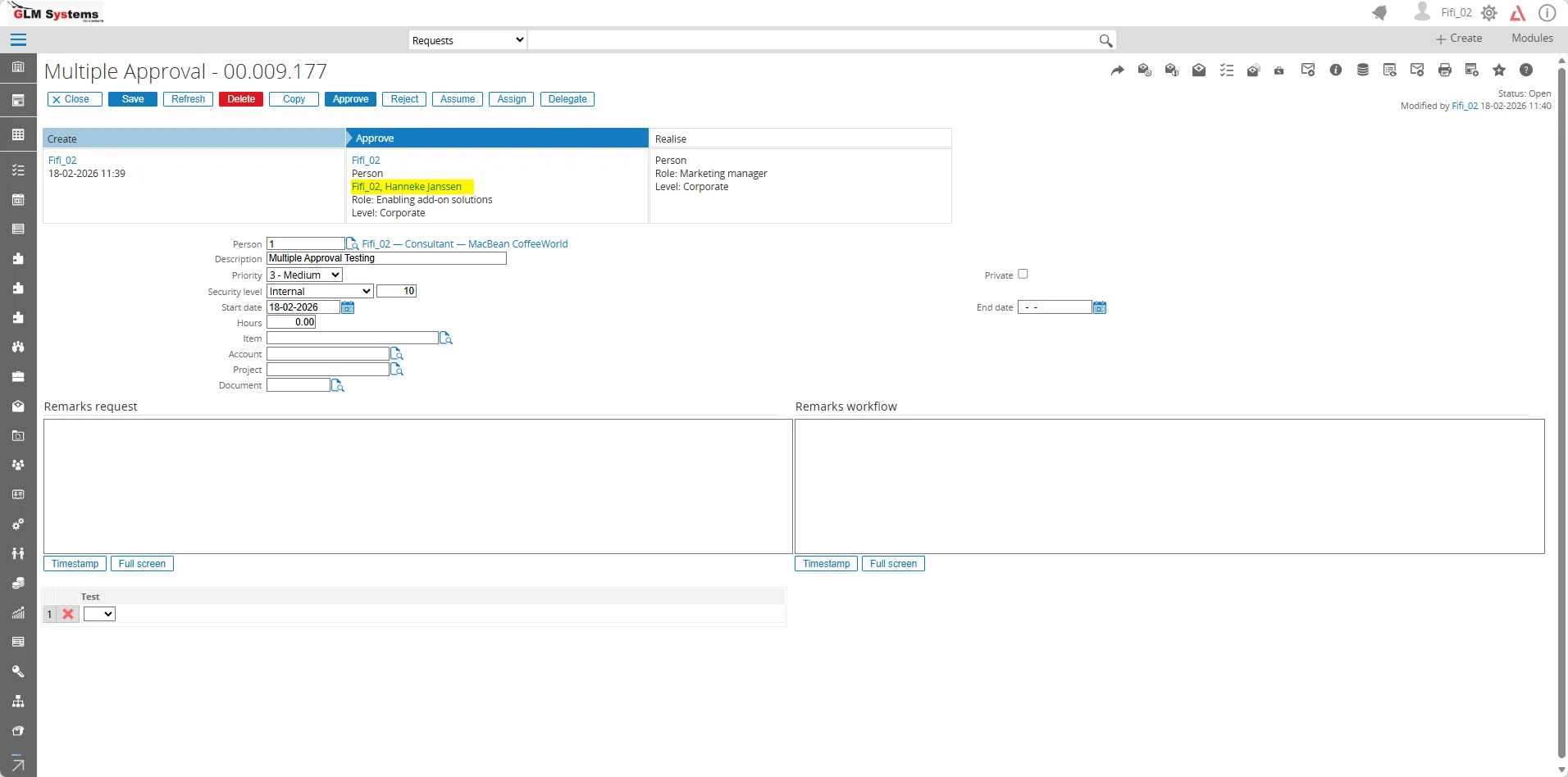
Section titled “Visual indicators”Requests with multiple approval display:
- Names of users who have approved
- Names of users who still need to approve
Workflow search columns
Section titled “Workflow search columns”Three new columns appear in workflow search:
- Approved: Everyone
- Realized: Everyone
- Processed: Everyone
In the workflow search results, these columns show which users have approved, realized or processed the request.