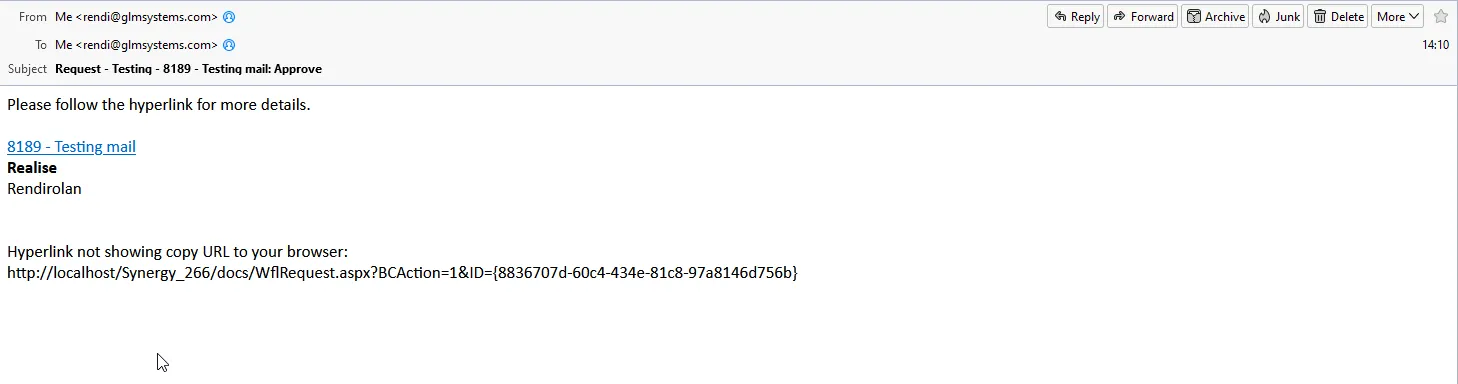
Workflow Plus - Email Notification
Requirements
Section titled “Requirements”- The email server must be configured in the Workflow Plus - Settings application before any notifications can be sent.
- Only administrator can maintain the email server settings.
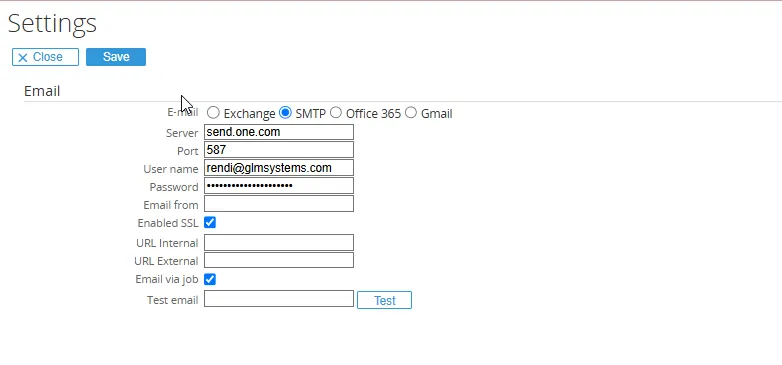
Configure email server
Section titled “Configure email server”- Open the Workflow Plus - Settings application.
- In the Email section, enter the following fields:
- E-mail: Select the email protocol (Exchange or SMTP).
- Server: Enter the server address that has the email program to send from.
- Port: (Optional) Enter the port number to use for sending emails to the email server.
- User name: Enter the user name that will be used to log in to the email server.
- Password: Enter the password to log in to the email server.
- Enabled SSL: Check this option if SSL is required for sending emails.
- Save the settings to apply the email server configuration.
Configure notification for request types
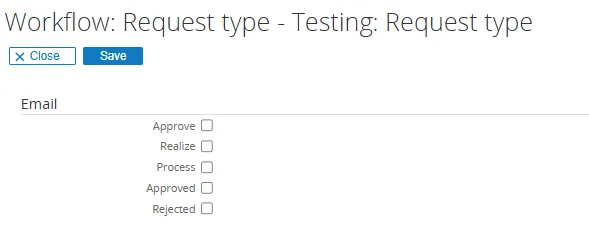
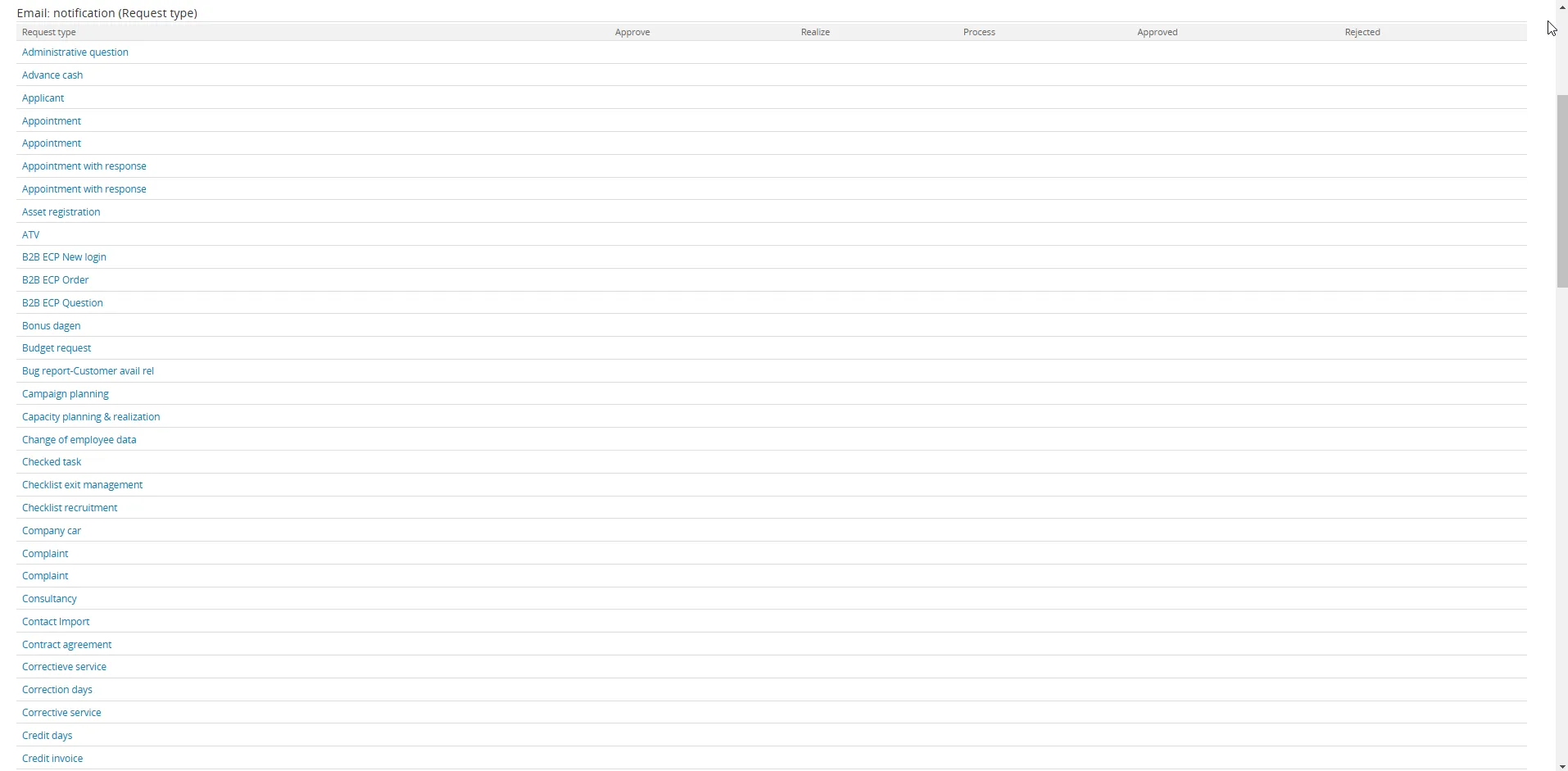
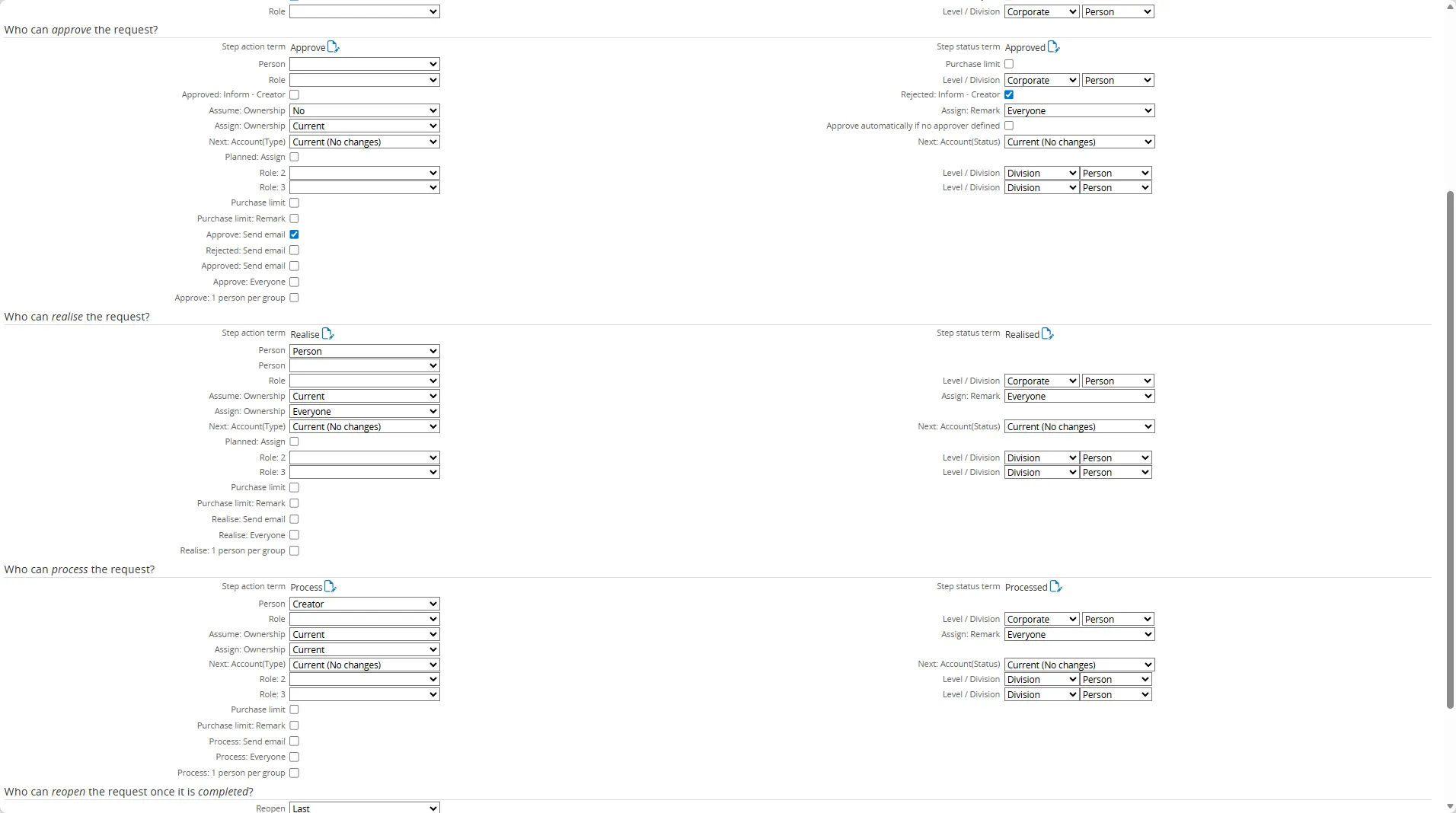
Section titled “Configure notification for request types”In the Request Type Maintenance application, you can specify which workflow actions should trigger an email notification. To do this, follow these steps:
- Open the Request Type Maintenance application. And select the desired request type and click on the Flow tab.
- Configure the email notification settings for the following actions:
- Approve: check this option to send an email when a request is approved.
- Rejected: check this option to send an email when a request is rejected.
- Approved: check this option to send an email when a request is approved.
- Realize: check this option to send an email when a request is realized.
- Process: check this option to send an email when a request is processed.
- Save the changes to apply the email notification settings for the selected request type.
How the notification works
Section titled “How the notification works”- Enable the Send email option for each action or process step where the recipient should be informed that a new request has been assigned.
- After all settings are configured correctly, (email server, user preferences and request type actions), the user will receive a standard email notification when a matching event occurs. The email will contain information about the request, such as the request type, requester, and a link to view the request in the system.