FID – User Manual
Setup Connection
Section titled “Setup Connection”Exact Synergy
Section titled “Exact Synergy”-
Open this path on your computer
C:\Exact Synergy Enterprise 504\cab -
Run as administrator the FID Configurator application.
-
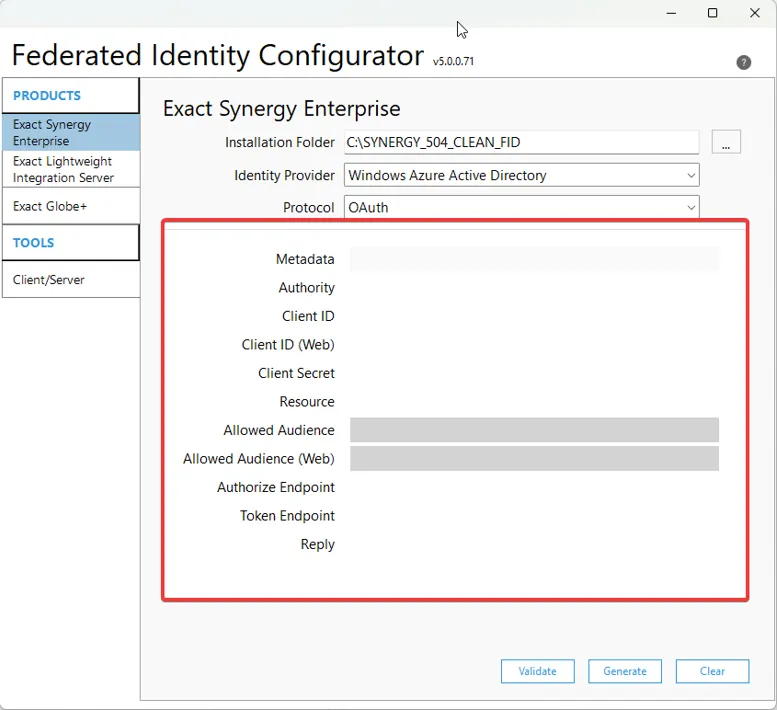
After the Application opens, fill in all fields in the Federated Identity Configurator box:
- Installation Folder
C:\Program Files\Exact Globe+ - Identity Provider
Windows Azure Active Directory - Protocol
OAuth - Metadata
- Authority
this field will be filled automatically when the Metadata is entered - Client ID
- Client ID (Web)
- Client Secret
- Resource
- Allowed Audience
this field will be filled automatically when the Resource is entered - Allowed Audience (Web)
this field will be filled automatically when the Client ID (web) is entered - Authorize Endpoint
this field will be filled automatically when the Metadata is entered - Token Endpoint
this field will be filled automatically when the Metadata is entered - Reply
- Installation Folder
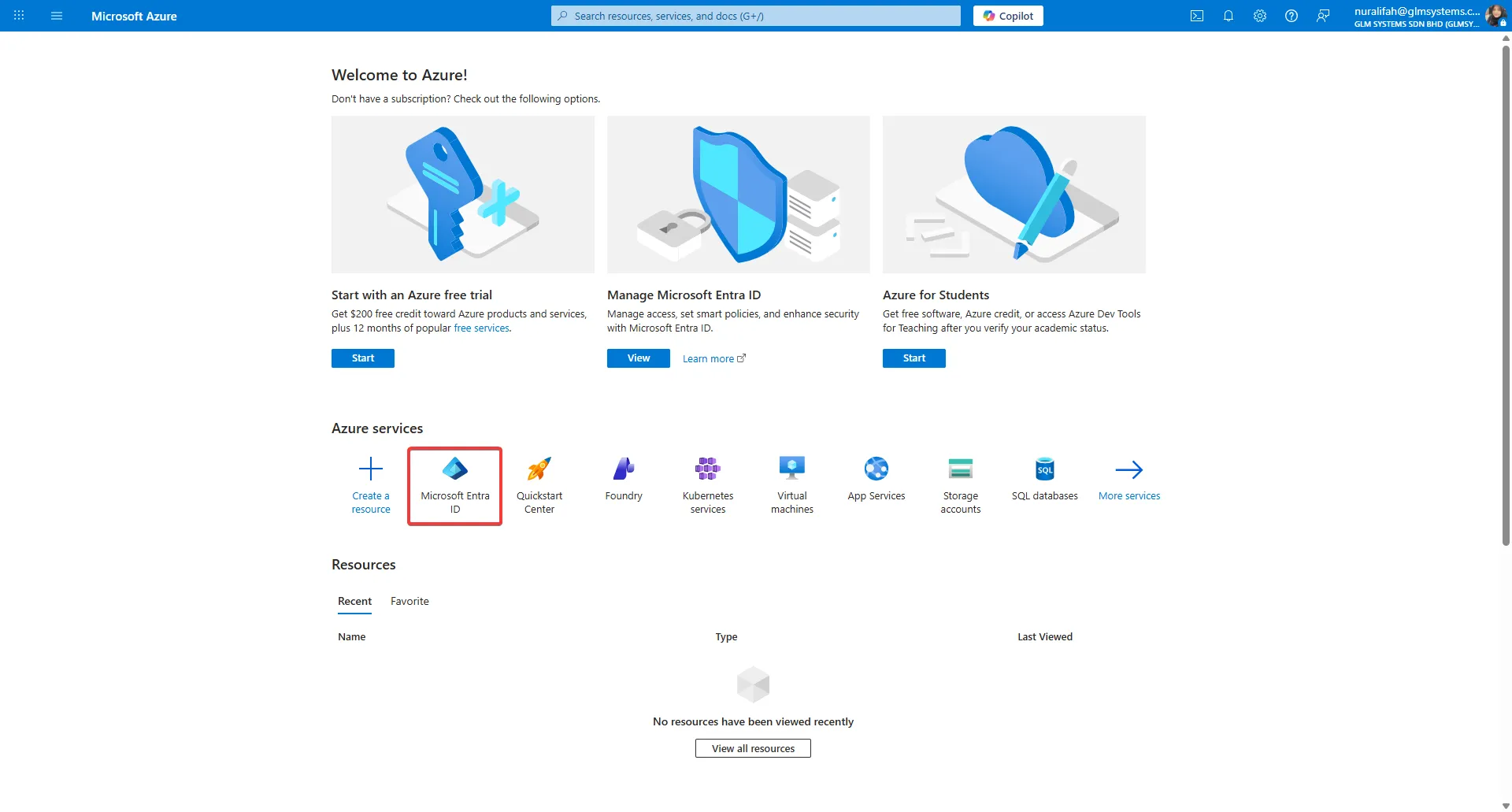
- Go to portal.azure.com
- Login with your valid Microsoft account credential
- Choose Microsoft Entra ID
How to get the Metadata?
Section titled “How to get the Metadata?”- Go to Manage > App Registrations
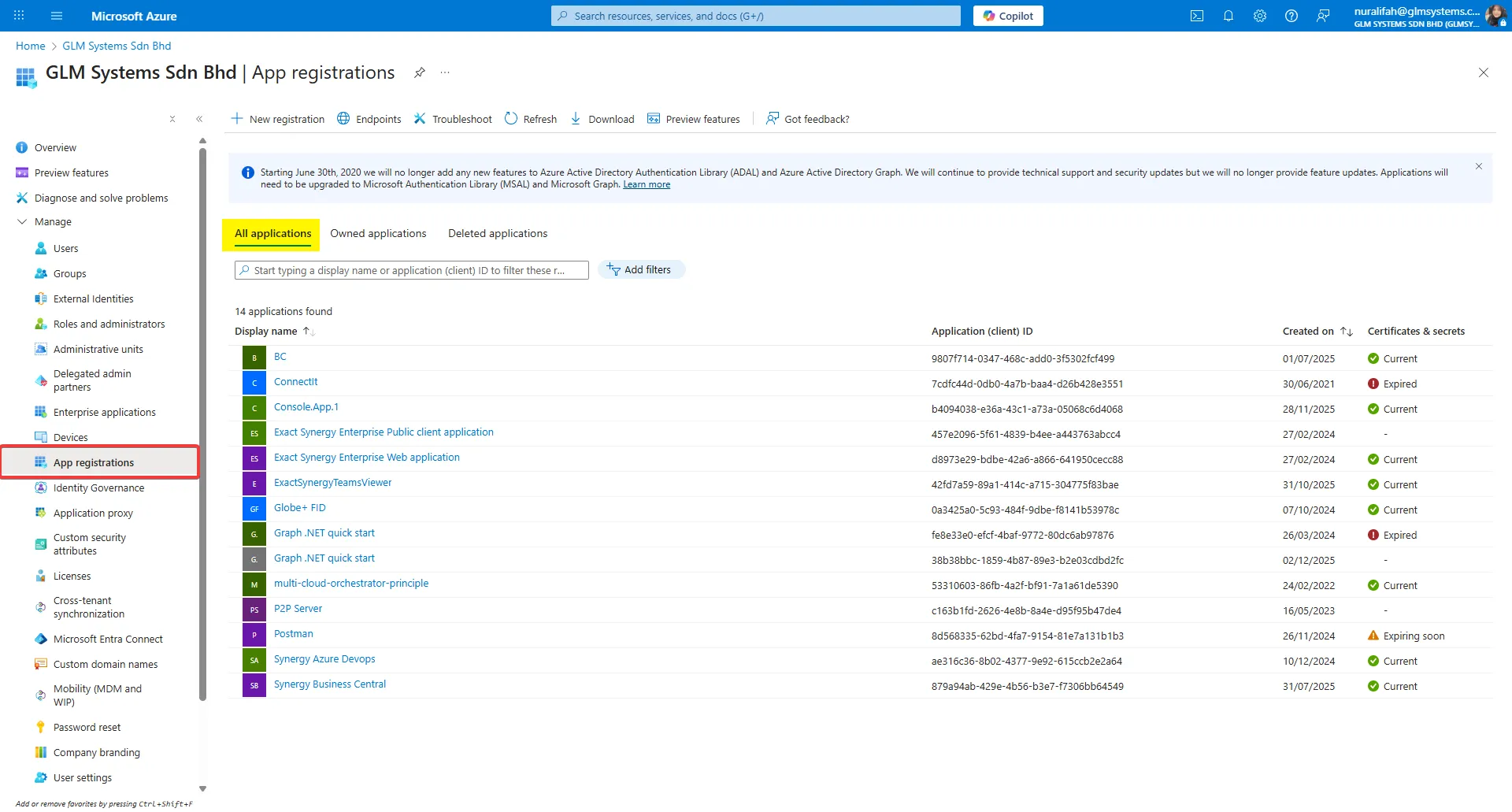
- Choose Exact Synergy Enterprise Public Client Application
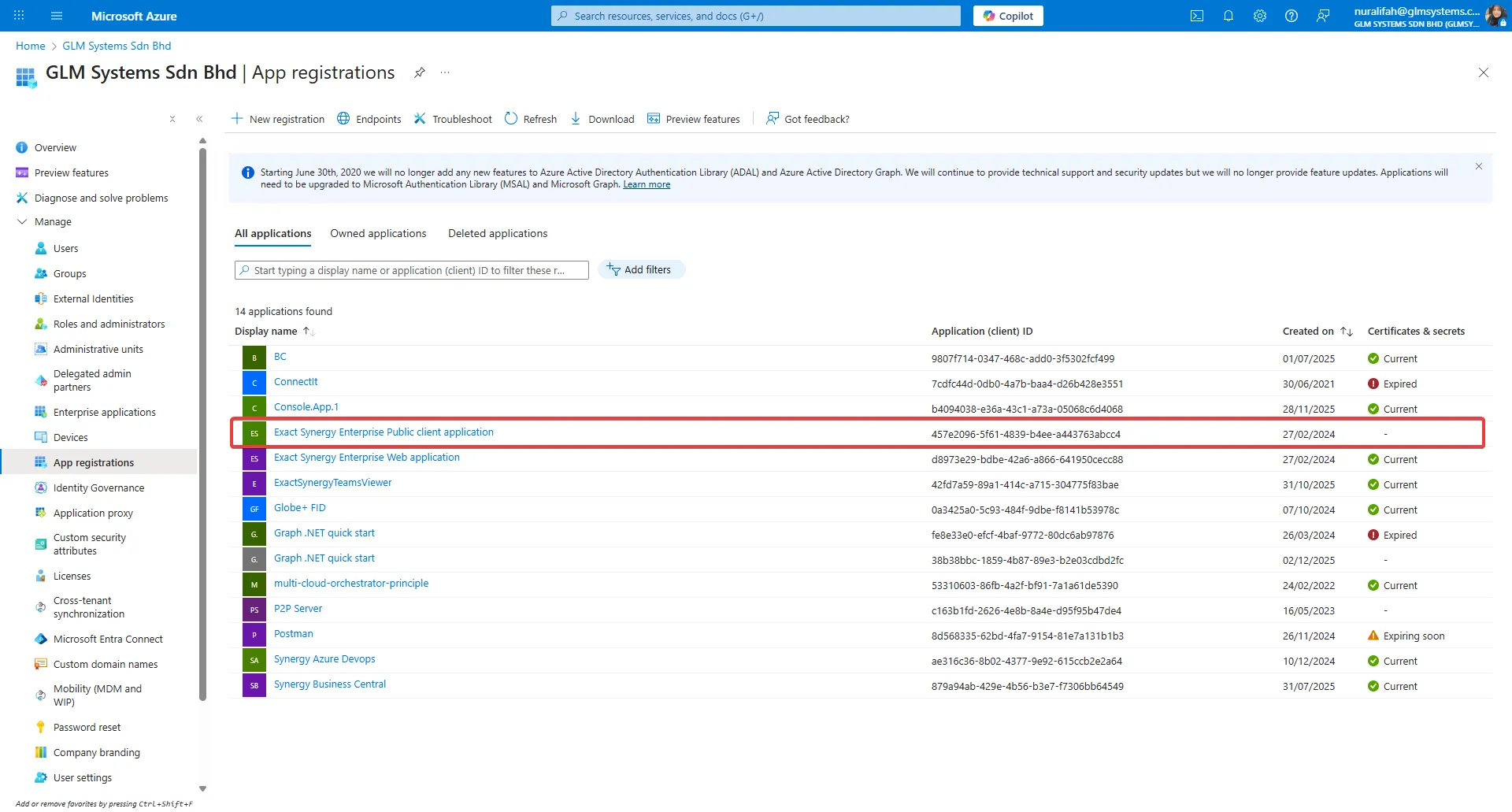
- Click Endpoints and copy the federation metadata document. Paste it in metadata FIC field
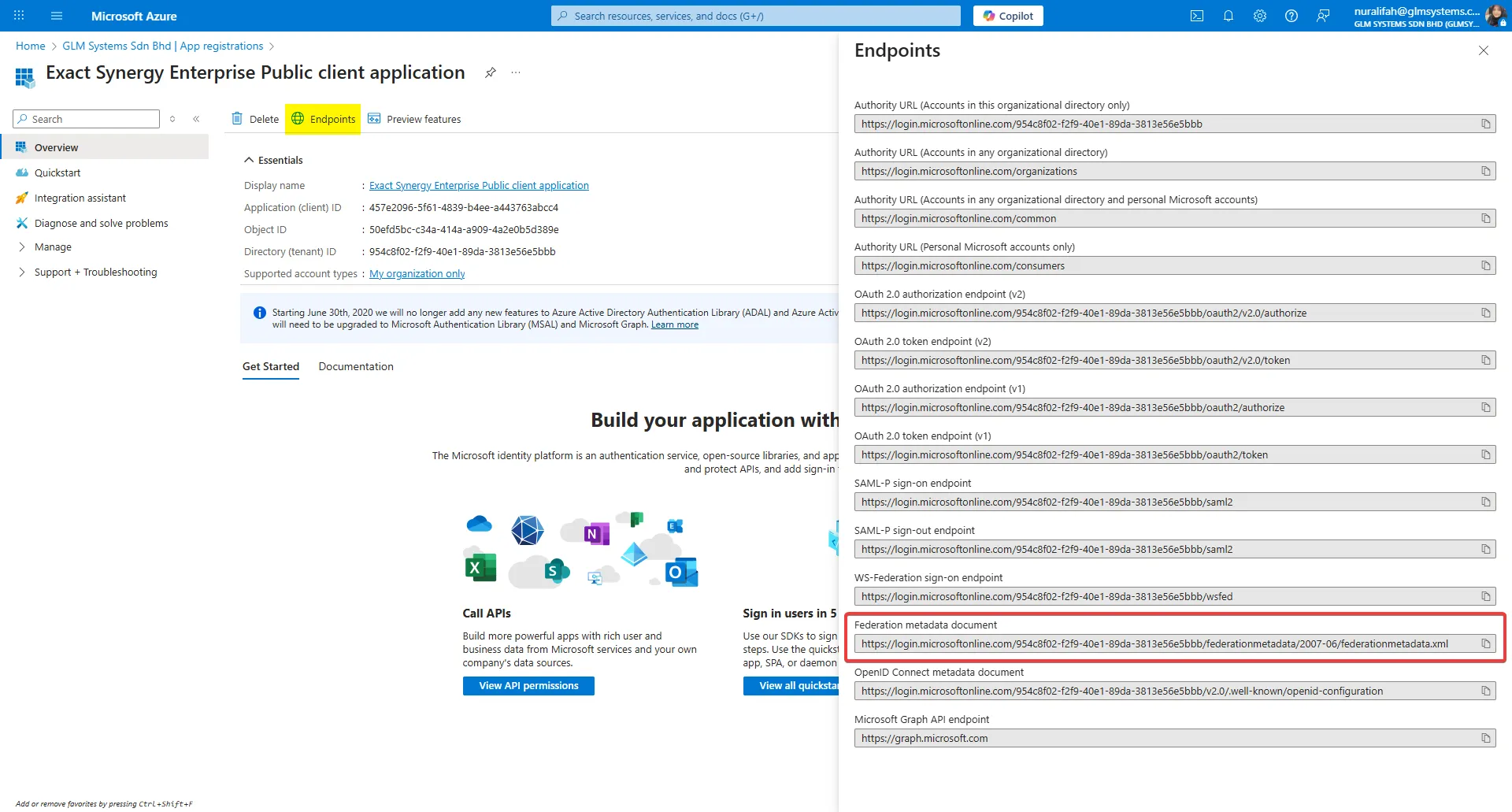
- After you input the Metadata, it will automatically generate the Authority, Authorized Endpoint and Token Endpoint
How to get the Client ID?
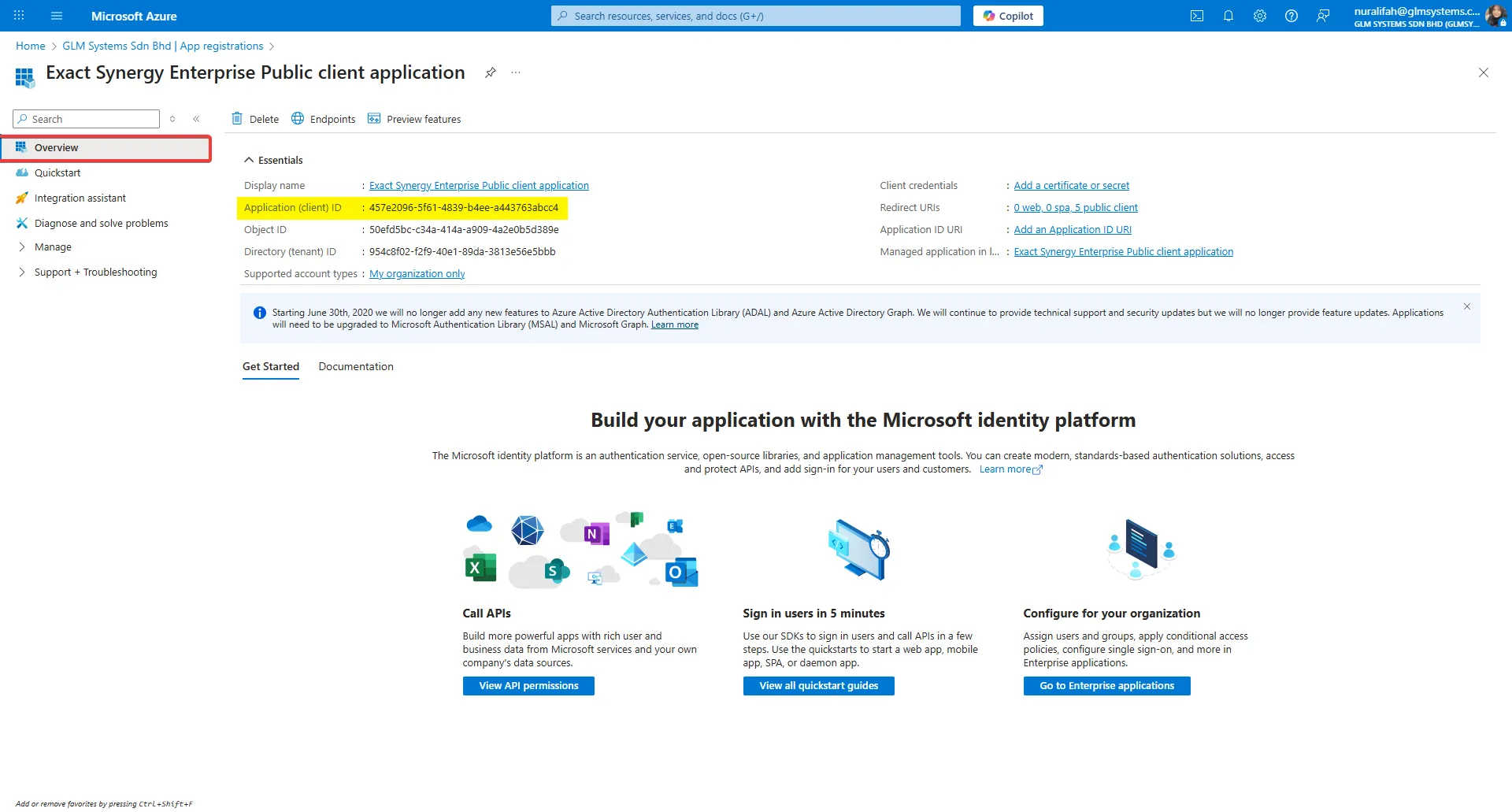
Section titled “How to get the Client ID?”- Azure Portal > Overview
- Copy the Application (client) ID then paste it in client ID field
How to get the Client ID (Web)?
Section titled “How to get the Client ID (Web)?”- Azure Portal > Manage > App registrations
- Choose Exact Synergy Enterprise Web Application
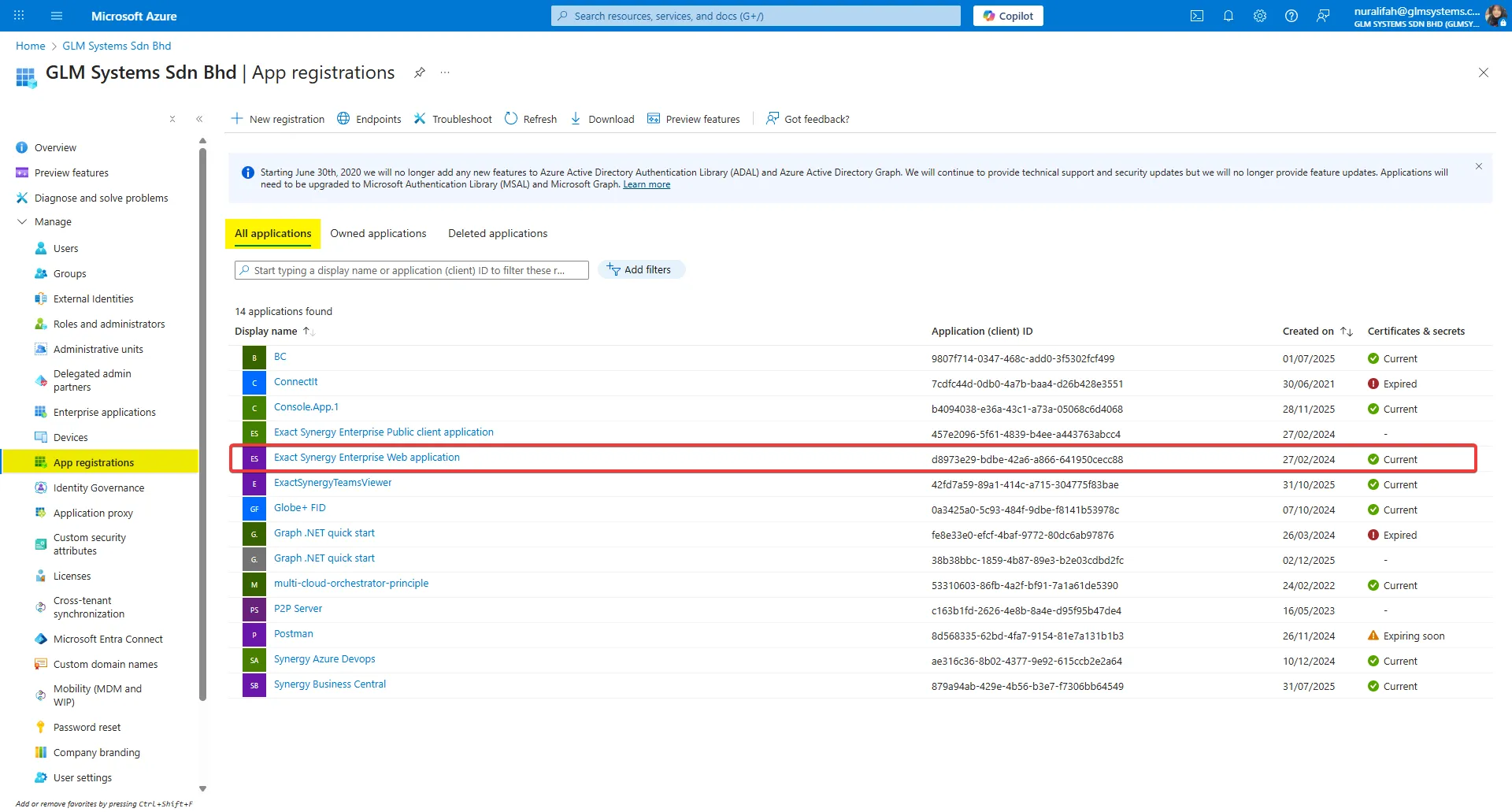
- Copy the Application (client ID)
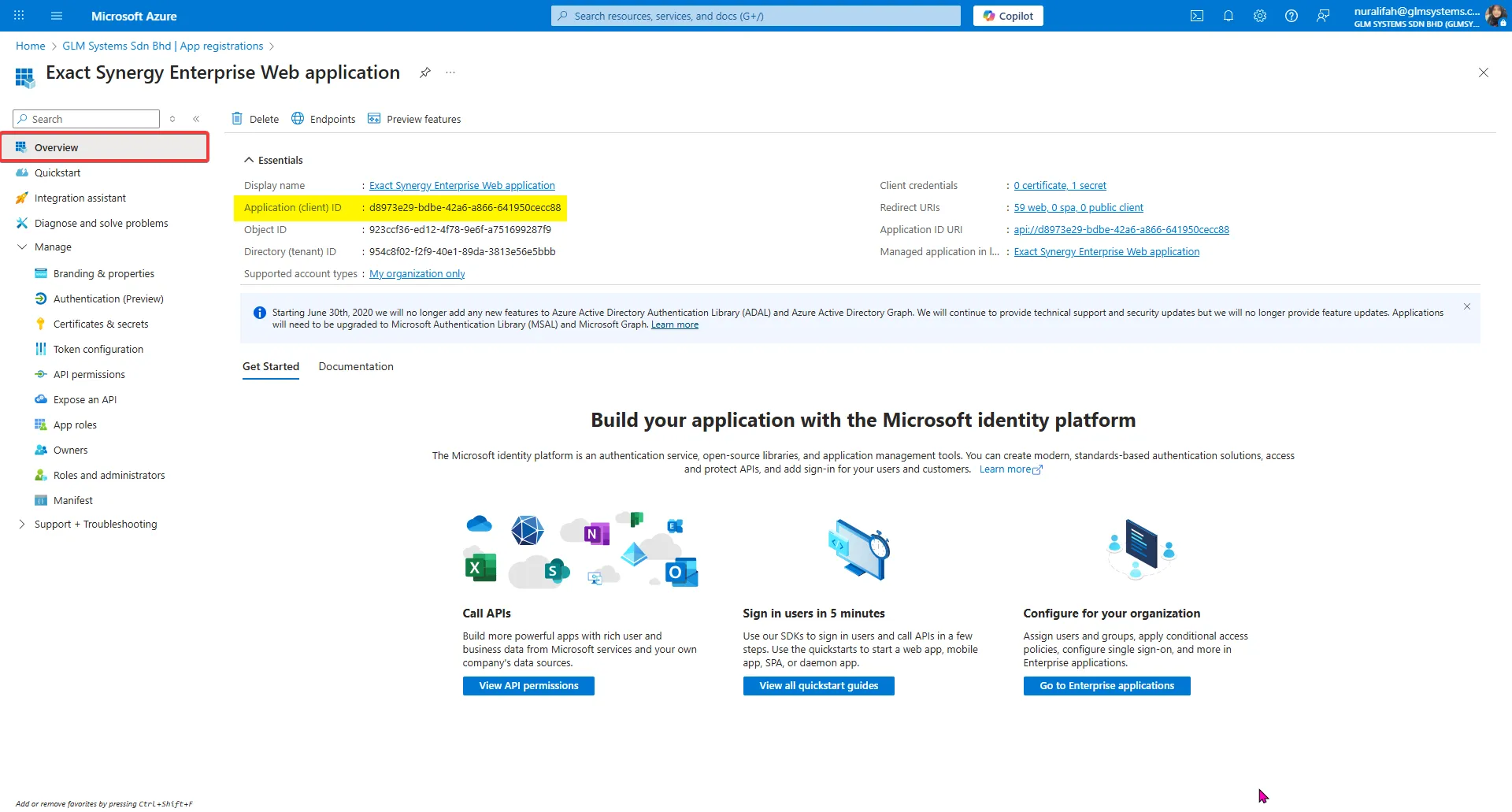
- If Client ID (Web) already paste in the FIC, it will fill auto generated in the Allowed Audience (Web) field
How to get the Client Secret?
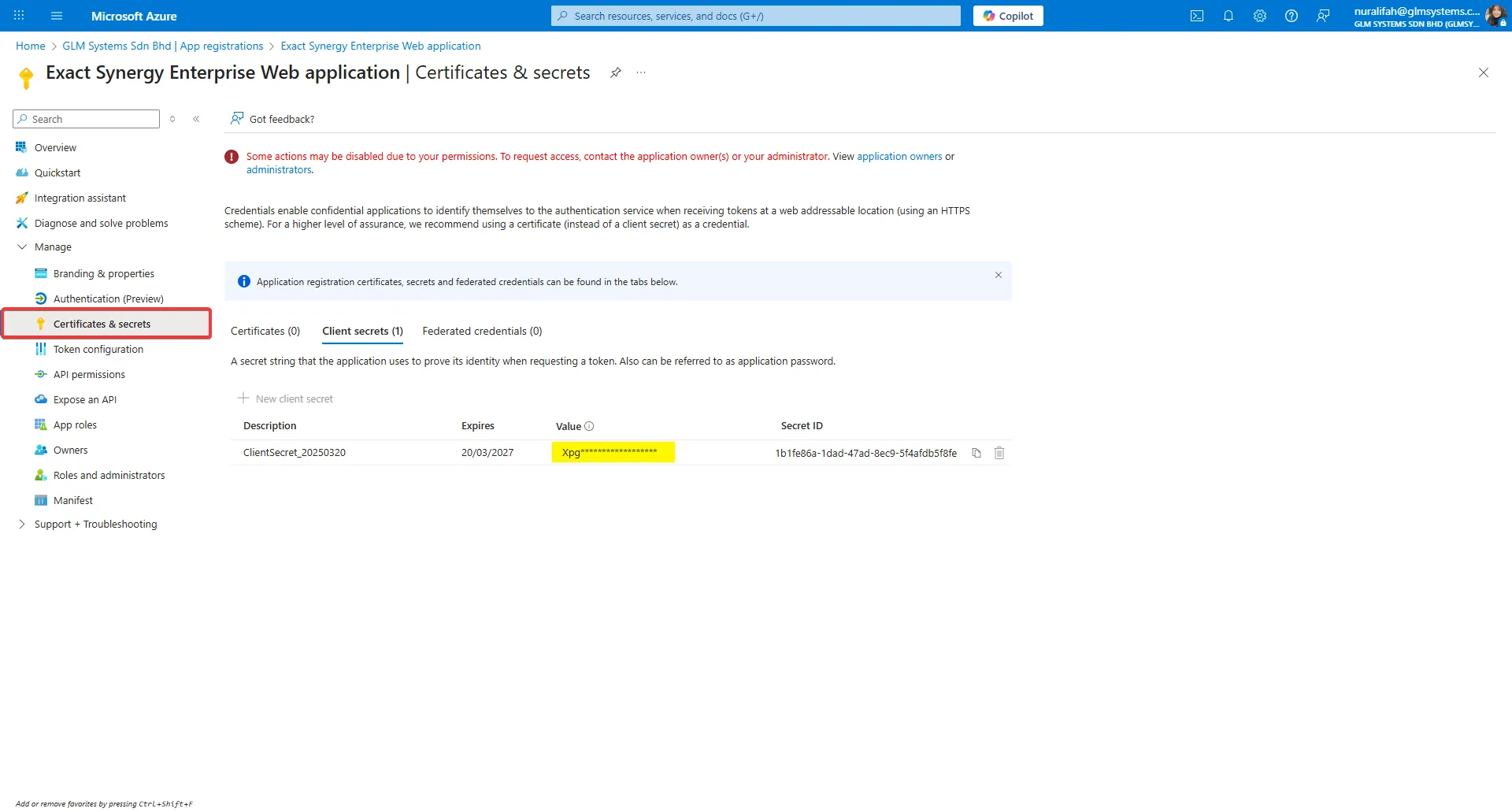
Section titled “How to get the Client Secret?”- Azure Portal > Manage > Certificates & secrets > Client secrets
- By default, you will get the Client Secret at this path
- Copy the value and paste it in the FIC field
How to get the Resource?
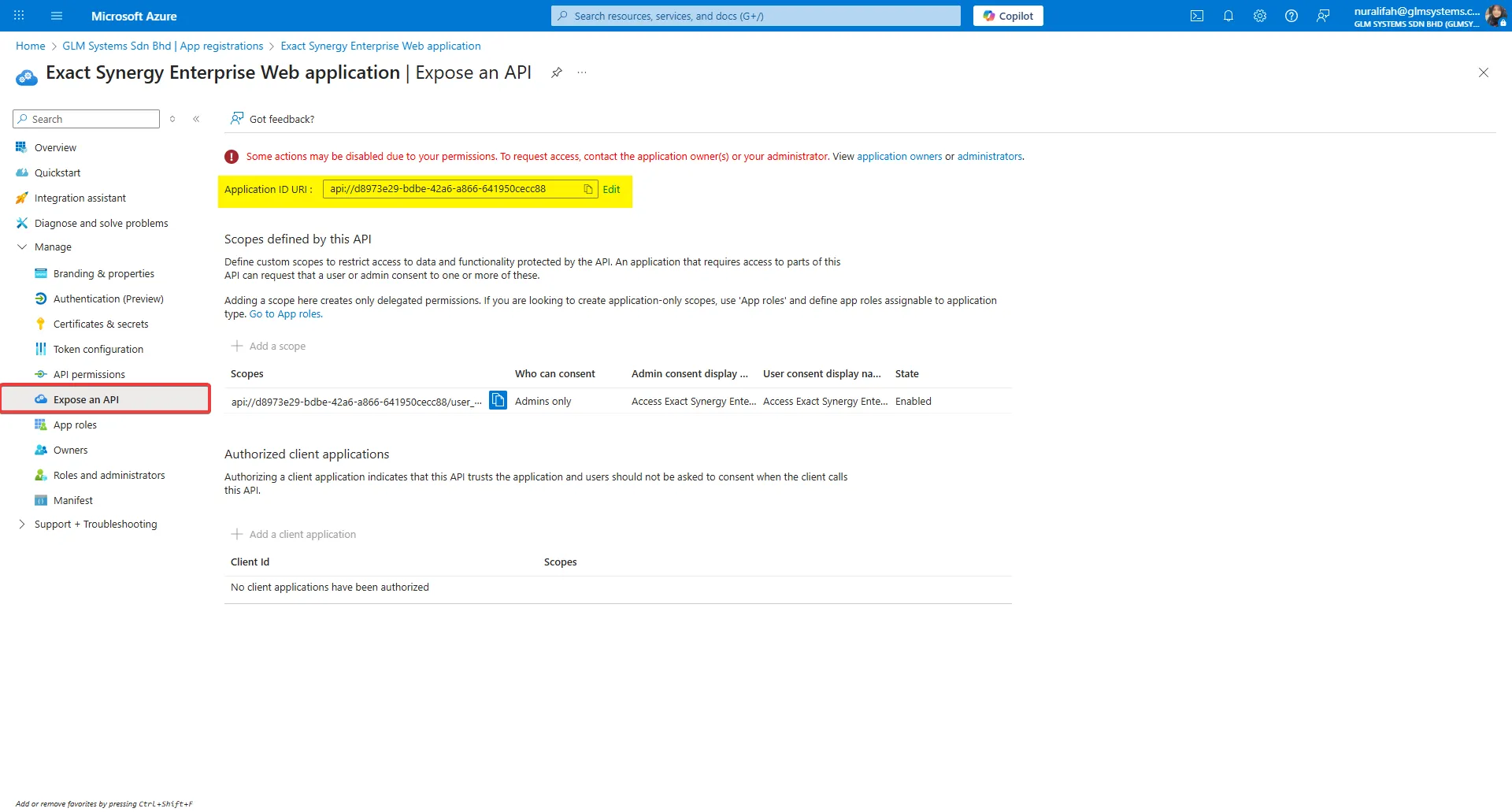
Section titled “How to get the Resource?”- Azure Portal > Manage > Expose an API
- Copy Application ID URI to the FIC field
- If the Resource already paste in the FIC field, it will fill auto generated in the Allowed Audience field
How to get the Reply?
Section titled “How to get the Reply?”- Input your ID url
http://localhost<your_synergy_version>
For example :http://localhost/Synergy_504_FID/This is for Exact Synergy Enterprise (Web) application :
How to check the URI?
Section titled “How to check the URI?”- Go to Home > Manage > Authentication (Preview)
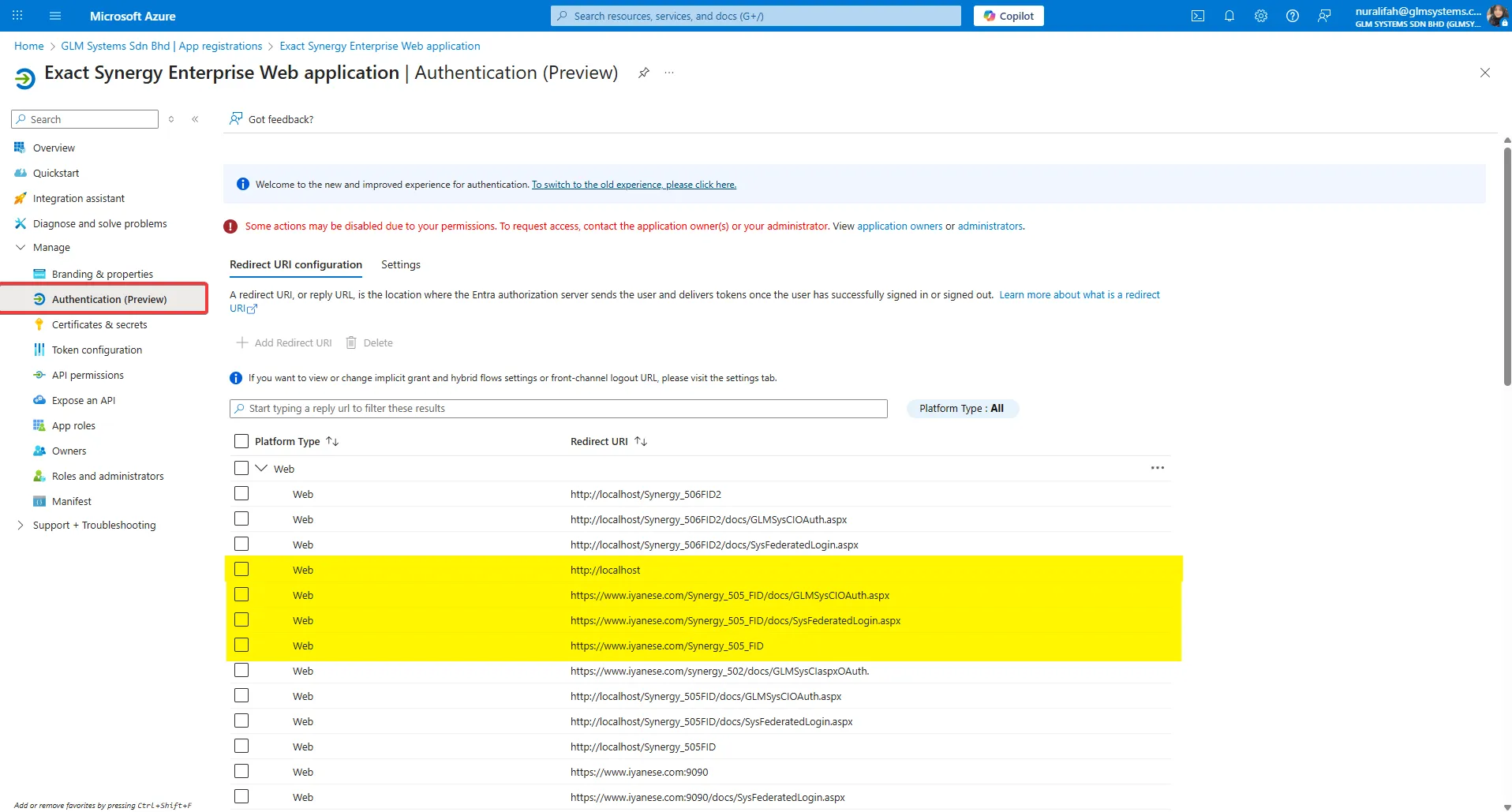
- Exact Synergy Enterprise web application | Authentication (Preview) settings :
Home > App registrations > Exact Synergy Enterprise Web application > Manage > Authentication (Preview) > Implicit grant and hybrid flows > ID Tokens (checked)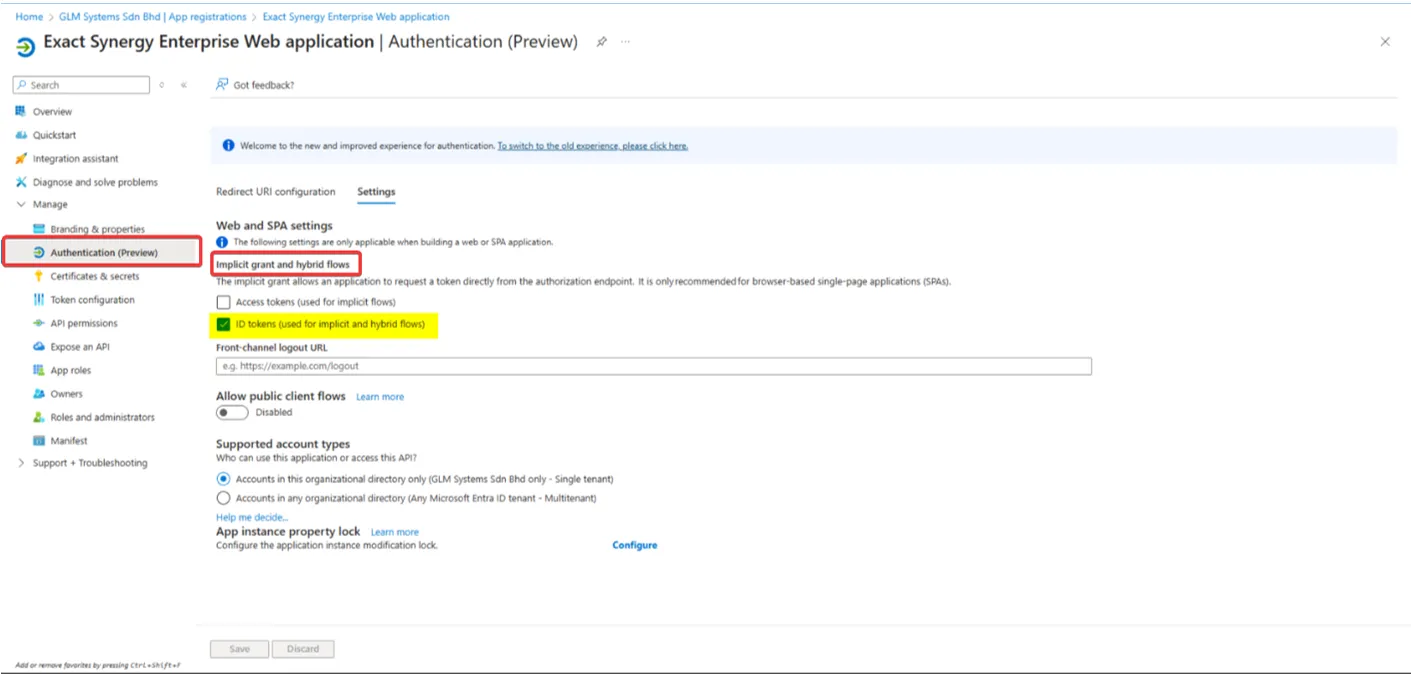
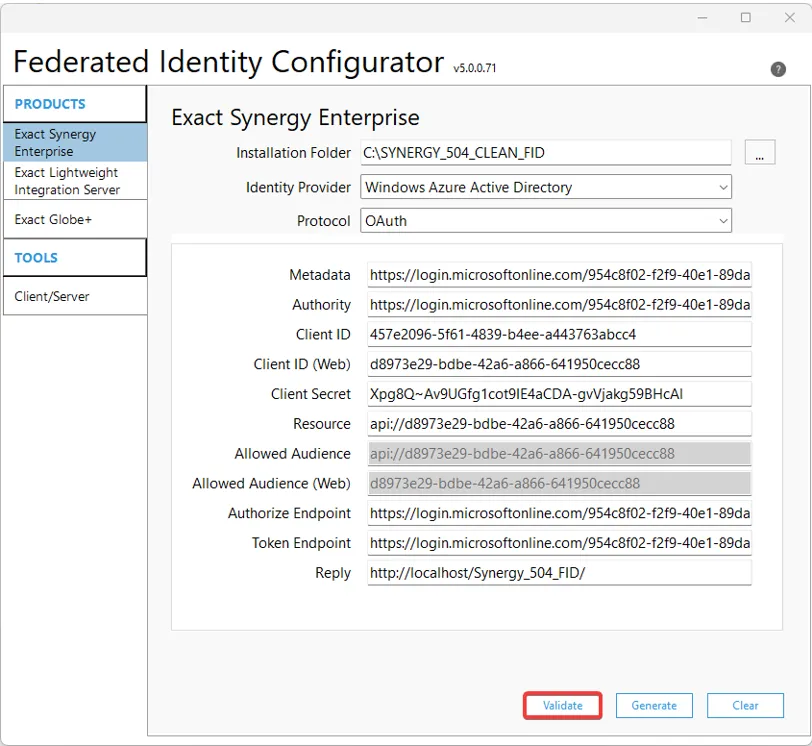
- After completing all required fields in the Azure portal app registration form, click the Validate button to confirm your entries
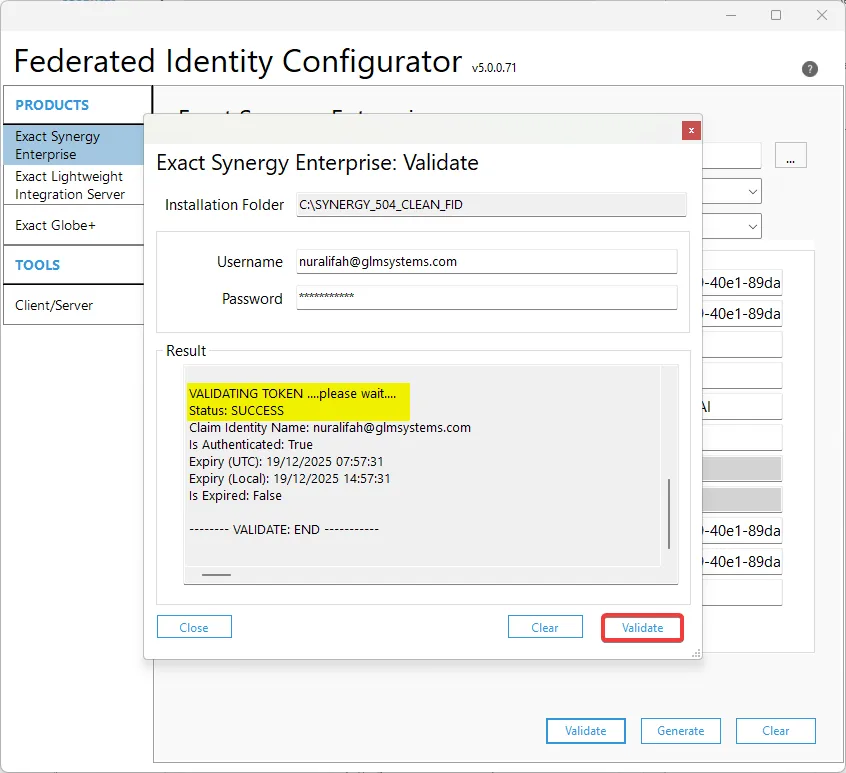
- Next, this pop up will appear, input your username and password and click the Validate button. If the validate token is correct, it will give you the SUCCESS status
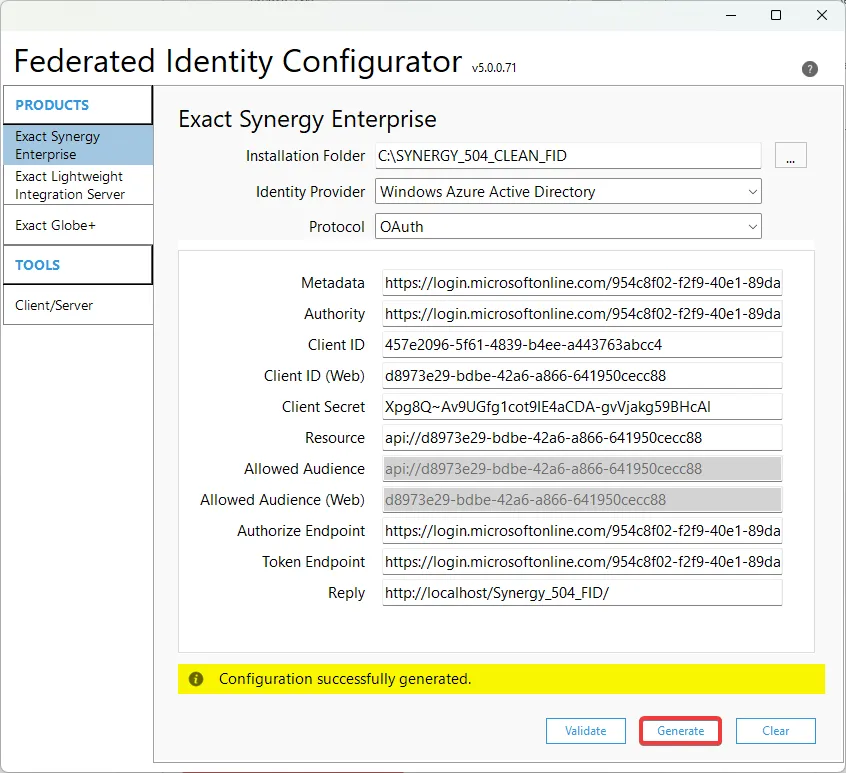
- After successfully validating, click the Generate button until the message Configuration successfully generated appears
- Reload to your Synergy, pick your account and enter your username and password
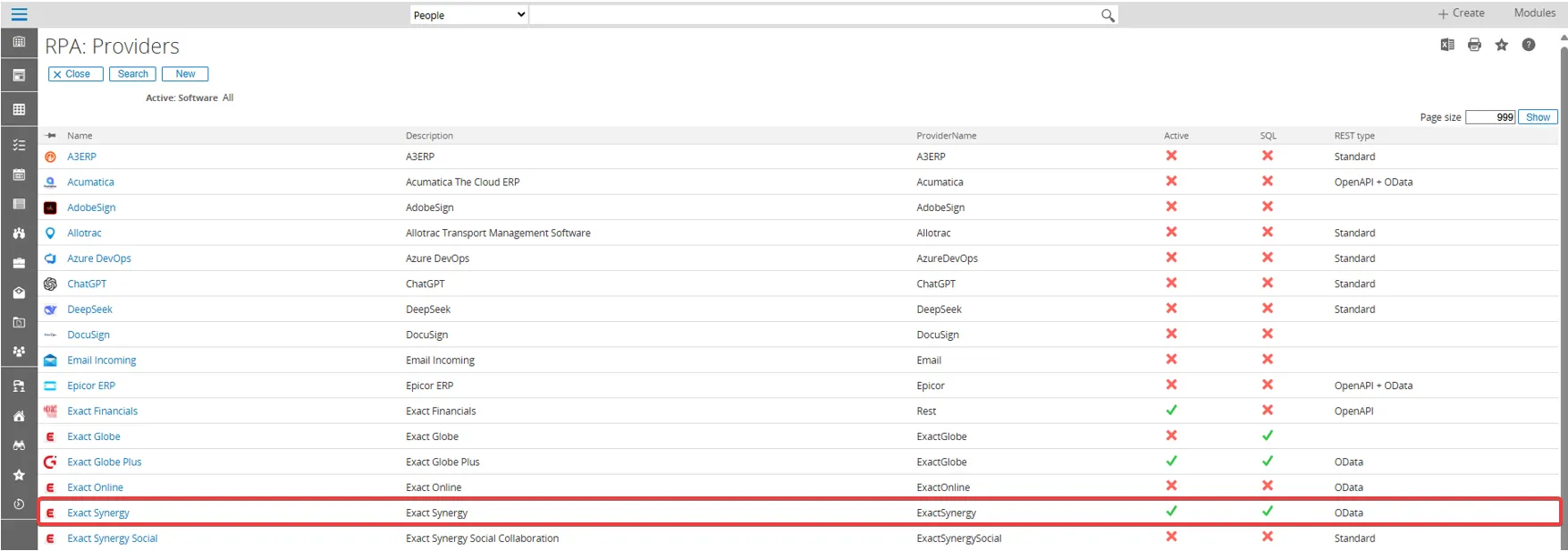
- Go to Modules > RPA
- Setup > Connection > Provider
- Click the Show button to view the active providers
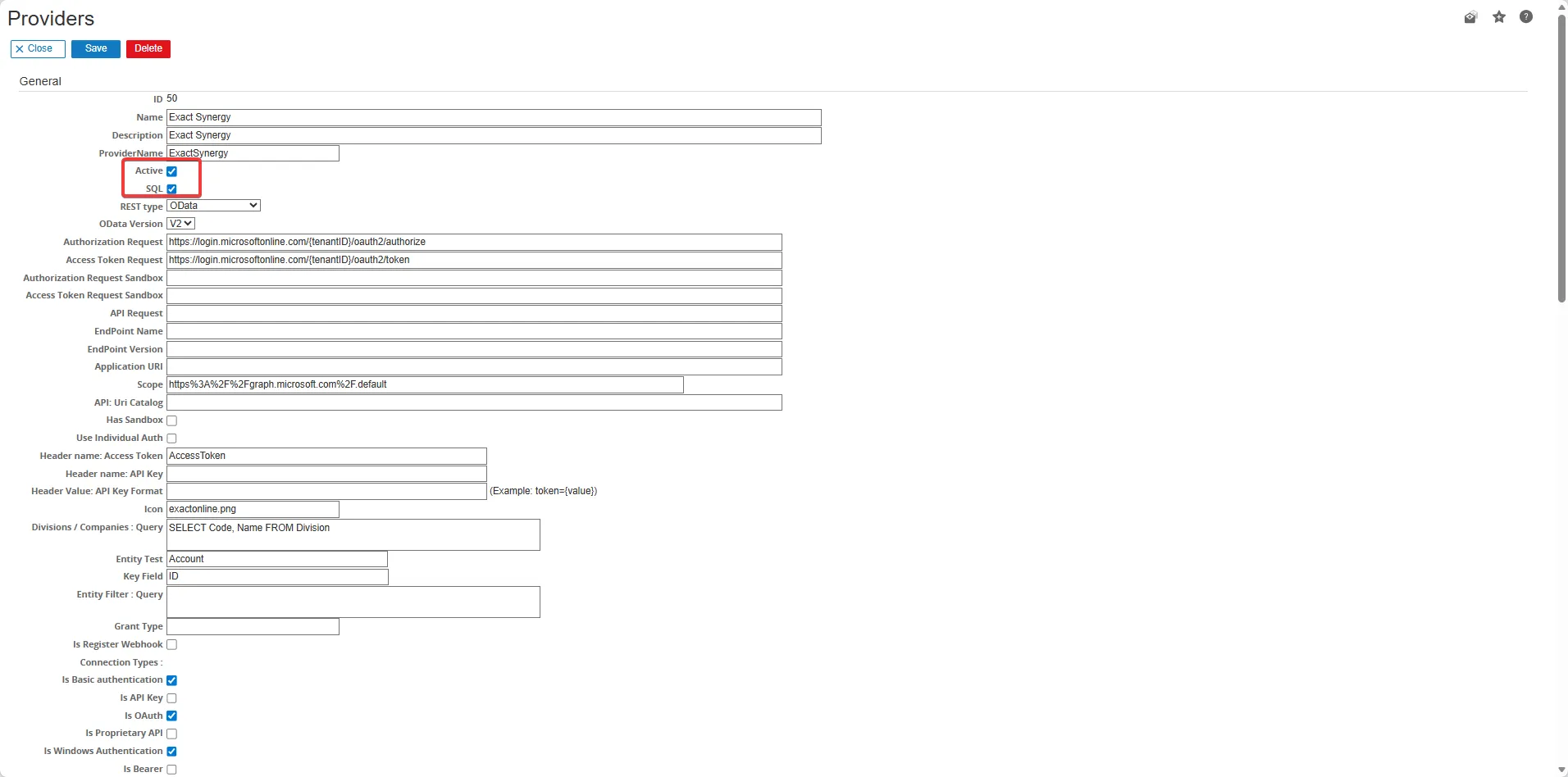
- Click the Exact Synergy to expand the menu
- Ensure the Active and SQL button is being checked and click the Save button
- Next, back to RPA menu and create a new connection.
- In the type Connection section, select Exact Synergy as the Software and FID as the Type
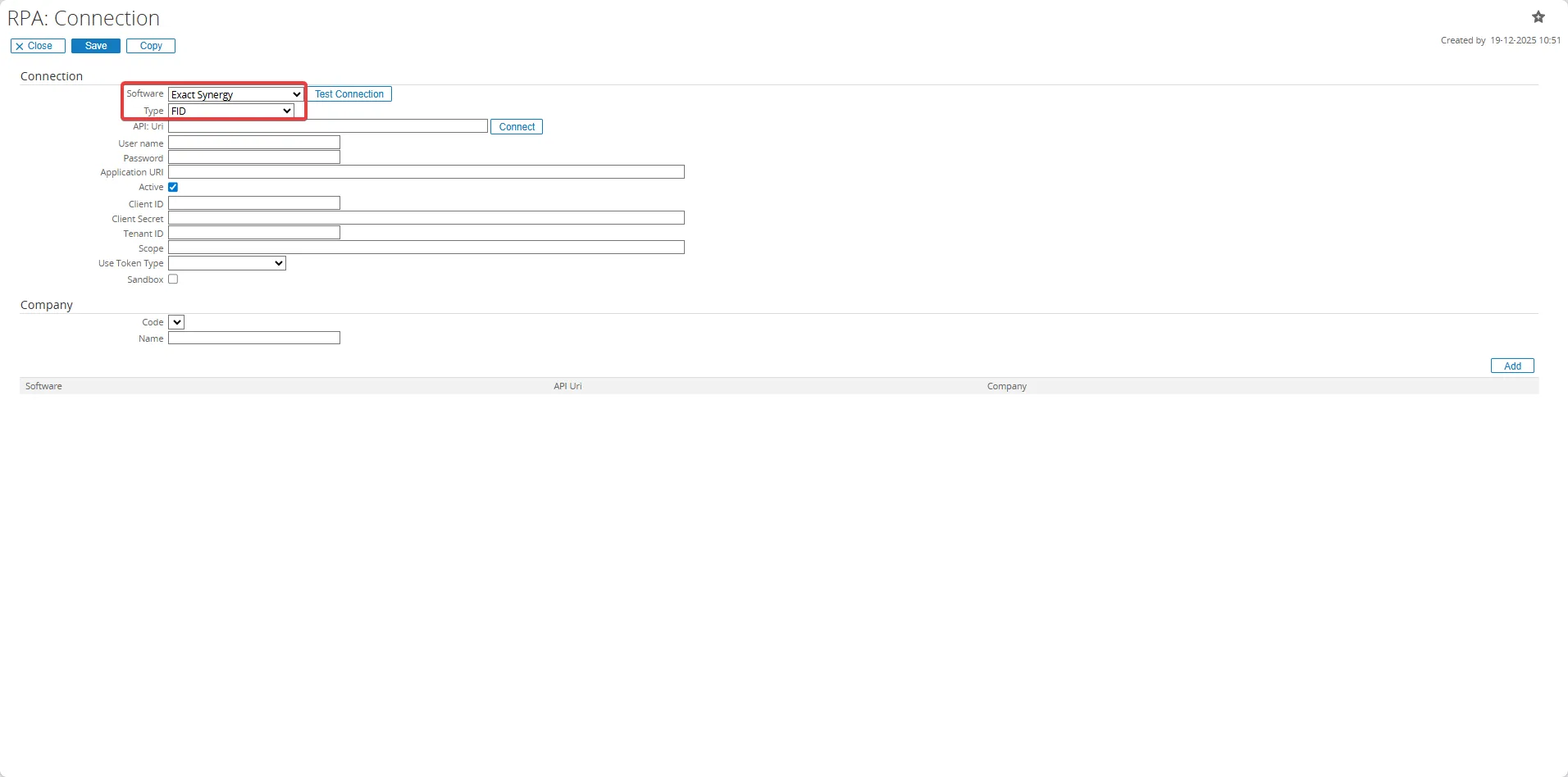
- Complete to fill all the fields. Then click the Save button.
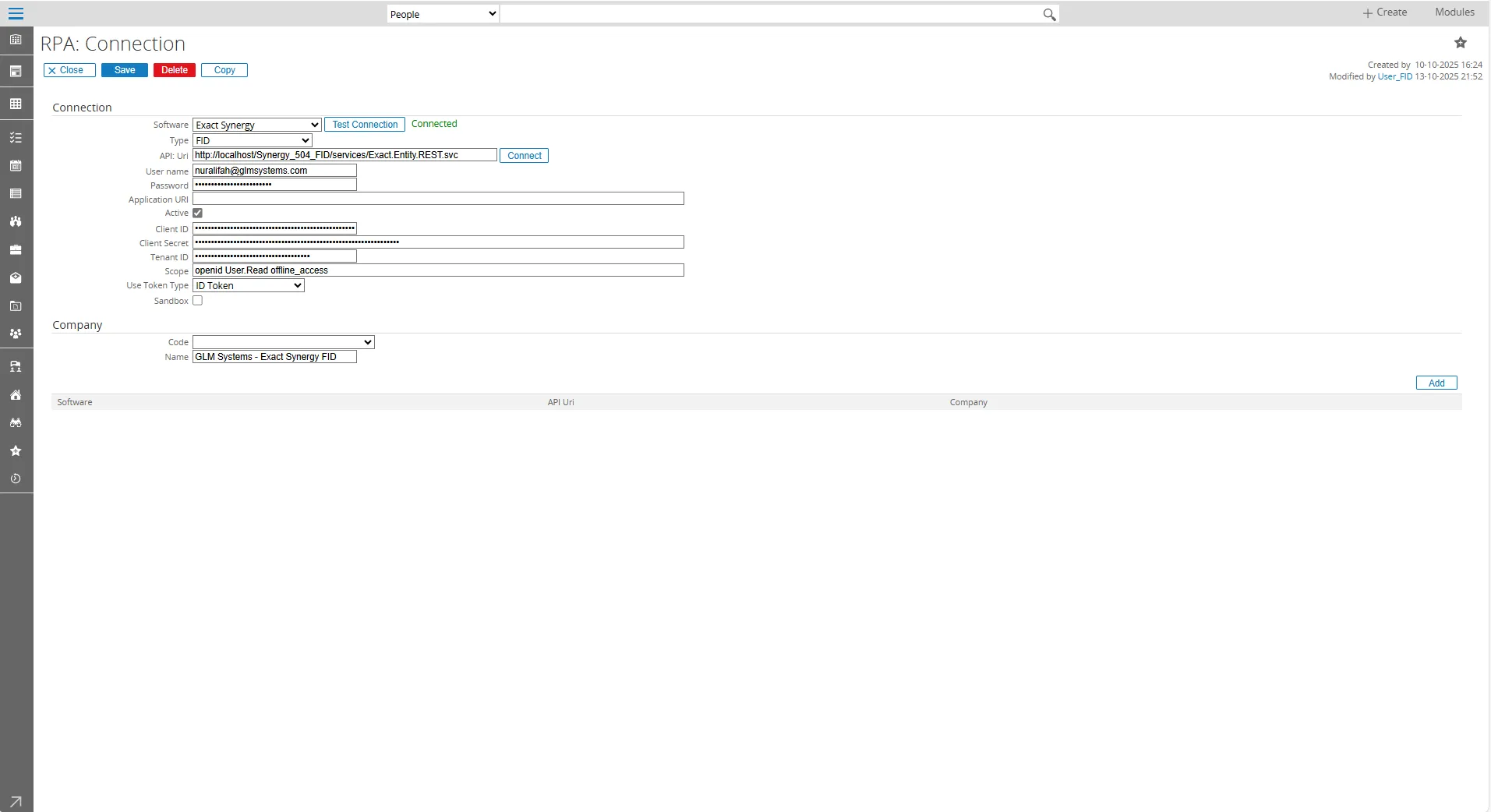
- And now the Exact Synergy and Exact Globe+ is already appears in the list of Connection

Exact Globe+
Section titled “Exact Globe+”- Go to https://portal.azure.com.
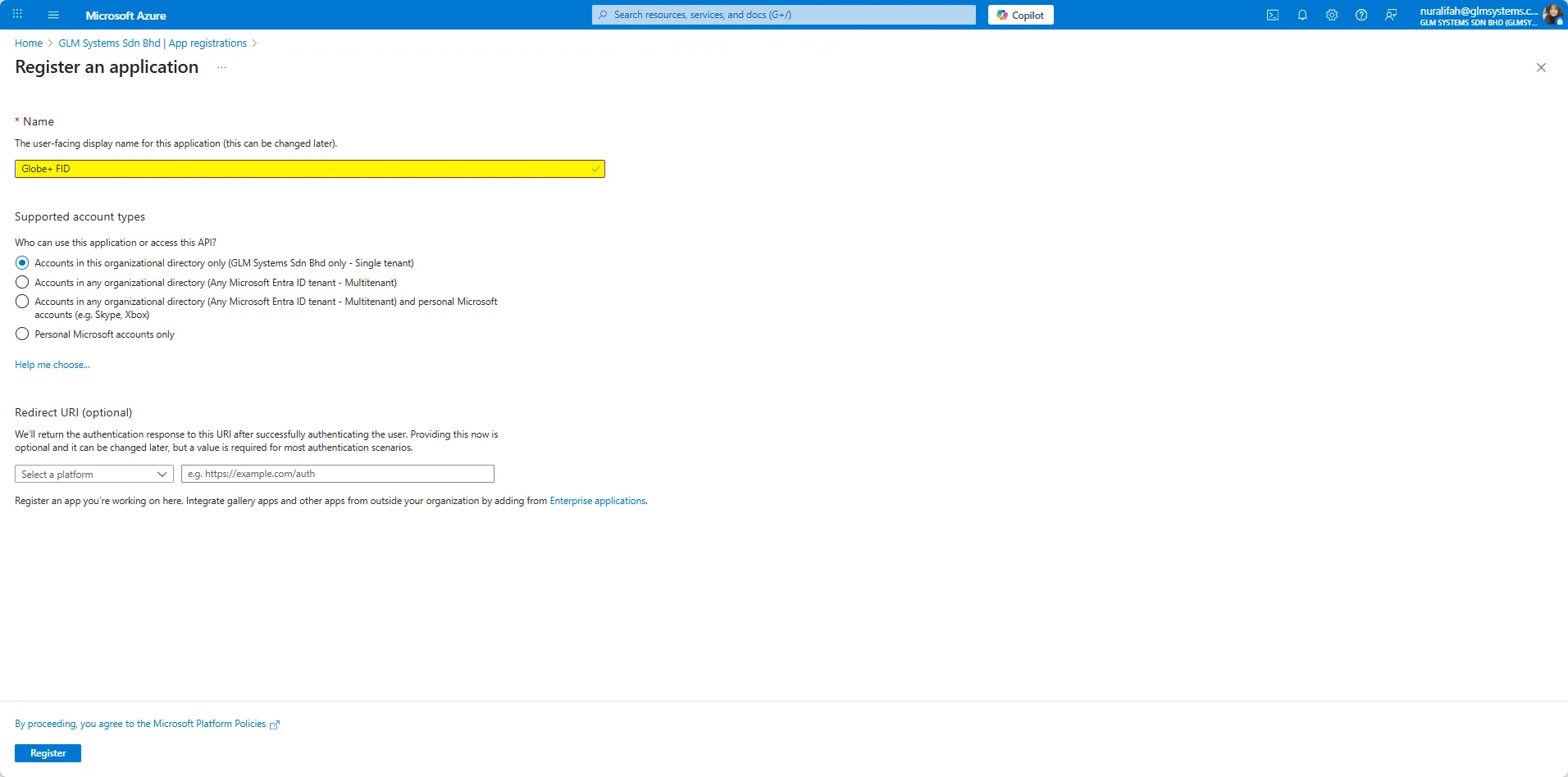
- Navigate to Microsoft Entra ID > App registrations > New registration.
- Set the :
- Name: Globe+ FID
- Supported account types: Accounts in this organizational directory only (Single tenant)
- Click Register
Authentication for mobile and desktop application
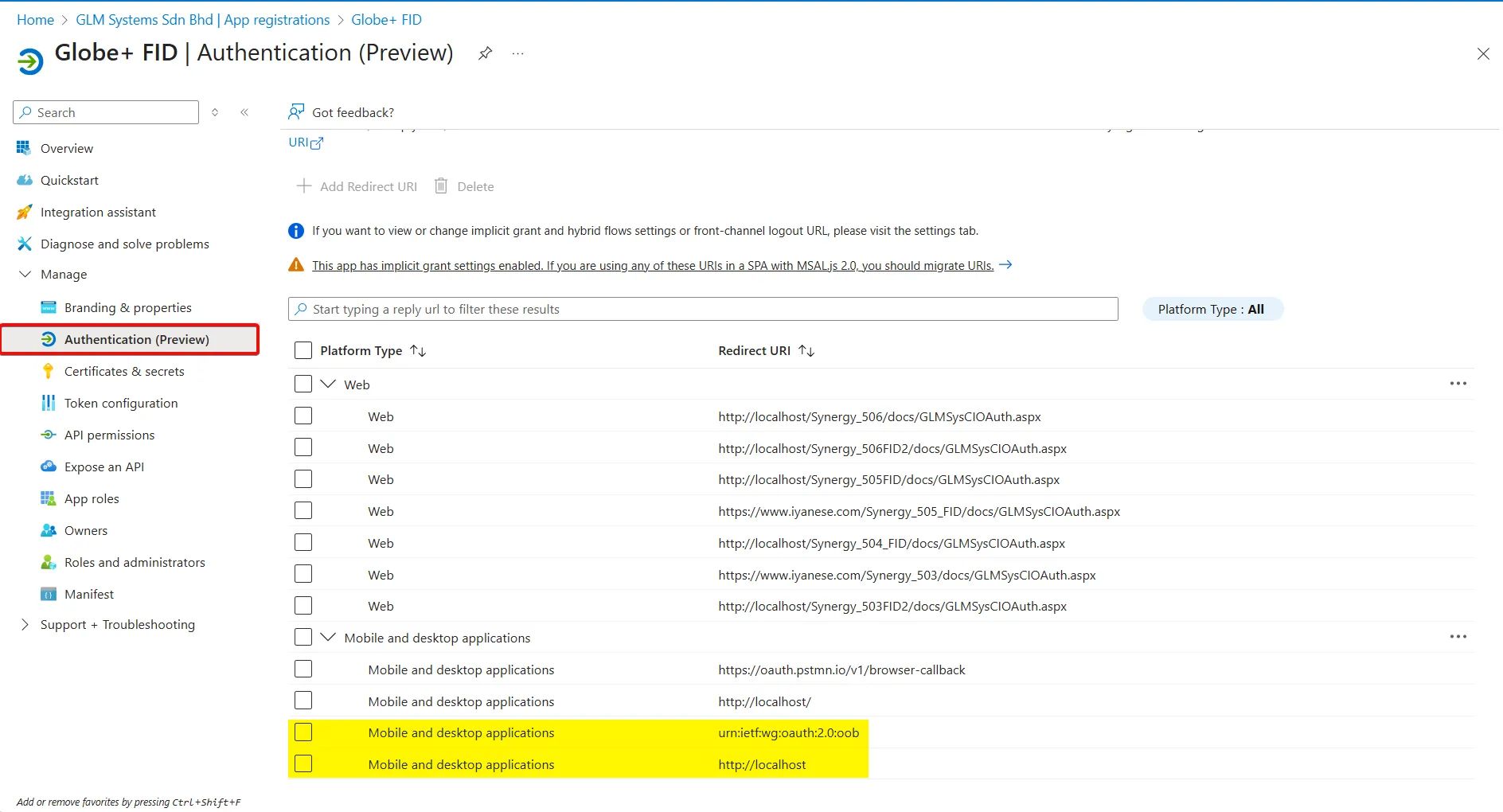
Section titled “Authentication for mobile and desktop application”- Go to Manage > Authentication (Preview) > Mobile and desktop applications:
- urn:ietf:wg:oauth:2.0:oob
- http://localhost
Authentication for web application
Section titled “Authentication for web application”-
Go to Manage > Authentication (Preview) > web:
-
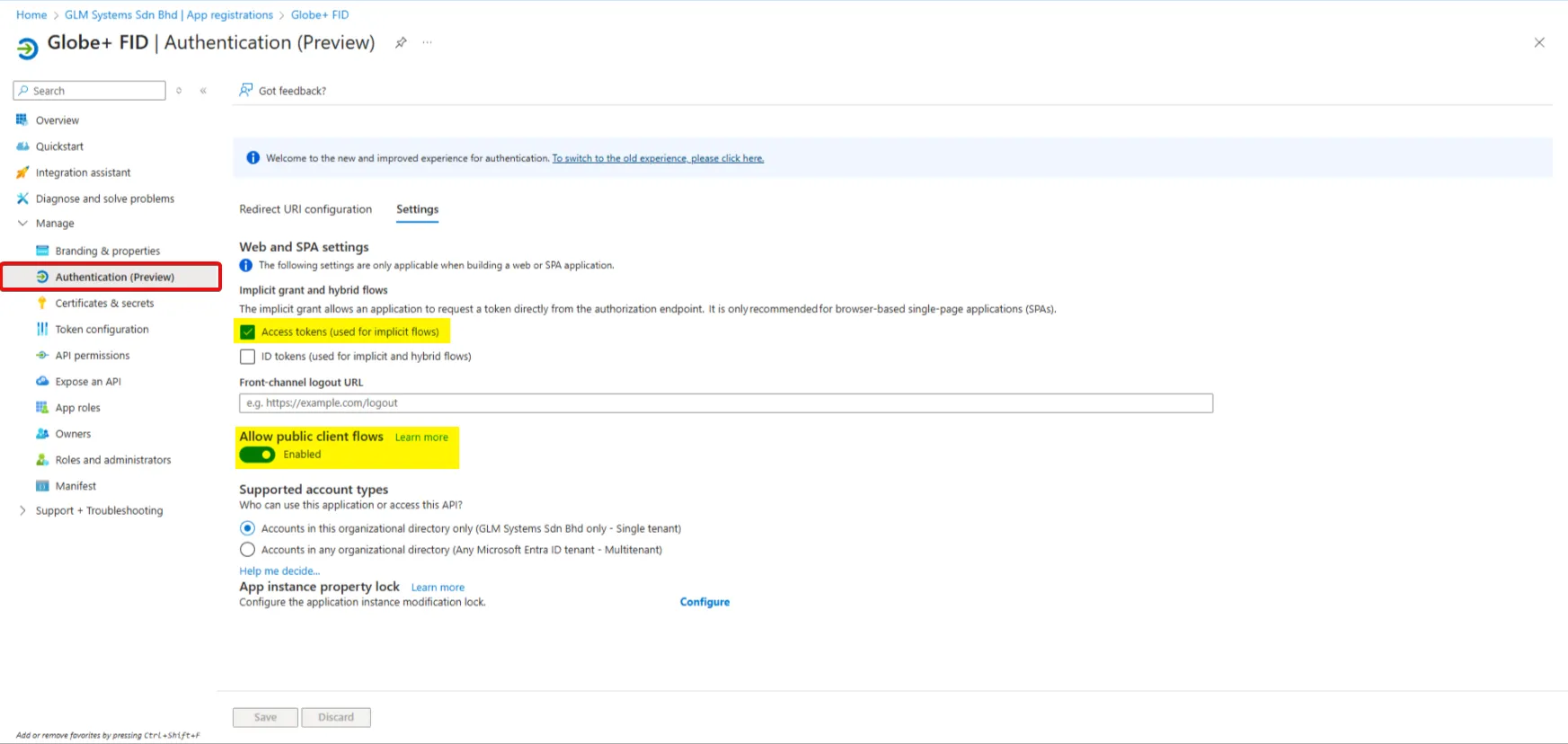
Home > App registrations > Exact Globe+ > Manage > Authentication (Preview)
-
Check this both:
- Access tokens (used for implicit flows)
- ID tokens (used for implicit and hybrid flows )
-
Set allow public client flows : Enabled.
-
Certificates and Secrets
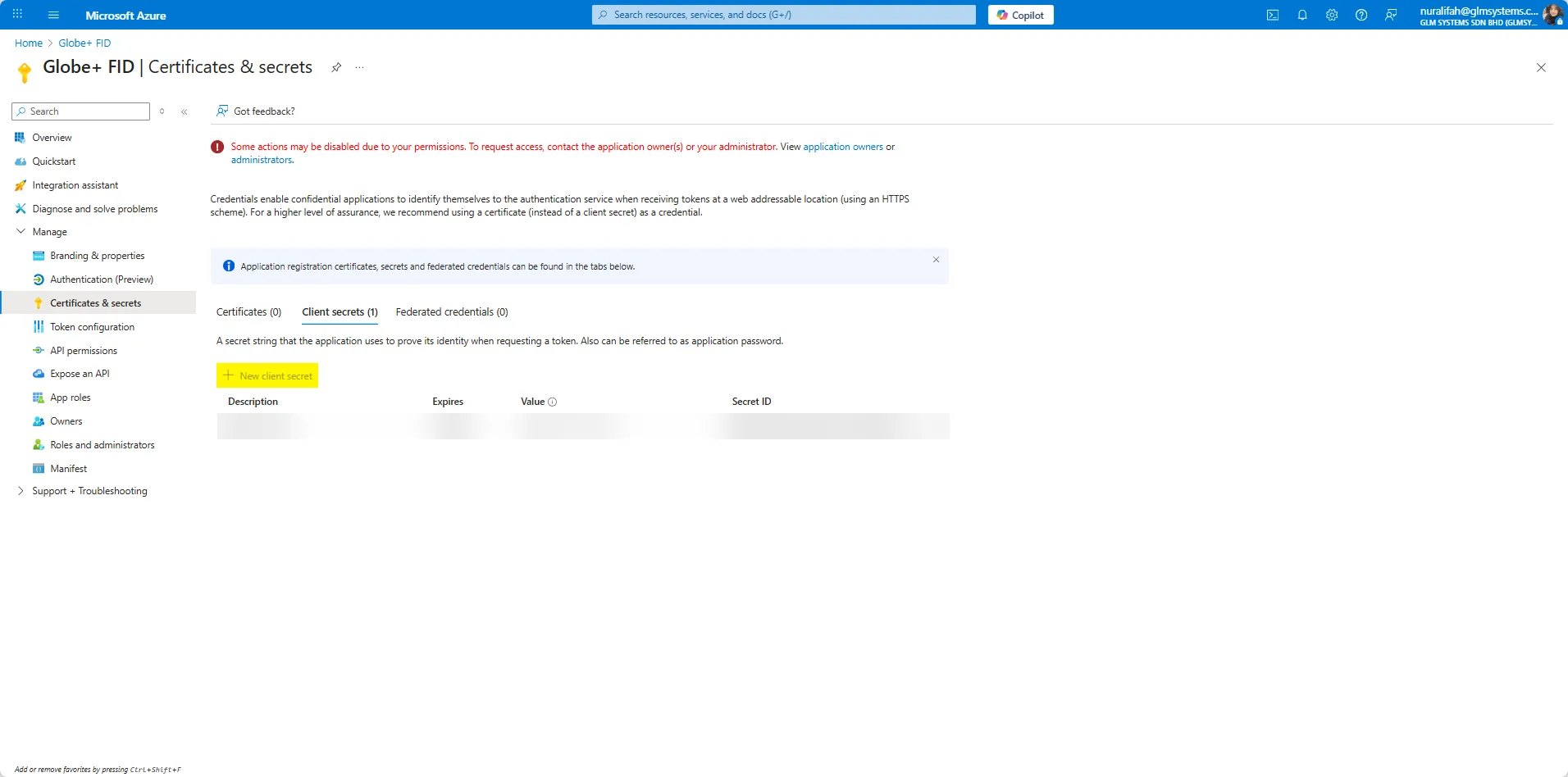
- Open Certificates & Secret
- Select menu “+ New Client Secret”
- Description: globe+ secret
- Expiration : e.g., 2 years of custom date
- Click add and store the value secretly (used in RPA configuration)
-
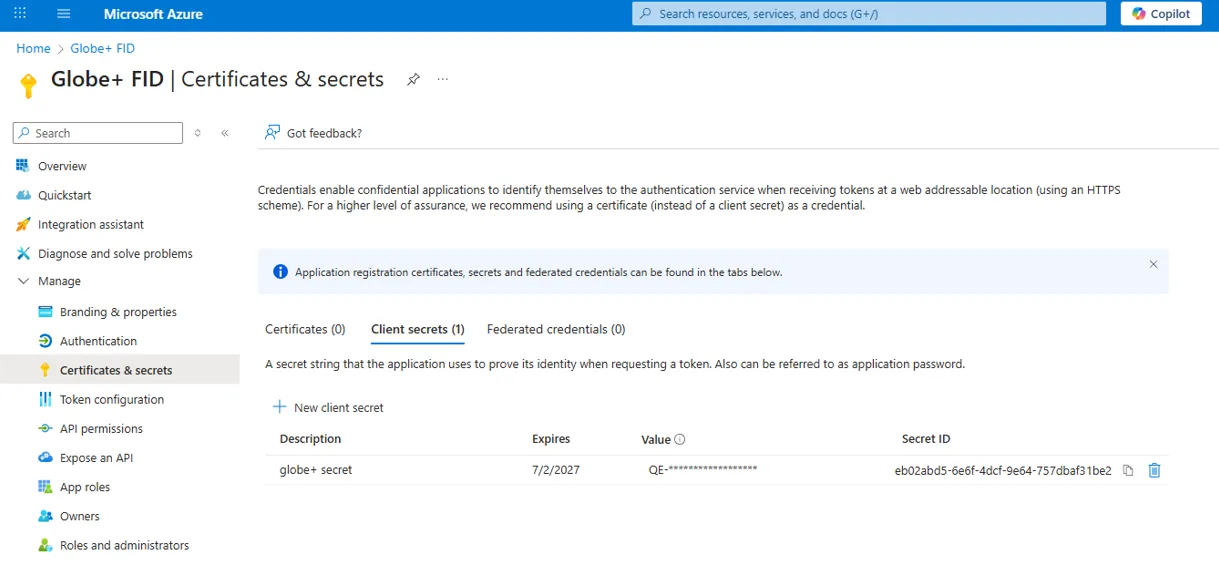
And now the client secret has been addeed.
-
API Permissions
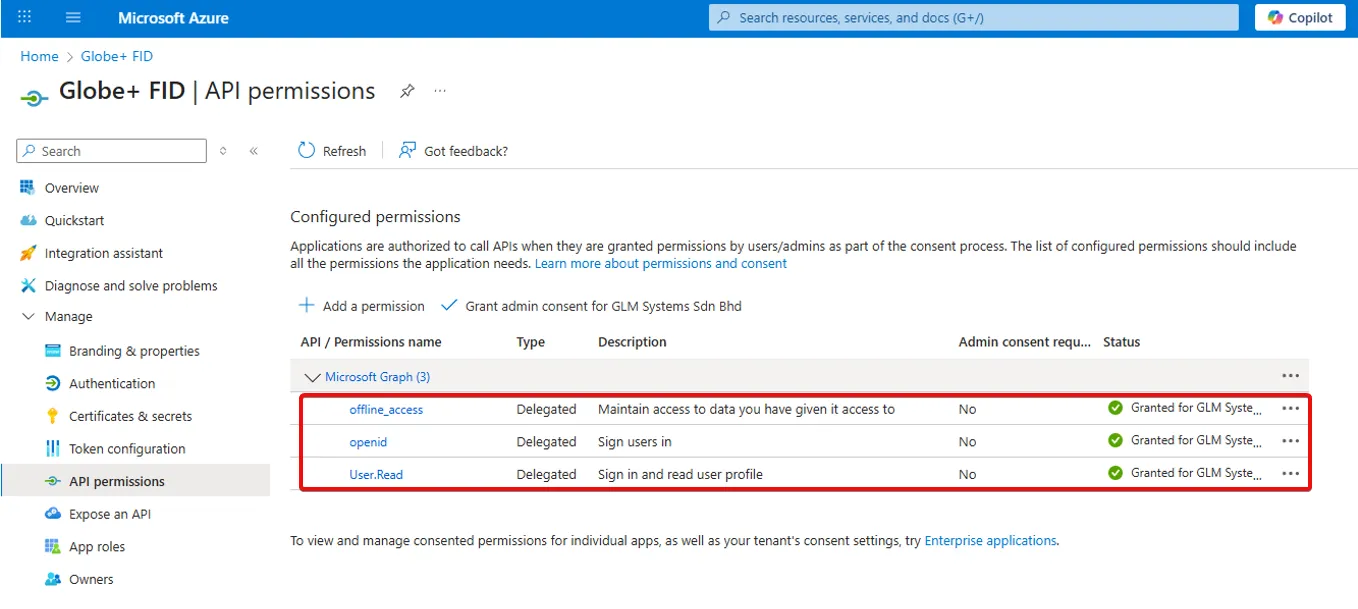
- Go to API Permissions > click “Add a permission > Microsoft Graph > Delegated Permissions
- Then add the following :
- offline_access
- openid
- user.read
-
Grant the admin consent for GLM Systems Sdn Bhd
-
Expose an API
-
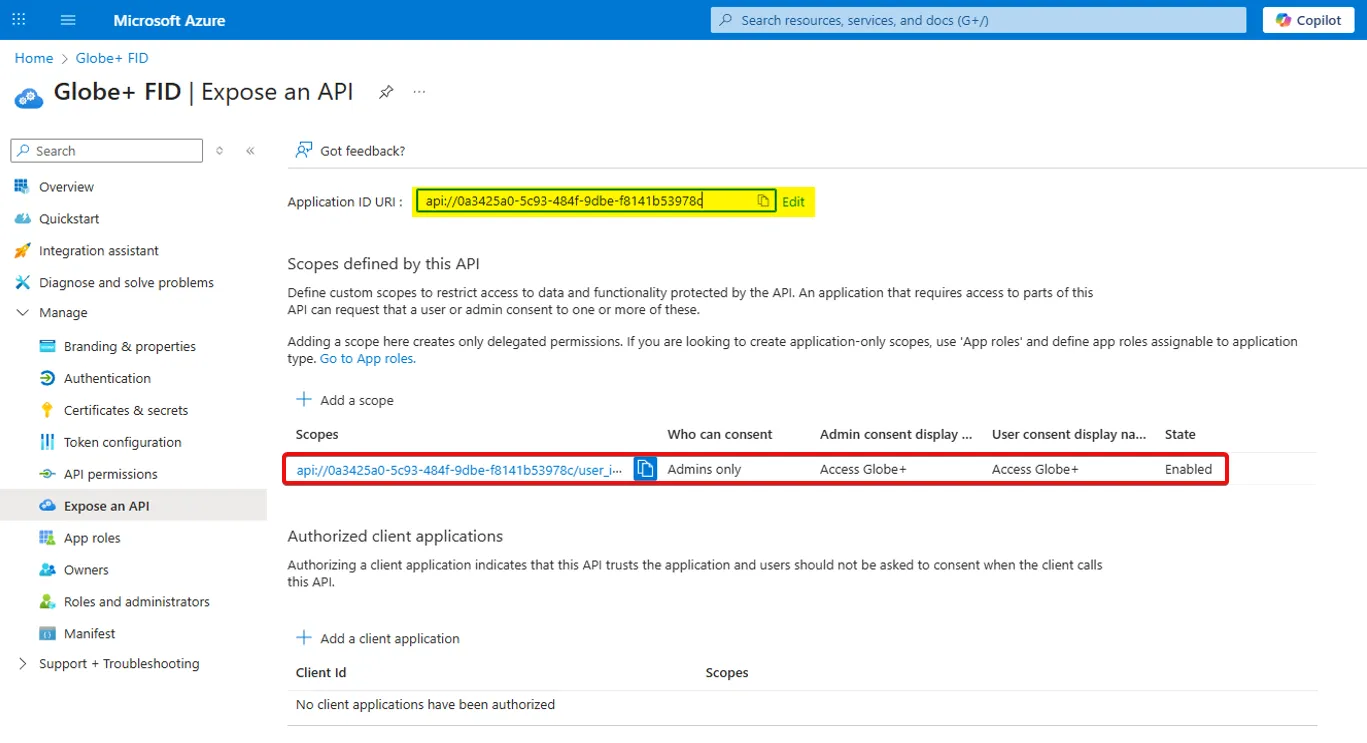
Go to Expose an API
-
Set the Application ID URI : api://0a3425a0-5c93-484f-9dbe-f8141b53978c
-
Add a new scope :
-
Scope name : user_impersonation
-
Who can consent : admins only
-
Admin consent display name : Access Globe+
-
User consent display name : Access Globe+
-
State : Enabled
-
Configure Exact Globe+ via FIDConfigurator.exe
-
Open FIDConfigurator.exe that located at : “C:\Program Files\Exact Globe+\cab”
Federated Identity Configurator
Fill in all the fields in the FID box:
Installation FolderC:\Program Files\Exact Globe+
Identity ProviderWindows Azure Active Directory
SAML Issuer Name
https://sts.windows.net/954c8f02-f2f9-40e1-89da-3813e56e5bbb/Client ID457e2096-56f1-4839-84ee-343e673abbc4
Resourced8973e29-bd8e-42a6-a866-641950cecc88
Allowed Audienced8973e29-bd8e-42a6-a866-641950cecc88
Thumbprint1D2DB76FB0EBD371A554862C7C2922ADB85588
Authority
https://login.microsoftonline.com/954c8f02-f2f9-40e1-89da-3813e56e5bbb/Allowed Audience (Web)
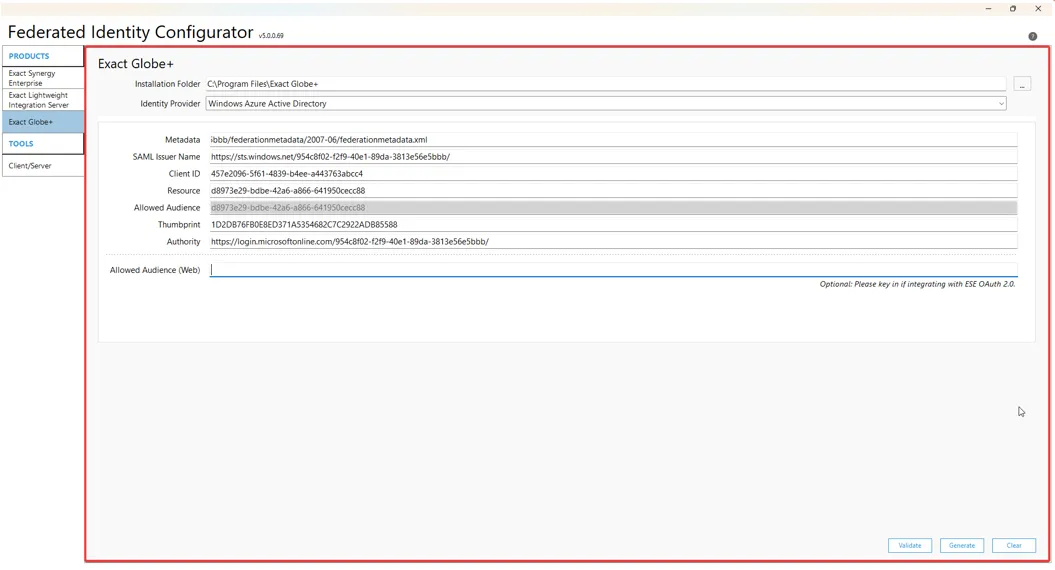
-
After fill the blank, input your username and password and then click the Validate button.
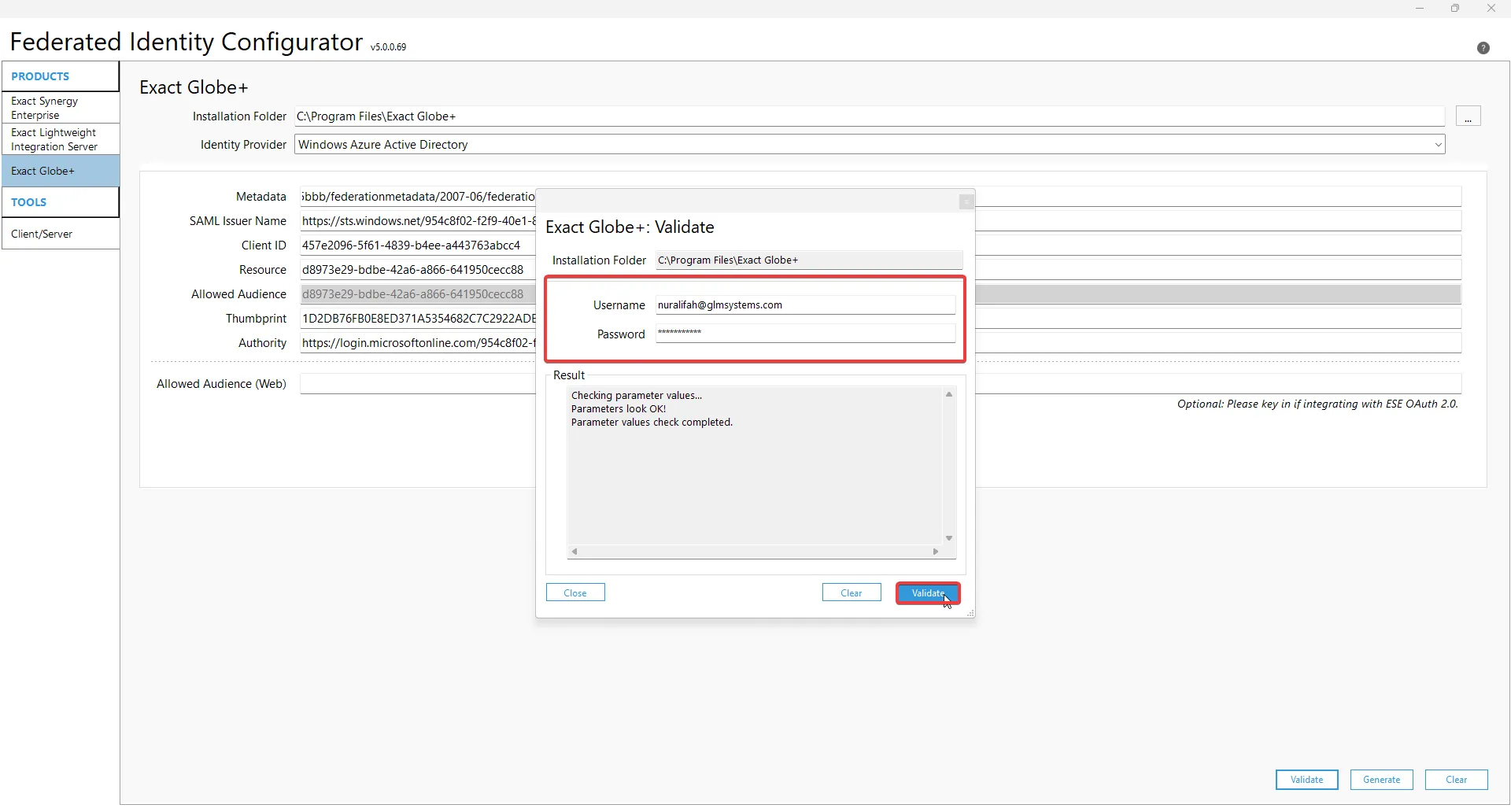
-
After the validation success, it will give you this result.
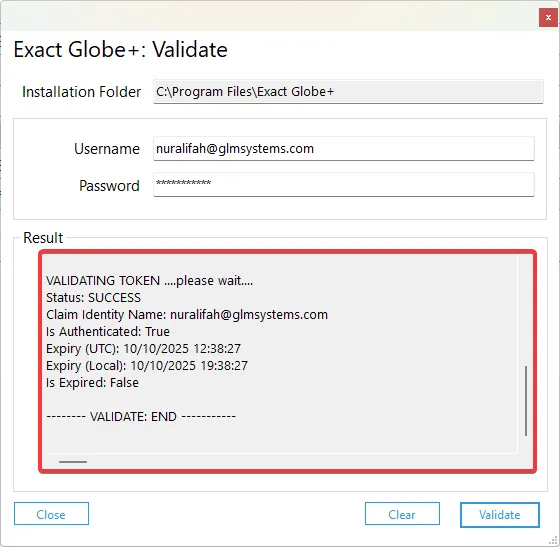
-
Next, click the Generate button. If the confuguration is successful, the system will display the message Configuration successfully generated
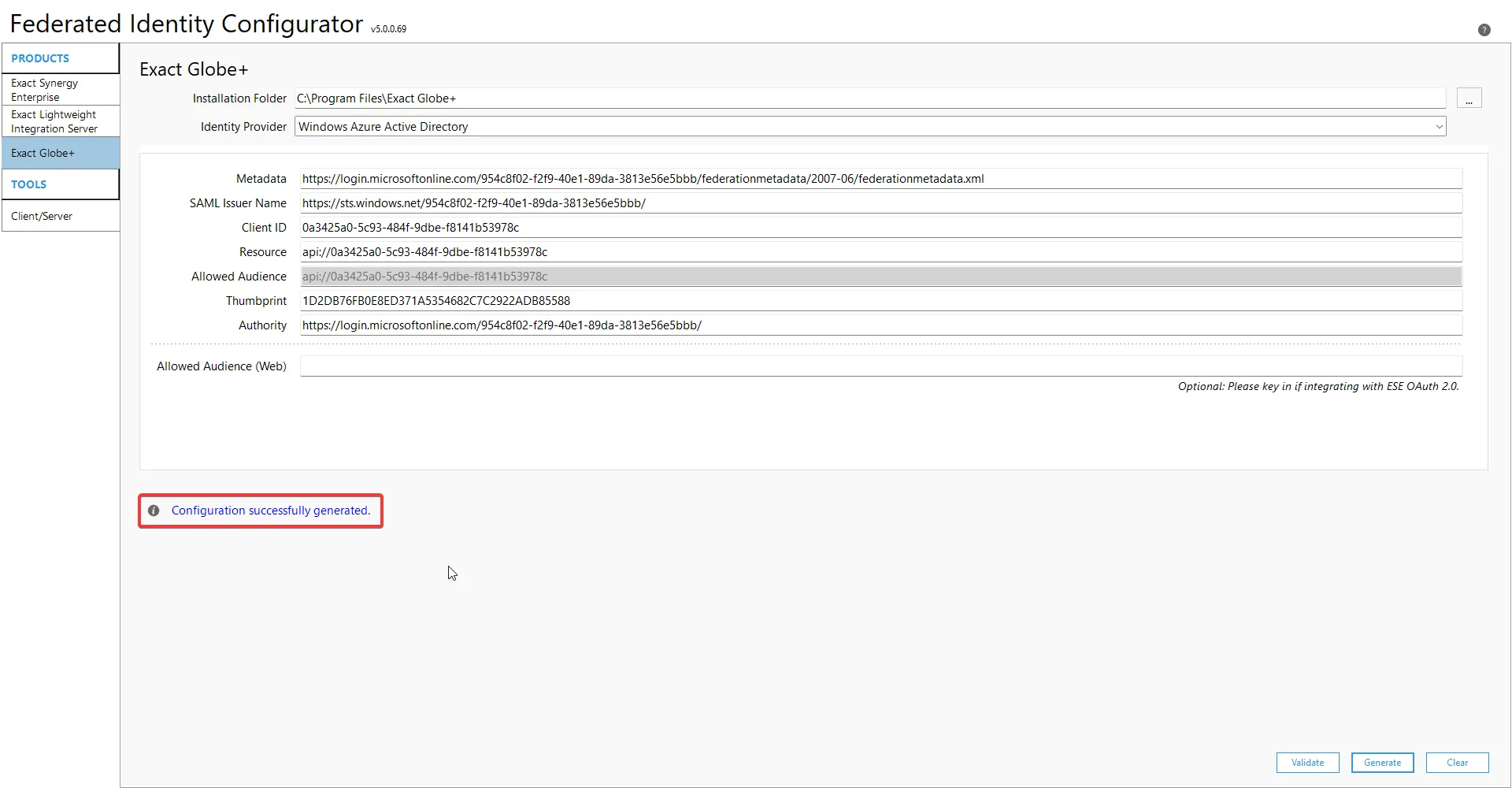
-
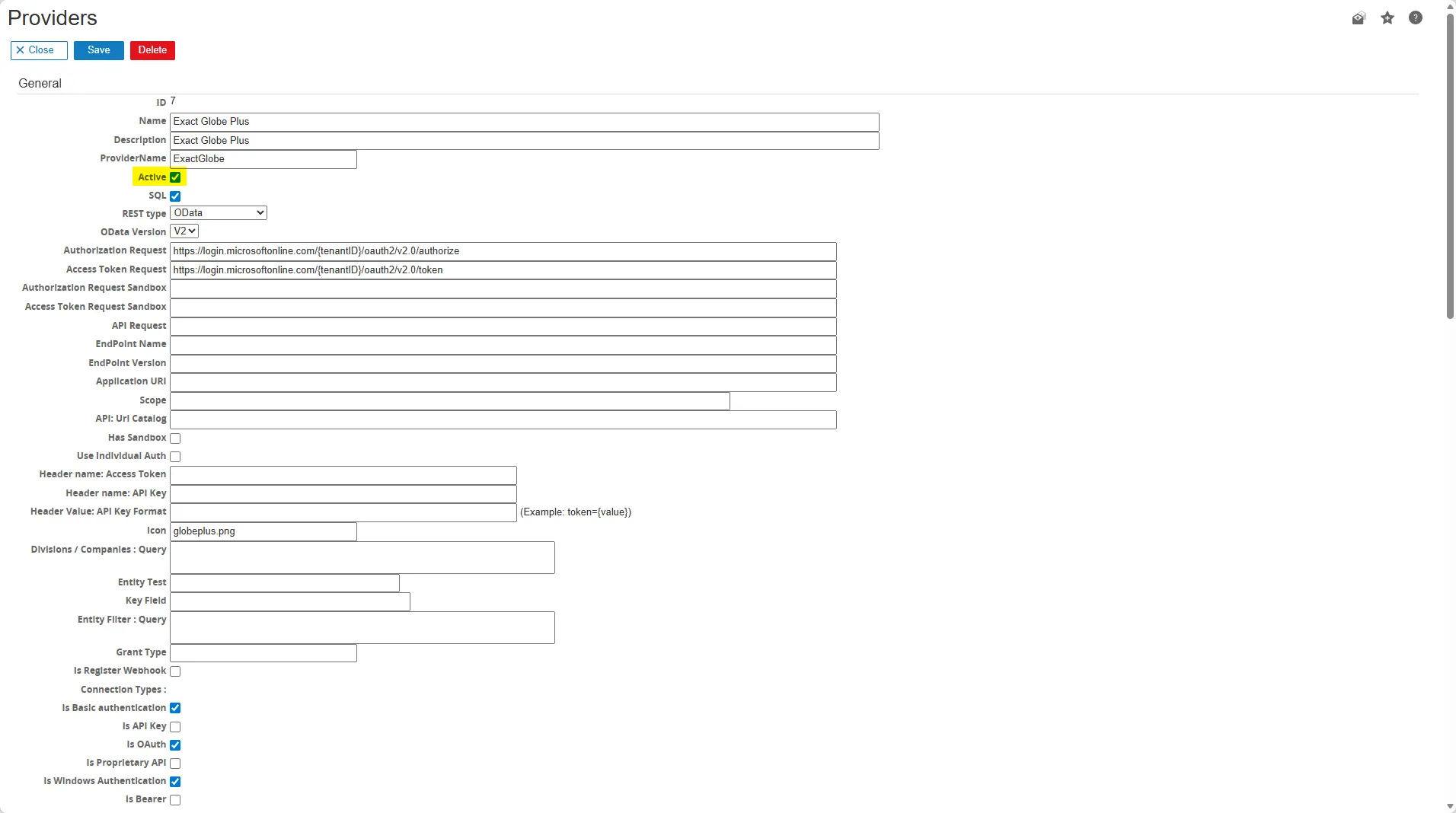
Next, go to RPA > Setup > Connection > Provider.
-
Click the Exact Globe+ to expand the form.
-
Complete the blank field and make sure that both Active and SQL are checked.
-
Go to Connections, click the button New.
-
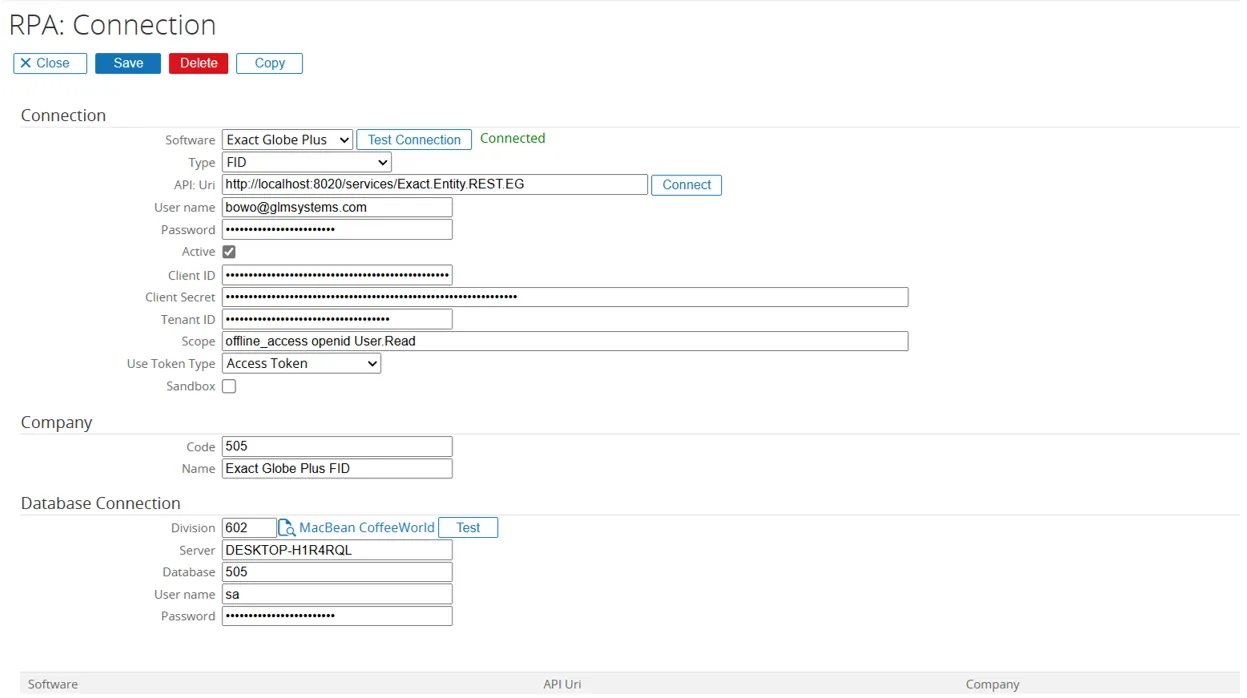
Fill all the field, then click Connect on the Database Connection to see if it already connect. The sequence is :
TypeFID
API URIhttp://localhost:8020/services/Exact.Entity.REST.EG
Username(Azure AD account email)
Password(Azure AD account password)
Client ID0a3425a0-5c93-484f-9dbe-f8141b53978c
Client Secret(Value from Certificates & Secrets)
Tenant ID954c8f02-f2f9-40e1-89da-3813e56e5bbb
Scopeoffline_access openid User.Read
Use Token TypeAccess Token
Companye.g., Code: 505 | Name: ExactGlobe+ FID
DatabaseDivision, Server, Database, User (sa), Password
Connection
-
Make sure the database connection is being “connected” when you test it.
-
Then, the API URI is “connected”.
-
Last, test connection at the software menu is also “connected”.
-
Then, click the Save button to store your connection settings.
Your connection setup is now complete.
Setup Rules Settings
Section titled “Setup Rules Settings”Exact Synergy
Section titled “Exact Synergy”- Go to RPA > Setup > Setting > Rules.
- Click the edit button to fill the data
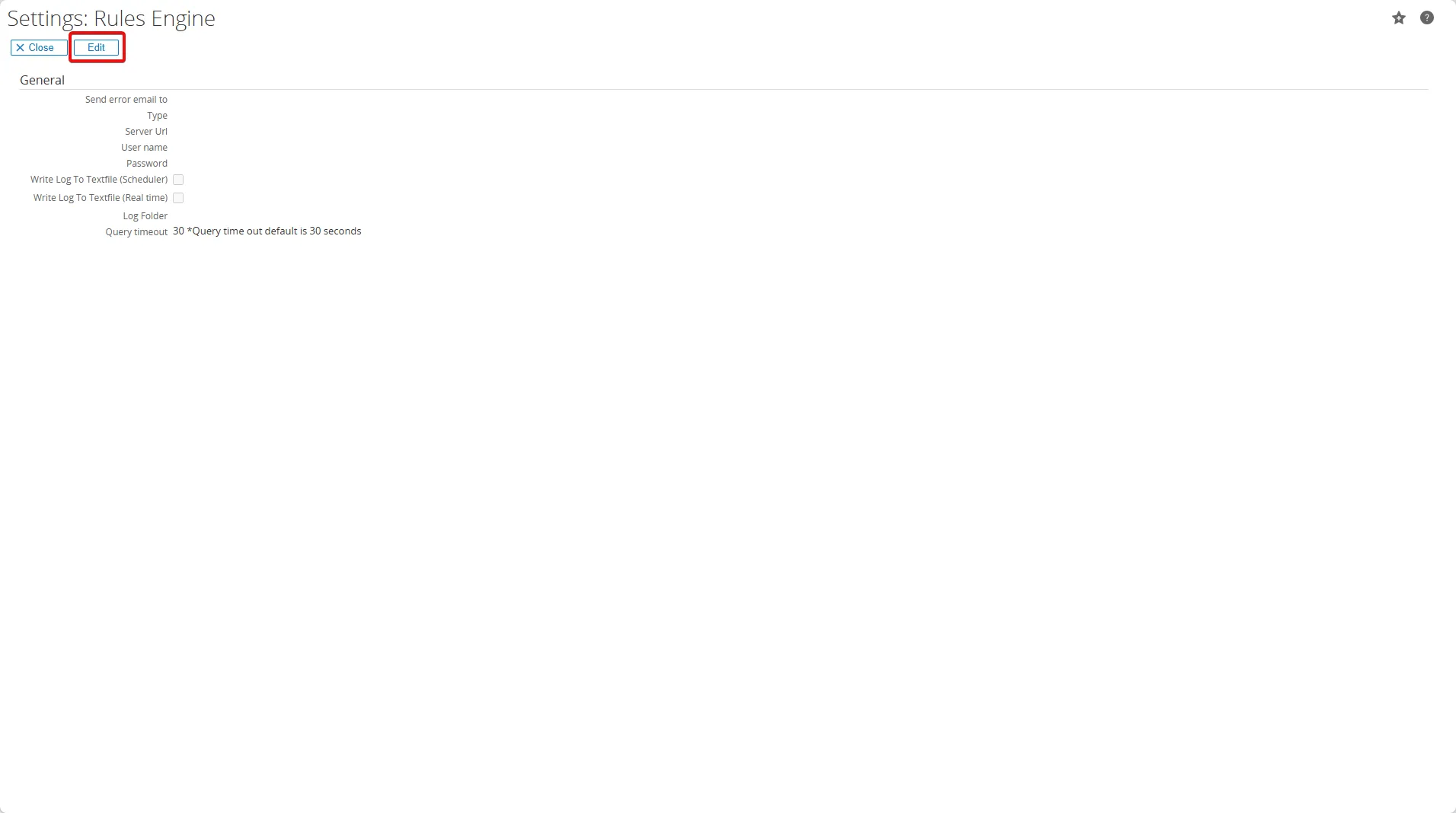
- Fill the blank data and click Save
Exact Globe+
Section titled “Exact Globe+”- Open yourGlobe+ application
- Go to System > Settings
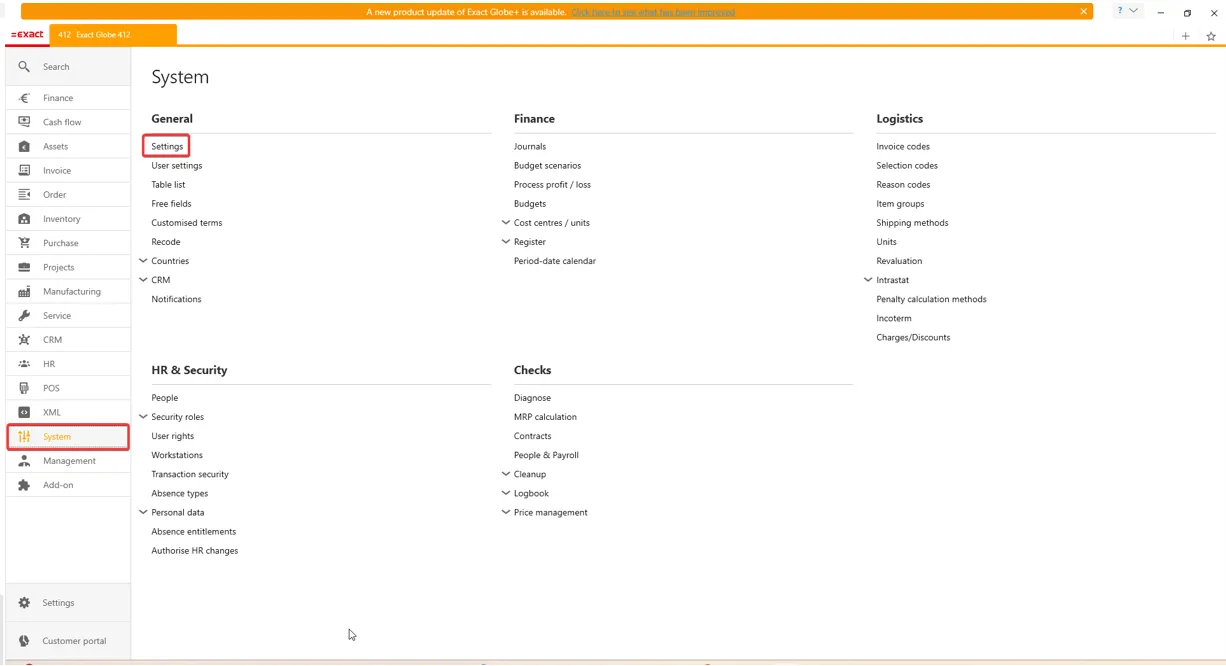
- Choose Rules Settings
- Enter your Exact Synergy Enterprise URL
- Fill all the FID menu (same with the synergy FID settings)
- Move the inactive Back Office action from the left side to the Active Back Office action on the right
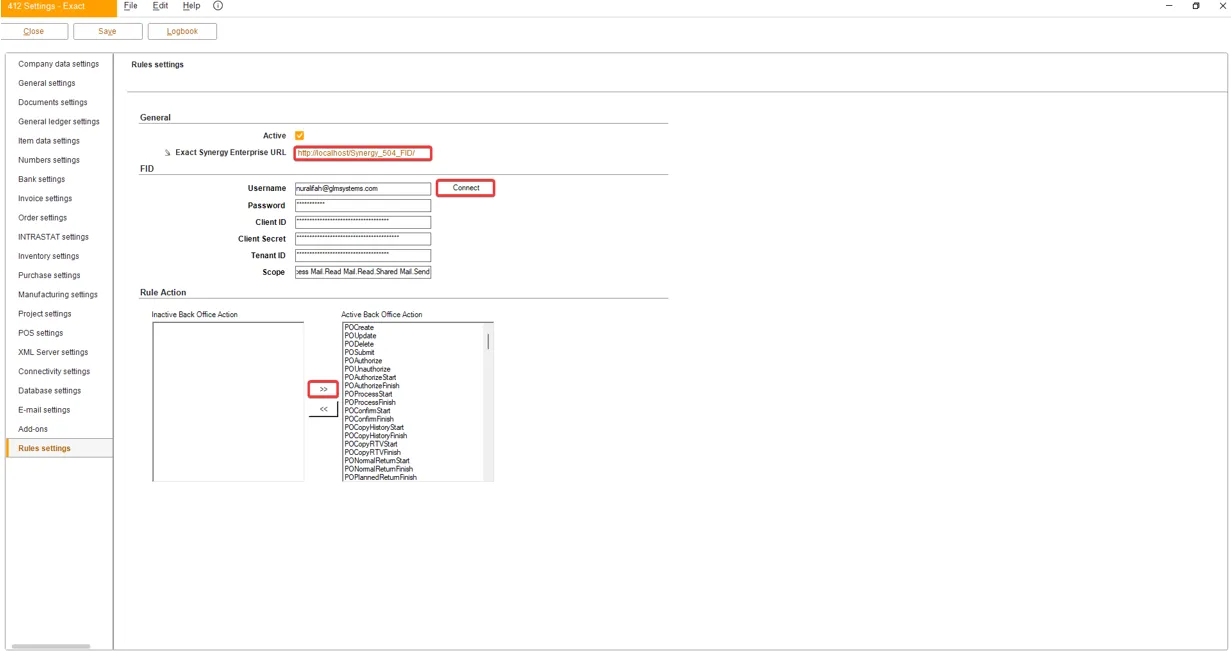
- After completing the data, click Connect button
- Next click Save button
Troubleshooting
Section titled “Troubleshooting”Error in the rule settings
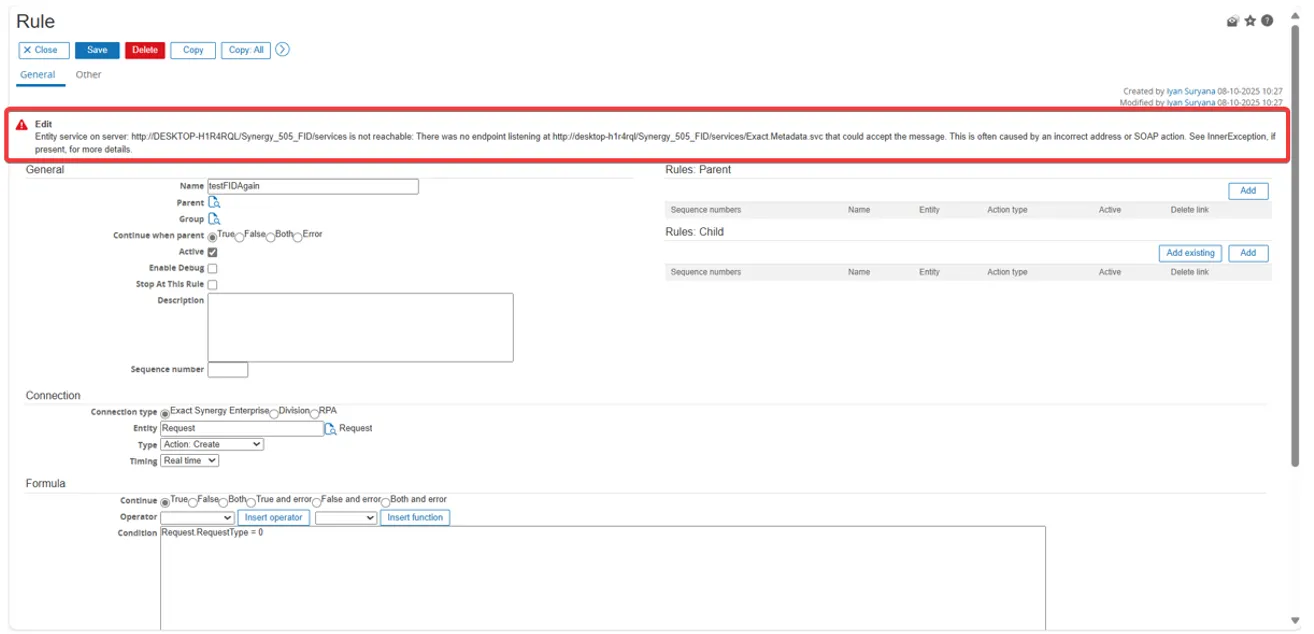
Section titled “Error in the rule settings”The system displays the error message “Entity service on server is not reachable”, indicating that the server cannot be accessed caused by an incorrect address or SOAP action.
Step to resolve :
You need to configure the FID connection in the Rule settings.

Error back office connection
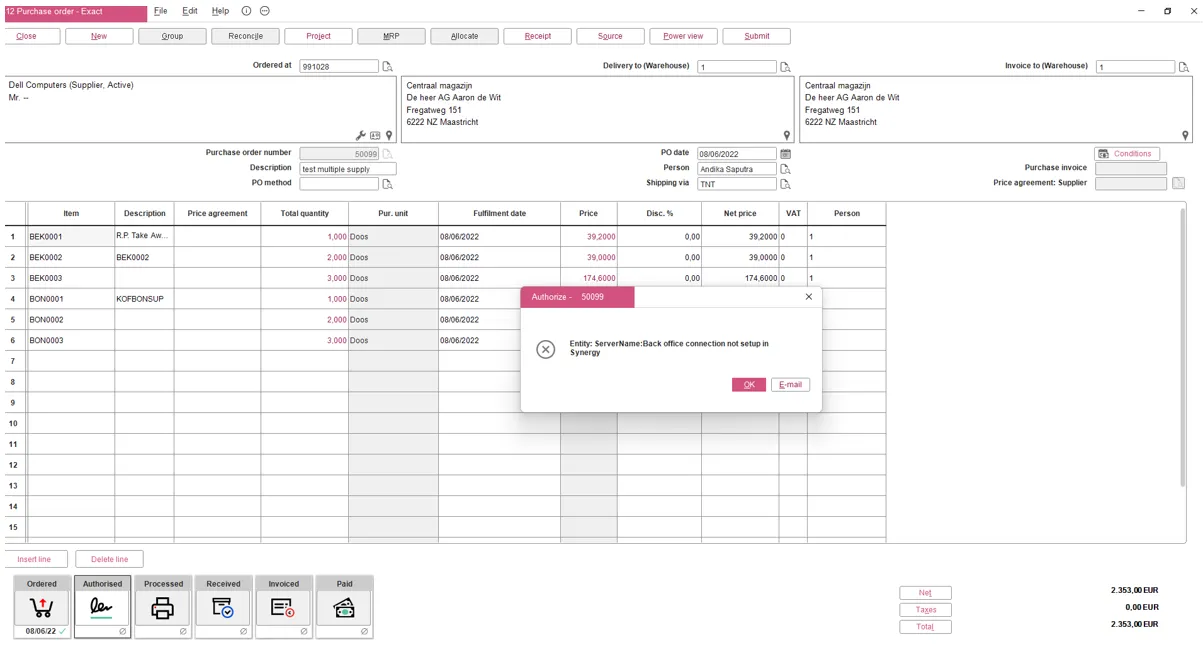
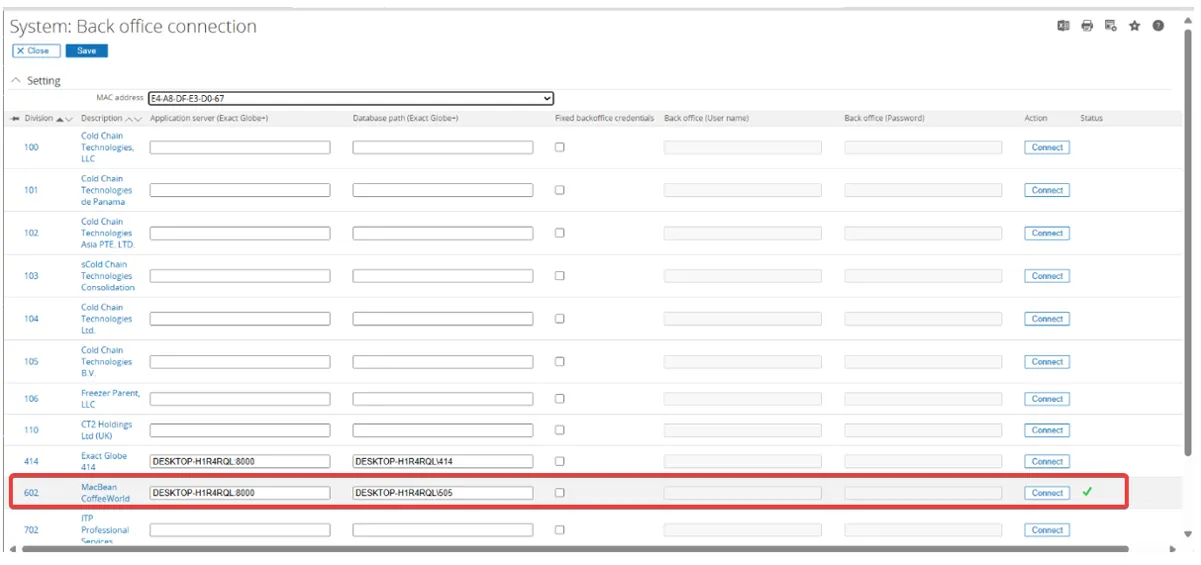
Section titled “Error back office connection”If this error occurs in Globe+, you need to configure the back office connection in the Synergy Back Office. Go to System → Setup → Back office → Back office connection.
Step to resolve :
Try connecting to the Globe+ connection, make sure the “Fixed Back Office Credentials” option is unchecked, and then click Connect.

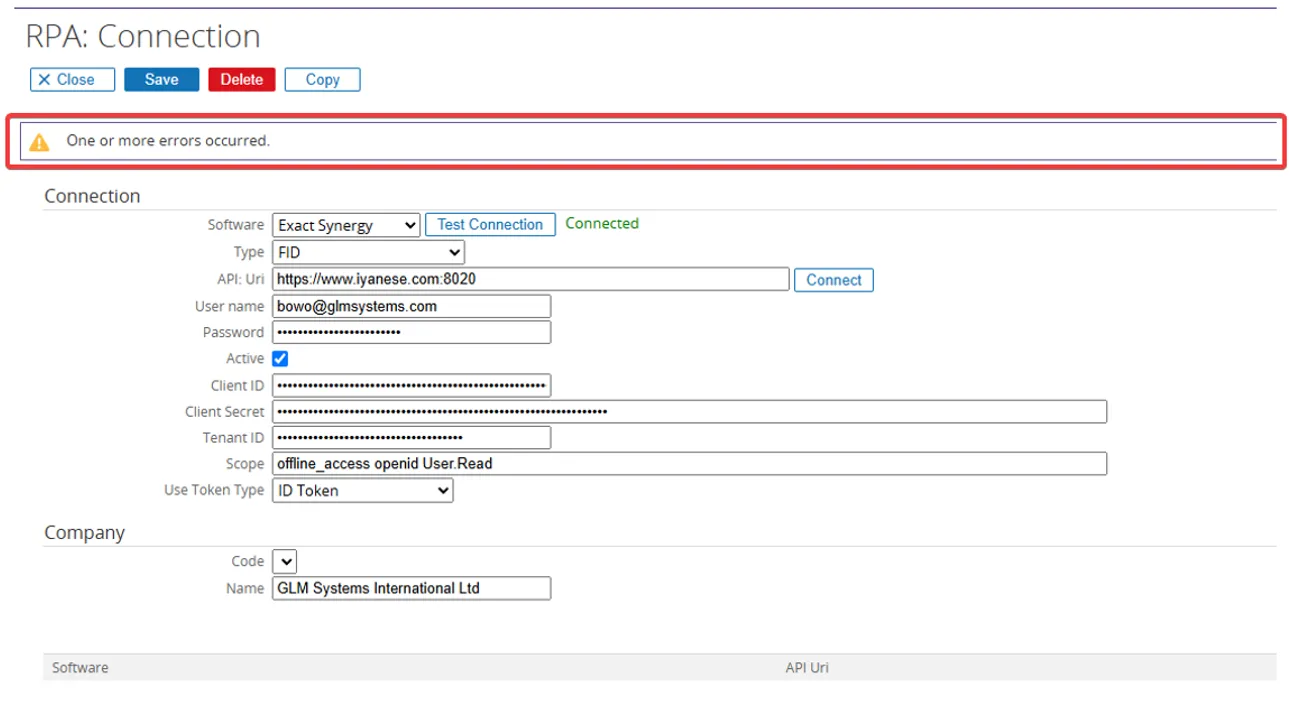
Error with message “One or more errors occurred”
Section titled “Error with message “One or more errors occurred””The Synergy FID connection shows as “Connected”, but an error message appears : ‘One or more errors occurred.’
Step to resolve :
Ensure that the APIUri is correct and not using a port that already in use by another application.
Error SDK connect issue
Section titled “Error SDK connect issue”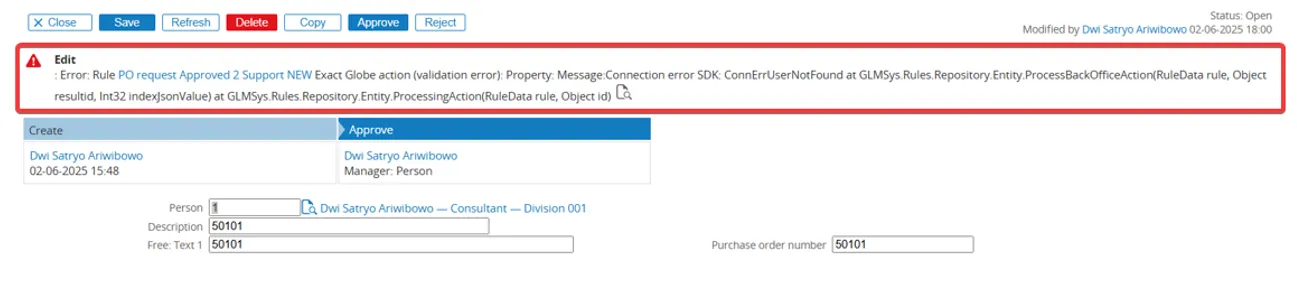
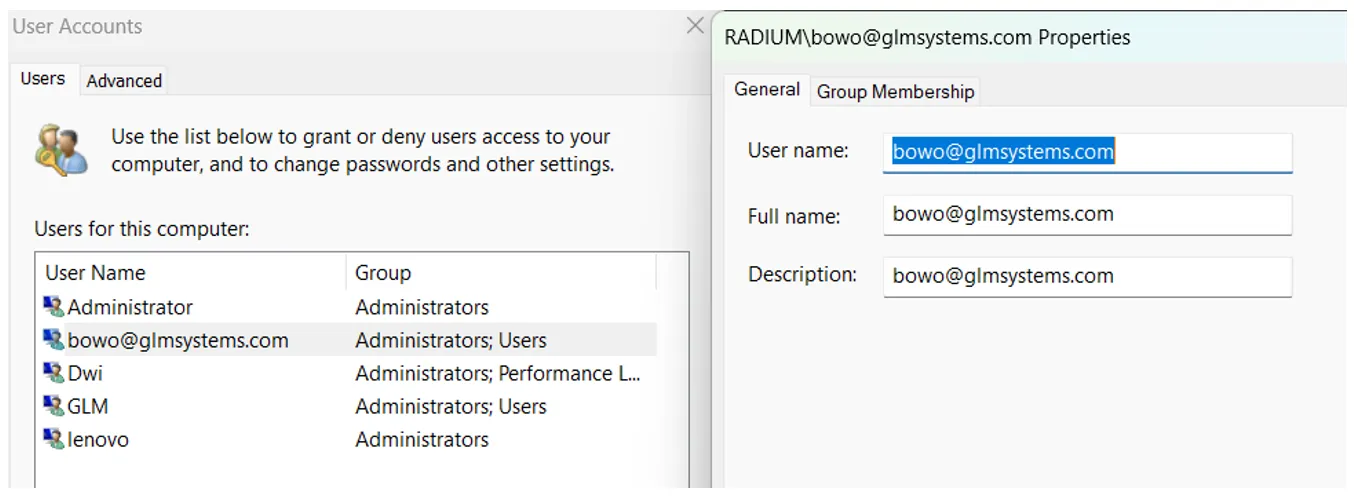
- Change username as user AD (will be used logon as service on Exact entity service)
- Open Windows + R or Run
- Type :netplwiz
- Double click on user & edit username same as user AD (e.g, bowo@glmsystems.com)
- Exact Entity Services
- Go to Services & choose the Exact Entity Service set log on as with your new user AD, then restart the service
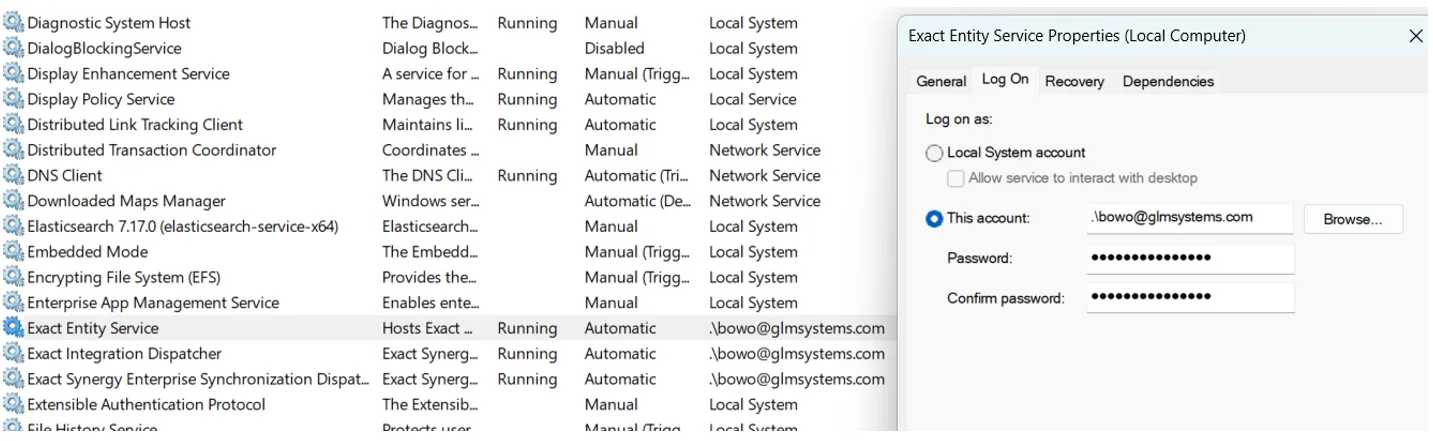
- Go to Services & choose the Exact Entity Service set log on as with your new user AD, then restart the service
Error Globe+ Connection
Section titled “Error Globe+ Connection”Failed: InternalServerError Internal Server Error Method: GET, RequestUri: http://localhost:8020/services/Exact.Entity.REST.EG/Item?$top=1, Version: 1.1, Content:0 |
|---|
Headers: Accept: application/json Accept: text/javascript; charset=utf-8 ServerName: <yourservername> DatabaseName: <yourdatabase> |
| AccessToken: PAQABAQIAAABlMNzVhAPUTrARzfQjWPtKbLsMZuMymAcoN2-b3RTIQoLR7Fna7ONoriC6bb-n_7XgGukHsGk__2kurjwSRFHw8oFtf0xxckIn8X1DALNqKSyehyME_8TPDoTMlEaZfsXxfOX3OuSxU9V0s36H6YtrfRyB727UC2Wx_UKfXYl1P0R—Pvw-Pvru27clTOKLQONBXdCQwYWmMQZlx-CJfBTxgLa_SPP1n1VzJBTl6rTn8Vuu4mMjOkgC_F3a0e8SDWezKsEn9HLgC6_W6WXBpMSTpyzv41nbctkkXxXgBv9cF6kReHmbw14QNxOcD-8HObZCbVBFRUt1eYYkNtTIFSHX81Fgb7-LiyXlntjdb-U6XqEXOo57dGKT7f0LNBmJdZQXjR1PKKWZV65aPMkUXNi2uOk0vAS1B39gbWmdnOGFTMDfmRHthv4auCuBZAumP8J4lFuq0le6bEeC8vagdqv6mBrQgnNMd7xnrBf24MiBe6mTB6cxivAHhh61sa3WjipjhXHgMeTESHSp0Kd29Fg-Y5xNJhHaEABbwj2xhzSjNNza35IcmQ6PvgTUgAA AccessTokenType:1 |
Step to resolve :
If you got error like the AccessToken value starts with “PAQ”, so it is not a JWT. A JWT typically starts with “eyJ”.
So what need to do is you need to make sure that Access tokens are enabled in the Azure Authentication settings for the Globe+ app registration.

Error: Failed Unauthorized Missing Authentication
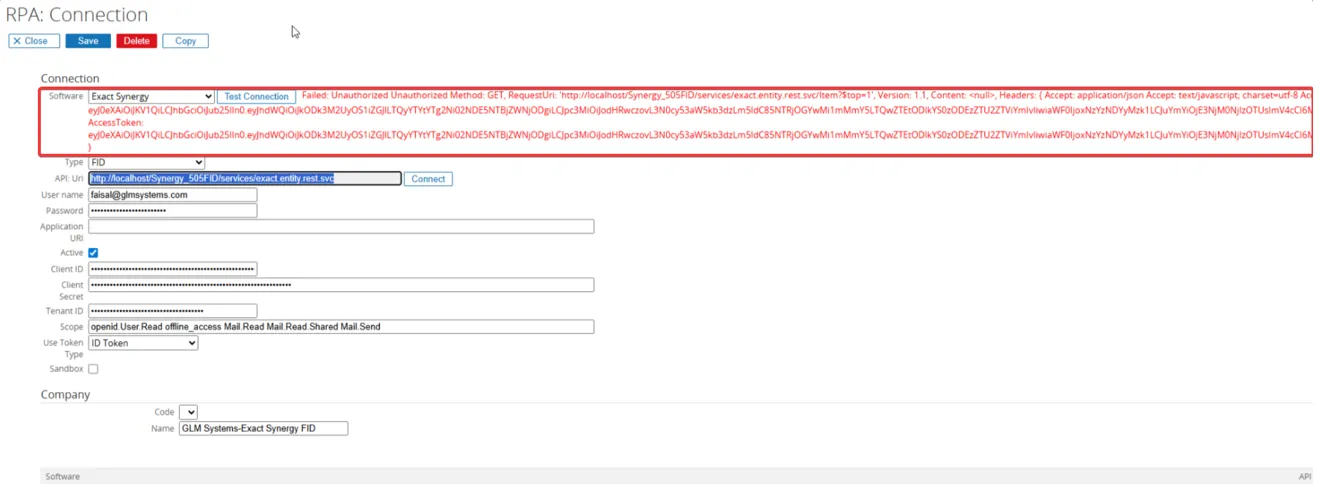
Section titled “Error: Failed Unauthorized Missing Authentication”When you try to connect, and you receive this error message :Failed: Unauthorized Method:GET
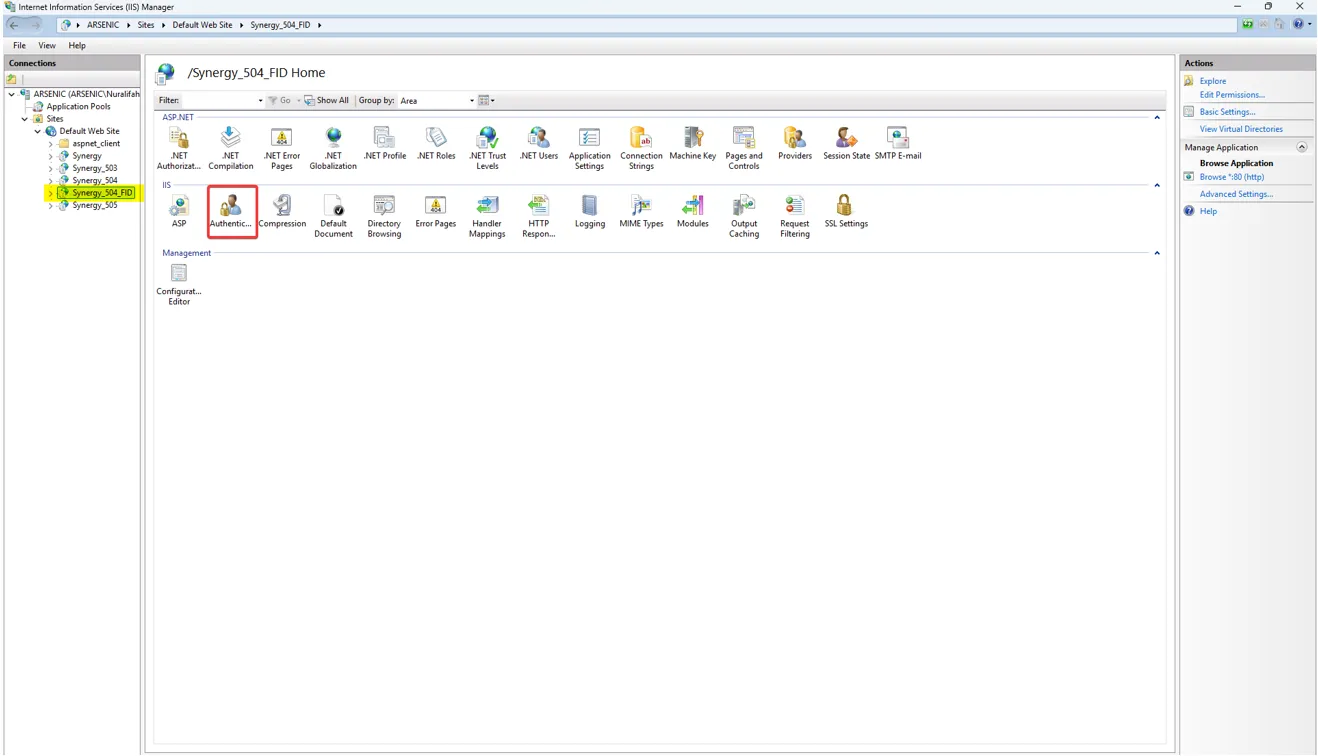
- Open your IIS (Internet Information Services) Manager.
- Go to your Connections.
- Open the Authentication menu.
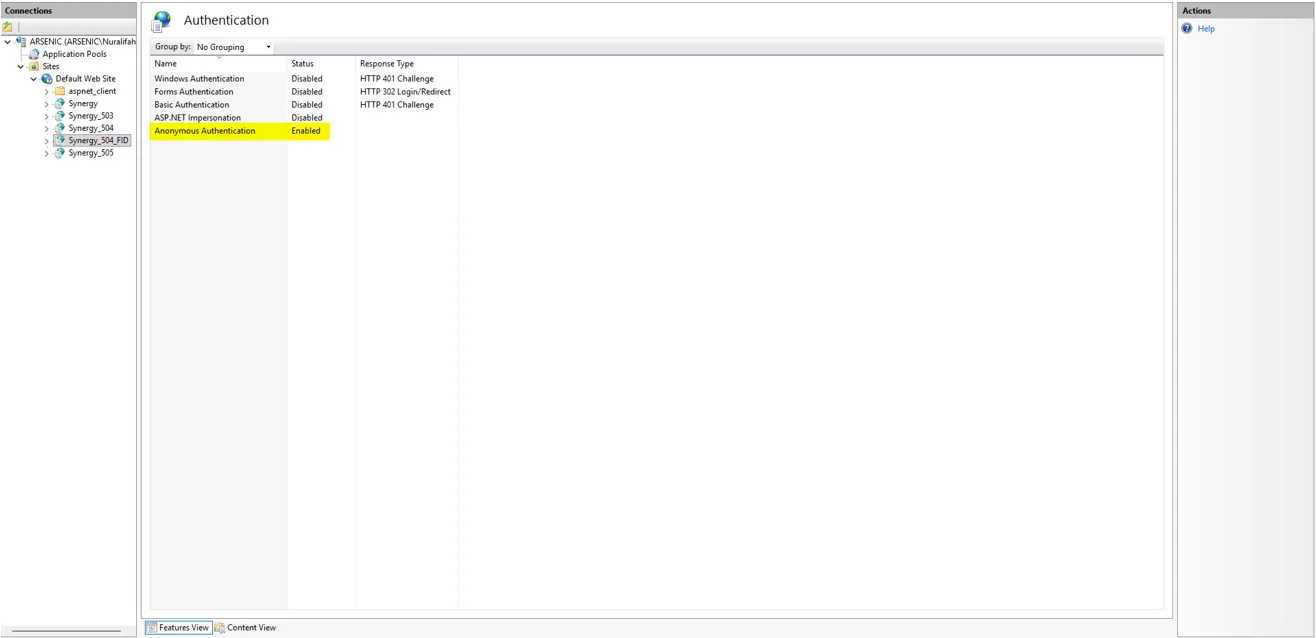
- For the FID Connection, make sure all Status Connections are set to Disabled, except Anonymous Authentication, which should be Enabled.
Error: Scope Filled Incorrectly
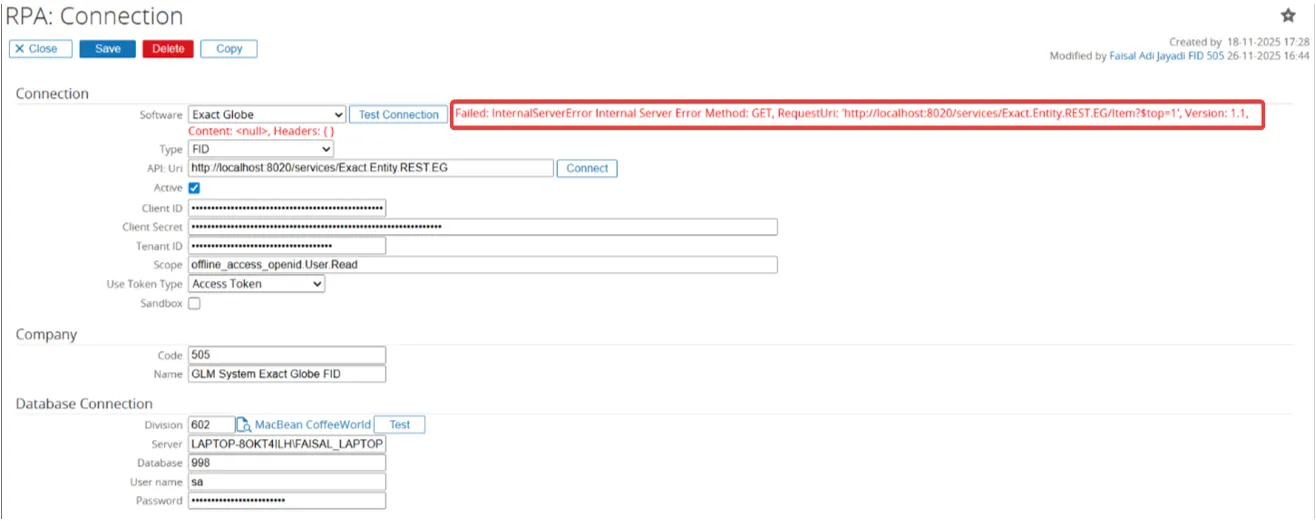
Section titled “Error: Scope Filled Incorrectly”The error occurs because the field Scope has a typo, with and added underscore characters:
offline_access_openid.User.Read
Step to resolve :
Ensure you input the correct scope, which should be:
offline_access openid.User.Read
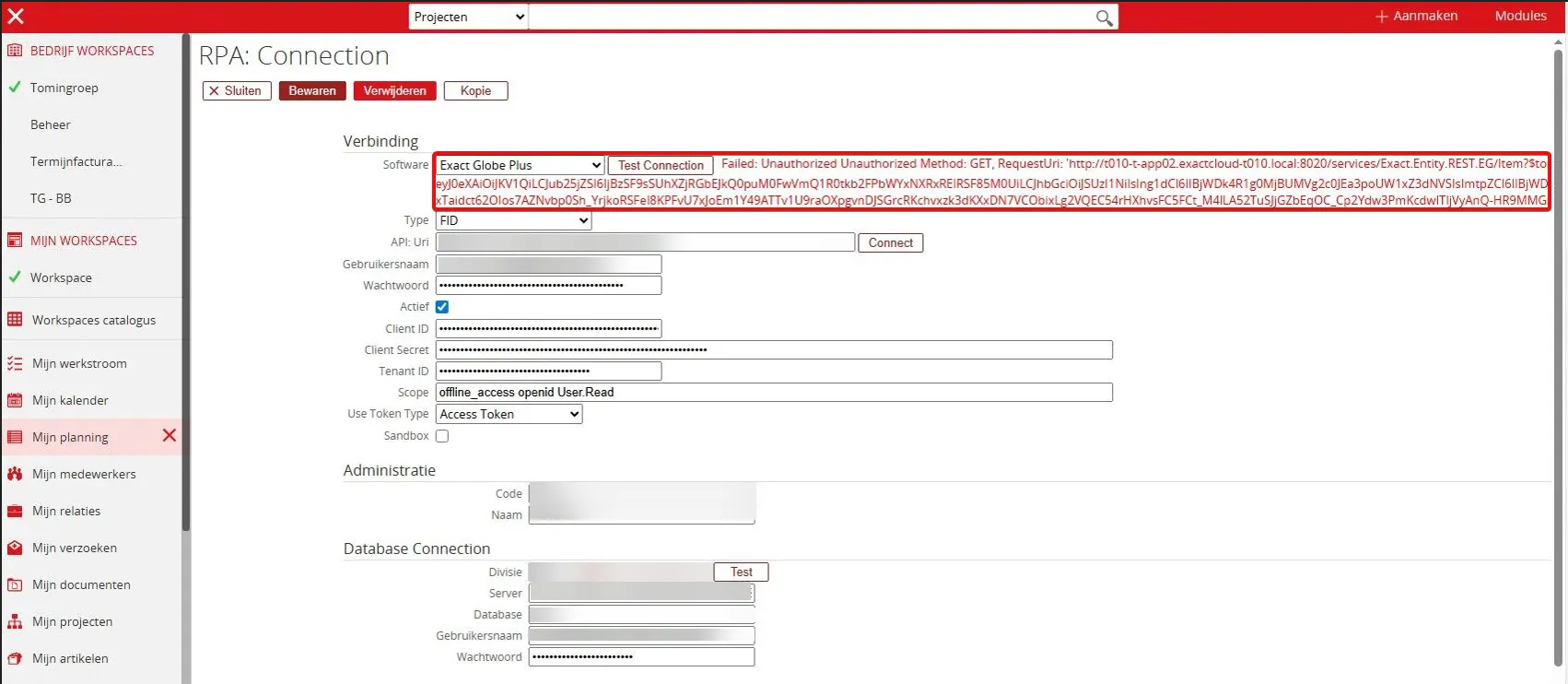
Error: Failed: Unauthorized Unauthorized Method: GET, RequestUri:…
Section titled “Error: Failed: Unauthorized Unauthorized Method: GET, RequestUri:…”If you got this error Failed: Unauthorized Unauthorized Method: GET, RequestUri: ‘http://t010-t-app02.exactcloud-t010.local:8020/services/Exact.Entity.REST.EG/Item?…’ eyJ0eXAiOiJKV1QiLCJub25jZSI6IjBzSF9sSUhXzJRGbEjKQopuM0FwVmQ1R0tkb2FPbWYxNXR…