eSignature - DocuSign
Run the eSignature installer
Section titled “Run the eSignature installer”- Before doing the setup connection, ensure that you already have the latest eSignature installer and run the
GLMSysAddOnInstalleras administrator.
Setup the DocuSign Connection via RPA
Section titled “Setup the DocuSign Connection via RPA”- Go to Modules > RPA > Setup > Connection > Connection.
- Create a New Connection.
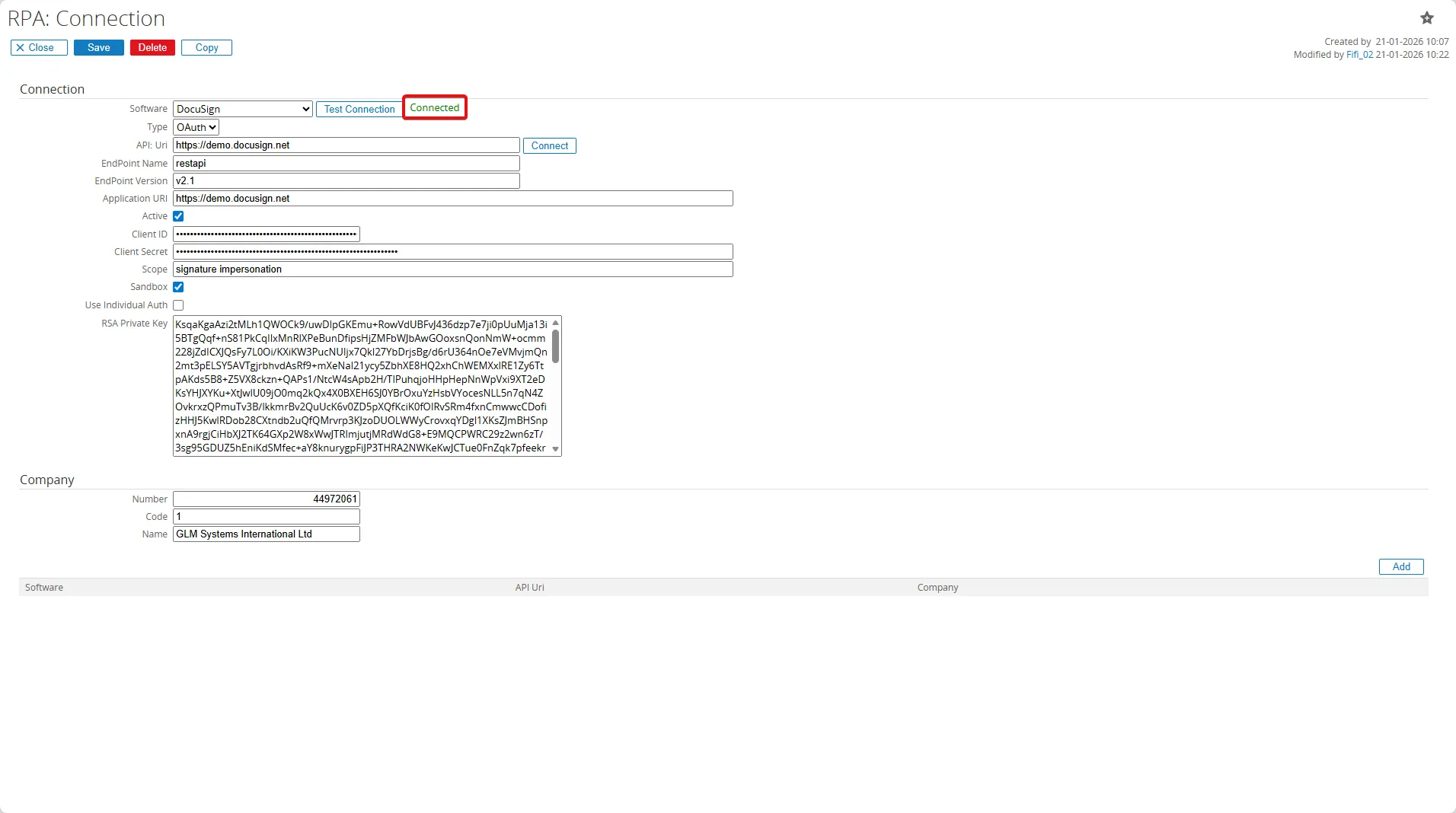
- Fill in all the fields:
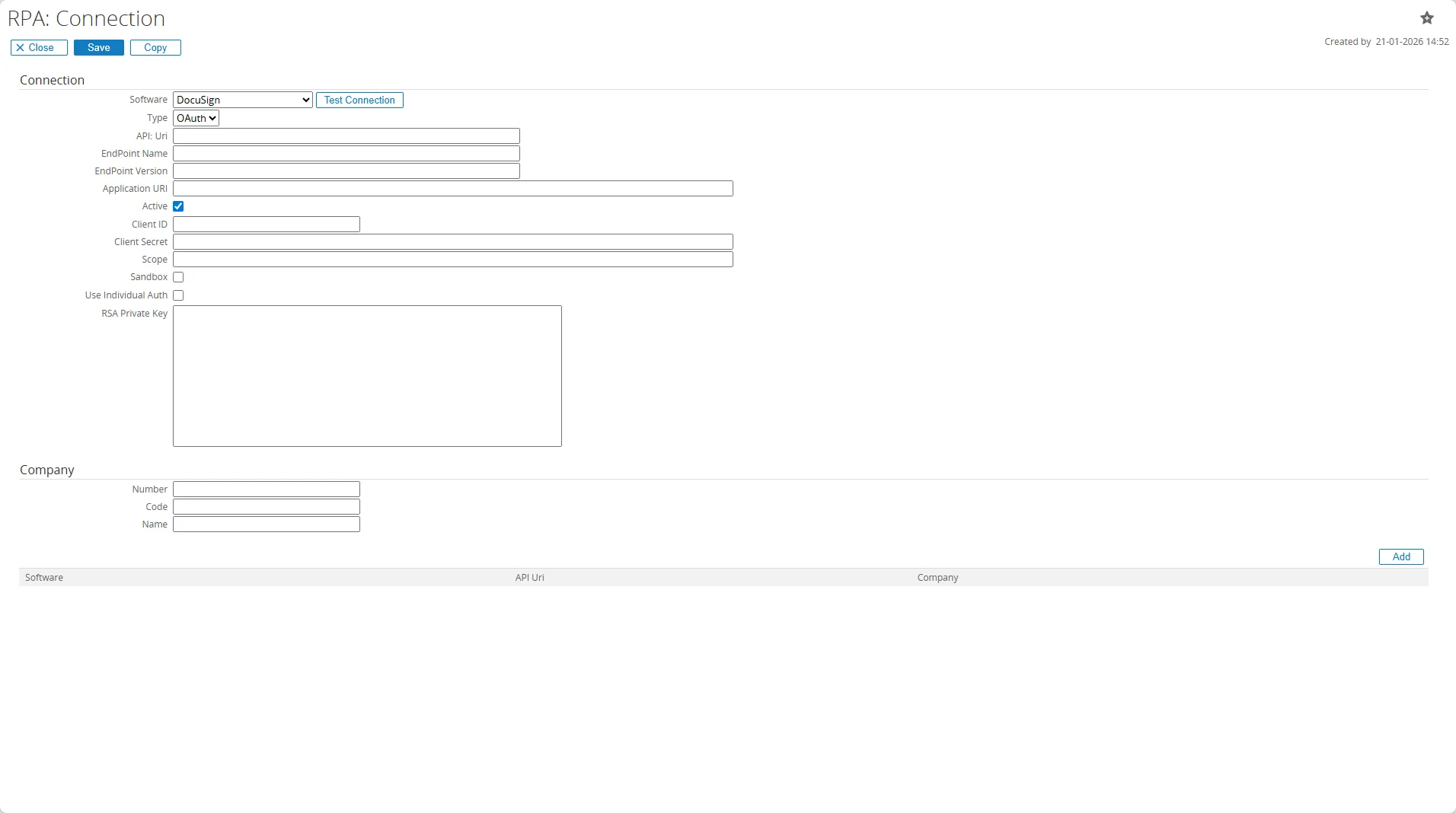
| Field | Description |
|---|---|
| Software | Choose DocuSign |
| Type | Choose OAuth as type |
| API URI | https://demo.docusign.net |
| EndPoint Name | Enter restapi |
| EndPoint Version | Enter v2.1 |
| Application URI | [https://demo.docusign.net] |
| ClientID | Copy the Integration Key provided from your DocuSign Apps & Keys settings |
| ClientSecret | Copy the Secret Key provided from your DocuSign Apps & Keys settings |
| Scope | Use: signature impersonation This scope is required during the OAuth Authorization Request |
| Sandbox | Enables the Sandbox |
| Use Individual Auth | This field can be left empty |
| RSA Private Key | Copy the RSA Private Key generated from DocuSign |
| Company - Number | Copy the account number from your profile picture |
| Code | Enter the code of your company |
| Name | Enter the name of your company |
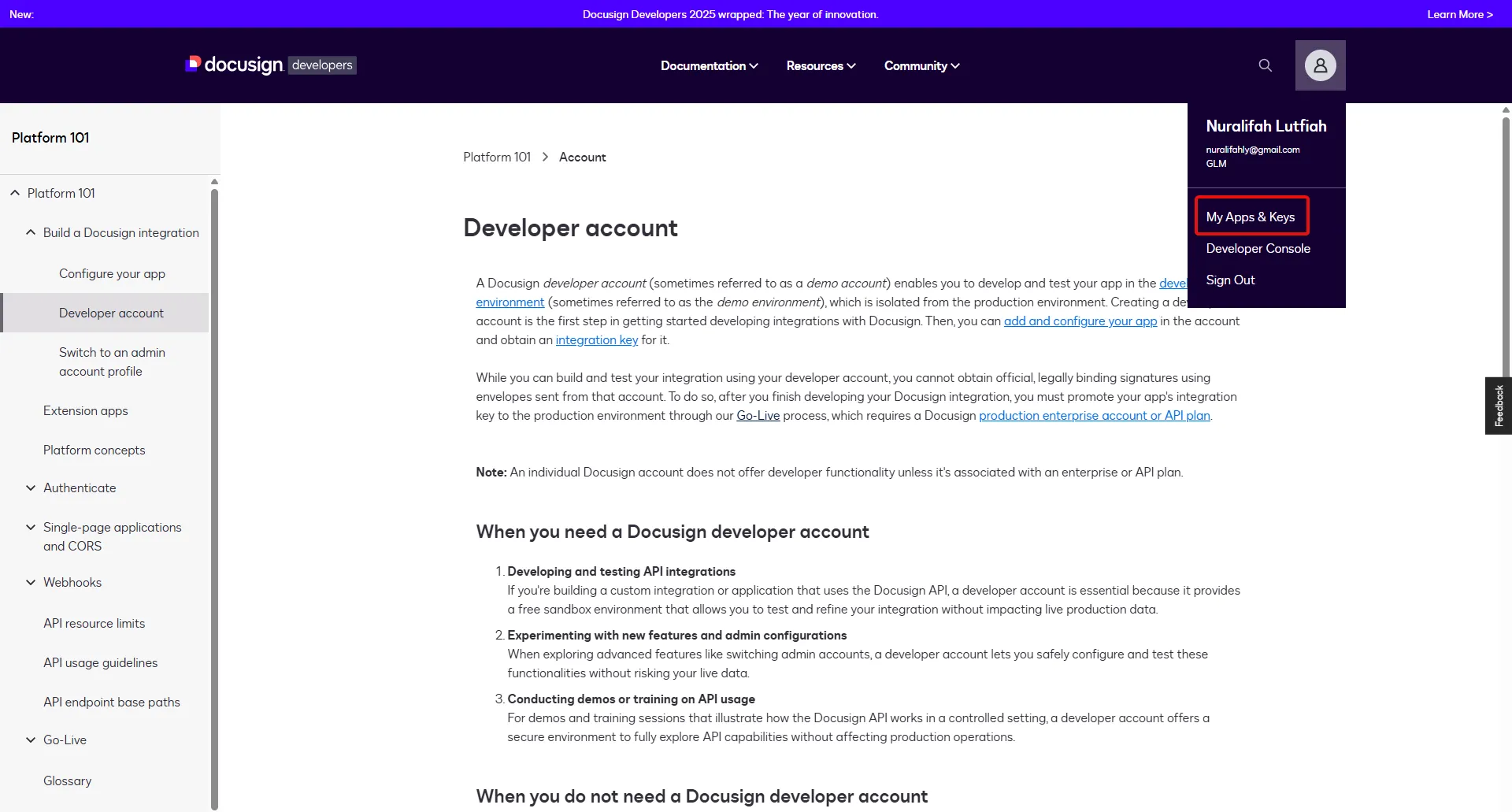
- To complete the fields that need Client ID, Client Secret, RSA Private Key and the Company Number you need to access the DocuSign Developers platform by going to this page
https://developers.docusign.com/platform/account/. - Create an account, or click Log in if you already have one.
- Go to My Apps & Keys.
- Enter your account.
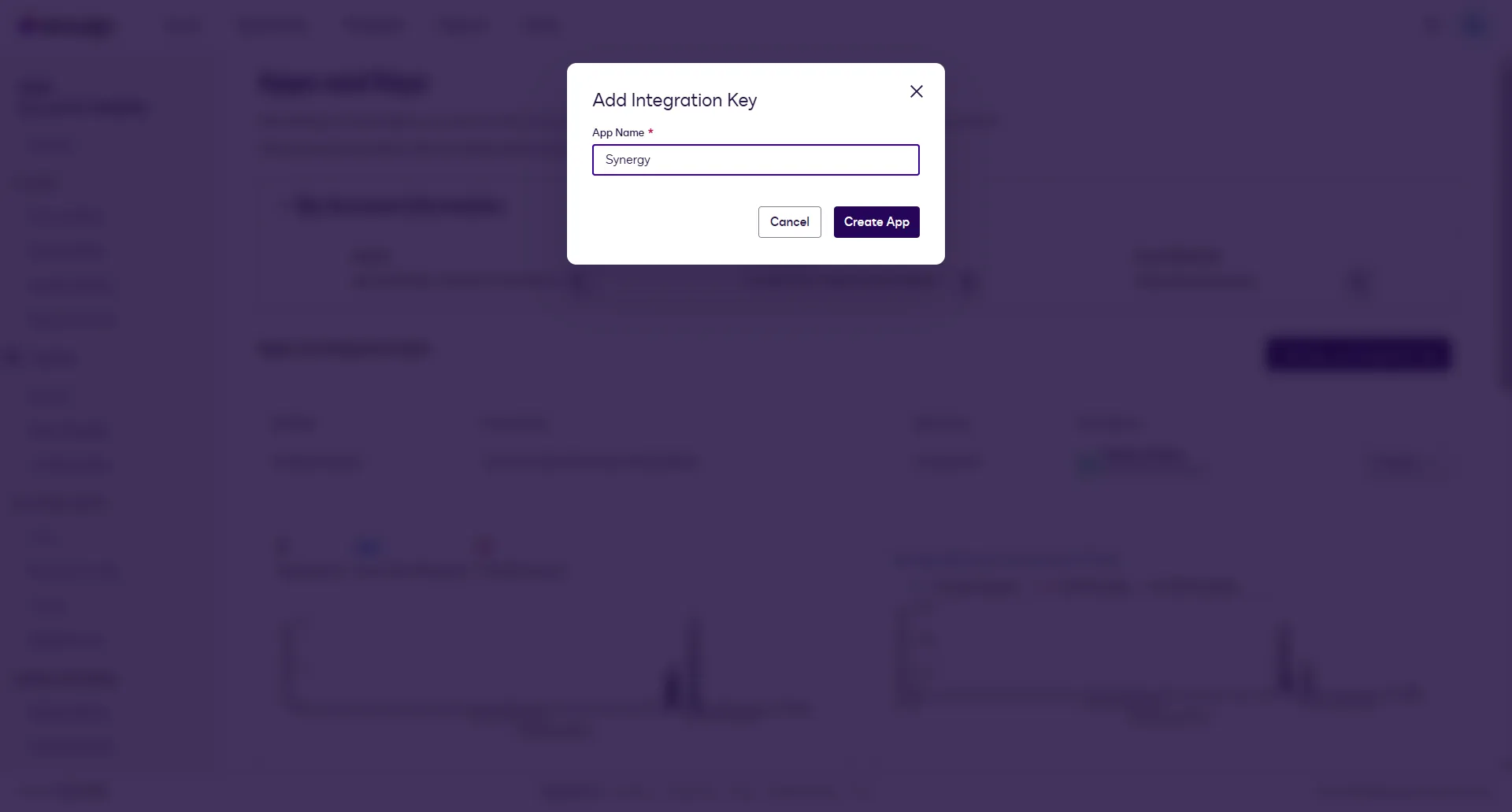
- Enter your App Name then click Create App.
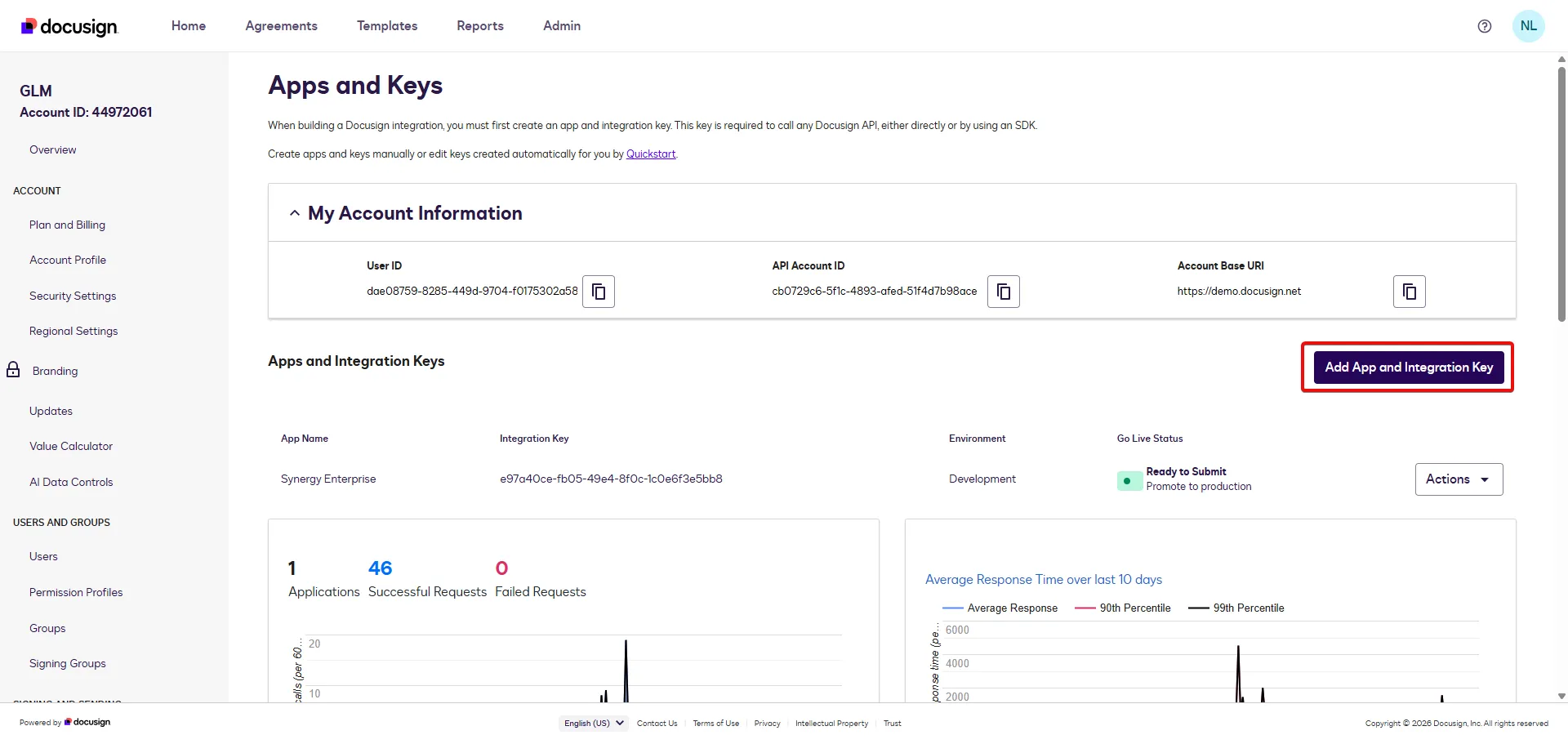
- Click the Add App and Integration Key.
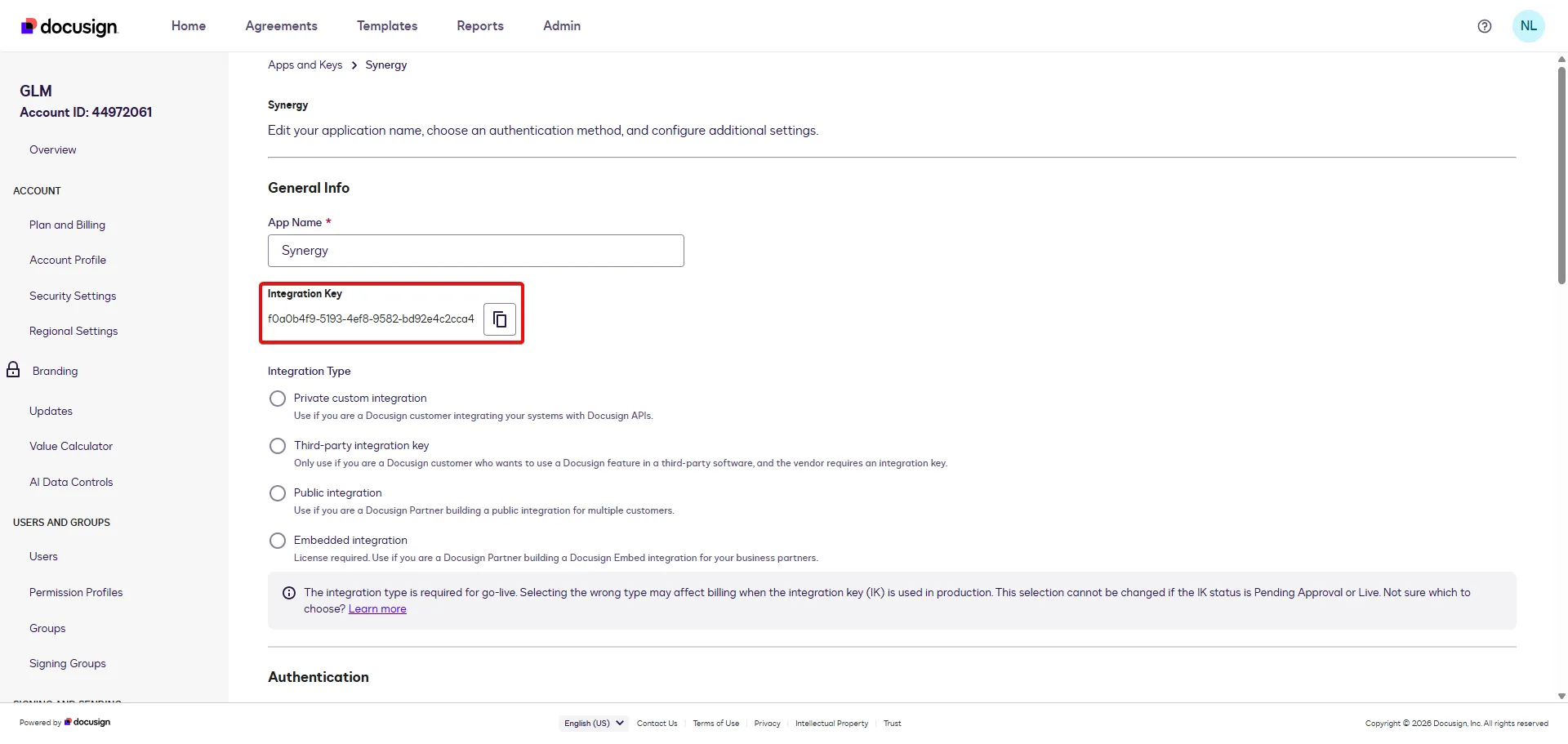
- Copy the Integration Key.
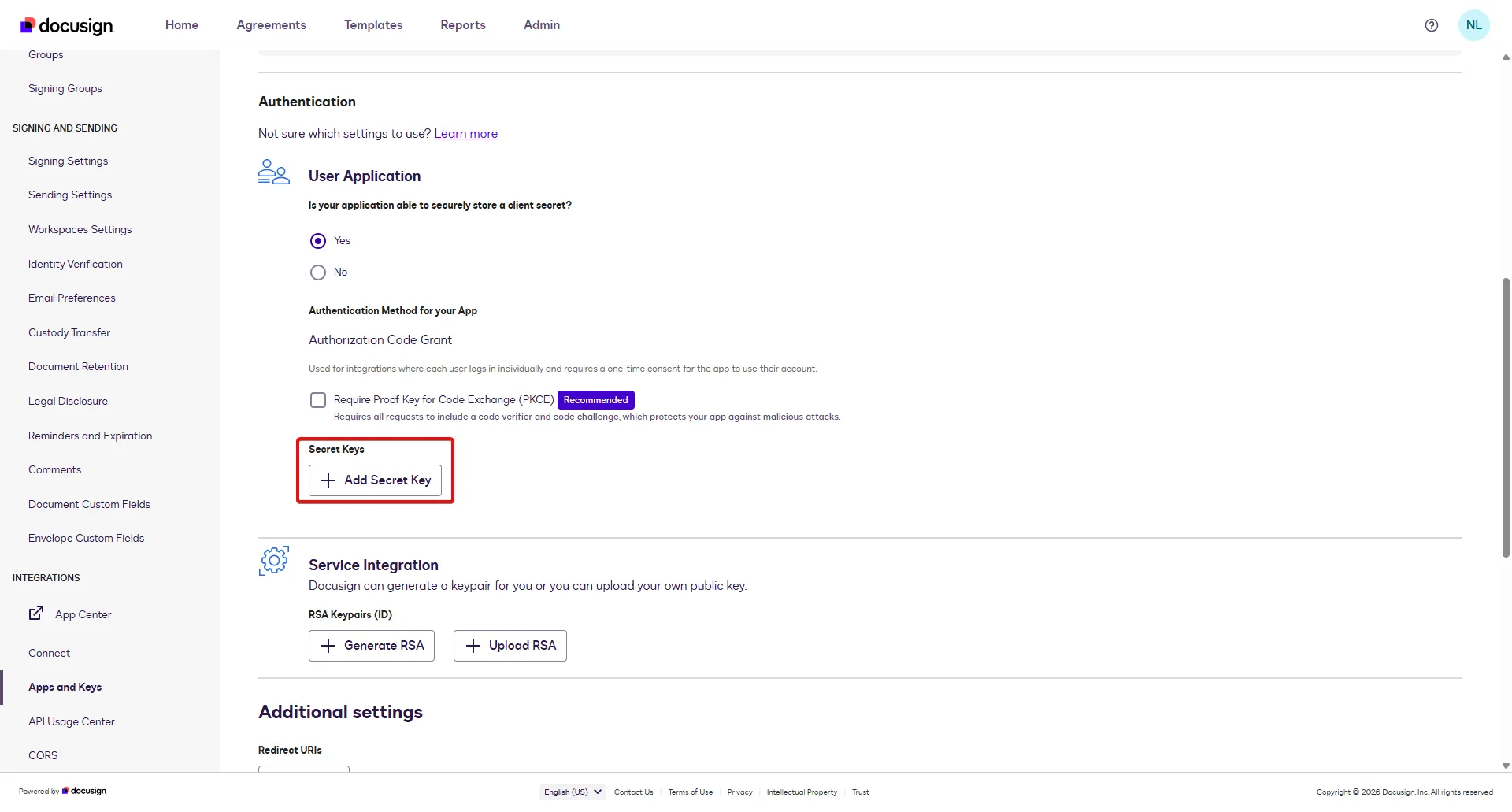
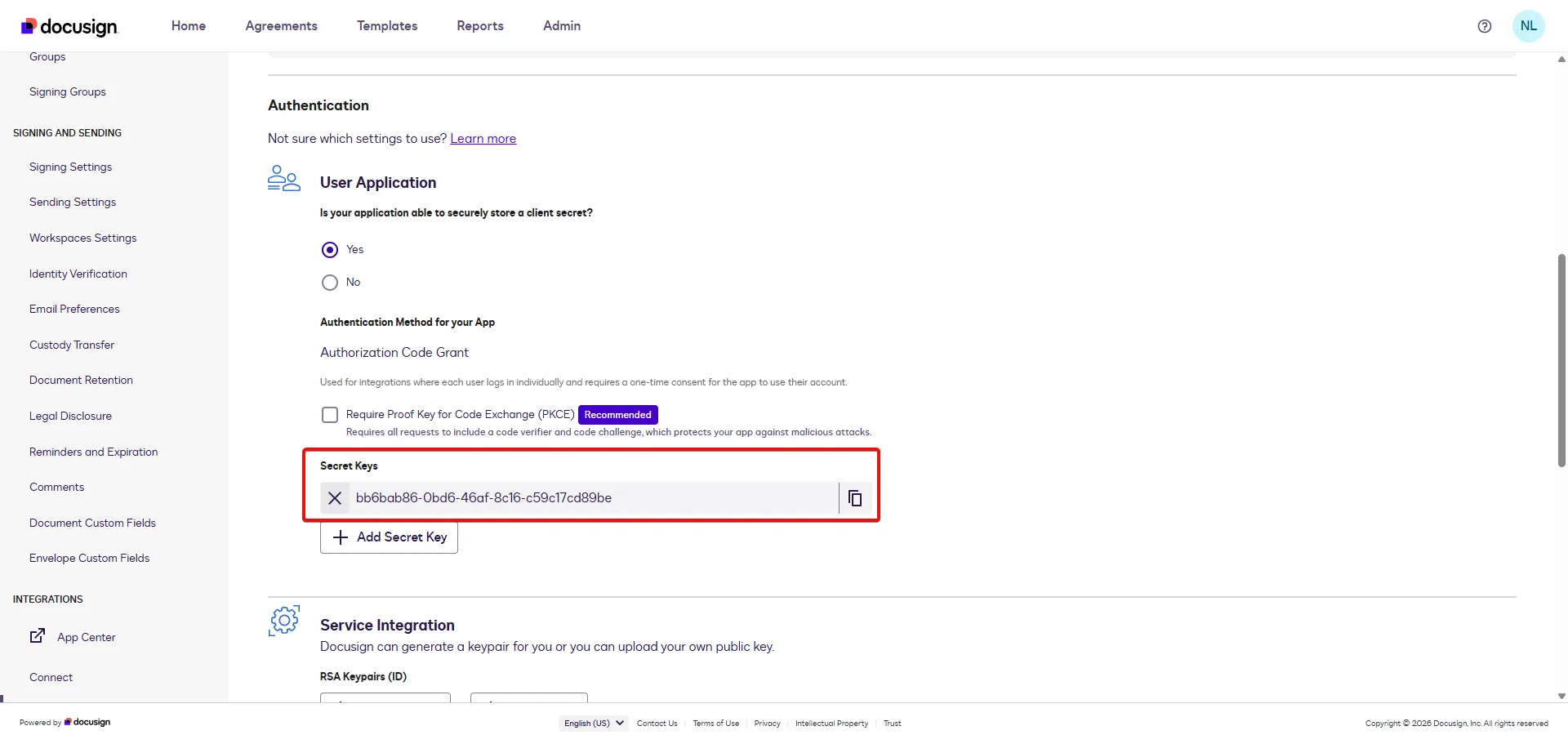
- Click the Add Secret Key button.
- Copy the Secret Key.
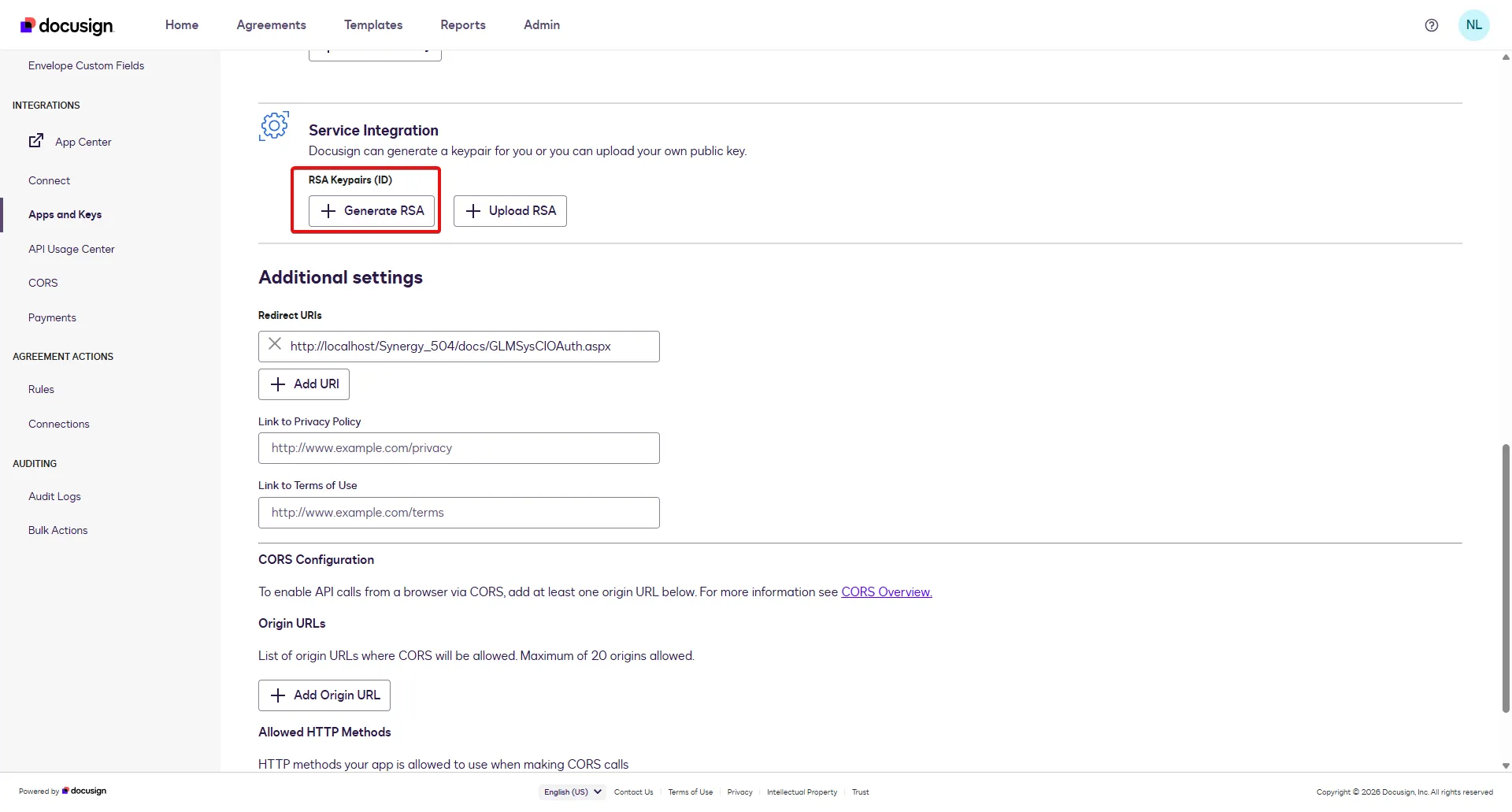
- Click the Generate RSA button.
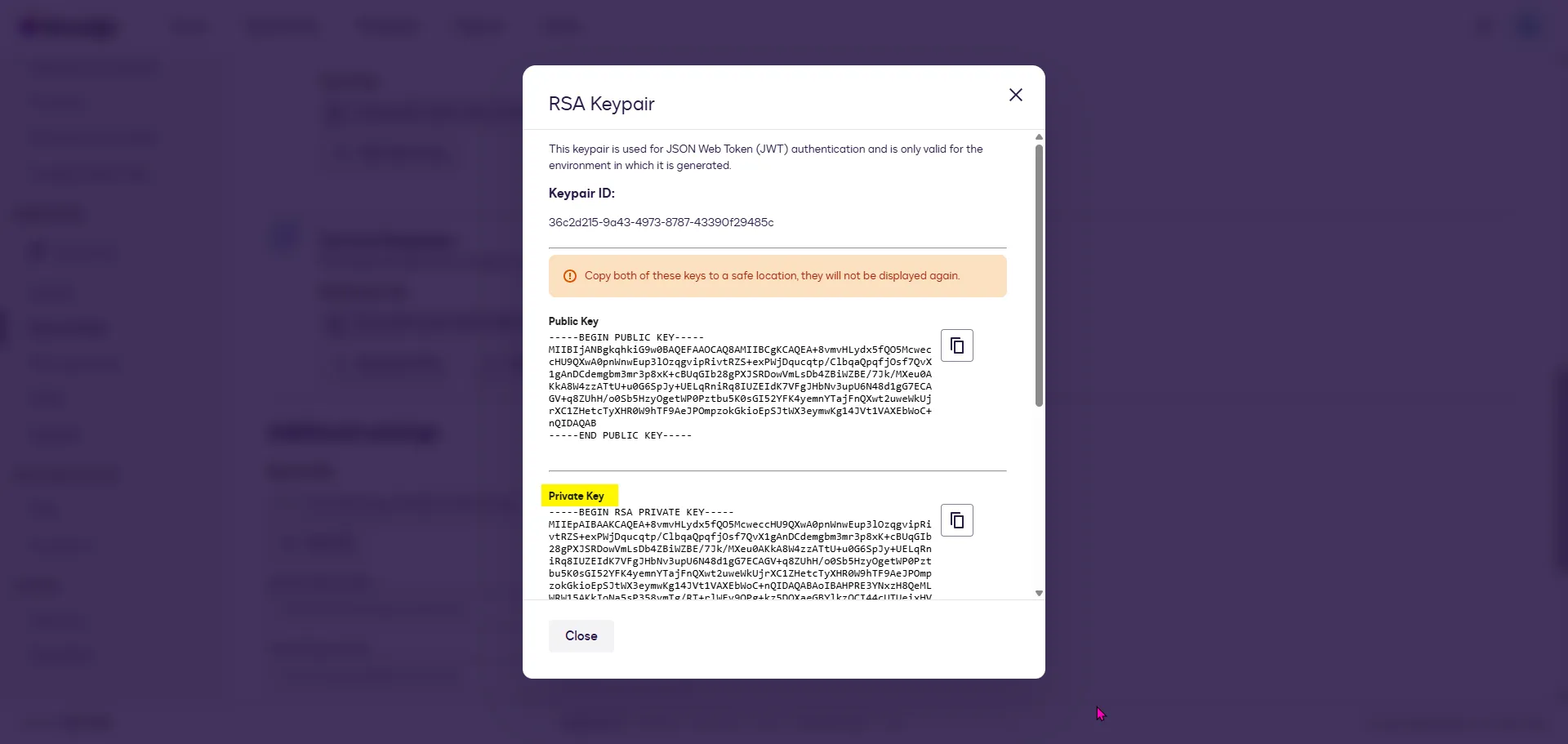
- Copy the RSA Private Key.
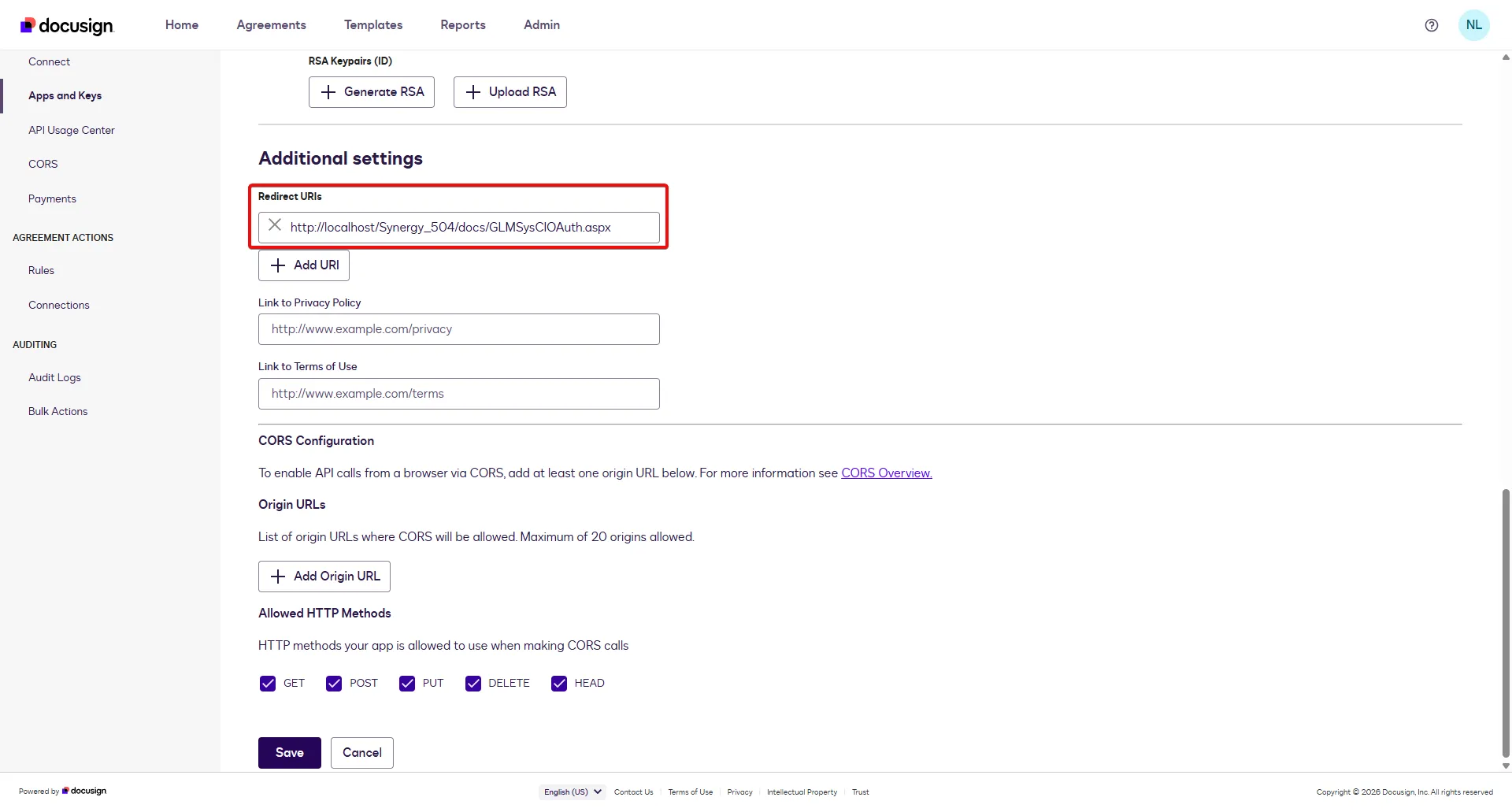
- Enter the Redirect URIs.
- Copy the account number displayed on your profile picture as your company number.
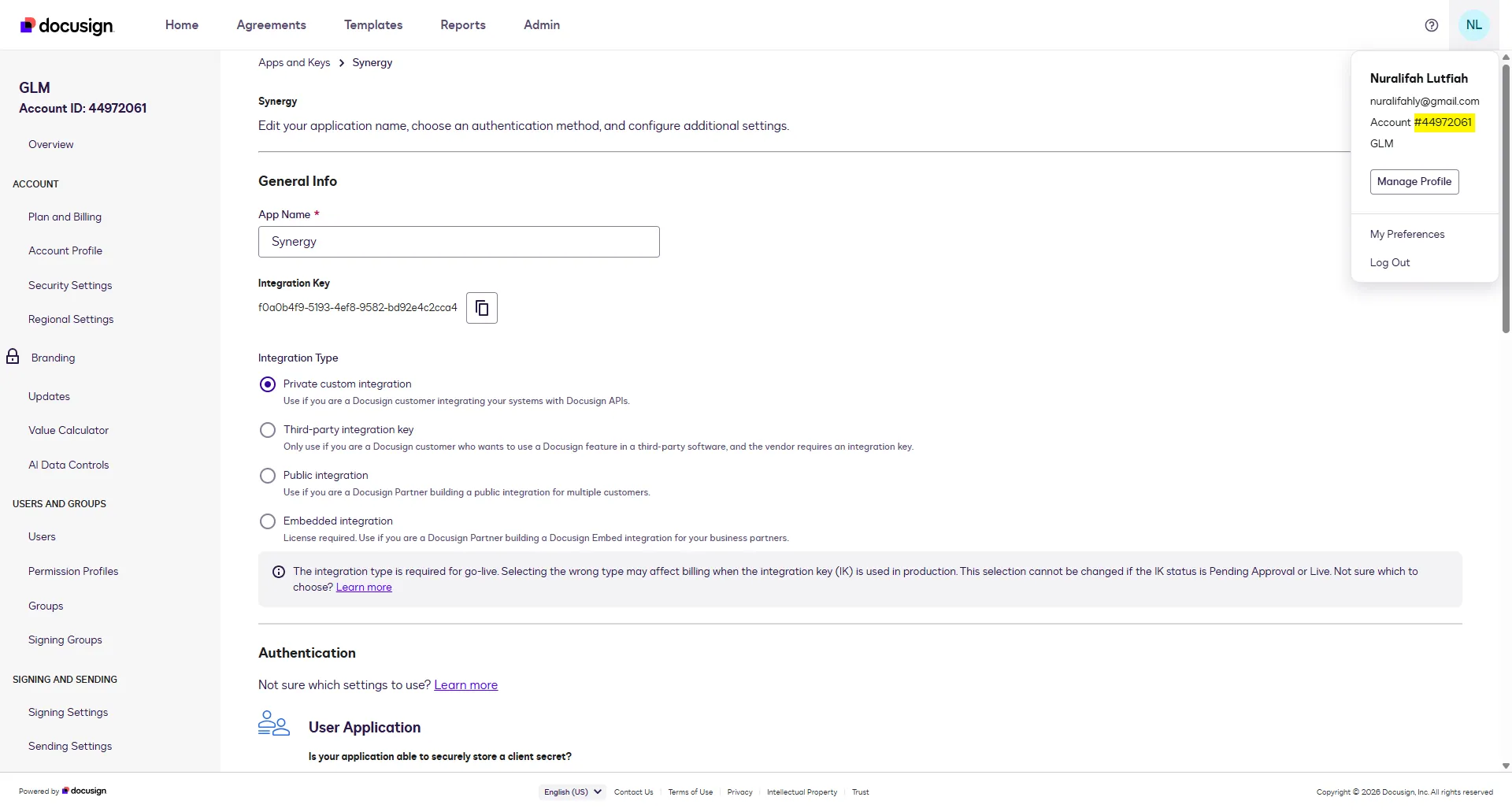
- Paste those data you got from the DocuSign platform on the RPA Connection field.
- After filling in all the fields, click Test Connection. If the connection is successful, a ‘Connected’ message will appear.
Enable DocuSign add-on
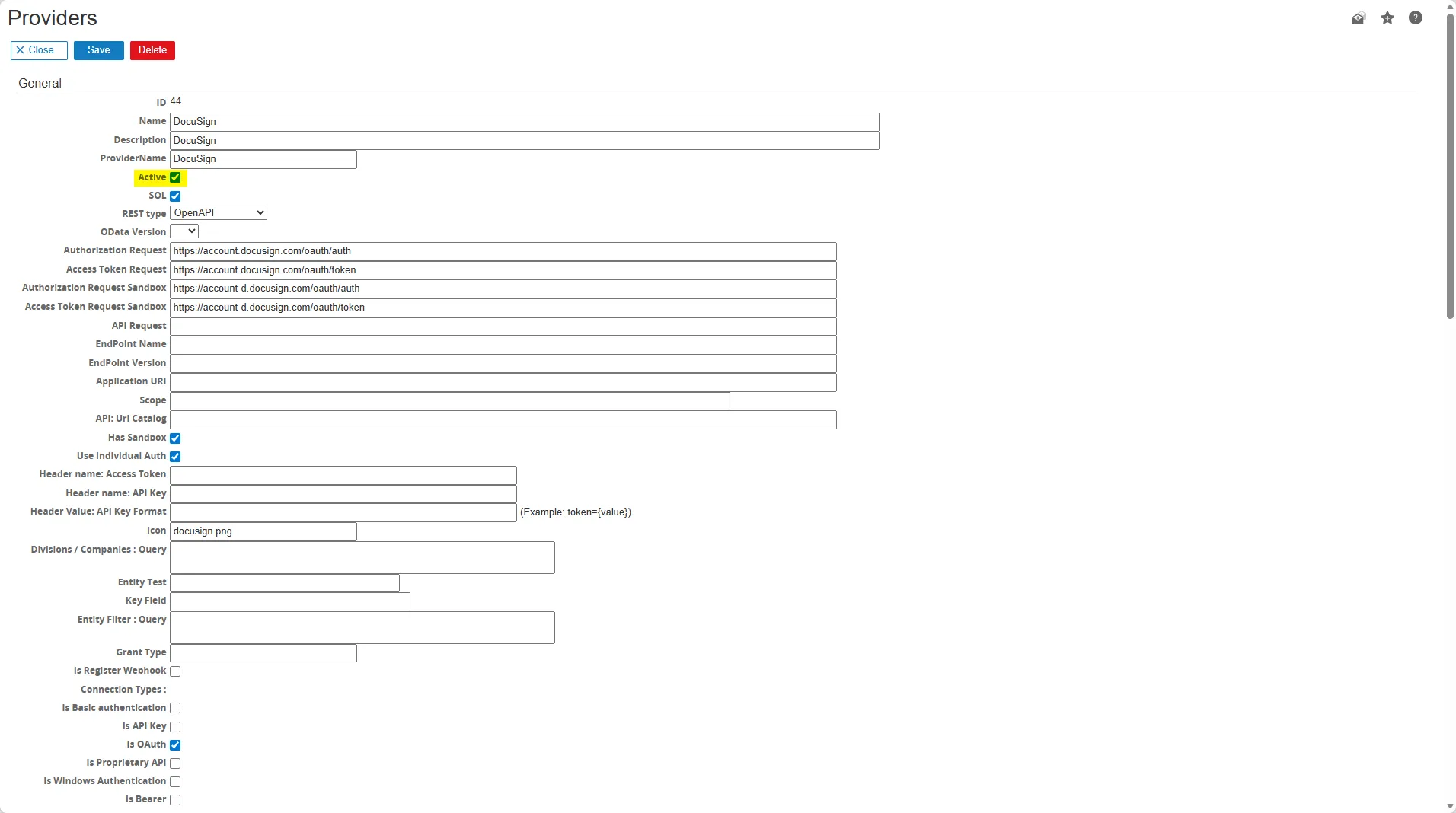
Section titled “Enable DocuSign add-on”- Go to RPA Modules > Setup > Connection > Providers.
- Open the DocuSign providers.
- Check the Active and OData checkboxes.
Set the DocuSign settings
Section titled “Set the DocuSign settings”Once DocuSign Connection has been created, continue to set up the DocuSign add-on at the Document Type level.
- Go to Documents > Setup > Document: Types.
- Select one of the document type you want to use then select eSignature tab section.
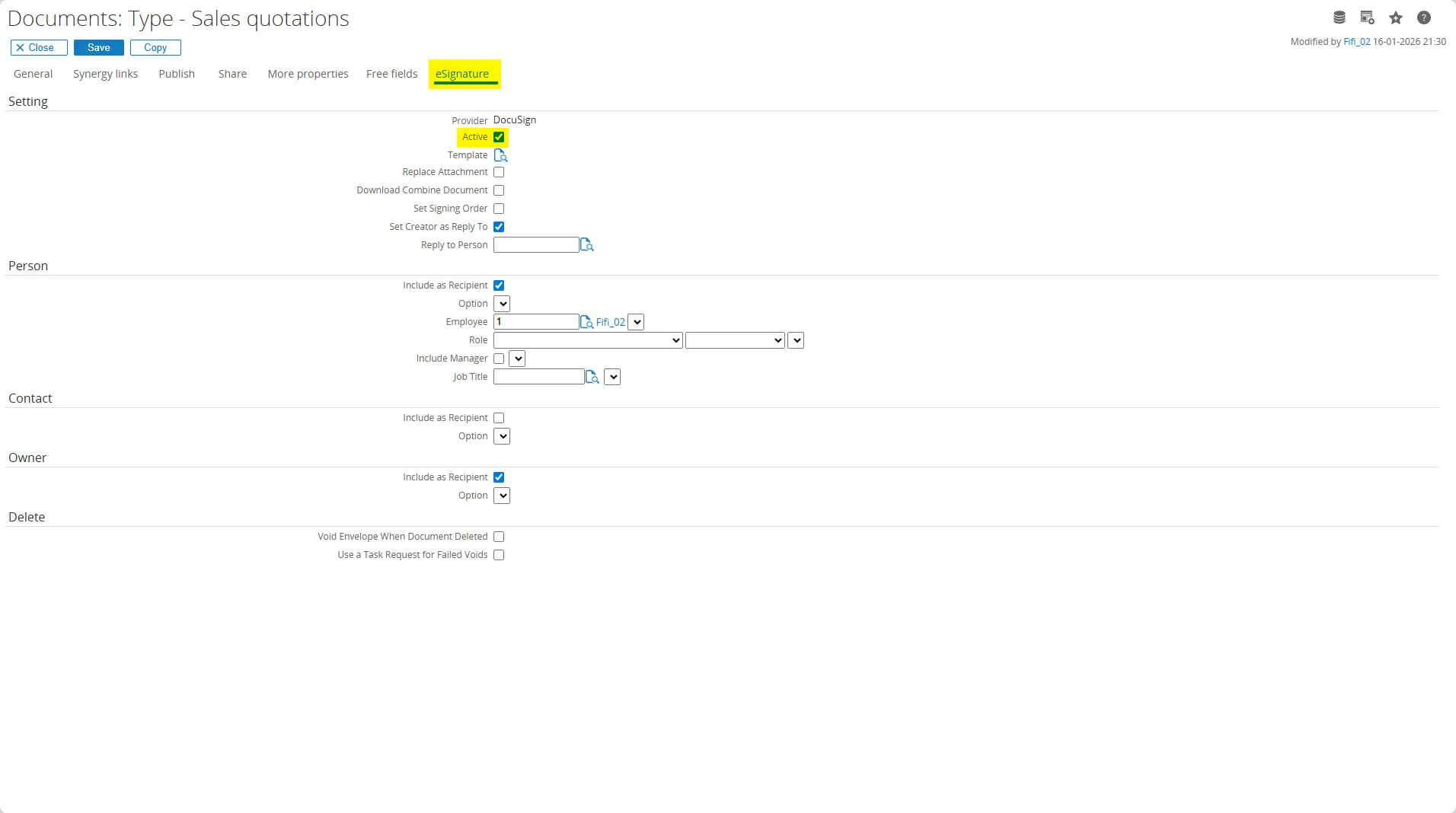
- Complete the setup on this section:
-
Setting:
Provider
Choose DocuSign as the provider.
Active
Select the Active checkboxes.
Template
This option allows you to use a template form DocuSign by default.
Replace Attachment
This option allows the attachment to be replaced with a signed document.
Download Combine Document
This option allows to download the Combine Document if the envelope has multiple attachments.
Set Signing Order
This option allows to use the Signing Order by default when sending the document via DocuSign Synergy App.
Set Creator as Reply to
Select the checkboxes if you want to set the creator as reply to.
Reply to Person
This option allows to reply the email sent by DocuSign to the specific person instead of dse@docusign.com. -
Person: Include as Recipient
This option allows the Person that is linked to the Document, can be added as recipient on the DocuSign Synergy App. It also can be setup for a specific person or be linked to a role. -
Contact: Include as Recipient
This option allows the Contact that is linked to the Document to be set as recipient on the DocuSign Sign add-on. -
Owner: Include as Recipient
This option allows that the Owner of the Document can be added as recipient on the DocuSign addon. -
Delete: Void Envelope When Document Deleted:
When the envelope is voided or deleted in DocuSign, the signing process stops and the documents in that envelope can no longer be signed or used. The document in DocuSign has been deleted so the signing process stops and the documents in that envelope can no longer be signed or used.
-
Use a Task Request for Failed Voids:
When this option is selected, the system automatically creates a task request containing the envelope details and error message when a void fails.
Configure the Background Job
Section titled “Configure the Background Job”The DocuSign add-on has the ability to upload signed documents to Synergy in the background. You need to copy the batch file (GLMSysDocuSignBackgroundJob.cmd) available in the setup/installer. The batch file make use of the Exact.Process.exe to run the upload signed document.
In the cmd file there is a virtual directory, change this directory to your Exact Synergy virtual directory from where the Exact Synergy is running. Create a task schedule using Windows Task Scheduler or a SQL Job for these command files, which will start the upload process for signed documents to Exact Synergy on a defined schedule. These jobs can be set up in the same way as other standard Exact Synergy jobs.
Add the eSignature Roles
Section titled “Add the eSignature Roles”To allow users to use the DocuSign add-on in Synergy, you must first add the eSignature role by going to HRM: Person and assigning the new role.
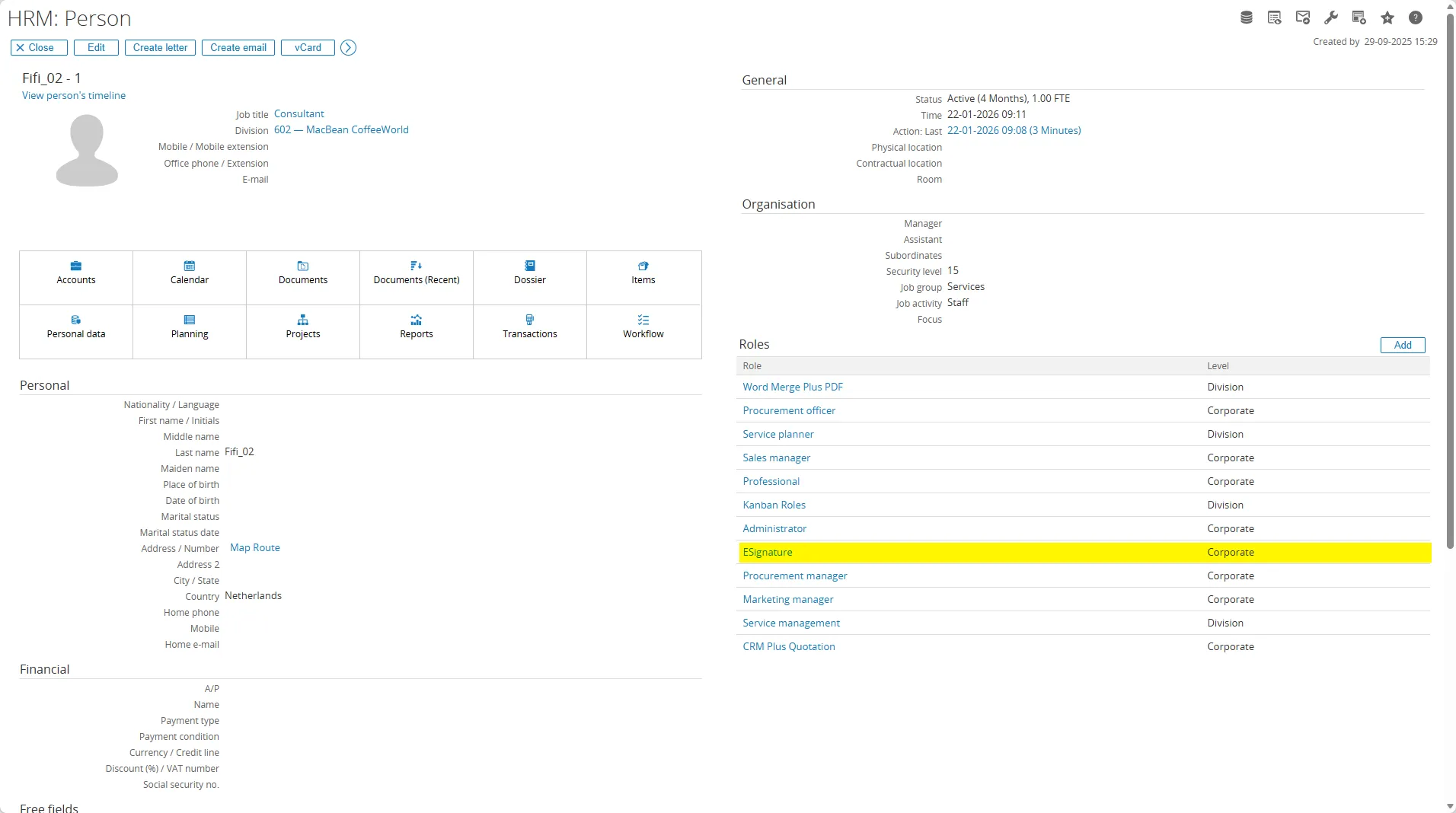
Sending the Document with DocuSign add-on
Section titled “Sending the Document with DocuSign add-on”In this scenario, we want to create a sales quotation that needs to be signed.
Steps:
- Go to Documents Modules.
- Setup > Maintenance > Document: Types.
- Choose the document type you want to add and for example in this section we will use Sales quotations types.
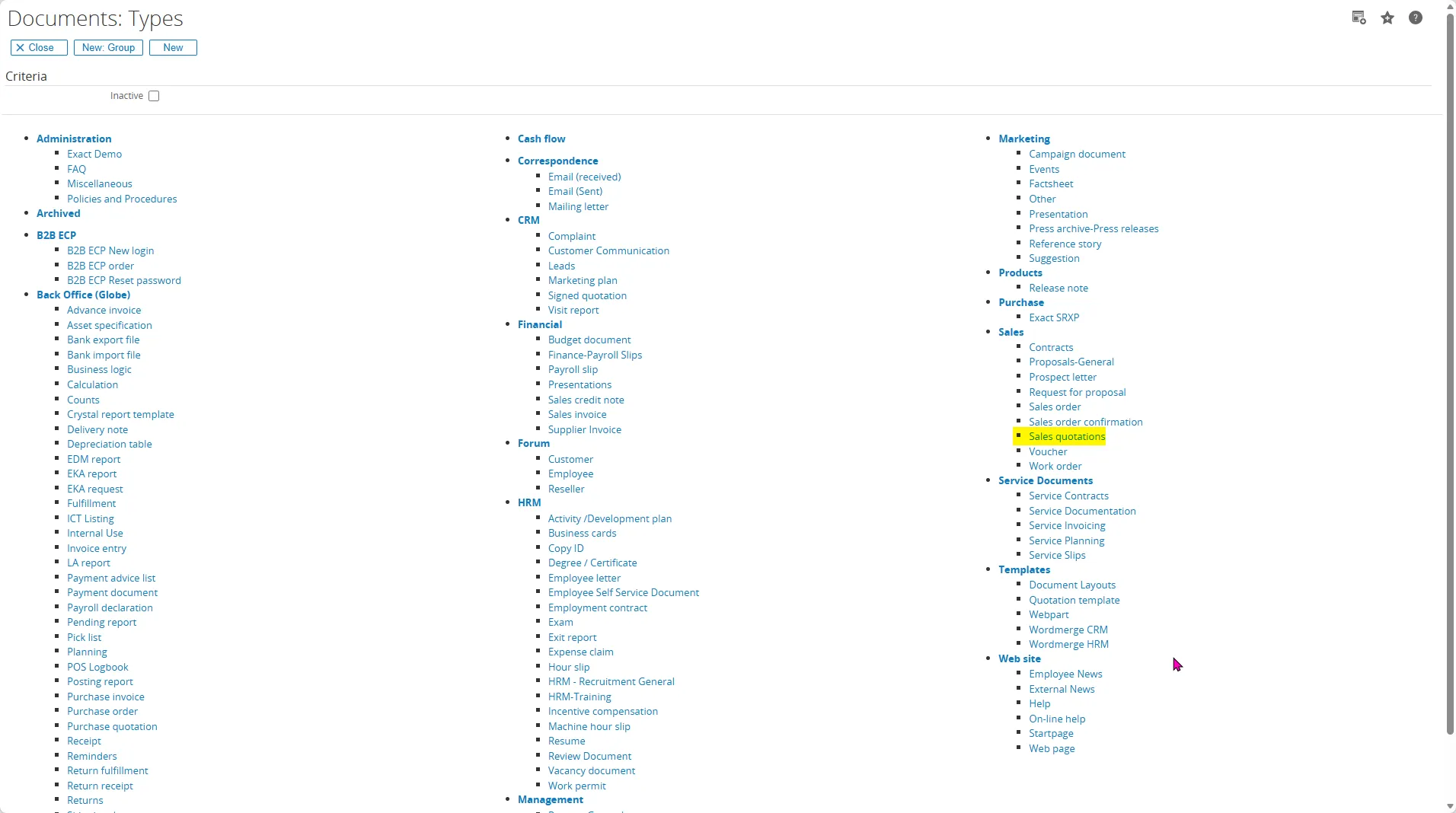
- In the Documents: Type, choose eSignature menu and ensure to select the Active button on the Setting section.
- Then click the Save button.
- Next, open your quotation request.
- Click the Generate Quotation.
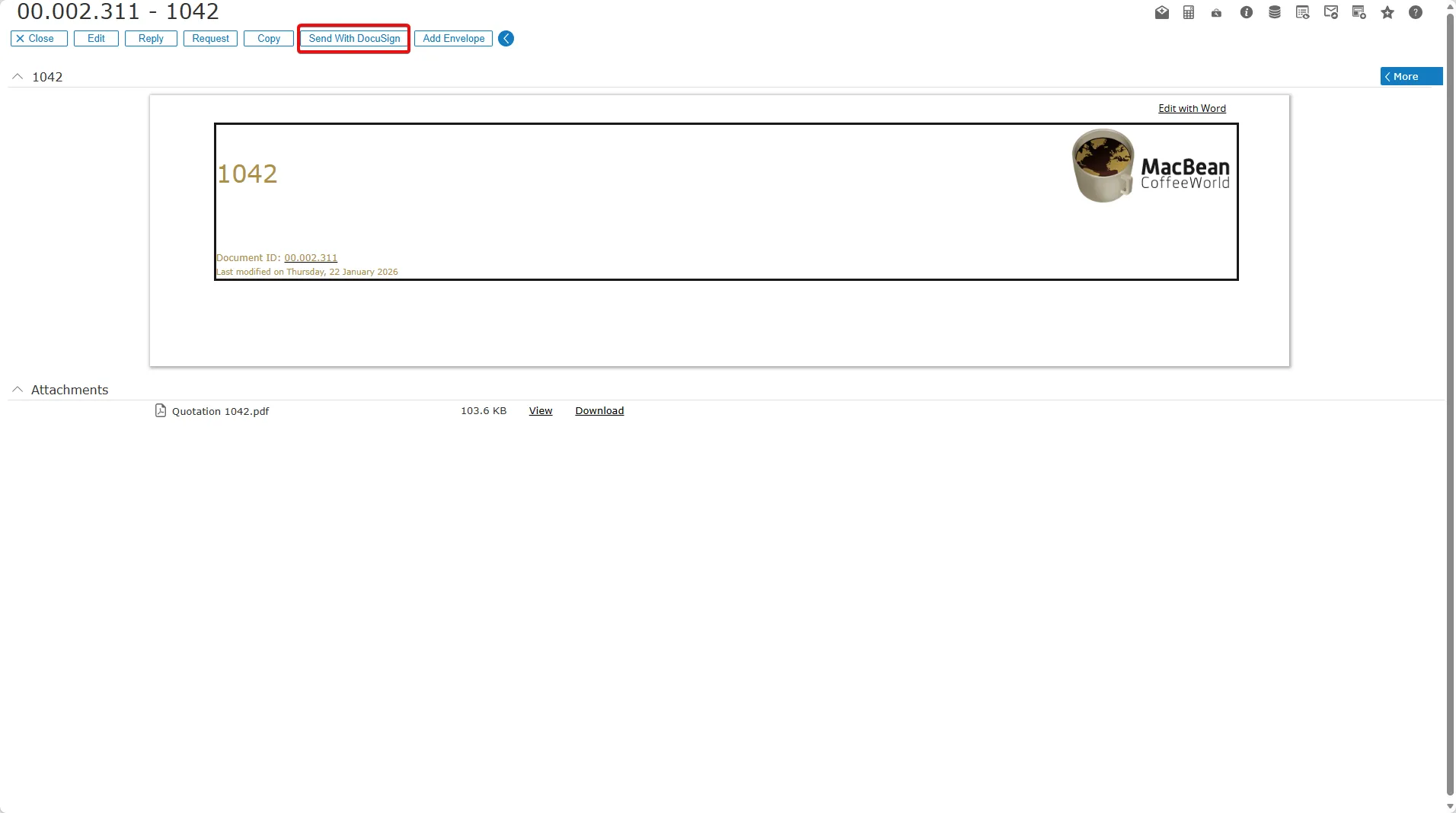
- In the document card, click the Send with DocuSign button. And the document will be sent to the DocuSign add-on.
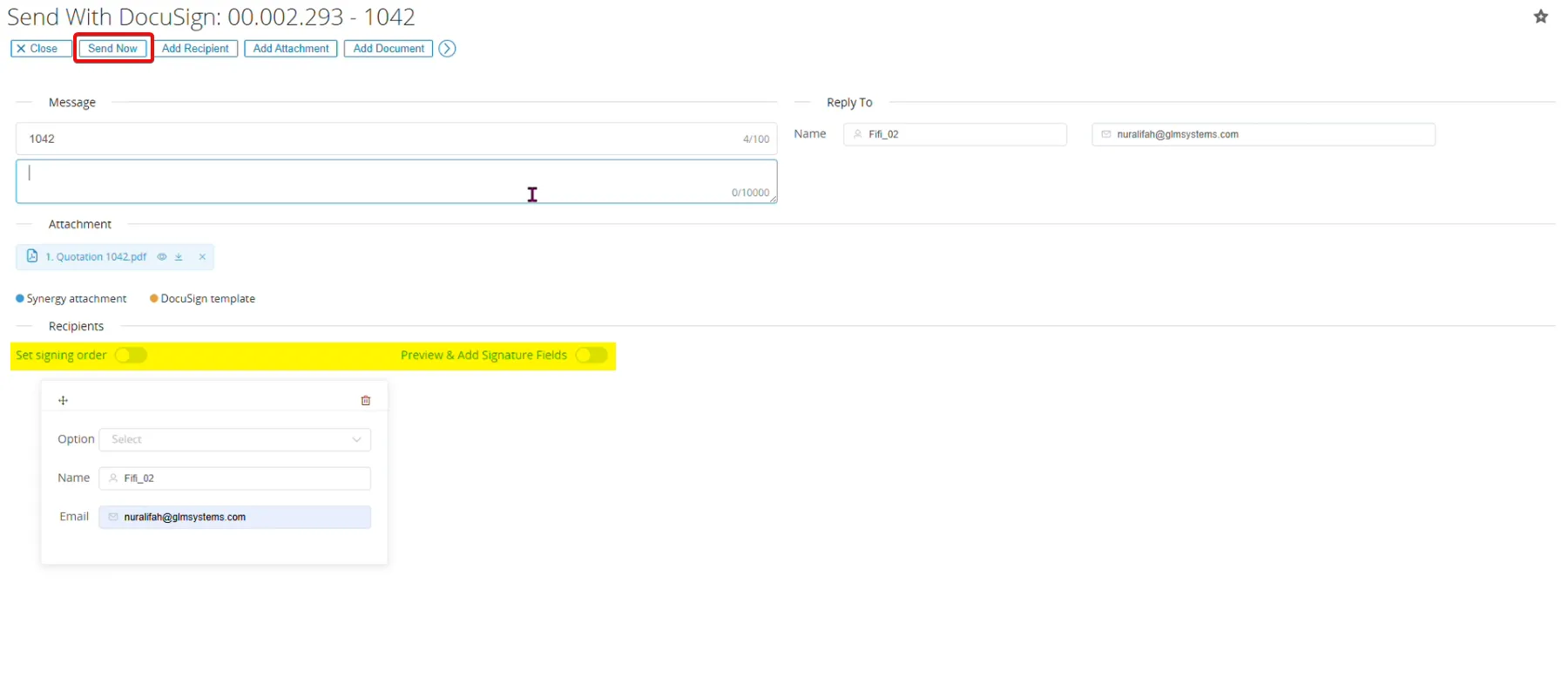
- On this page, you can enter the email message and recipient email, choose the action options, set the recipient names and email addresses, and select Recipients to set the signing order and use Preview & Add Signature Fields.
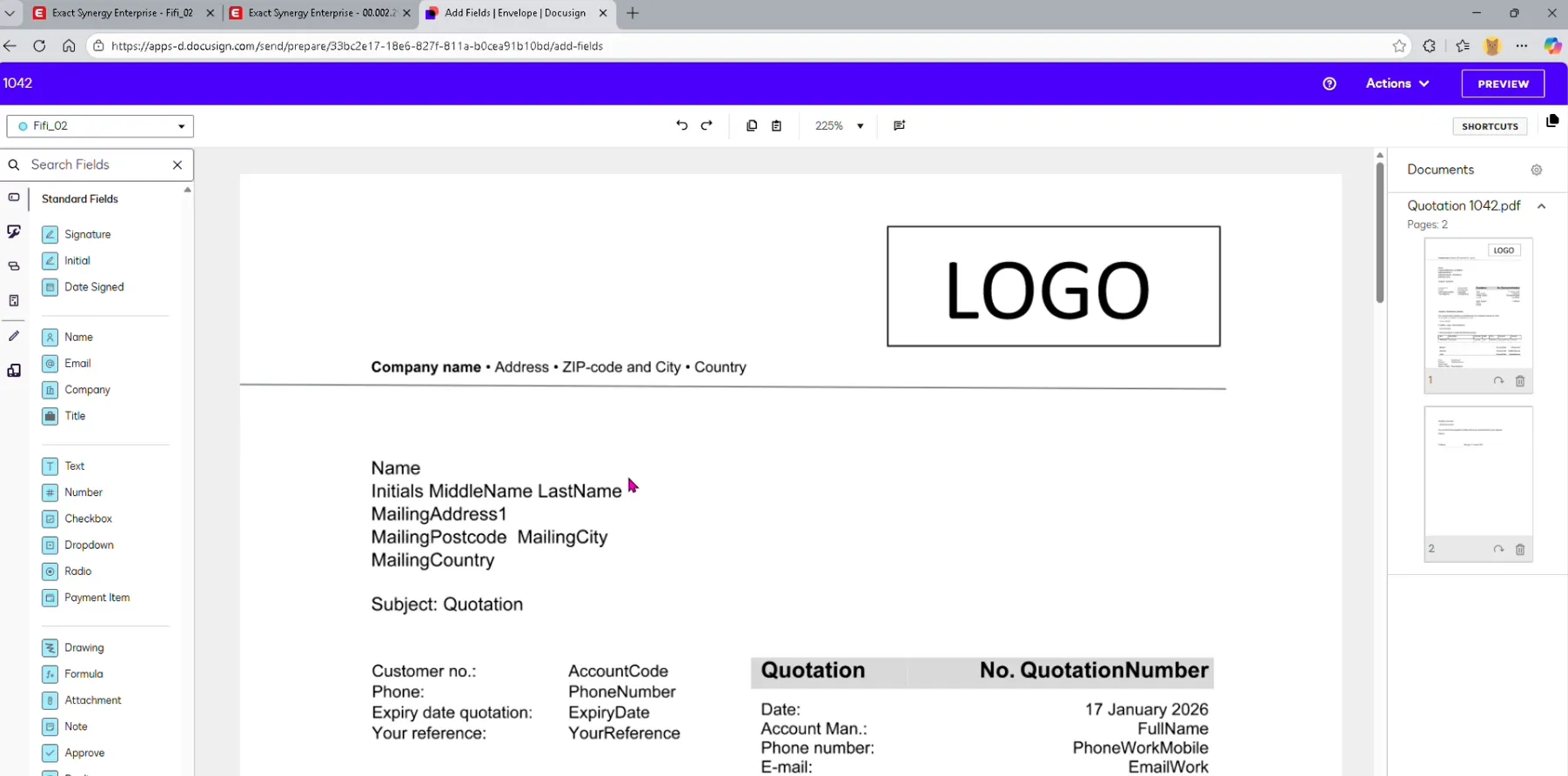
- And you will be directed to this page.
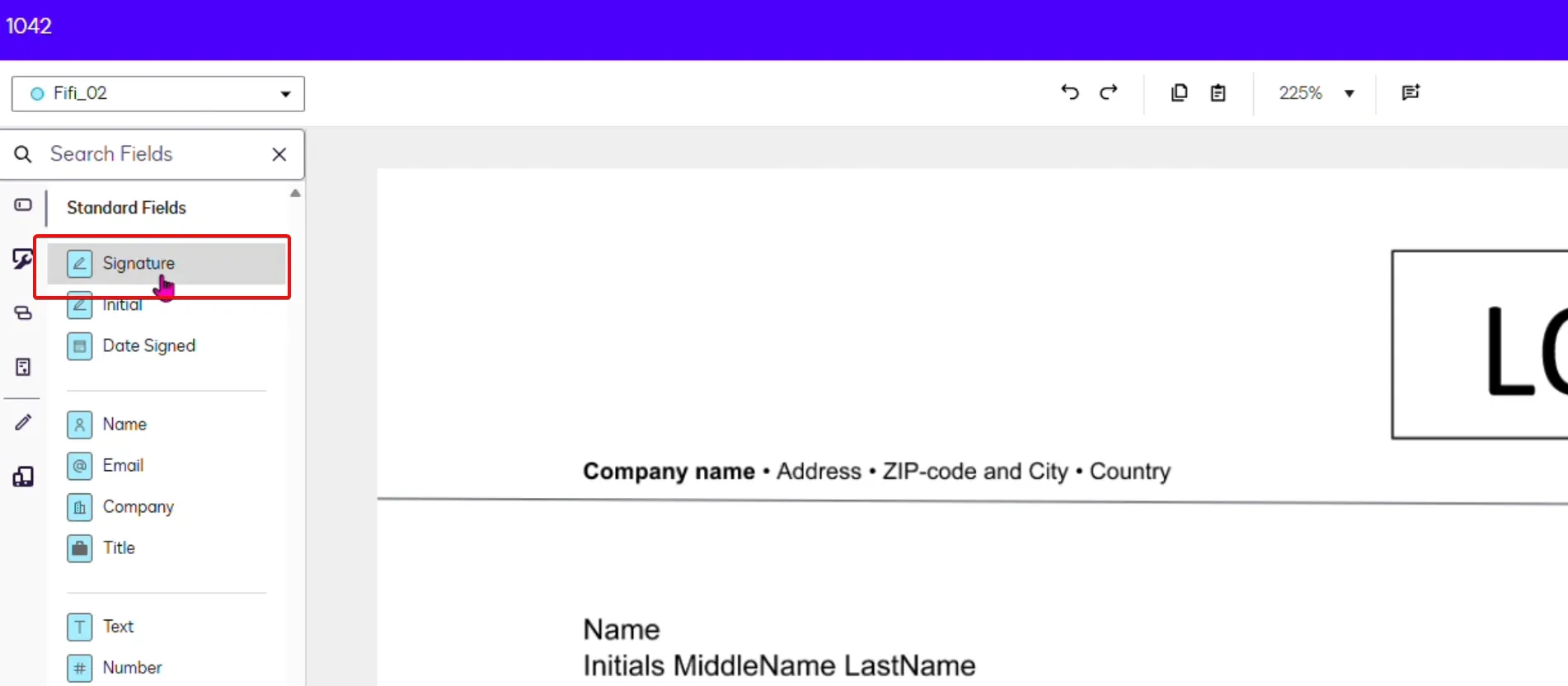
- Click the Signature menu to add your signature.
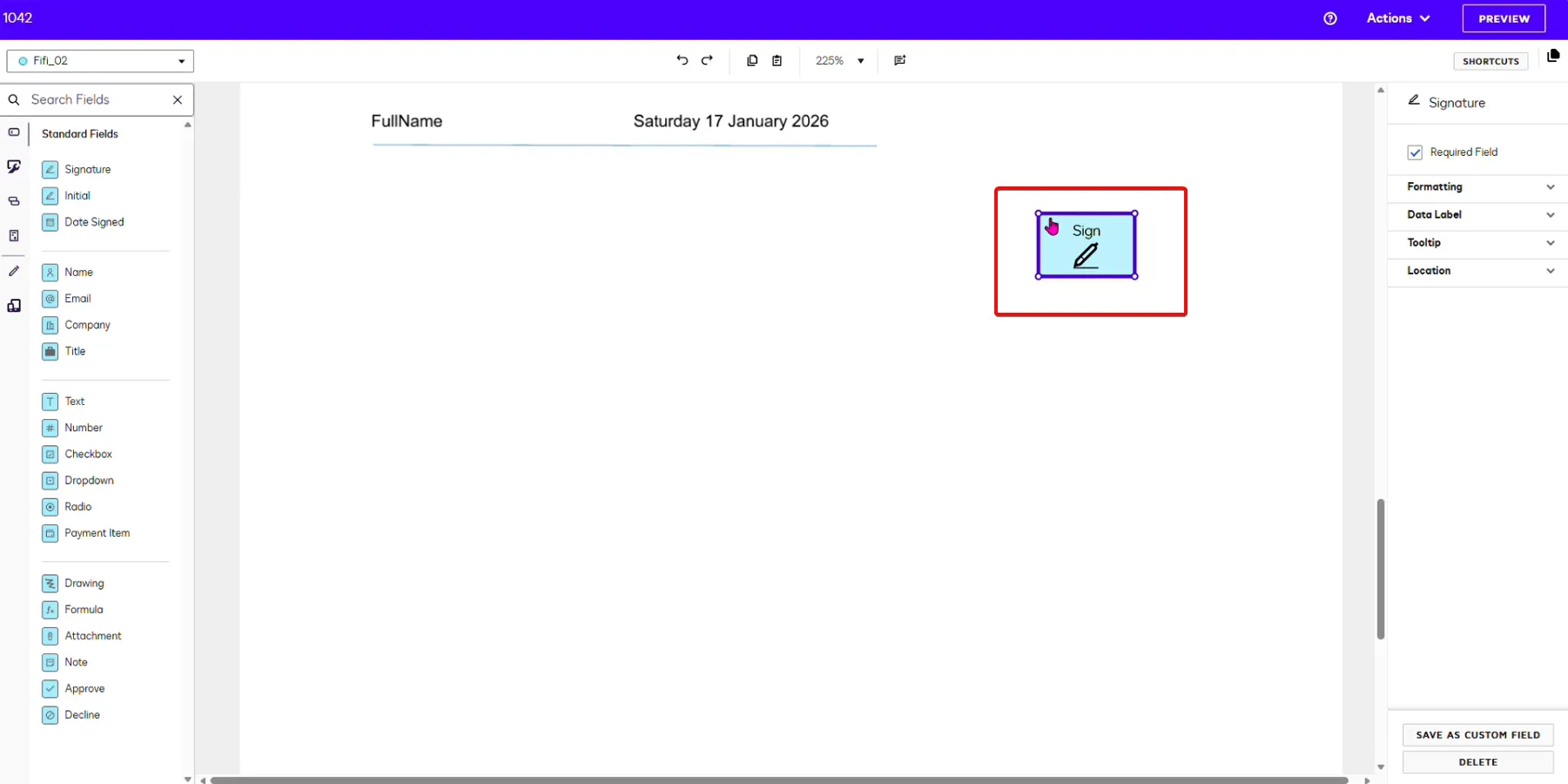
- Click inside the Sign box to add the Signature information.
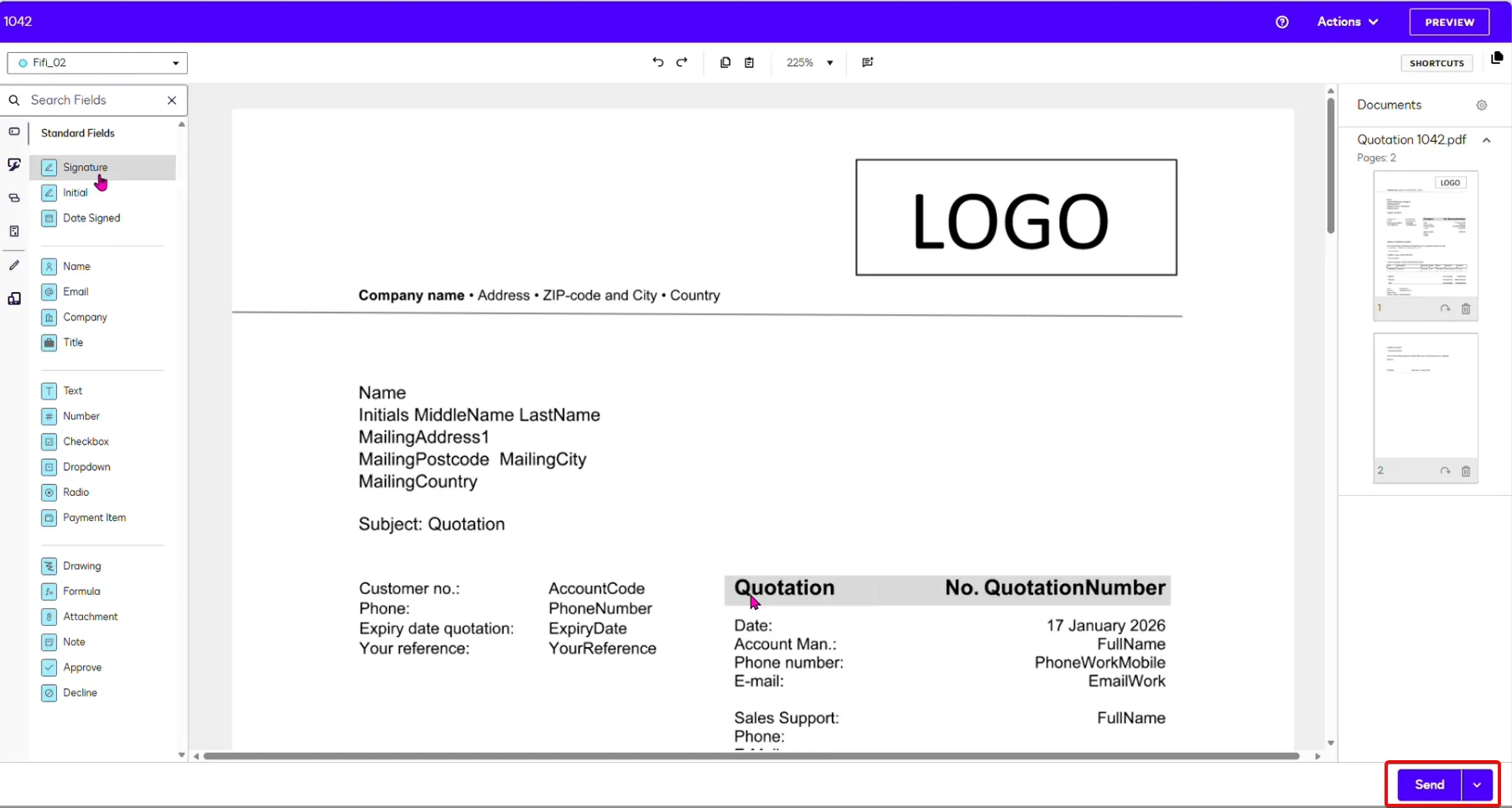
- Click the Send button to send the email.
- The document attachment has now been successfully sent to your recipients email.
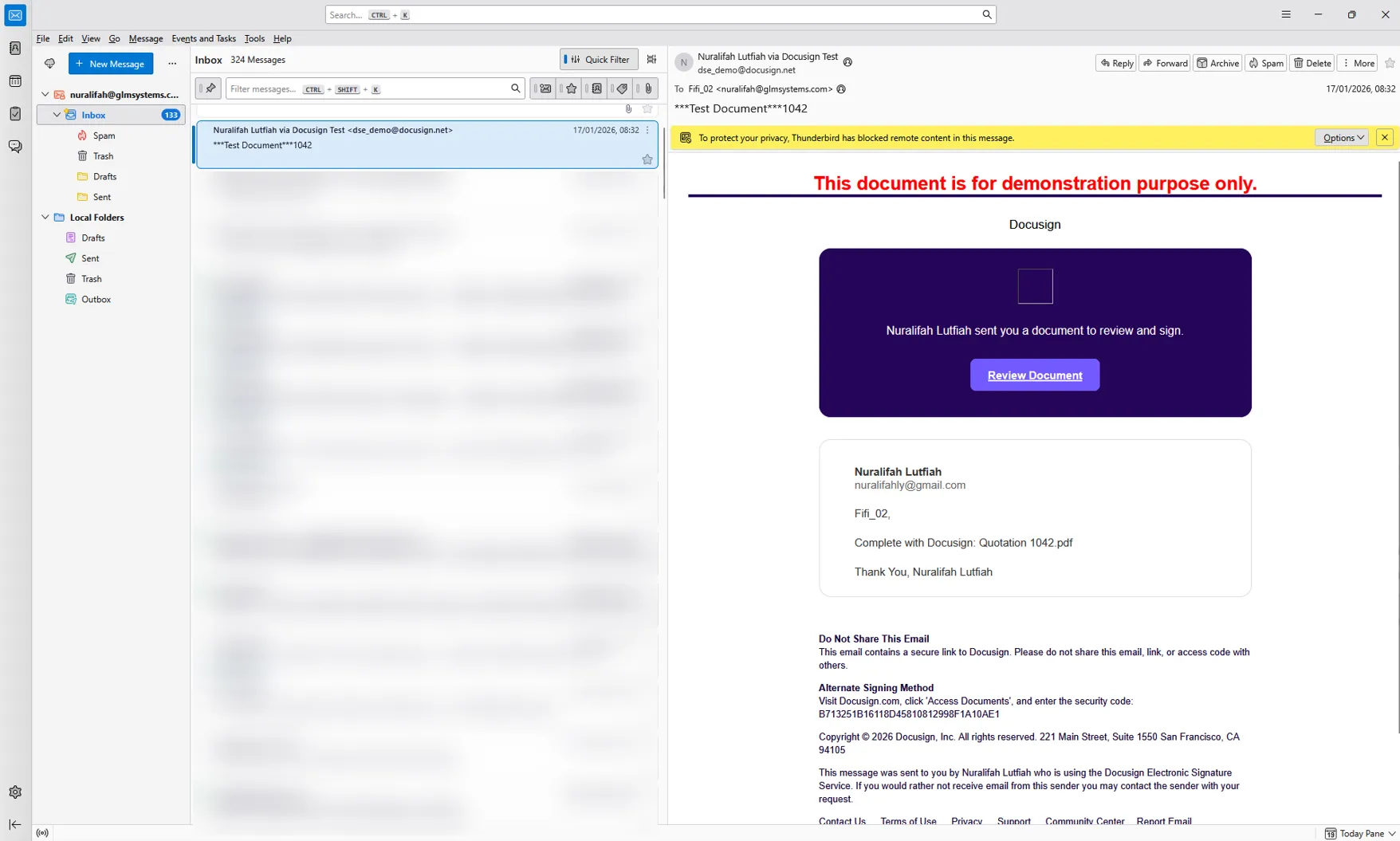
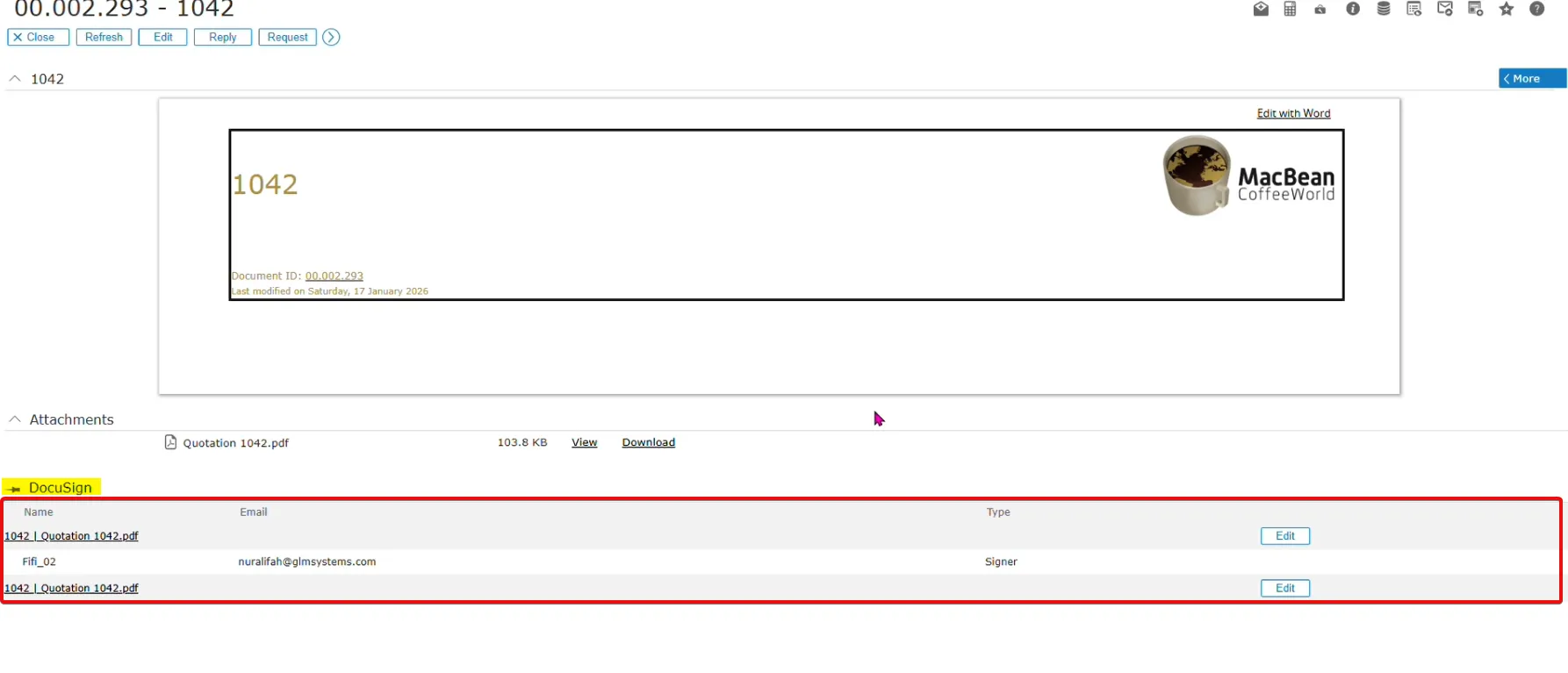
- Once the document has been signed, it will automatically be uploaded to Synergy on the DocuSign section.
Troubleshooting
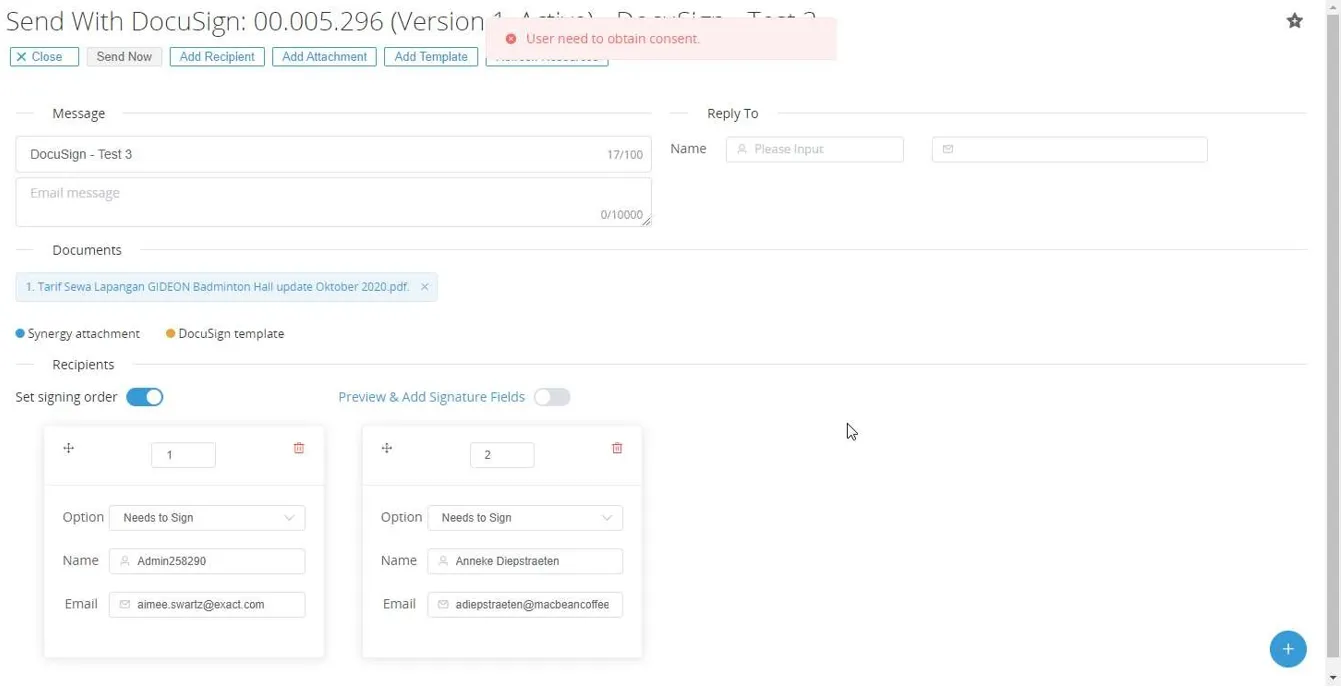
Section titled “Troubleshooting”Show error, user need to obtain consent
Section titled “Show error, user need to obtain consent”This happens when the DocuSign connection uses the Use Individual Auth and user consent is needed for the add-on to send an envelope on behalf of the logged user. Make sure the browser allows to show the pop-up screen for user consent so the user can enter the credentials.