CRM Plus - Quotation
Introduction
Section titled “Introduction”In standard Synergy you can configure your quotation but the options are limited. We have added description fields, workflow and Exact Globe sales order functionalities into Synergy quotation and sales cycle.
Enable Exact Globe in the provider list
Section titled “Enable Exact Globe in the provider list”Make sure the RPA ConnectIt add-on is aded via the preference
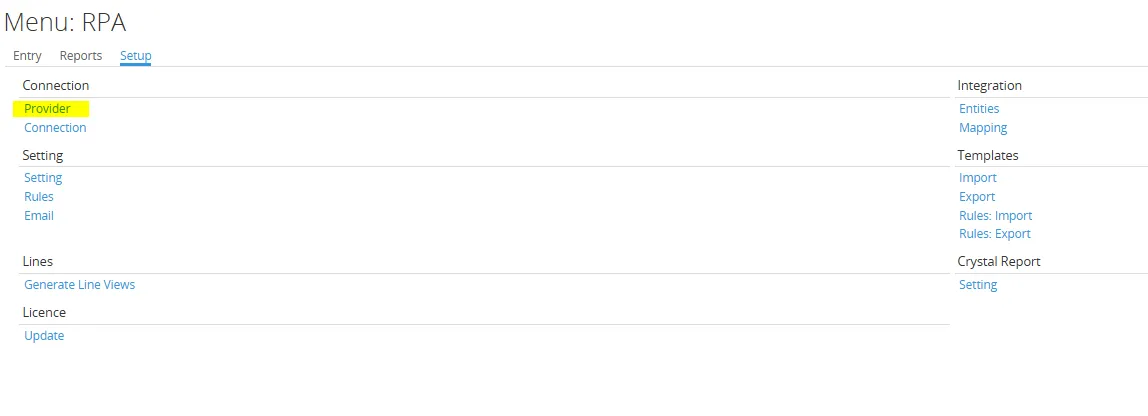
Go to the Setup / Connection / Provider, open the provider Exact Globe And check if the provider is Active.
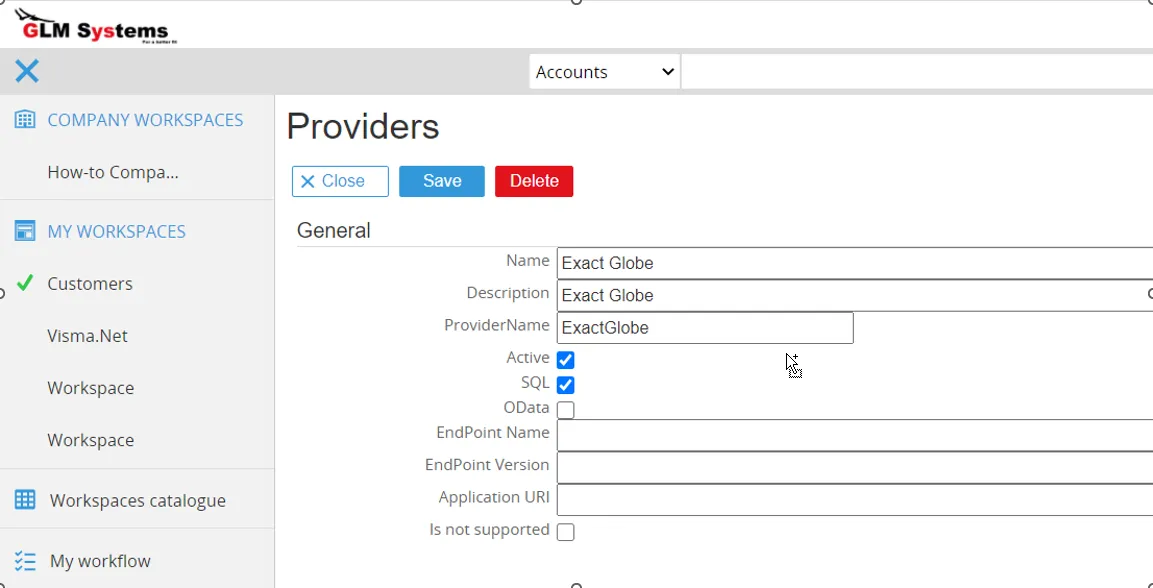
Make Connection to Exact Globe
Section titled “Make Connection to Exact Globe”Go to RPA ConnectIt and go to Setup / Connection / Provider and create a new connection to
Exact Globe. For Exact Globe only the SQL connection section is required for the quotation to
work.
The SQL connection makes use of the back office connection in System / Setup / Back office /
Back office connection. This will be automatically filled in when setting up the connection
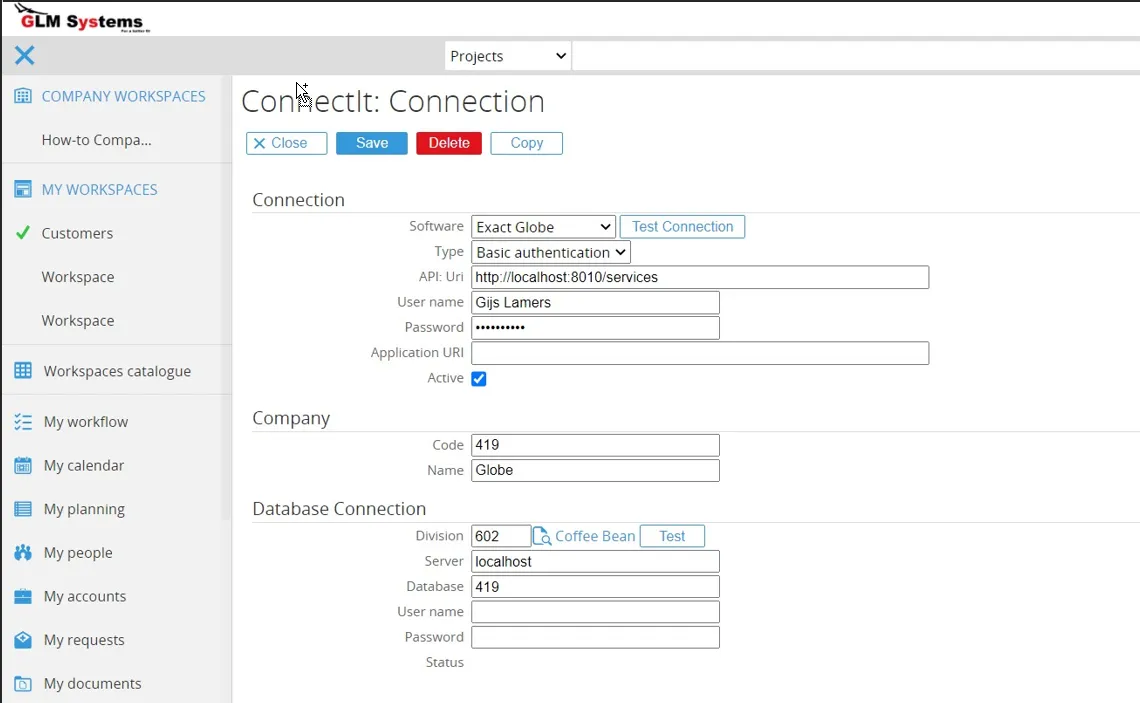
Import the Exact Globe and Exact Synergy views
Section titled “Import the Exact Globe and Exact Synergy views”Go to the RPA ConnectIt menu and go to Setup / Templates / Import, import the ExactGlobeViews.xml from [CRM Plus Installer folder]\Templates\Exact Globe folder and the ExactSynergyView.xml from [CRM Plus Installer folder]\Templates\Exact Synergy folder.
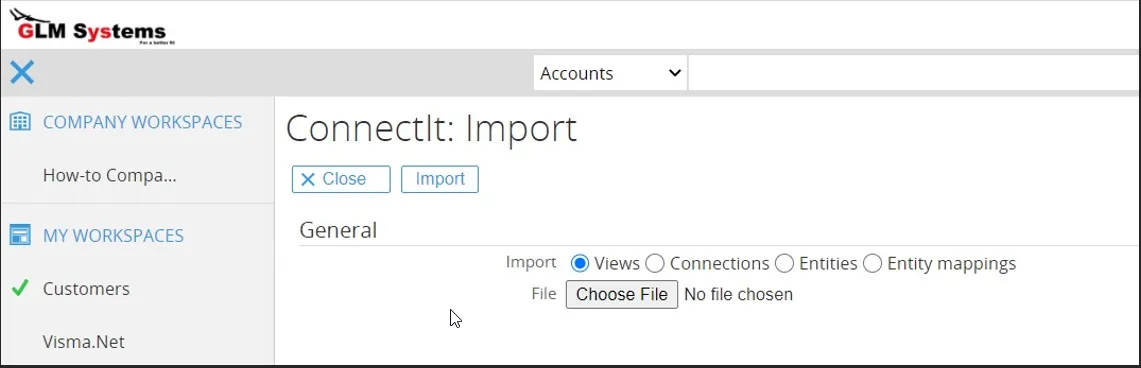
The Exact Globe views were successfully imported
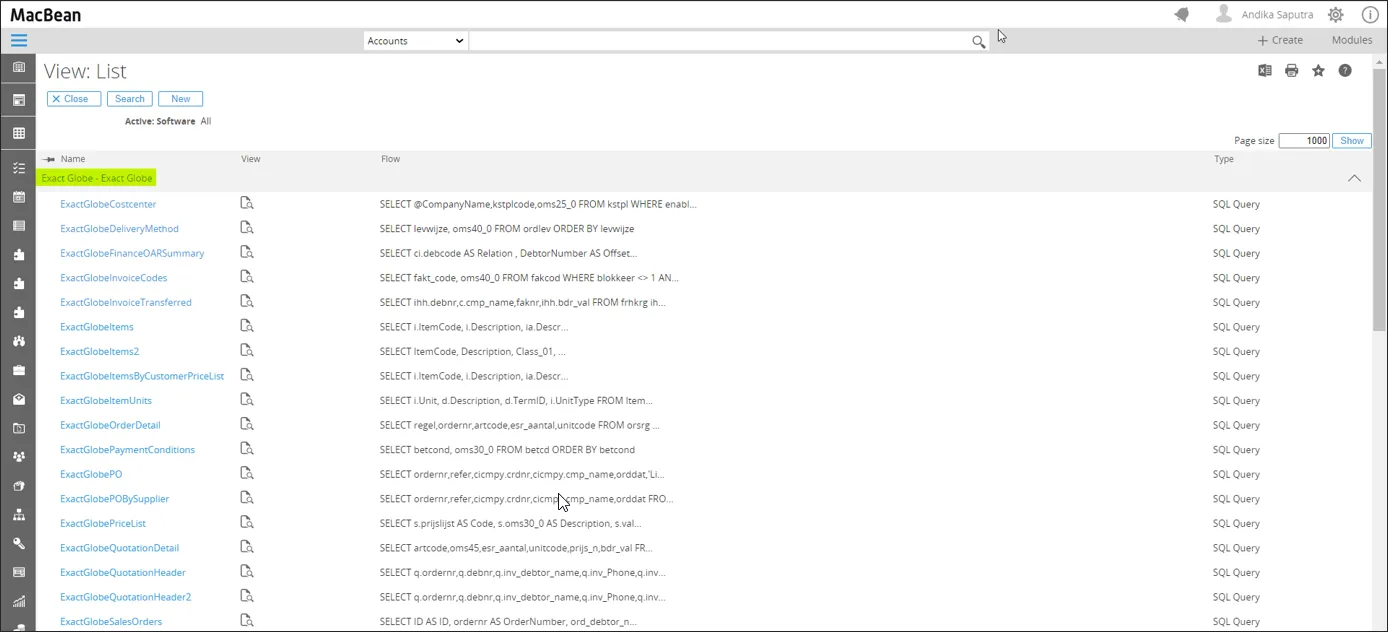
The Exact Synergy views we use in the quotation are: ExactSynergyItems, ExactSynergyVATCodes, ExactSynergyCostcenter, ExactSynergySelectionCode, ExactSynergyDeliveryMethod, ExactSynergyPaymentConditions, ExactSynergyWarehouse, ExactSynergyInvoiceCodes.
Set the CRM quotation settings
Section titled “Set the CRM quotation settings”Go to Customers menu, and go to Setup > Other > Settings, you will find the following settings
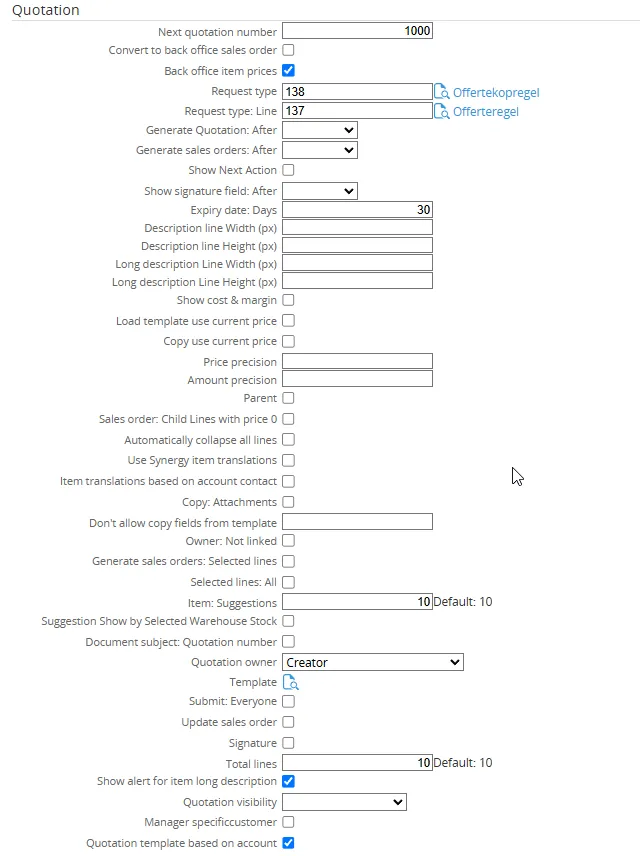
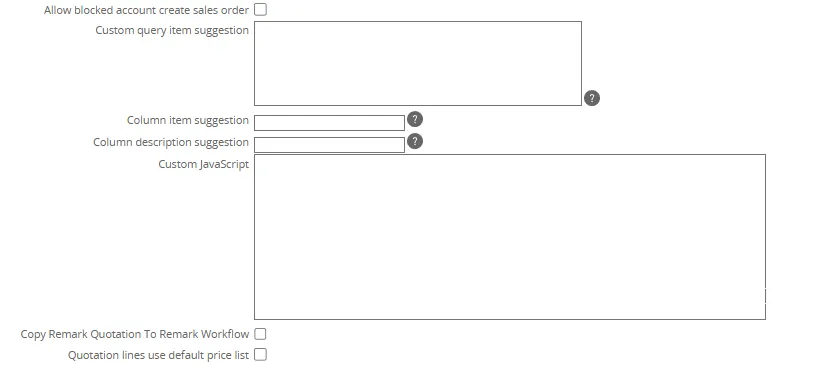
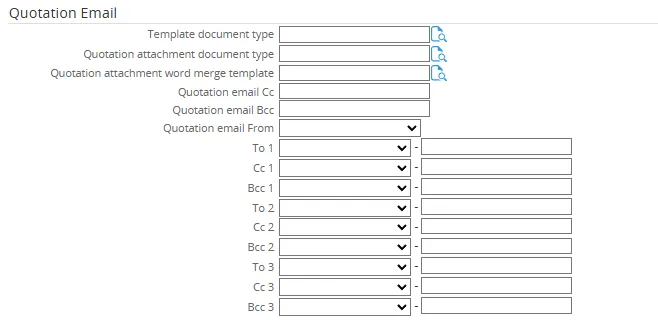

CRM Quotation Settings
Next quotation numberThis option allows the administrator to set the next quotation number which is used when creating a quotation
Convert to back office sales orderThis option allows the quotation to convert into a sales order in Exact Globe
Back office item pricesThis option will look up the item information and prices from Exact Globe
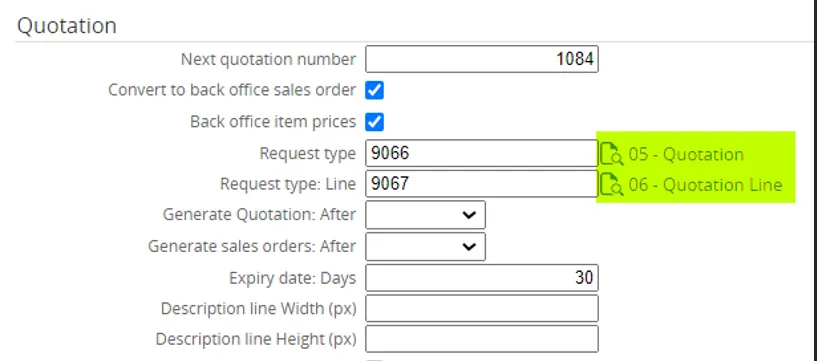
Request type If an approval flow is required, this option allows the quotation header to be linked to a certain request type. Once it is linked, the quotation will have a workflow section and it will provide more control over each field as far as security, visibility, editability are concerned.
Standard there is a limited set of free fields, the number of free fields in the workflow request is extended. The extra fields and the number of extra free fields that are available:
Request type: LineThis option allows the quotation line to be linked to a certain request type. It will also provide more control over each field as far as security, visibility, and editability are concerned.
Generate Quotation : AfterThis option allows the Generate Quotation button to show in a certain workflow status.
Generate sales order afterThis option allows the Generate Sales Order button to show in certain workflow status.
Show Next ActionThis option allows set visibility of the next action button (Approve,realise,Process).
Show signature field: AfterThis option allows you to set the visibility of the signature after specific statuses such as Open, Approved, Realized, and Processed.
Expiry date: DaysThis option allows to set the expiry days.
Description line Width (px)This option allows to set the width of line description
Description line Height Width (px) This option allows to set the height of line description
Long description line Width(px)This option allows set width of the long description Quotation Lines.
Description line Width (px)This option allows to set the width of line description
Long description line Height(px)This option allows set height of the long description Quotation Lines.
Show cost & marginThis option shows additional cost and margin fields on the line and on the summary. The back-office item prices option must be enabled.
Load template use current priceThis option allows retrieving the price not from Globe but directly from the template
Copy use current priceThis option allows to set default option of update price when copying the Quotation.
Price precisionThis option allows to set Price precision on the quotation page. When not input, Price precision will be based on currency setting.
Amount precisionThis option allows to set Amount precision on the quotation page. When not input , Amount precision will based on currency setting
ParentThis option allows the line to have a parent item. Once the item is selected as parent, the item price will roll-up from the child item(s). Only the selected items will be converted into a sales order.
Saled order: Child Lines with price 0This option allows the line to have Child Lines with price 0. Once the item is selected as parent, the item price will roll-up from the child item(s).
Automatically collapse all linesThis option allows to set automatically collapse Child lines when there a Parent checked on Quotation line.
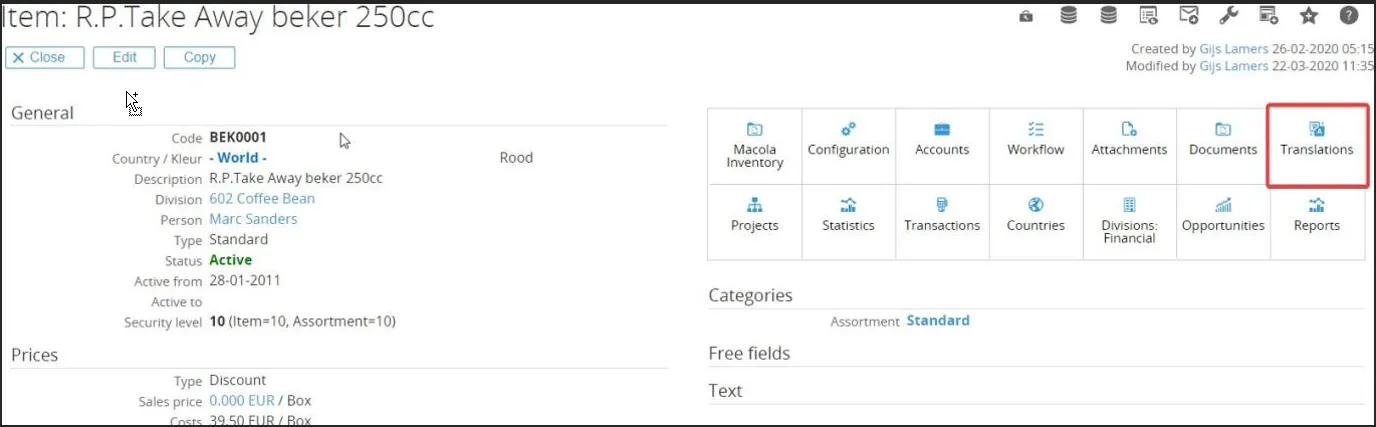
Use Synergy item translationThis option will use the translation based on country from the contact person in the quotation. The translated description is coming from the Exact Synergy item translation option.
// Item : Translations picture
CRM Quotation Settings
Item translation based on account contactThis option allows translate the item description based on language of account contact when checked.
Copy:AttachmentsThis option will copy the generated quotation document and any attachment linked to the quote to the sales order in Exact Globe when the sales order is generated.
Don’t allow copy fields from templateThis option allows to exclude fields at Quotation header that will be load from template. Pattern will be as “PropertyName,PropertyName” and separated by comma. For example: “Description,YouReference”
Owner: Not linkedBy default, the owner in the quotation is the person in the Exact Globe sales order. By checking this option, instead of the person in Exact Globe, the account manager in Exact Globe will be filled in.
Generate sales orders: Selected linesThis option allows to generate a sales order by line selection and the check-box column will be added to the quotation line in order to make selections.
Selected lines: AllThis option is to set default the check-box value to true (checked).
Item:SuggestionsThis option is to set how many item suggestions will be shown.
Suggestions Show by Selected Warehouse StockThis option displays the warehouse stock items based on the line warehouse. If it is not checked, it will display all stock.
Document subject “Quotation number”This option allows the quotation number to be set as subject when the quotation is generated.
Quotation ownerThis option is to set the default value of the quotation owner: creator, account manager or account manager from Exact Globe.
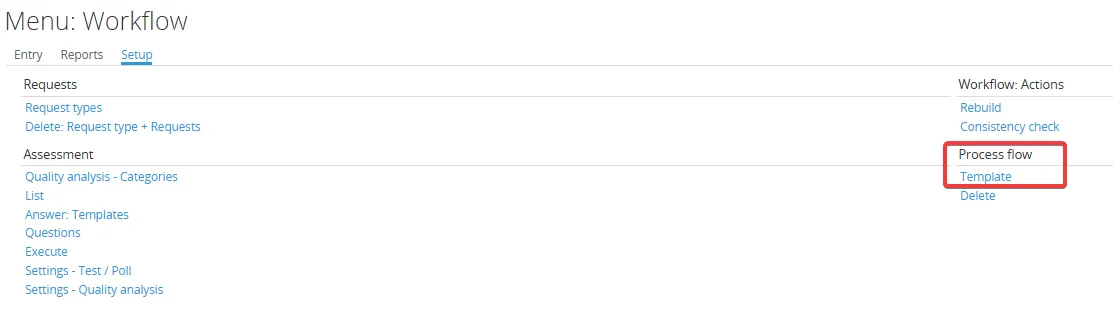
TemplateWhen a request process flow template is setup and the quotation is the starting point, this option will start the process flow. When the quote is won (approved, realized or processed), automatically the next follow up request will be created.
Submit:EveryoneBy default, only the creator can submit the quotation. This option allows other users to submit the quotation.
Update Sales OrderThis option allows that a sales order still can be updated after the quotation has been changed and vice versa.
SignatureThis option allows the user to set the signature in the quotation when generate the quotation. The signature can also be added from the signature button at the top.
Total LineThis option is to set the default value of Total Line items.
Show alert for item long descriptionThis option will display a popup after selecting the item with a long description.
Quotation visibilityThis option is to display Quotation based on the account manager or account manager creator
Manager spesific customerThis is only for showing with the specific Manager you set. User only can see the account from the manager from the account at CRM search
Quotation template based on accountIf it’s checked, it will display the Quotation template from the account itself.
Custom query item suggestionThis custom item description is using a query to dynamically generate additional details on item suggestions.>
Example: sqlSELECT ‘SearchCode:’ + ISNULL(Items.SearchCode,”) AS AddDesc,Item.ItemCode As Item FROM Items”
Column item suggestionThis column is used to link item when JOIN the table item suggestions.
Example: “Item”
Column description suggestionThis column allows for custom description suggestions based on the query.
Example : “AddDesc”
Custom JavaScriptUsed to customize the JavaScript functionality for other custom actions.
Copy Remark Quotation To Remark WorkflowWhen checked, the remark from the quotation will be copied to the remark in the workflow.
Quotation lines use default price listThis column allows you to set the default pricelist as salesprice at the quotation lines.
//Quotation Email field//Template document typeThis column allows you to set the document type as a body email template.
Quotation attachment document typeThis column allows you to set the document type as an attachment.
Quotation attachment word merge templateThis column allows you to set the WordMerge template as an attachment
Quotation email CcTo set the default email Cc
Quotation email BccTo set the default email Bcc
Quotation email FromTo set the default email “From”. There are three types to set the from email.
- Creator : set the email from based on the creator of the quotation
- Owner : set the email from based on the Owner-
- Current user logged in : set the email from based on the user login.
To 1, To 2, To 3These fields allow you to set the email recipients in the “To” field. You can specify up to three email addresses, and there are six types available for setting the email.
Cc 1, Cc 2, Cc 3This field
Bcc 1, Bcc 2, Bcc 3This field
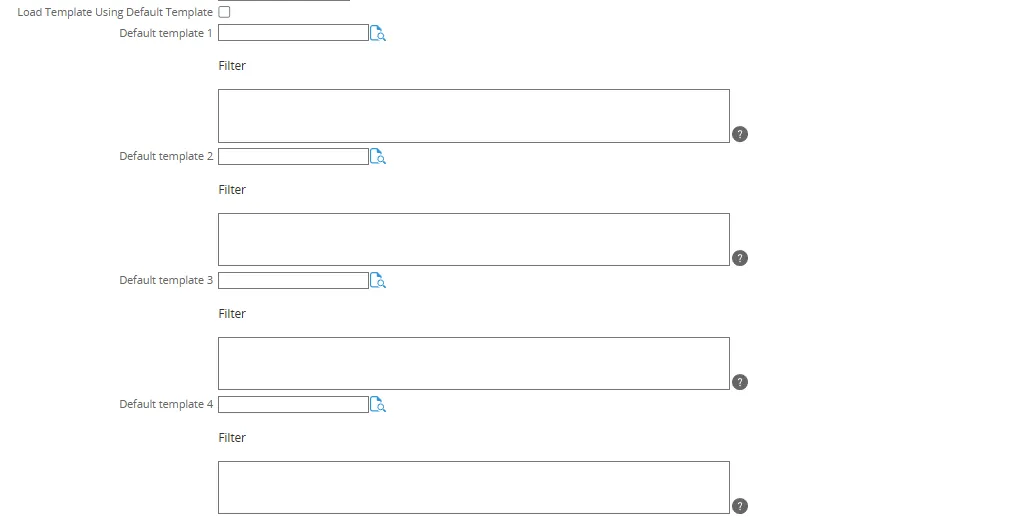
Load Template Using Default TemplateThis field
Default template 1 - 10 FilterThese fields are for selecting a template directly from the document. You can set up to 10 default templates, and in the filter column, you can specify conditions. The conditions will be applied based on the criteria you define
Email Suggestion From CacheWhen this box is checked, suggestions will be based on the cache. If it is not checked, suggestions will be retrieved from the database
Email Suggestion Min 3 CharactersThis column is used to set the number of characters required to display email suggestions. By default, it is set to 3 characters. The suggestions apply only to the “To,” “Cc,” and “Bcc” fields
Send email ViaThis column is used to set whether emails are sent via jobs or direct
Quotation attachment word merge template This column allows you to set the WordMerge template as an attachment.
Quotation email Cc To set the default email cc.
Quotation email Bcc To set the default email bcc.
Quotation email from To set the default email “From”. There are three types to set the from email.
- Creator : set the email from based on the creator of the quotation
- Owner : set the email from based on the Owner
- Current user logged in : set the email from based on the user login.
Next quotation number This option allows the administrator to set the next quotation number which is used when creating a quotation.
Convert to back office sales order This option allows the quotation to convert into a sales order in Exact Globe.
Back office item prices This option will look up the item information and prices from Exact Globe.
Request type If an approval flow is required, this option allows the quotation header to be linked to a certain request type. Once it is linked, the quotation will have a workflow section and it will provide more control over each field as far as security, visibility, editability are concerned.
Standard there is a limited set of free fields, the number of free fields in the workflow request is extended. The extra fields and the number of extra free fields that are available:
| Field Name | Value |
|---|---|
| Free text fields | 1-150 |
| Free guid fields | 1-50 |
| Free number fields | 1-50 |
| Free yes/no fields | 1-100 |
| Free amount fields | 1-50 |
| Free date fields | 1-100 |
| Free comment fields | 1-20 |
| Free Signature fields | 1-10 |
| Attachment | - |
| Section | - |
| Quotation: Status | - |
| Quotation: Delivery Address | - |
| Quotation: Warehouse | - |
| Quotation: Shipping Via Code | - |
| Quotation: Order Date | - |
| Quotation: Currency | - |
| Quotation: Payment Condition | - |
| Quotation: Description 1 | - |
| Quotation: Description 2 | - |
| Quotation: Description 3 | - |
| Quotation: Partial Delivery Allowed | - |
| Quotation: Cost Center | - |
| Quotation: Selection Code | - |
| Quotation: Invoice Code | - |
| Quotation: Division | - |
| Opportunity | - |
| Expiry date | - |
| Description | - |
| Contact | - |
| Account | - |
| Your Ref. | - |
| Project | - |
| Person | - |
Request type: Line This option allows the quotation line to be linked to a certain request type. It will also provide more control over each field as far as security, visibility, and editability are concerned.
Standard there is a limited set of free fields, the number of free fields in the workflow request is extended. The extra fields and the number of extra free fields that are available:
| Field Name | Value |
|---|---|
| Free text fields | 1-150 |
| Free guid fields | 1-50 |
| Free number fields | 1-50 |
| Free yes/no fields | 1-150 |
| Free amount fields | 1-50 |
| Free date fields | 1-100 |
| Free comment fields | 1-20 |
| Free Attachment fields | 1-25 |
| Free Signature fields | 1-10 |
| Quotation: Pricelist | - |
| Quotation: Salesprice | - |
| Quotation: Netprice | - |
| Quotation: TaxCodeField | - |
| Quotation: DiscountAmountField | - |
| Quotation: DiscountPercentageField | - |
| Quotation: GrossAmount | - |
| Quotation: Unit | - |
| Quotation: Cost price | - |
| Quotation: Margin | - |
| Quotation: Markup % | - |
| Quotation: Price List Discount | - |
| Quotation: Image | - |
| Quotation: Available Stock | - |
| Quotation: Nett Price History | - |
| Quotation: Amount Exclusive VAT | - |
| Quotation: BOM version | - |
| Quotation: Fixed price | - |
| Quotation: VAT amount | - |
| Quotation: Amount Exclusive VAT | - |
| Quotation: Available Stock | - |
| Quotation: Cost centre | - |
| Quotation: Currency | - |
| Quotation: CustomerNote | - |
| Quotation: Delivery Address | - |
| Quotation: Description 1 | - |
| Quotation: Description 2 | - |
| Quotation: Description 3 | - |
| Quotation: Division | - |
| Quotation: Instruction | - |
| Quotation: Invoice code | - |
| Quotation: Is Template | - |
| Quotation: Long description | - |
| Quotation: Netprice | - |
| Quotation: Order date | - |
| Quotation: Partial delivery allowed | - |
| Quotation: Payment condition | - |
| Quotation: Sales order confirmation | - |
| Quotation: Selection code | - |
| Quotation: Shipping via | - |
| Quotation: Status | - |
| Quotation: TaxCodeField | - |
| Quotation: Template | - |
| Quotation: Unit | - |
| Quotation: Warehouse | - |
| Amount | - |
| Item 1 | - |
| Description | - |
| Quantity 1 | - |
| Start date | - |
| Start date realize | - |
Generate quotation after This option allows the Generate Quotation button to show in a certain workflow status.
Generate sales order after This option allows the Generate Sales Order button to show in certain workflow status.
Show Next Action This option allows set visibility of the next action button (Approve,realise,Process).
Show signature field: After This option allows you to set the visibility of the signature after specific statuses such as Open, Approved, Realized, and Processed.
Expiry date: Days This option allows to set the expiry days.
Description line Width (px) This option allows to set the width of line description.
Description line Height Width (px) This option allows to set the height of line description.
Long description line Width(px) This option allows set width of the long description Quotation Lines.
Long description line Height(px) This option allows set height of the long description Quotation Lines.
Show cost & margin This option shows additional cost and margin fields on the line and on the summary. The back-office item prices option must be enabled.
Load template use current price This option allows retrieving the price not from Globe but directly from the template.
Copy use current price This option allows to set default option of update price when copying the Quotation.
Price precision This option allows to set Price precision on the quotation page. When not input, Price precision will be based on currency setting.
Amount precision This option allows to set Amount precision on the quotation page. When not input , Amount precision will based on currency setting.
Parent This option allows the line to have a parent item. Once the item is selected as parent, the item price will roll-up from the child item(s). Only the selected items will be converted into a sales order.
Sales order: Child Lines with price 0 This option allows the line to have Child Lines with price 0. Once the item is selected as parent, the item price will roll-up from the child item(s).
Automatically collapse all lines This option allows to set automatically collapse Child lines when there a Parent checked on Quotation line.
Use Synergy item translation
This option will use the translation based on country from the contact person in the quotation. The translated description is coming from the Exact Synergy item translation option.

Iten translations based on account contact This option allows translate the item description based on language of account contact when checked.
Copy: Attachments This option will copy the generated quotation document and any attachment linked to the quote to the sales order in Exact Globe when the sales order is generated.
Don’t allow copy fields from template This option allows to exclude fields at Quotation header that will be load from template. Pattern will be as “PropertyName,PropertyName” and separated by comma. For example: “Description,YouReference”
Owner: Not linked By default, the owner in the quotation is the person in the Exact Globe sales order. By checking this option, instead of the person in Exact Globe, the account manager in Exact Globe will be filled in.
Generate sales orders: Selected lines This option allows to generate a sales order by line selection and the check-box column will be added to the quotation line in order to make selections.
Selected lines: All This option is to set default the check-box value to true (checked).
Item: Suggestions This option is to set how many item suggestions will be shown.
Suggestion Show by Selected Warehouse Stock This option displays the warehouse stock items based on the line warehouse. If it is not checked, it will display all stock.
Document subject” Quotation number This option allows the quotation number to be set as subject when the quotation is generated.
Quotation owner This option is to set the default value of the quotation owner: creator, account manager or account manager from Exact Globe.
Template
When a request process flow template is setup and the quotation is the starting point, this option will start the process flow. When the quote is won (approved, realized or processed), automatically the next follow up request will be created.
Submit: Everyone By default, only the creator can submit the quotation. This option allows other users to submit the quotation.
Update Sales Order This option allows that a sales order still can be updated after the quotation has been changed and vice versa.
Signature This option allows the user to set the signature in the quotation when generate the quotation. The signature can also be added from the signature button at the top.
Total Line This option is to set the default value of Total Line items.
Show alert for item long description This option will display a popup after selecting the item with a long description.
Quotation visibility This option is to display Quotation based on the account manager or account manager creator
Manager specificcustomer This is only for showing with the specific Manager you set. User only can see the account from the manager from the account at CRM search
Quotation template based on account If it’s checked, it will display the Quotation template from the account itself.
Custom query item suggestion This custom item description is using a query to dynamically generate additional details on item suggestions. Example:”SELECT ‘SearchCode:’ + ISNULL(Items.SearchCode,”) AS AddDesc,Item.ItemCode As Item FROM Items”
Column item suggestion This column is used to link item when JOIN the table item suggestions. Example: “Item”
Column description suggestion This column allows for custom description suggestions based on the query. Example: “AddDesc”
Custom JavaScript Used to customize the JavaScript functionality for other custom actions.
Copy Remark Quotation To Remark Workflow When checked, the remark from the quotation will be copied to the remark in the workflow.
Quotation lines use default price list This column allows you to set the default pricelist as salesprice at the quotation lines.
Template document type This column allows you to set the document type as a body email template.
Quotation attachment document type This column allows you to set the document type as an attachment.
Quotation attachment word merge template This column allows you to set the WordMerge template as an attachment.
Quotation email Cc To set the default email cc.
Quotation email Bcc To set the default email bcc.
Quotation email from To set the default email “From”. There are three types to set the from email.
- Creator : set the email from based on the creator of the quotation
- Owner : set the email from based on the Owner
- Current user logged in : set the email from based on the user login.
To 1, To 2, To 3 These fields allow you to set the email recipients in the “To” field. You can specify up to three email addresses, and there are six types available for setting the email.
- Blank column: can set the email manually
- Creator: set the “To” based on the creator
- Owner: set the “To” based on the owner
- Current user (Name): Set the “To”: based on the Current user
- Contacts: set the “To” based on the Contacts
- Main Contact: set the “To” based on the Main Contact
Cc 1, Cc 2, Cc 3 These fields allow you to set the email recipients in the “Cc” field. You can specify up to three email addresses, and there are six types available for setting the email.
- Blank column: can set the email manually
- Creator: set the “Cc” based on the creator
- Owner: set the “Cc” based on the owner
- Current user (Name): Set the “CC”: based on the Current user
- Contacts: set the “Cc” based on the Contacts
- Main Contact: set the “Cc” based on the Main Contact
Bcc 1, Bcc 2, Bcc 3 These fields allow you to set the email recipients in the “Bcc” field. You can specify up to three email addresses, and there are six types available for setting the email.
- Blank column: can set the email manually
- Creator: set the “Bcc” based on the creator
- Owner: set the “Bcc” based on the owner
- Current user (Name): Set the “Bcc”: based on the Current user
- Contacts: set the “Bcc” based on the Contacts
- Main Contact: set the “Bcc” based on the Main Contact
Default template 1, 2, 3, 4, 5, 6, 7, 8, 9, 10 These fields are for selecting a template directly from the document. You can set up to 10 default templates, and in the filter column, you can specify conditions. The conditions will be applied based on the criteria you define.
Email Suggestion From Cache When this box is checked, suggestions will be based on the cache. If it is not checked, suggestions will be retrieved from the database.
Email Suggestion Min Characters This column is used to set the number of characters required to display email suggestions. By default, it is set to 3 characters. The suggestions apply only to the “To,” “Cc,” and “Bcc” fields.
Extra fields
Section titled “Extra fields”To add the extra fields, go to Modules > Customers > Setup > Other > Settings > Click Edit ,Click on the Request type or Request type: Line selected.
Select fields tab, then click add button

Free text field (1-15)
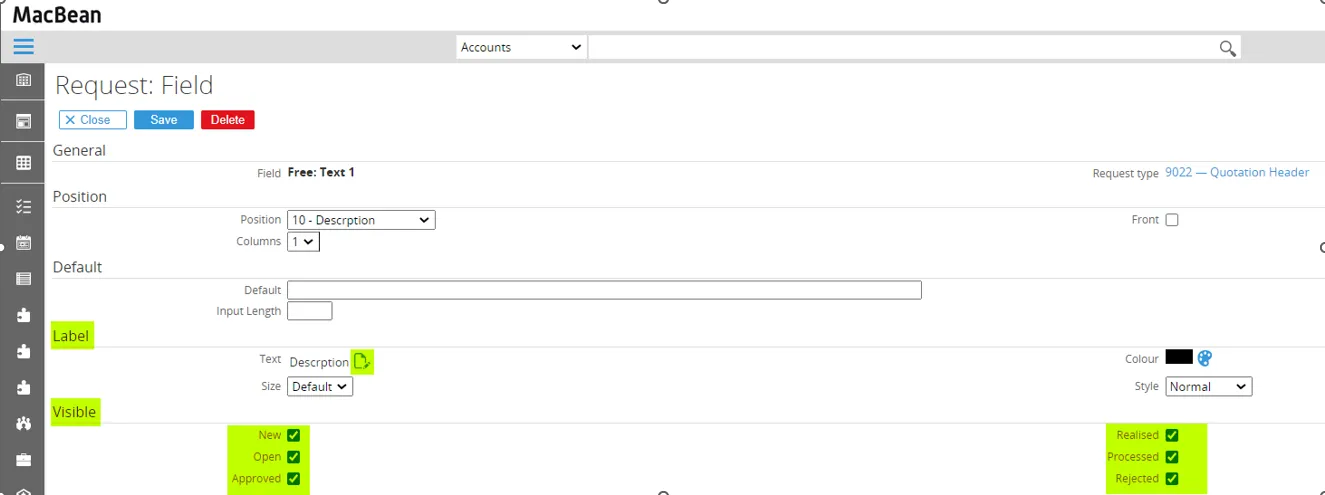
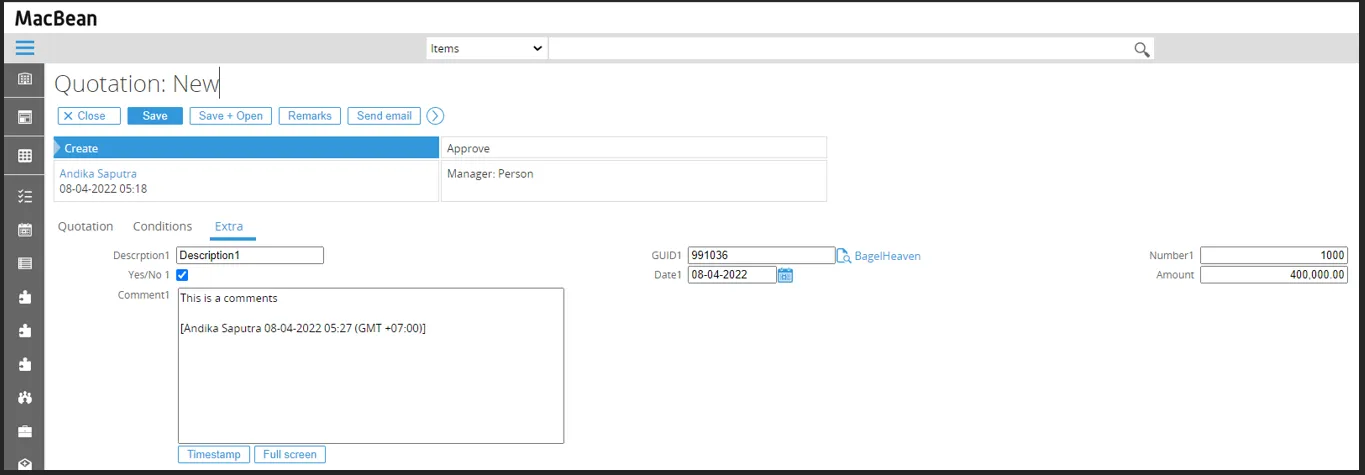
This field is used for fields with alphanumeric values, for example: ‘Description1’.
To set the label, click edit button, then rename the term from Free: … to the label we want, for example: ‘Description’.
To set the visibility, click the check box that you want to change
Free guid field (1-15)
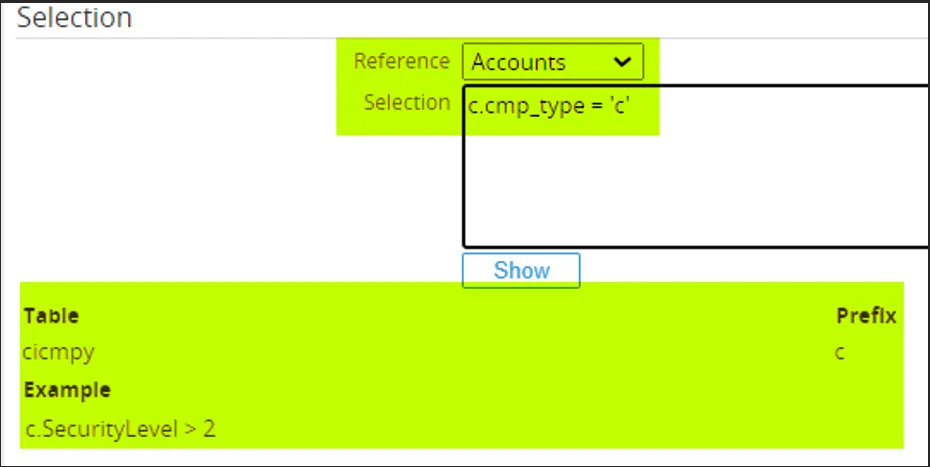
This field is used for fields with GUID values, for example: ‘5D883DBE-2622-4F0F-BE92-75B269EF14C2’
Free number field (1-15)
This field is used for fields with numeric values, for example: ‘1000’.
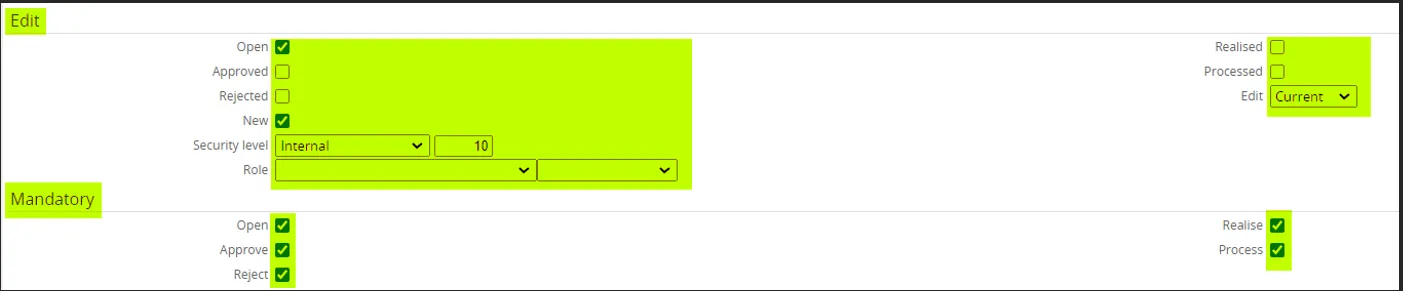
To set the editability, click the check box that you want to change.
We can also edit the Security level and select the Role to set the Role or Security level who can edit the field.
To set mandatory, click the check box that you want to change.
Free yes/no field (1-15)
This field is used for fields with yes/no values, when the yes/no field is selected it means yes.
Free amount field (1-15)
This field is usually used for fields that contain the amount or price, for example ‘400,000.00’
Free date field (1-15)
This field is used for fields with date values, for example: ‘08-04-2022’.
Free comment field (1-15)
This field is usually used in remarks fields that require a long description.
After adding Extra field, new section ‘Extra’ will appear with the extra fields added.
Word Merge to PDF setup
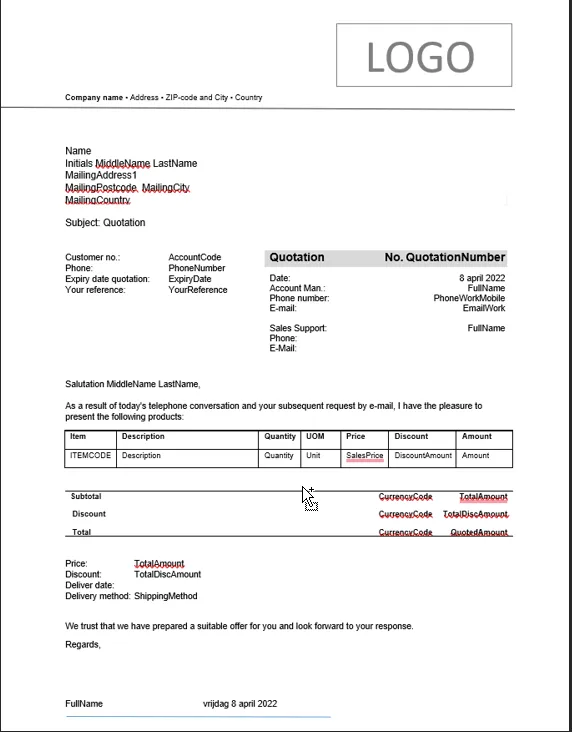
Section titled “Word Merge to PDF setup”The setup of Word Merge documents is completed in the path of Modules > Documents > Setup > Word Merge > Templates > (Specific Template).
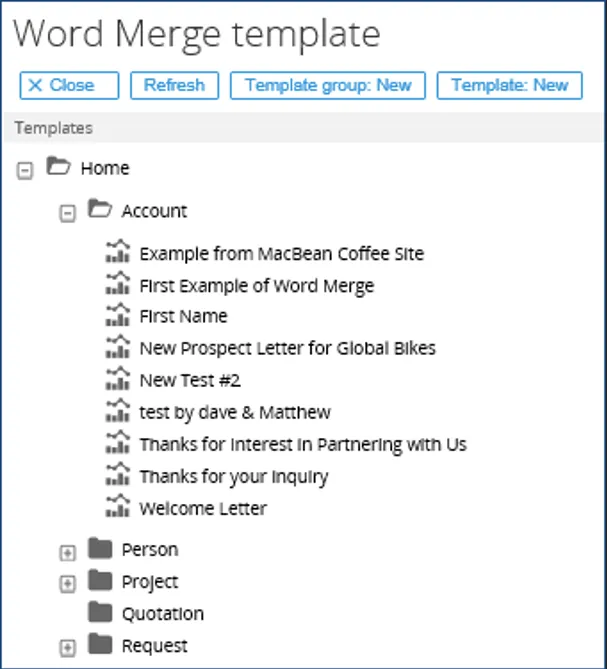
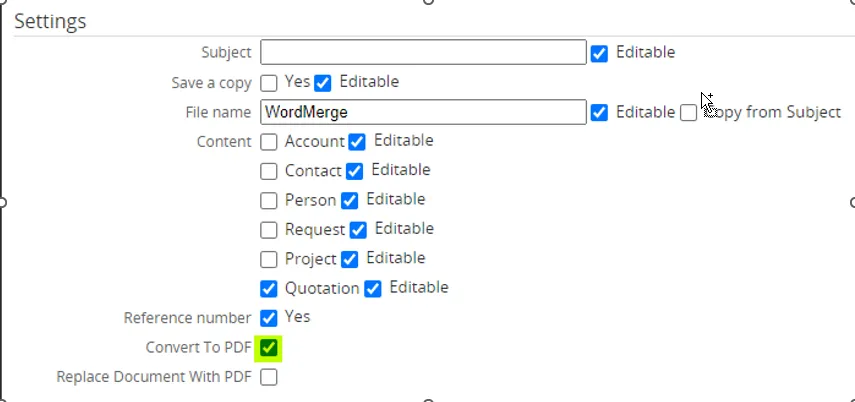

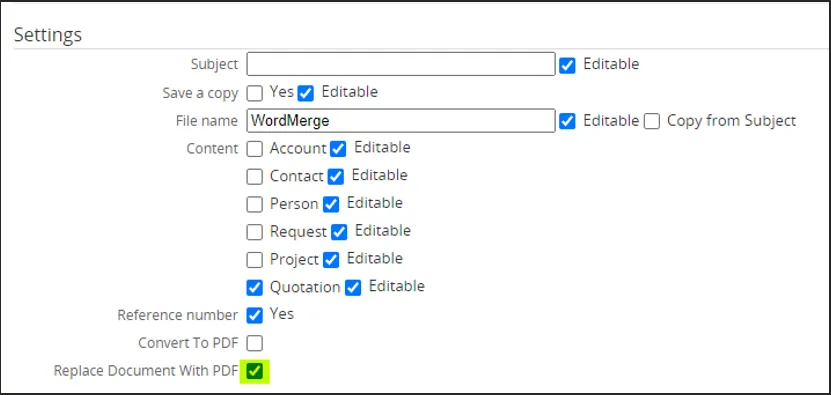

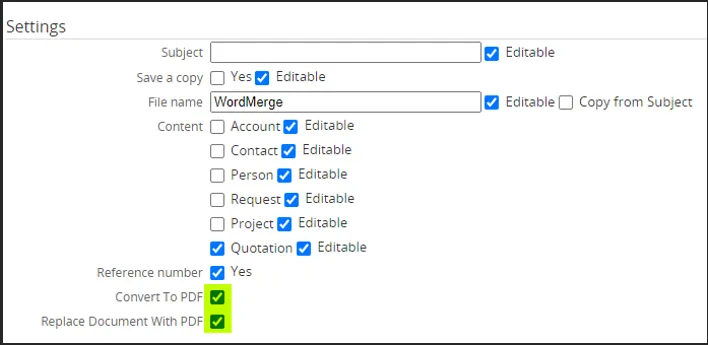

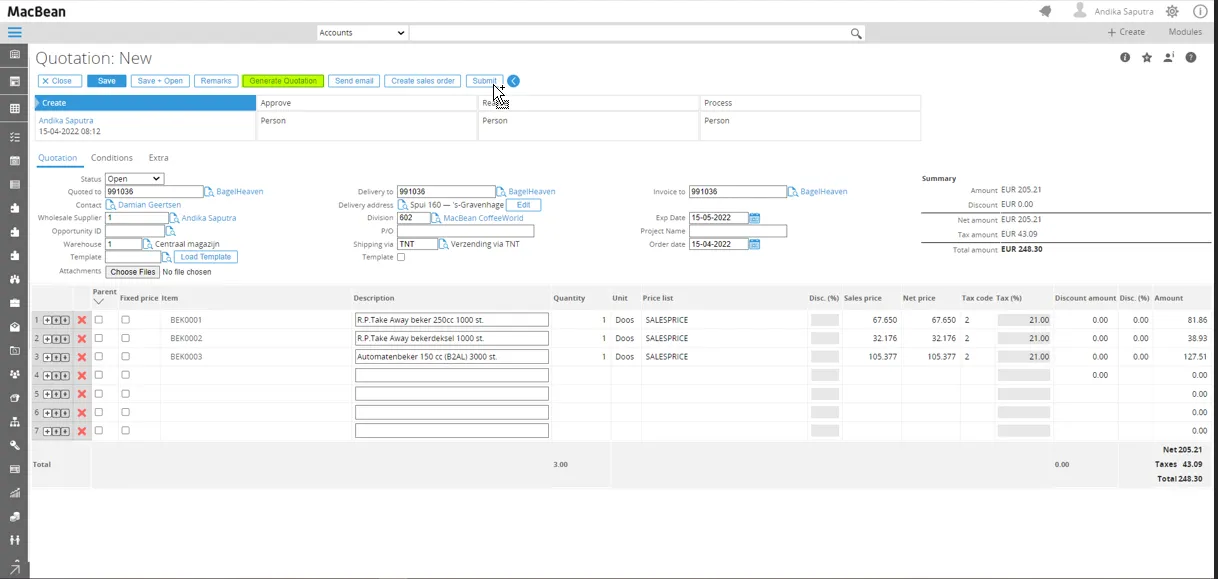
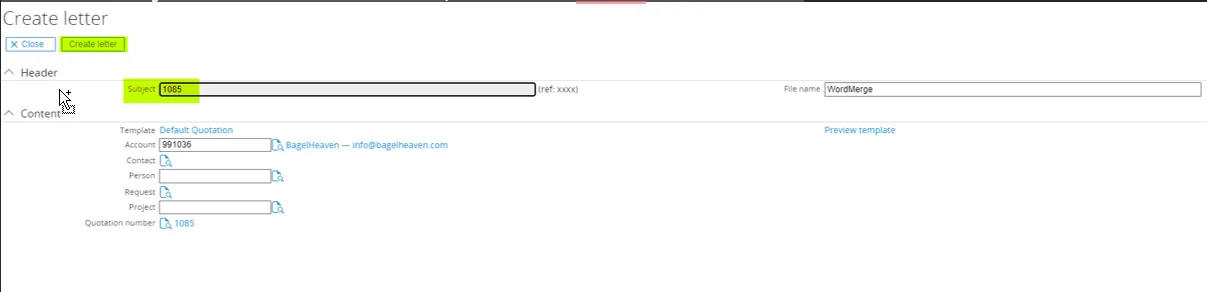
Go to Modules > Customers > Entry > Quotation. Fill in all the required fields to create a quotation, then click Generate Quotation button.




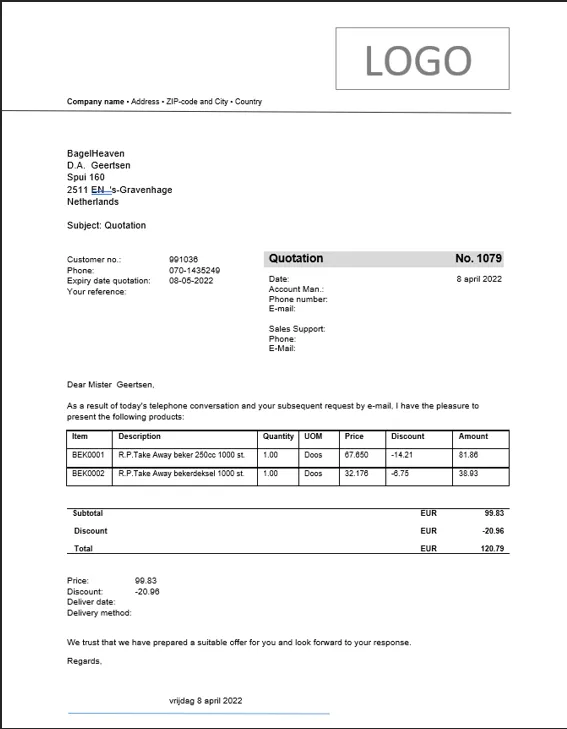
Extending Word Merge Schemas
Section titled “Extending Word Merge Schemas”Exact Word Merge now allows you the flexibility to create additional entities and fields for the metadata and schemas used in generating Word Merge templates. For more detail you can following this link: https://www.exactsoftware.com/docs/DocView.aspx?DocumentID=%7bc74db887-b974-432c-a978-b3ccd42cfe05%7d
Maintaining Word Merge Templates and Adding Fields
Section titled “Maintaining Word Merge Templates and Adding Fields”- Open the folder at the following path on your computer:
C:\<your CRM Plus installer folder, for example:C:\CRM Plus - Setup - 504 – 20251230. - Open the Quotation Template EN file.
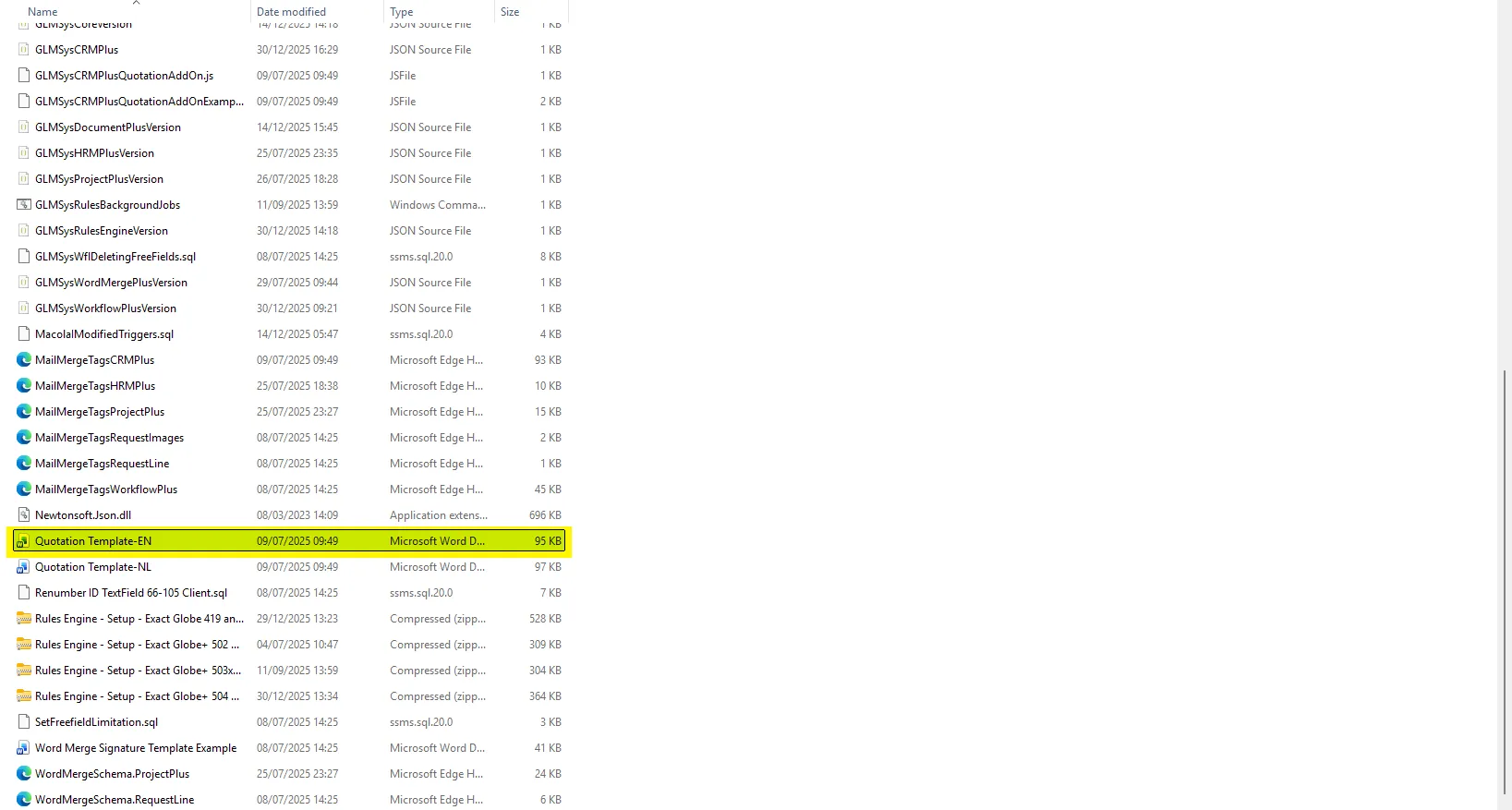
- The Comments field is not yet visible in the template.
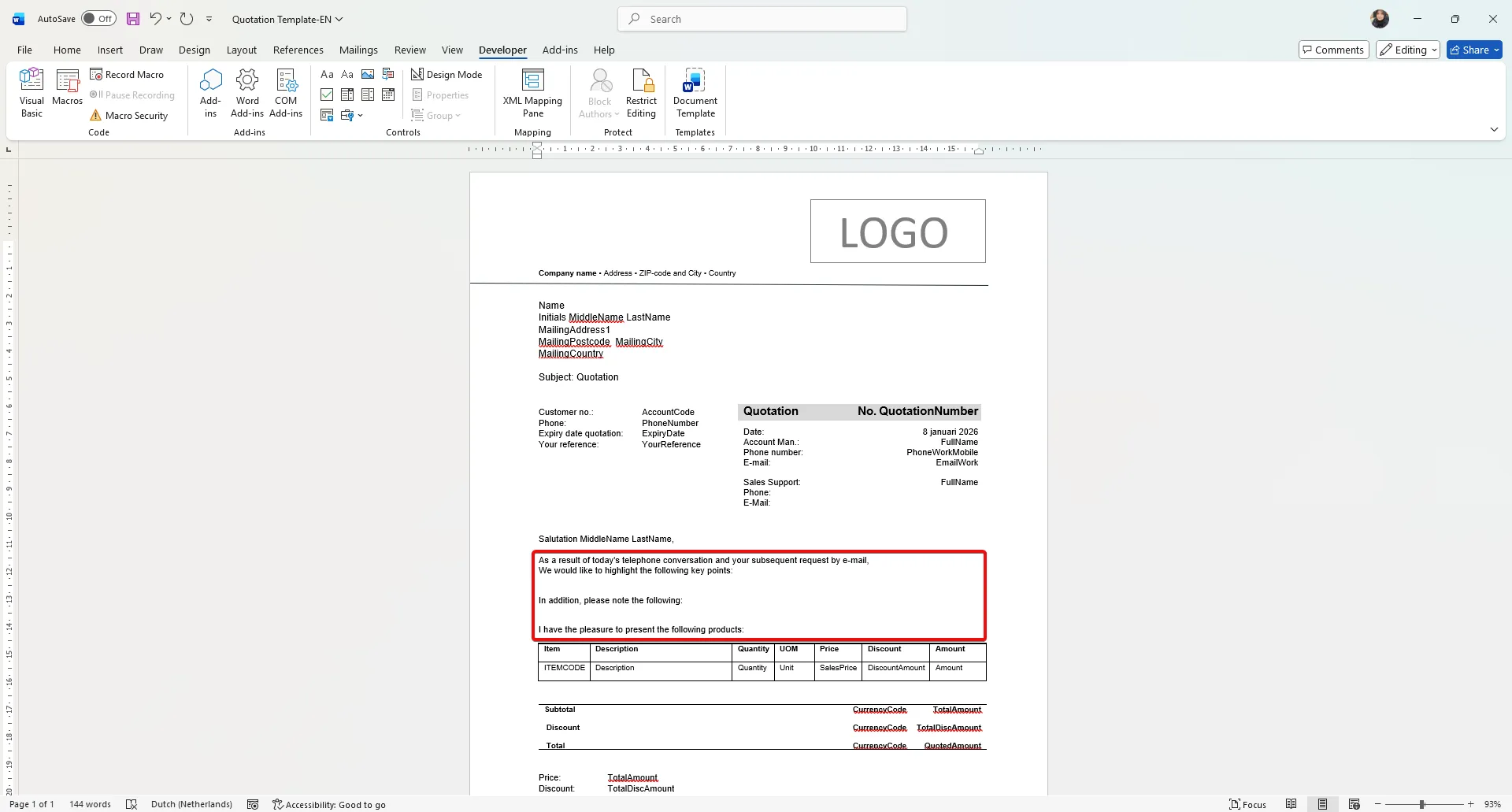
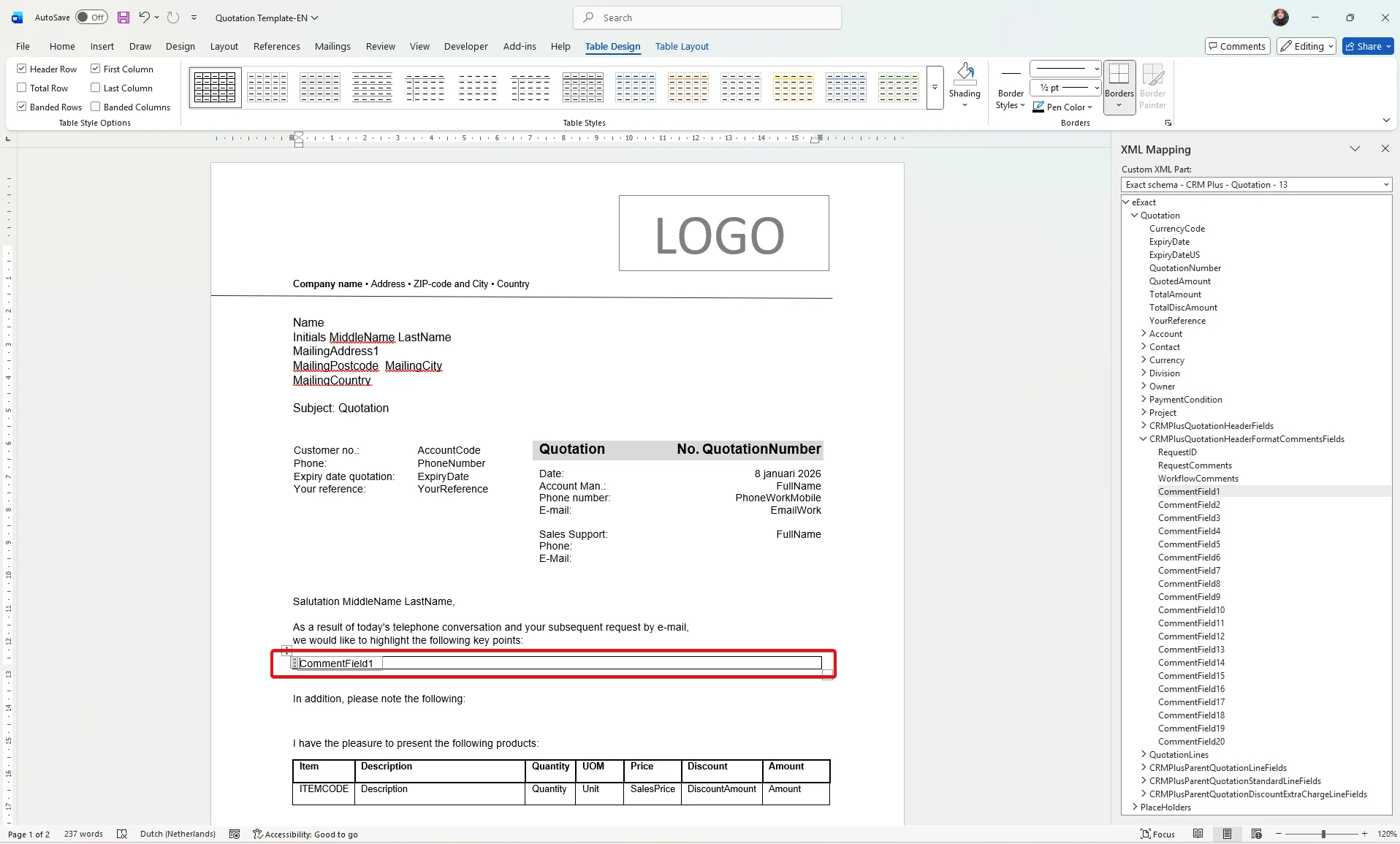
- Insert a 1 x 1 table where you want to display the comment.
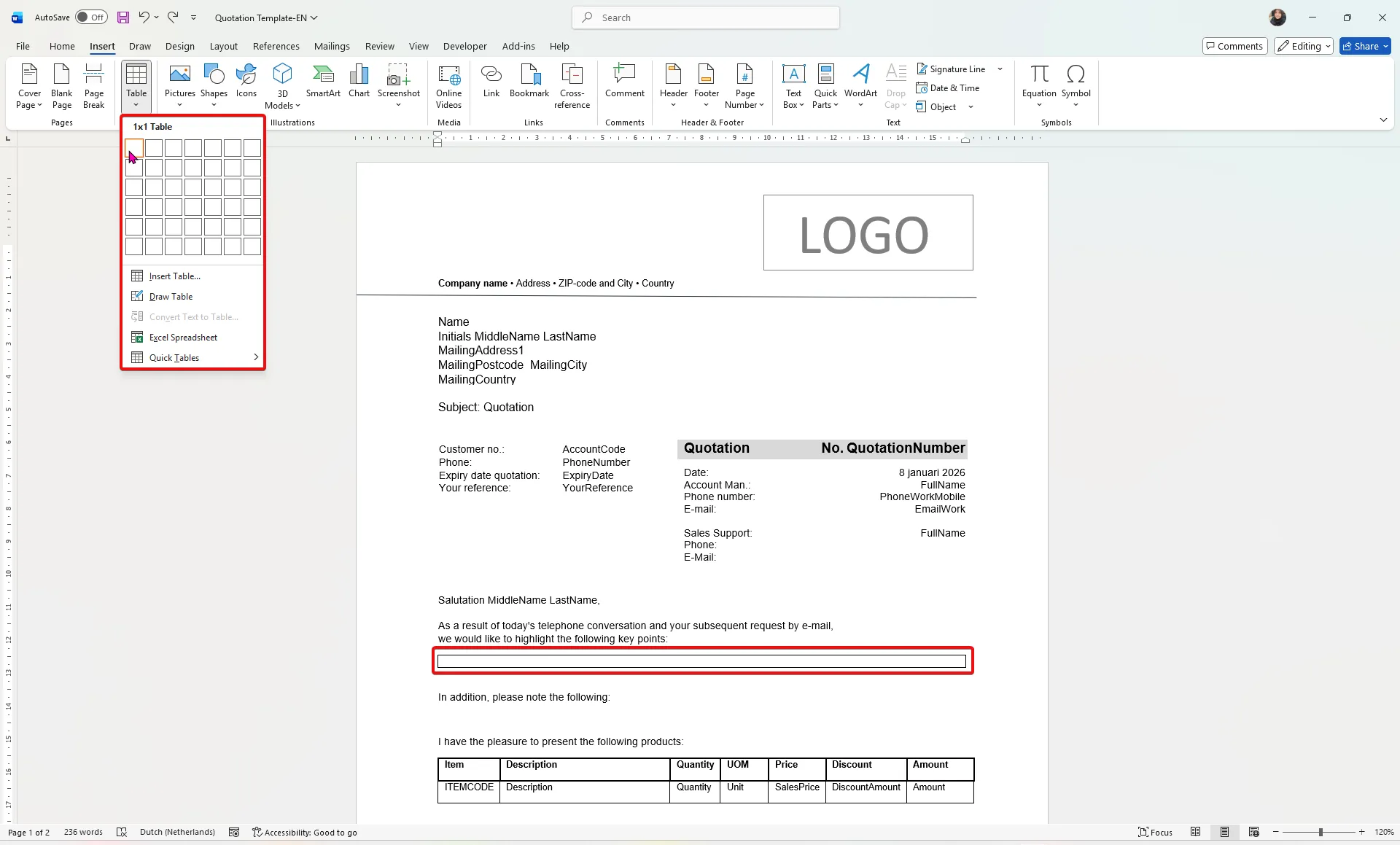
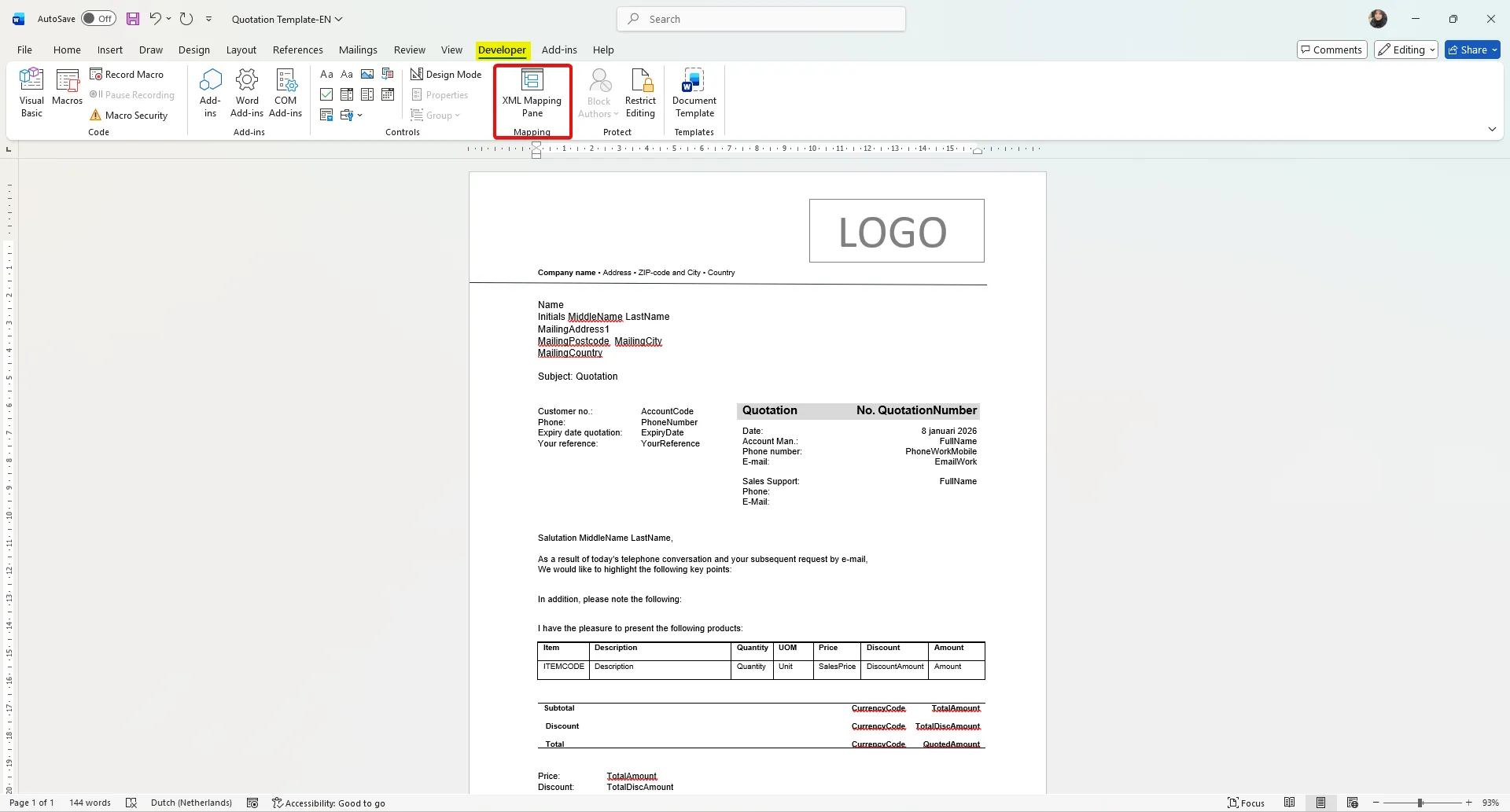
- Go to Developer > XML Mapping Pane.
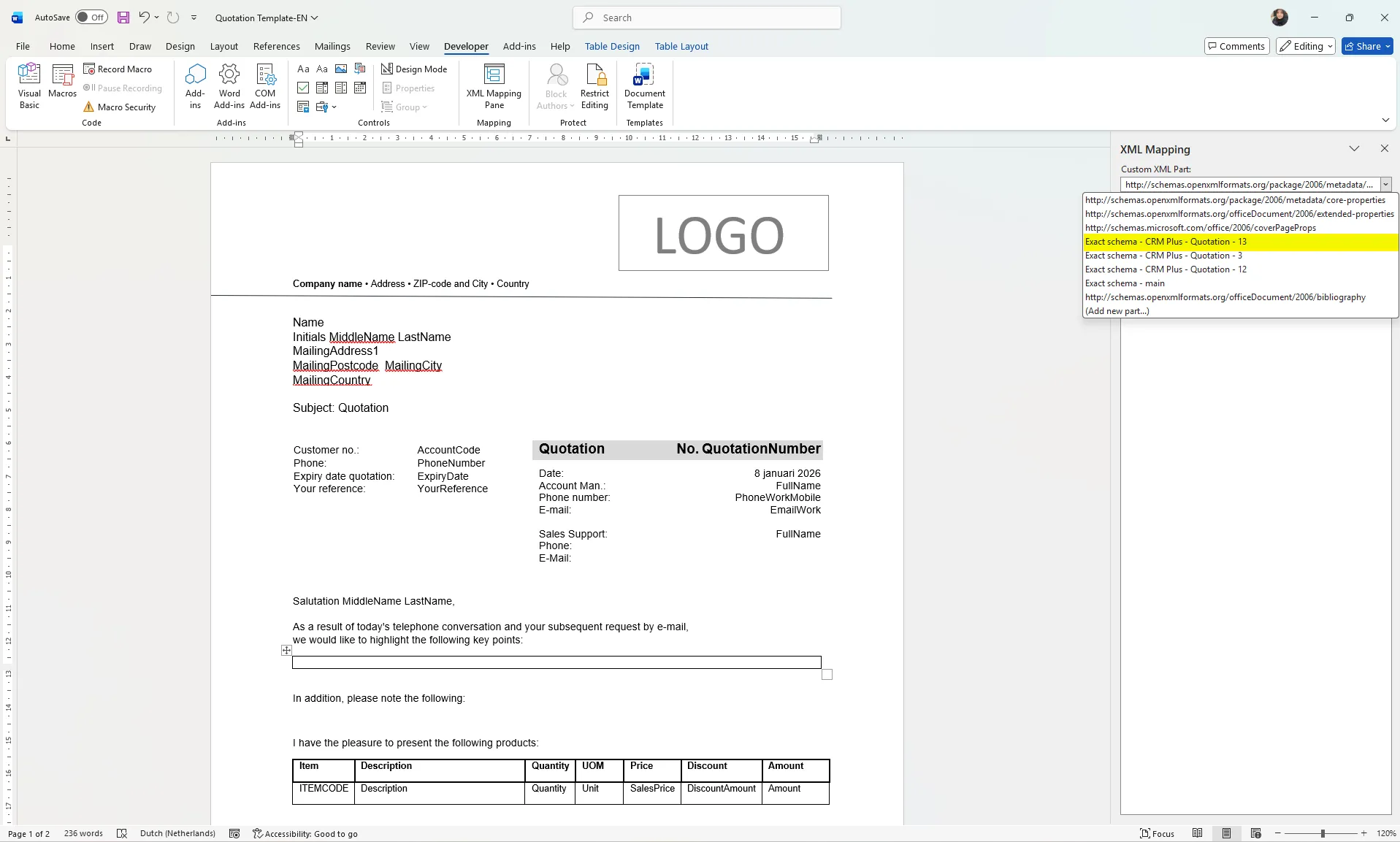
- In the XML Mapping dropdown list, select Exact schema - CRM Plus - Quotation 13.
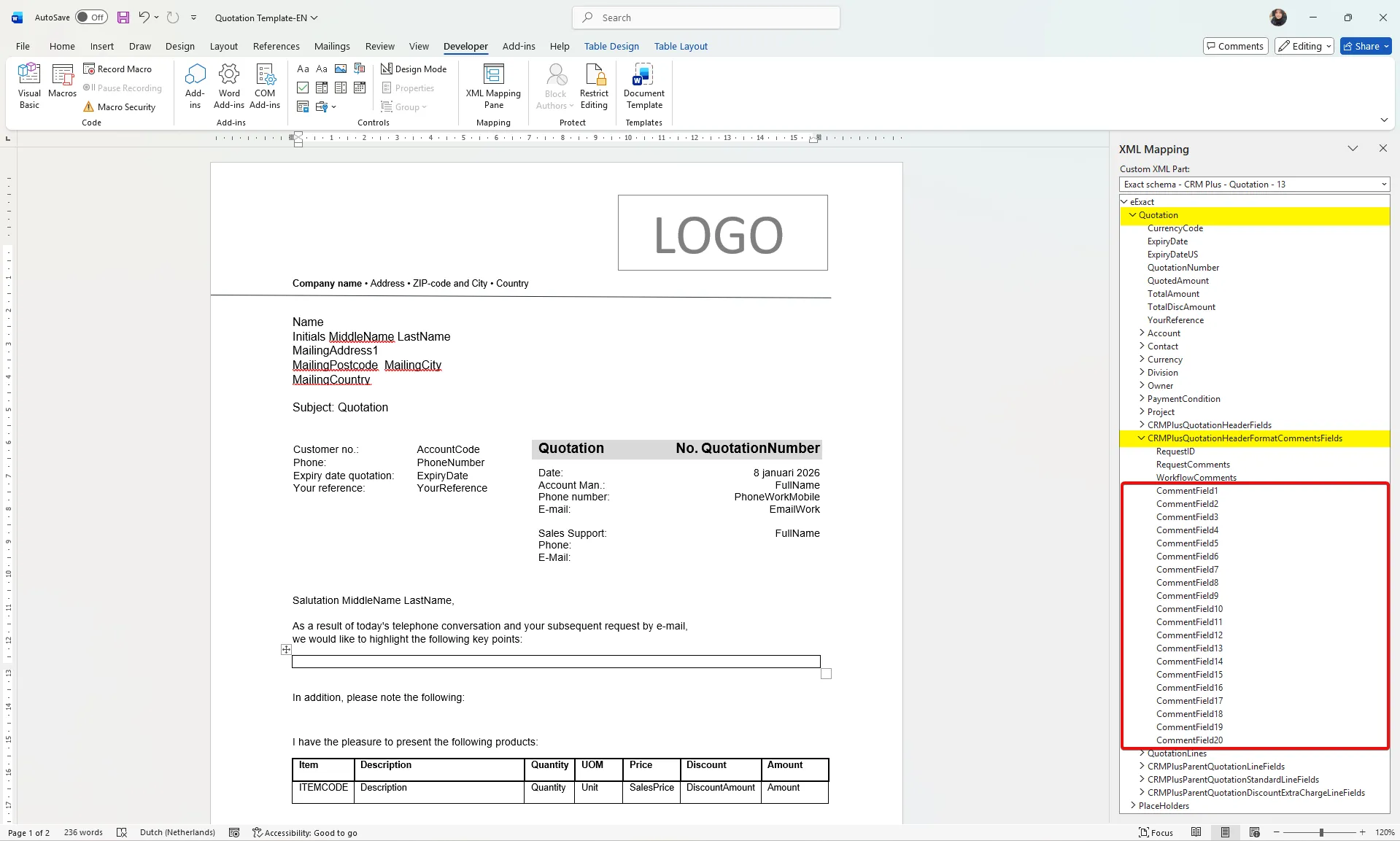
- In the XML Mapping tree, select Quotation > CRMPlusQuotationHeaderFormatCommentFields, then choose the required CommentField type.
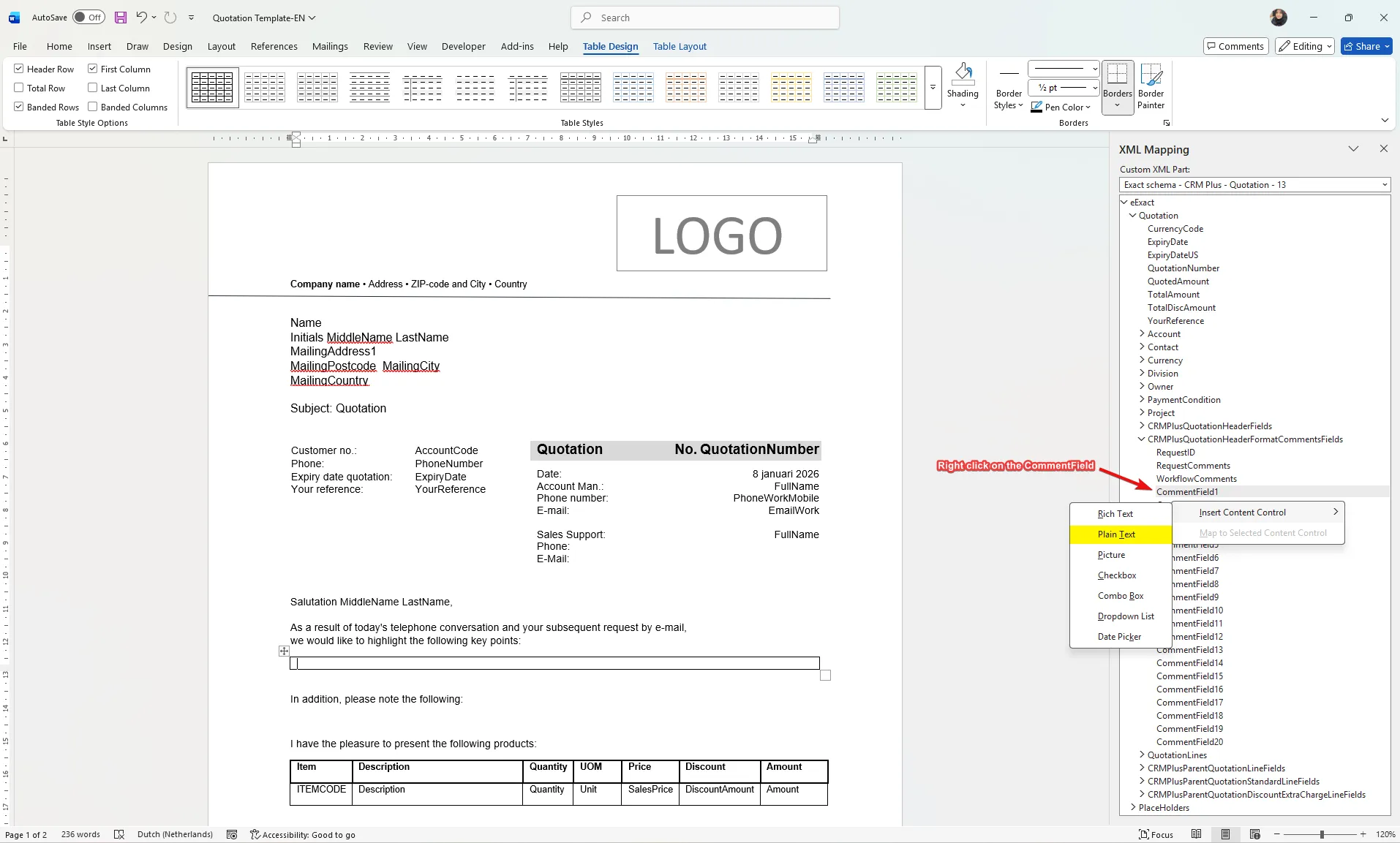
- Right click CommentFields1, and select Insert Content Control > Plain text.
- Verify that the CommentField now appears in the document inside the table cell.
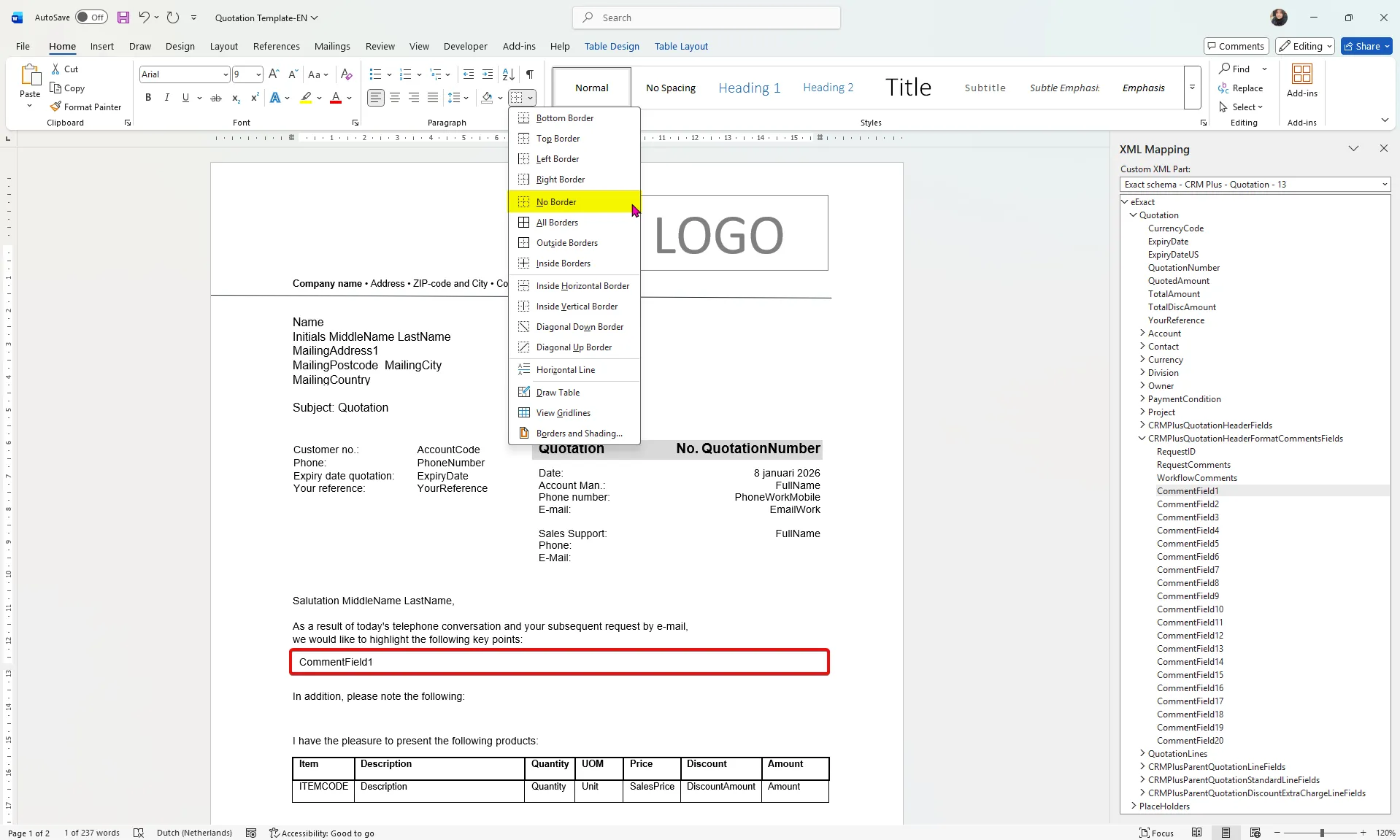
- Remove the border by clicking the Borders dropdown and selecting No Border.
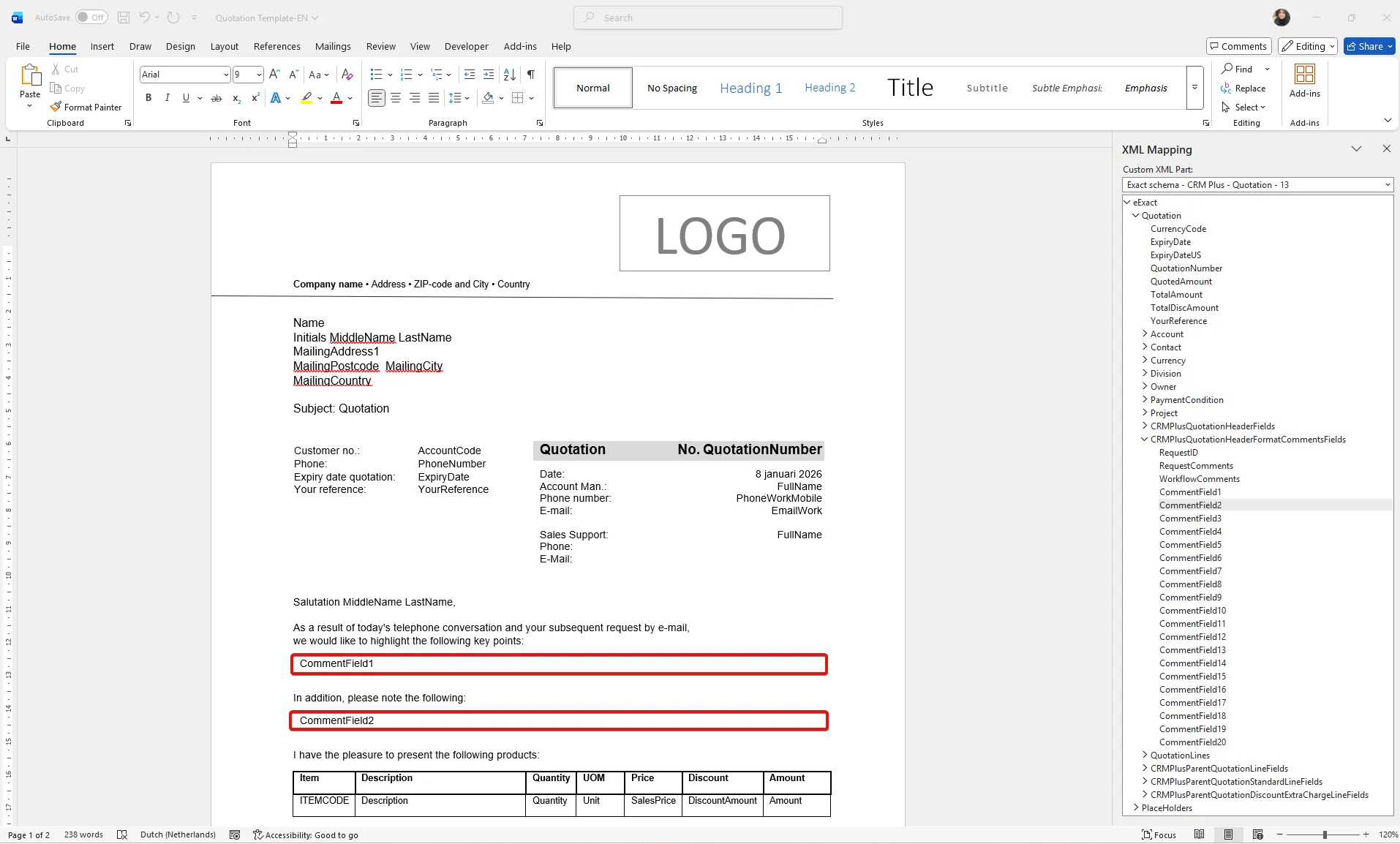
- Repeat the same steps for each additional CommentField that you need to add.
Enable formatted text blocks in Word Merge document
Section titled “Enable formatted text blocks in Word Merge document”-
Modules > Documents > WordMerge > Templates.
-
Click Template: New.
-
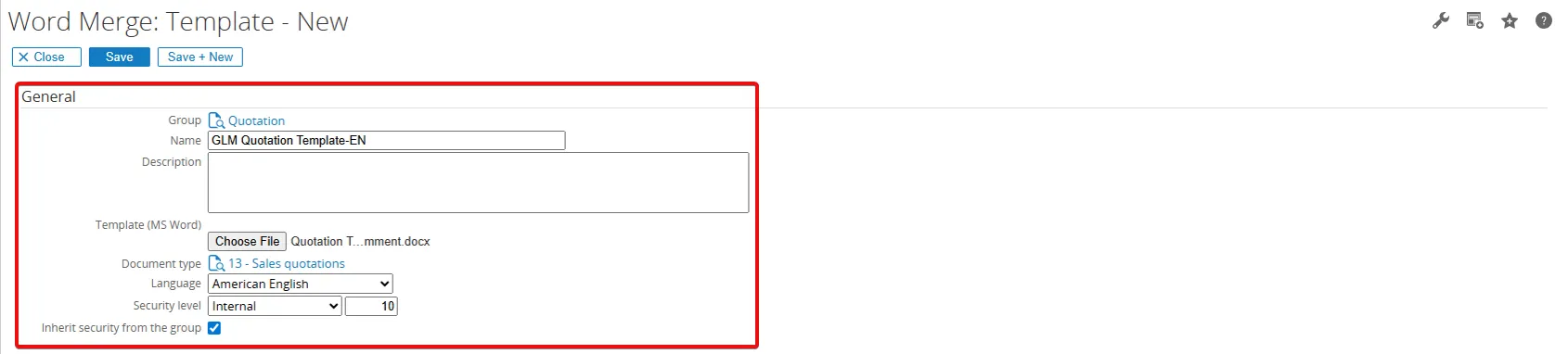
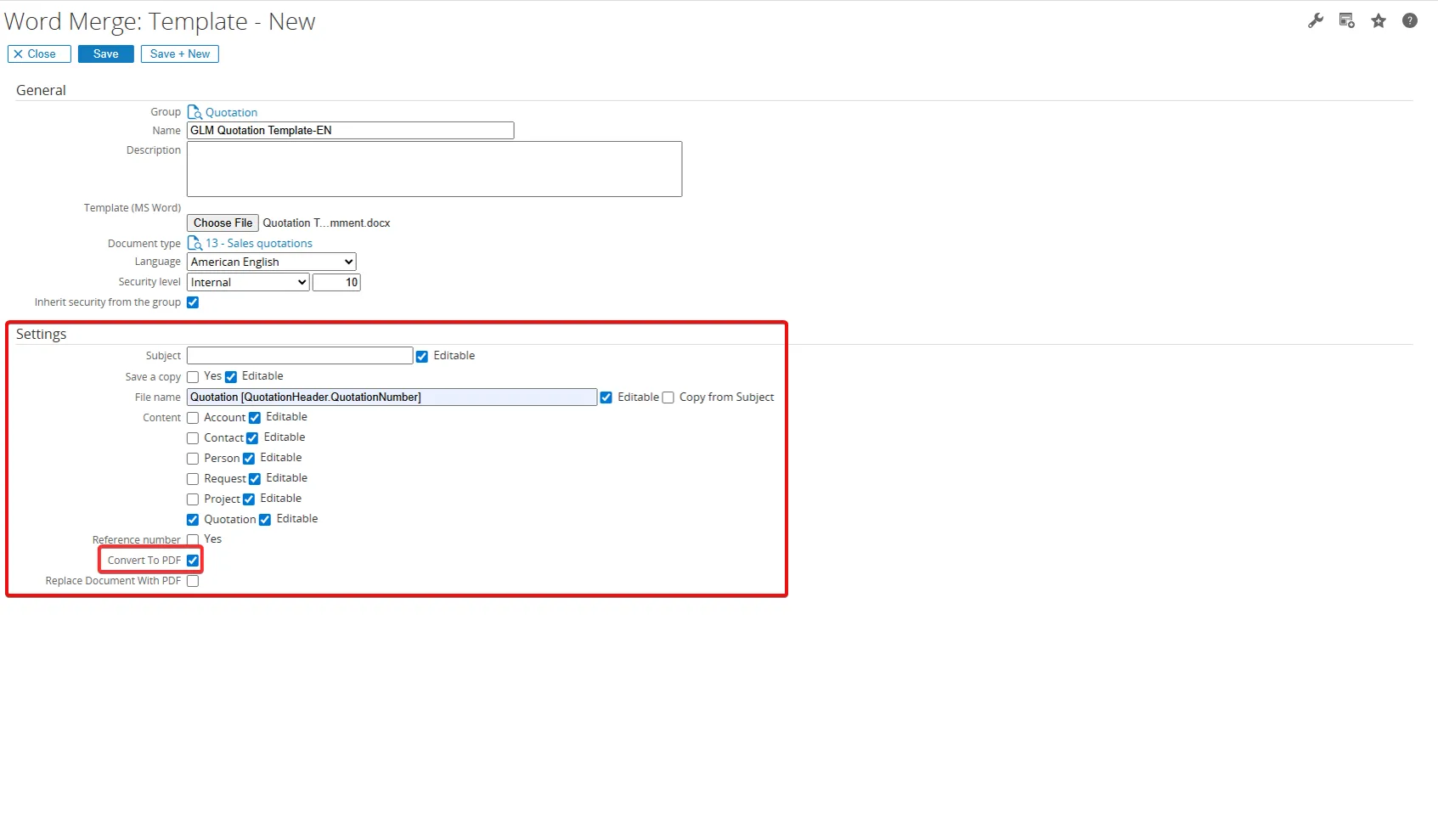
In General section:
- Group: Choose Quotation.
- Name: Enter the template name.
- Description: You can leave it empty or enter the description.
- Template (MS.Word): Select the template file you created earlier.
- Document type: Select Sales quotations.
- Language: Select the language you want to use.
- Security level: Leave it as the default value.
- Inherit security from the group: Keep it selected.
-
In Settings section:
- Subject: Select Editable (you can leave the subject empty and enter it later when generating the document).
- Save a copy: Select Editable.
- File name: Enter the file name pattern, for example: Quotation [QuotationHeader.QuotationNumber].
- In the Content section, select Quotation and all Editable checkboxes you need.
- Content: Select the Quotation and all the Editable checkbox.
- Reference number: Enter the reference number, or leave this field empty.
- Select the Convert to PDF
-
Click the Save button.
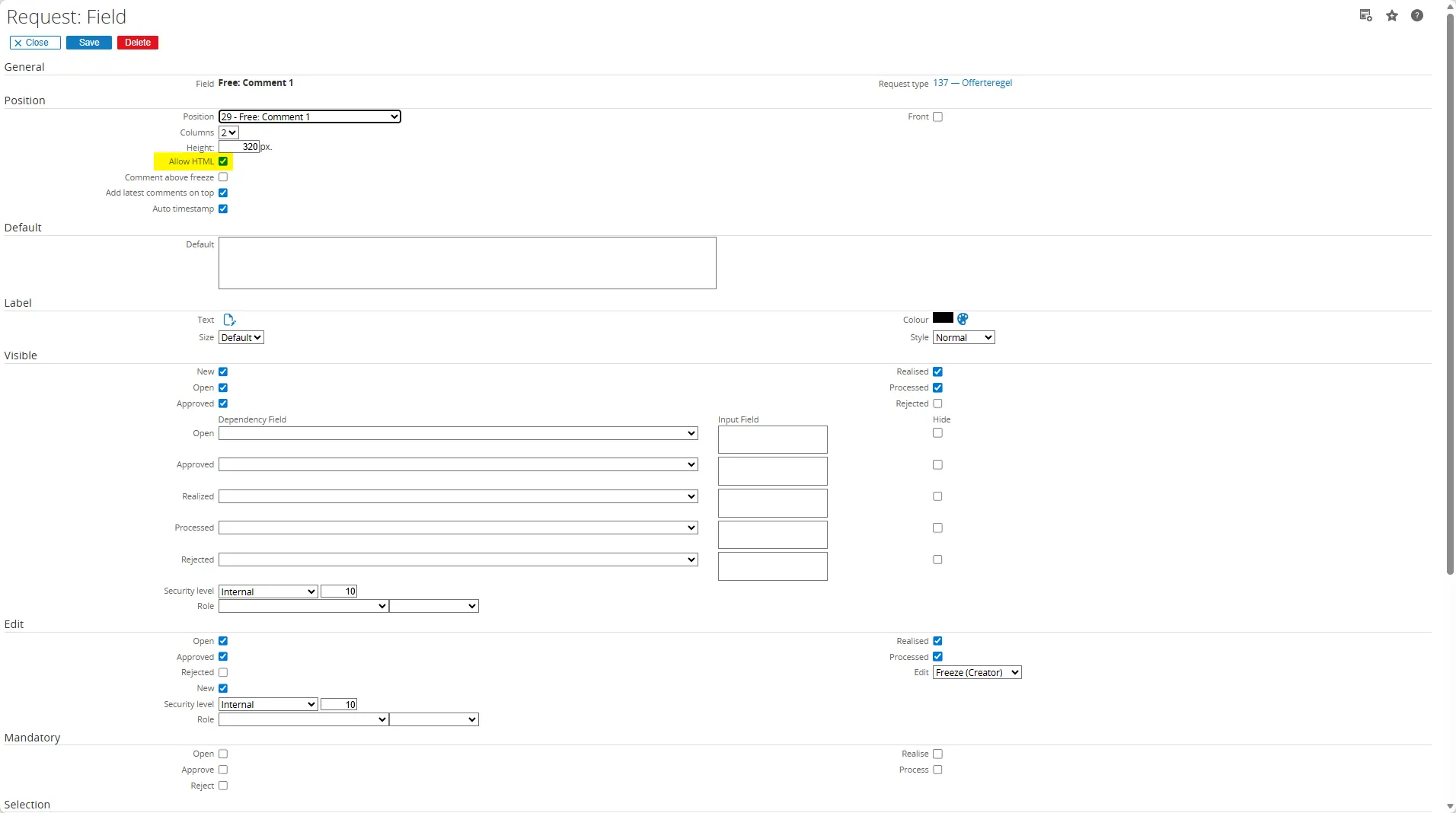
Displaying free fields as HTML in quotation comments
Section titled “Displaying free fields as HTML in quotation comments”- Go to Request > Quotation.
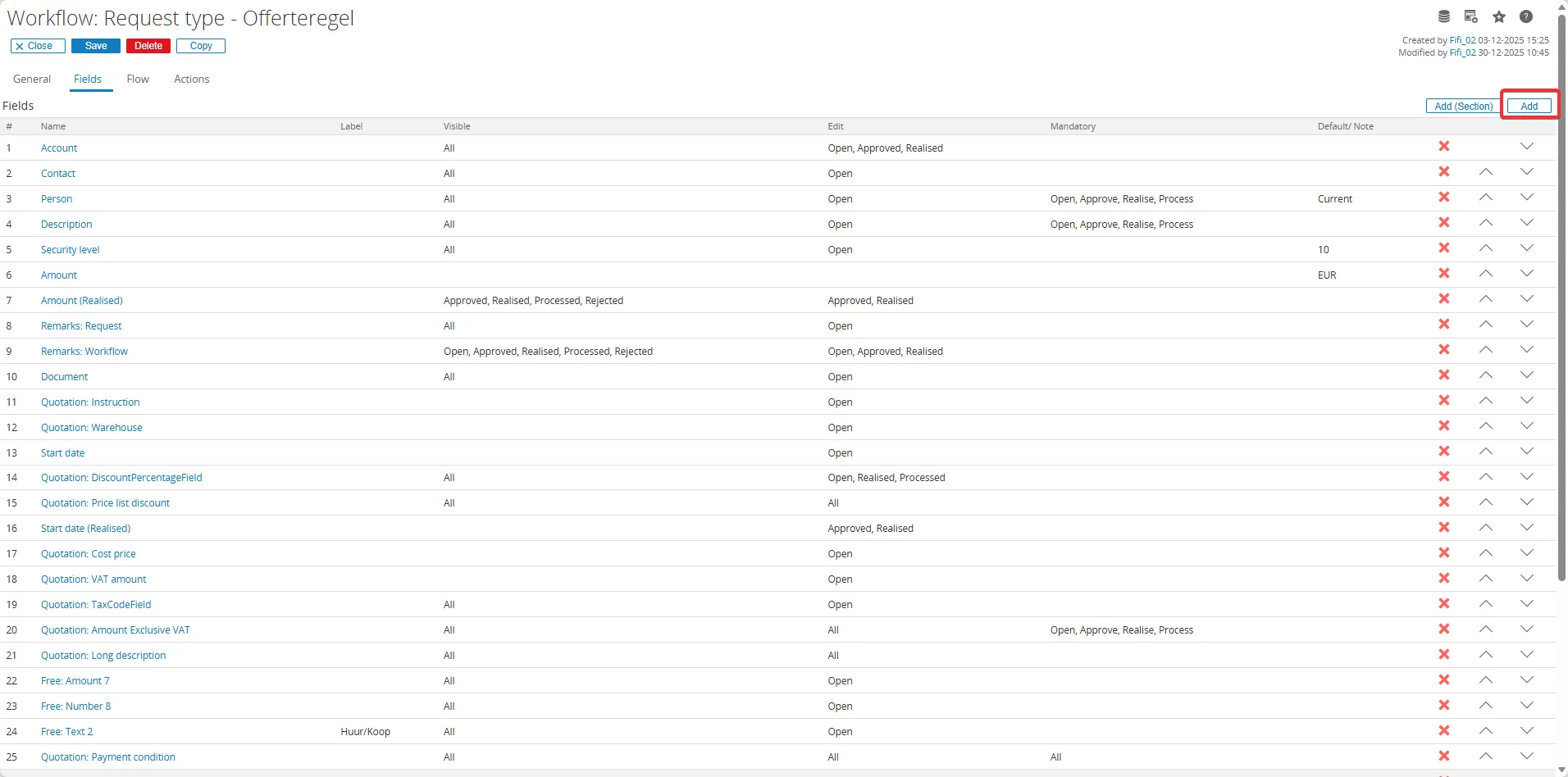
- Select Fields section.
- Click the Add button to add a new field.
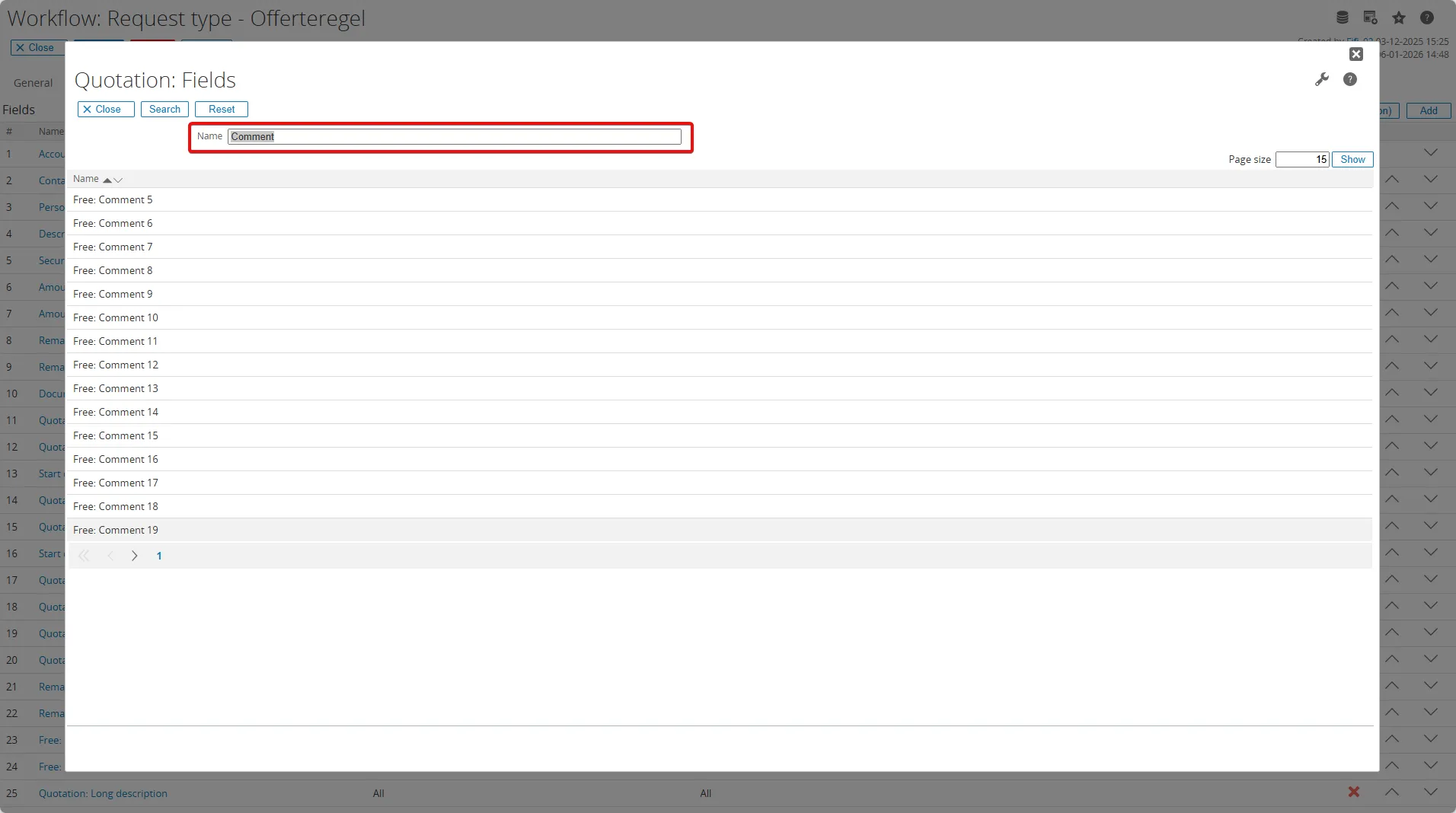
- Choose Free comment field type.
- You can also rename it by clicking the Label button and changing the value.
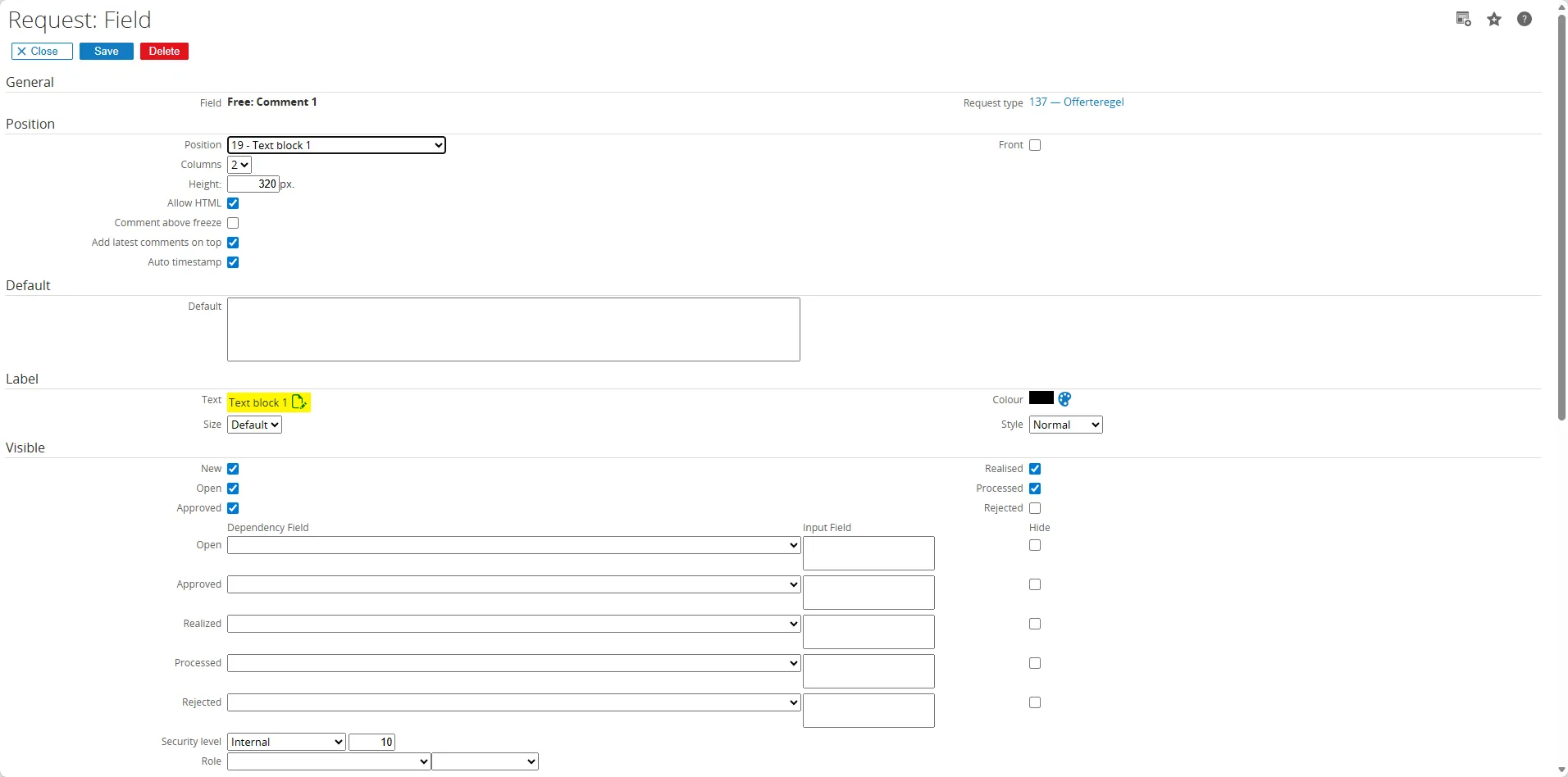
- On the Position section, ensure to check the Allow HTML, then click the Save button.
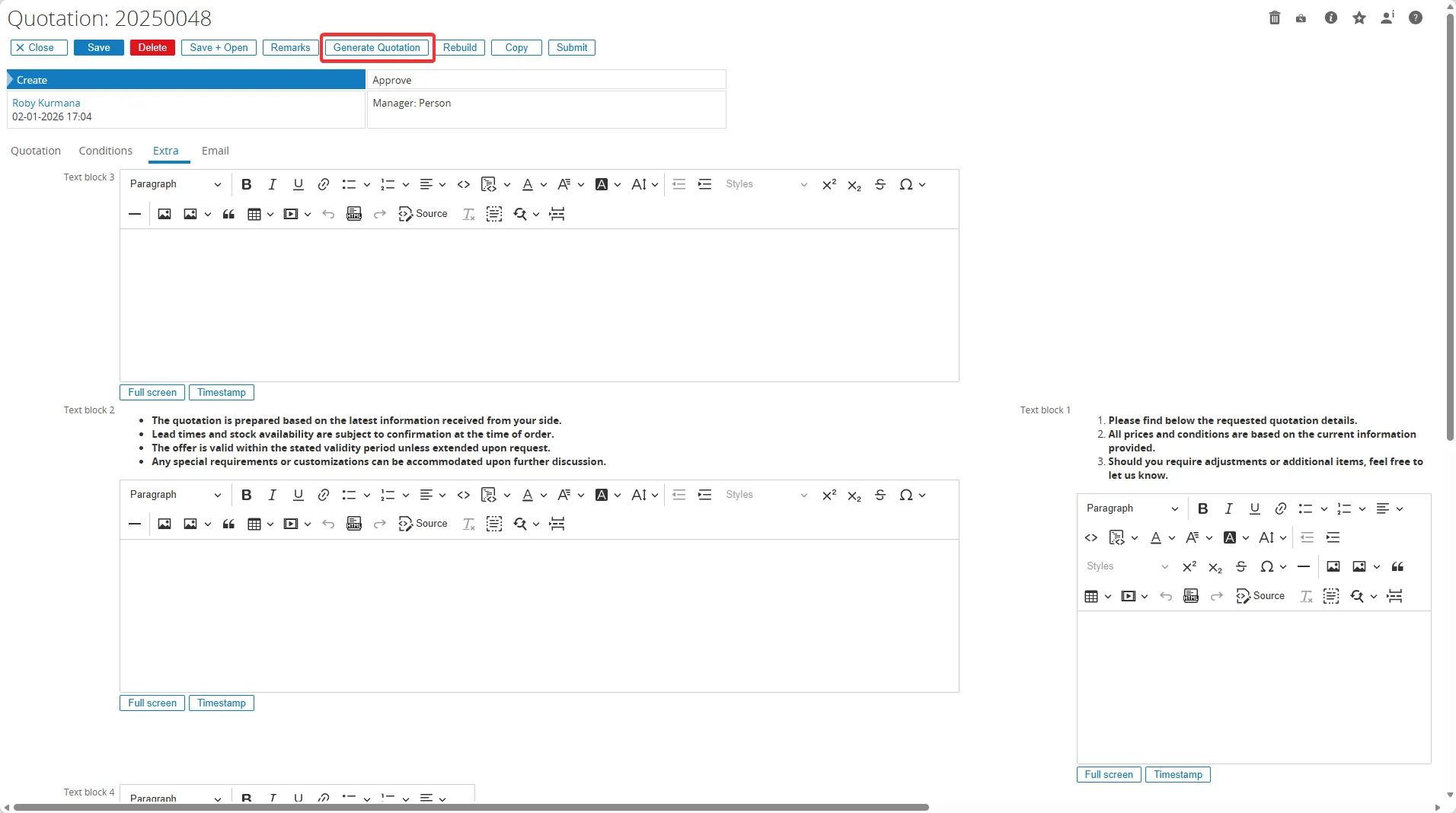
- Click the Generate Quotation button to create the quotation document.
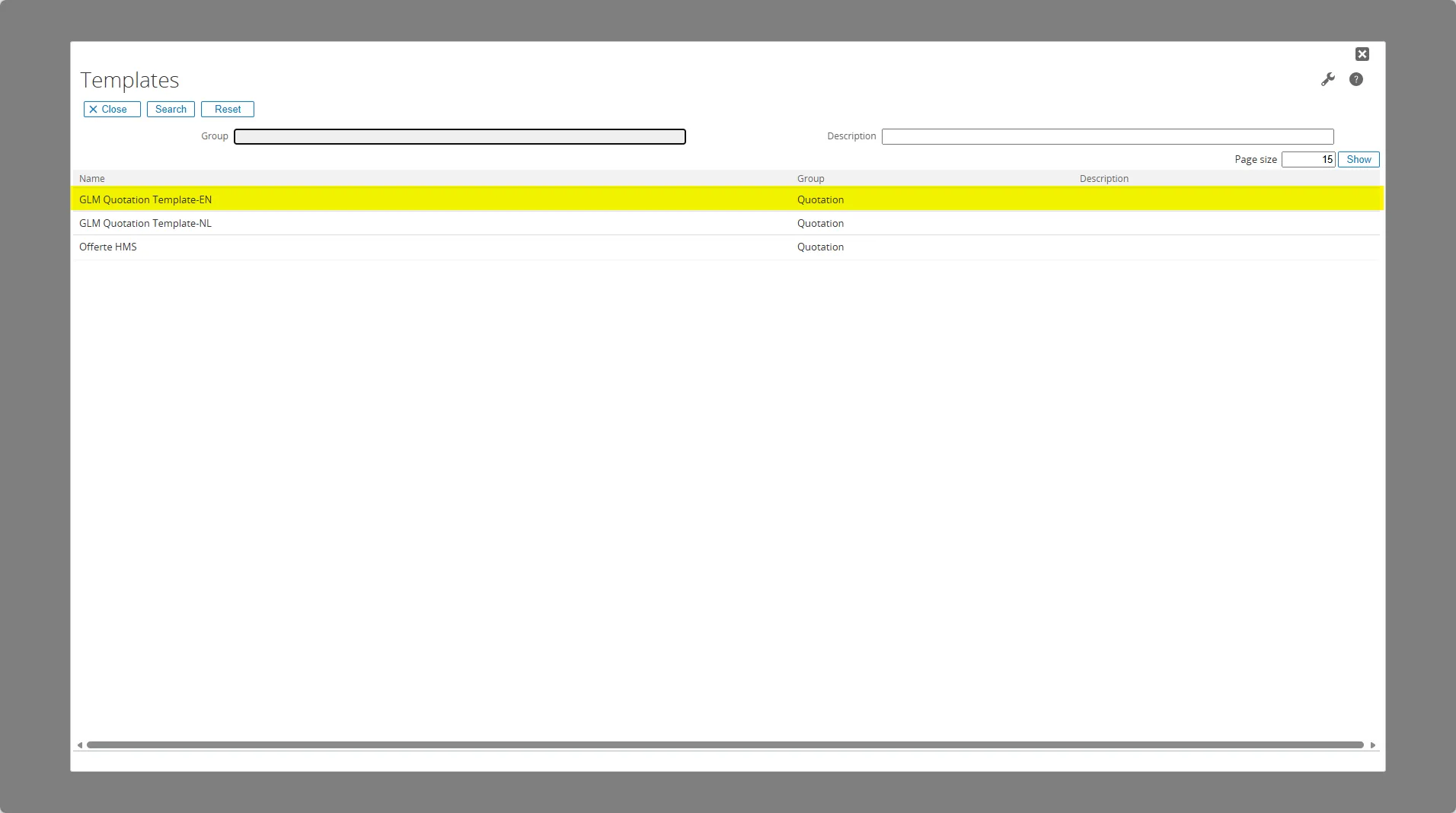
- Select the quotation template that corresponds to the free fields you configured earlier.
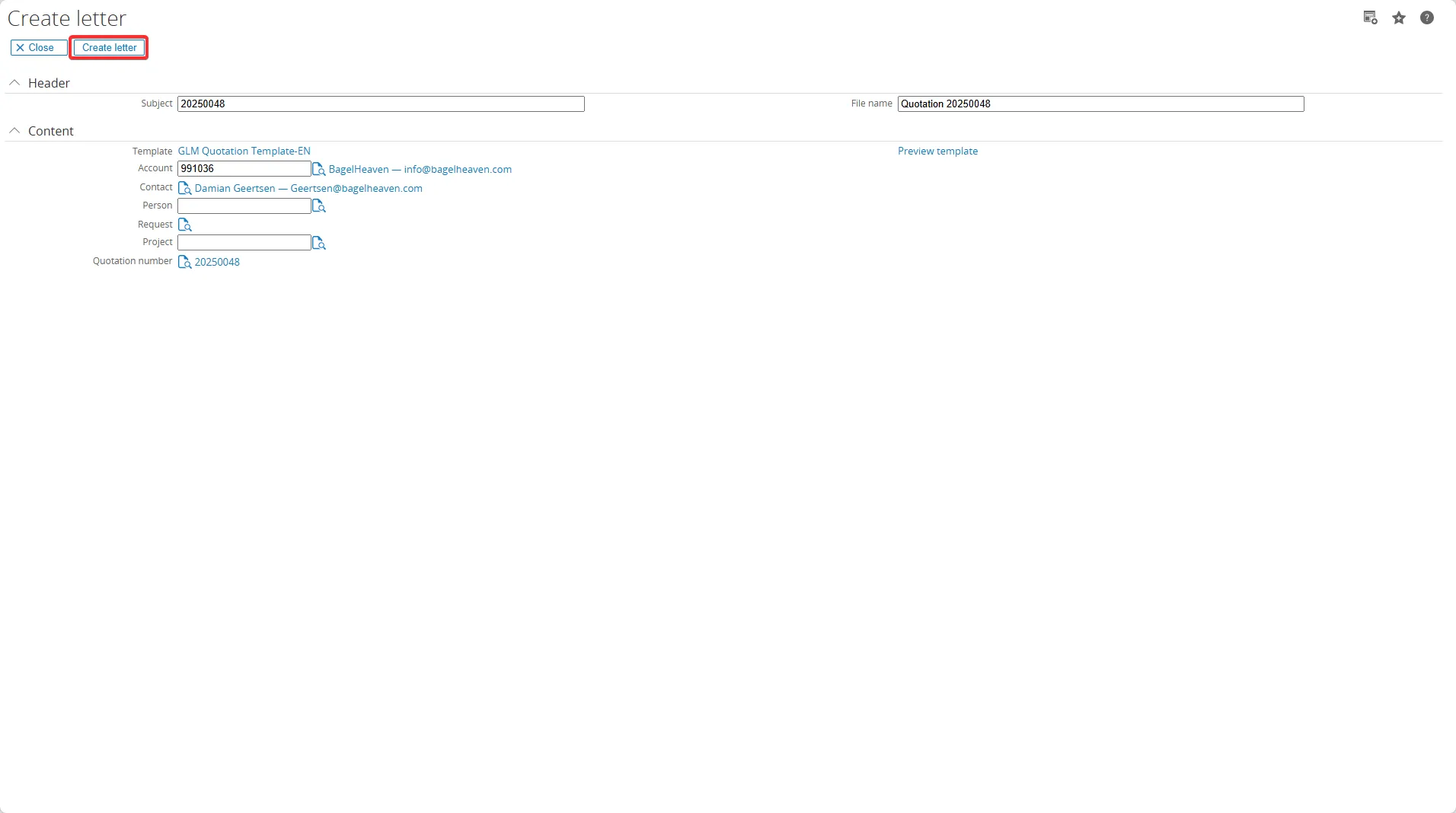
- Click the Create Letter button.
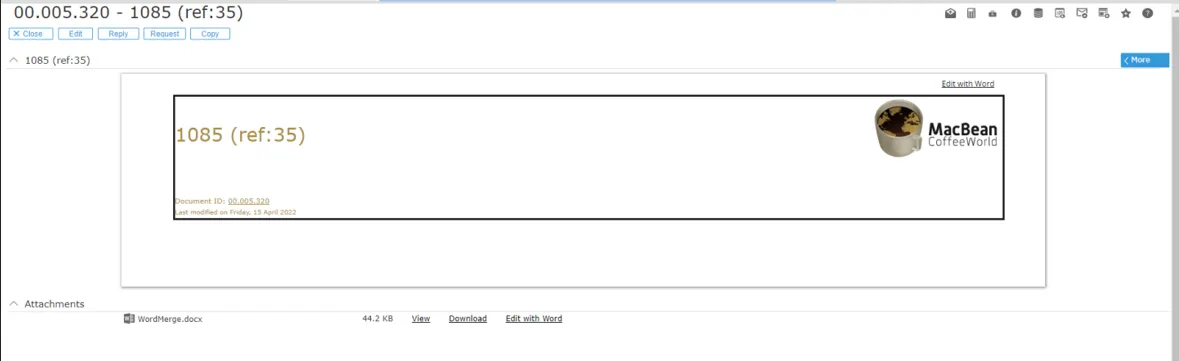
- In the Attachments section, click View to preview the generated document or click Download to download it.
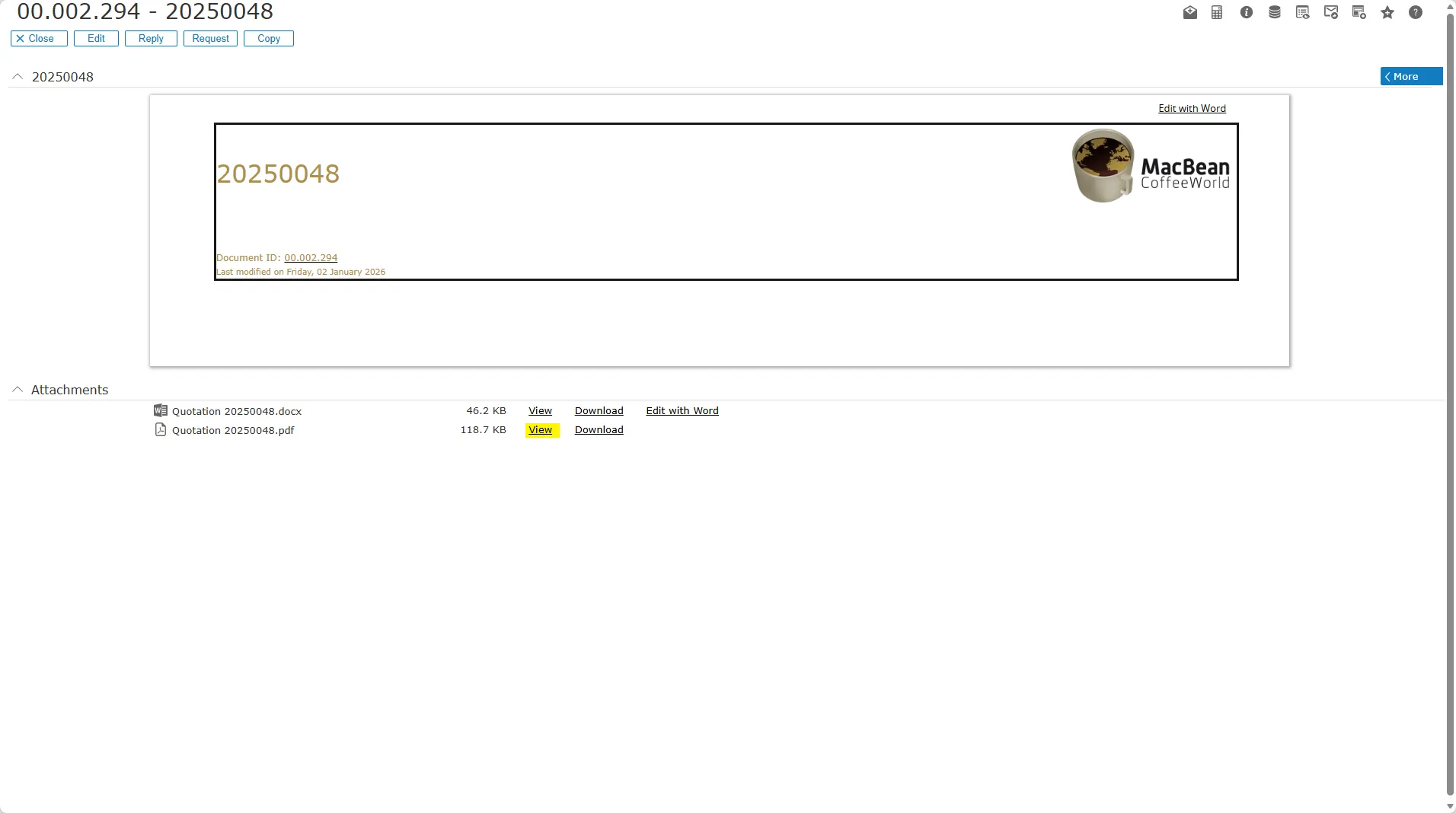
- You can now see that the quotation document is created from the HTML free text fields and the selected template you configured in the previous step.
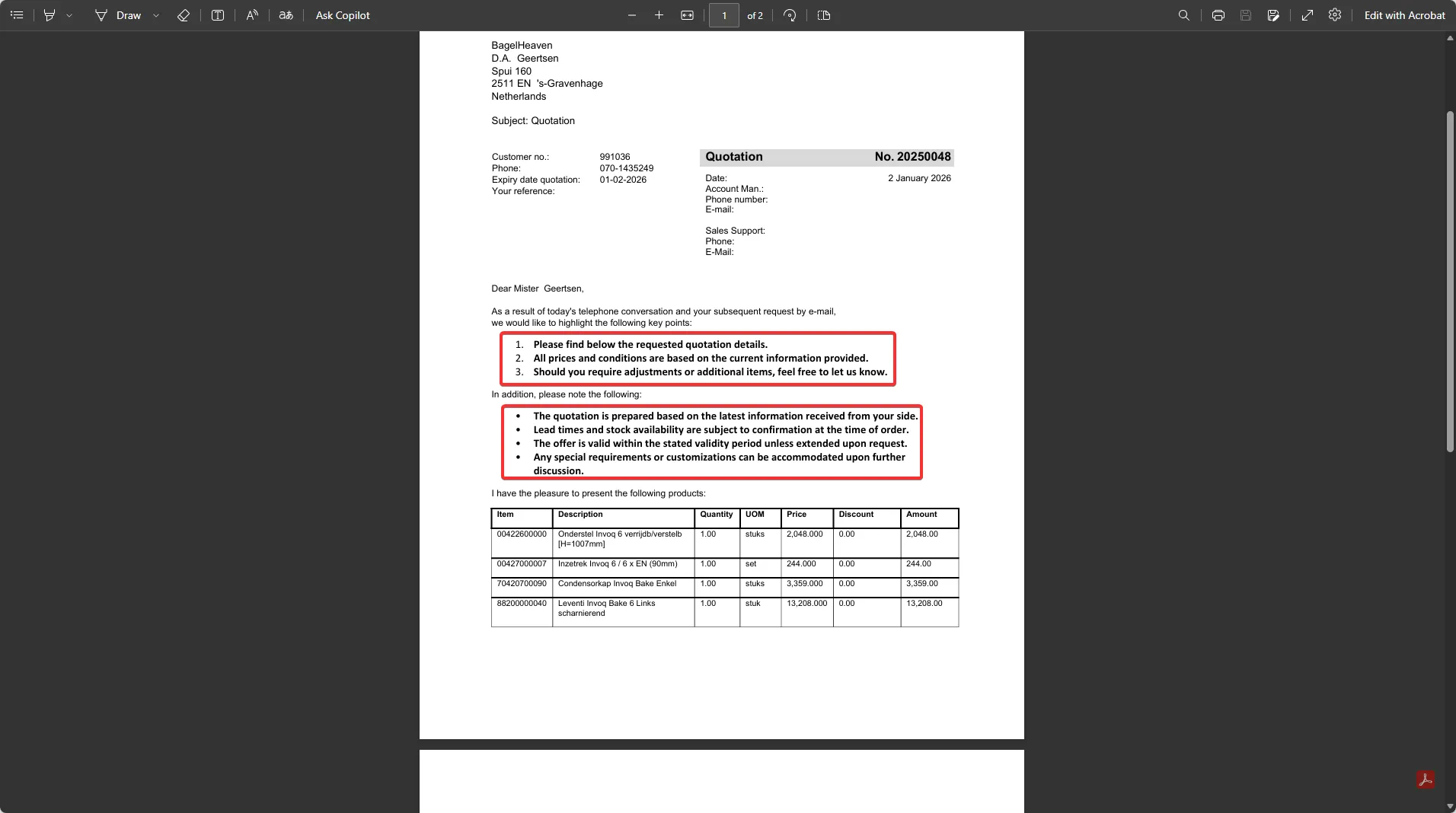
RPA ConnectIt Views
Section titled “RPA ConnectIt Views”Fields using View
Section titled “Fields using View”ExactGlobeItems / ExactSynergyItems ExactGlobeItems (Line), TaxCode (Line), ExactGlobeCostcenter (Header), ExactGlobeSelectionCode (Header), ShippingViaCode (Header), PaymentCondition (Header), Warehouse (Header), InvoicesCode (Header).
This view is used in the Item field in the quotation line, when create a new quotation via Modules / Customers / Entry / Quotation / Quotation section / type in manually or click F2 in the Item field.
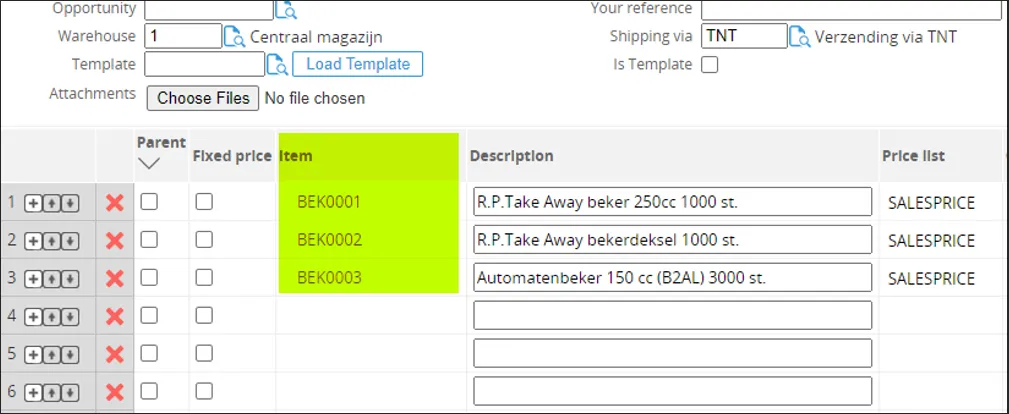
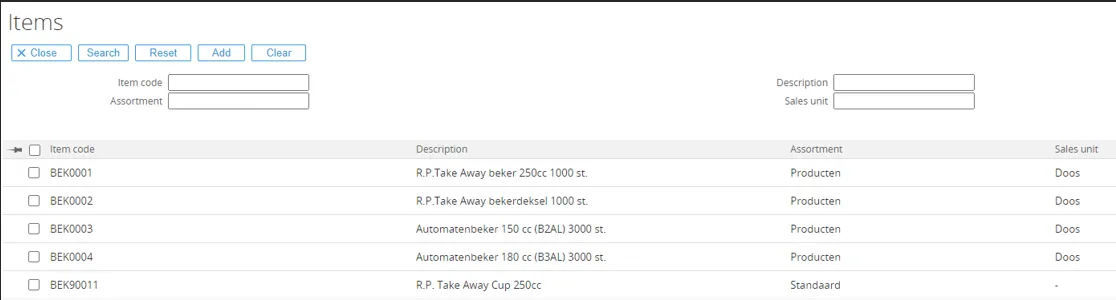
ExactGlobeVATCodes / ExactSynergyVATCodes
This view is used in the Tax Code field in the quotation line, when create a new quotation via Modules / Customers / Entry / Quotation / Quotation section / type in manually or click F2 in the Tax Code field.
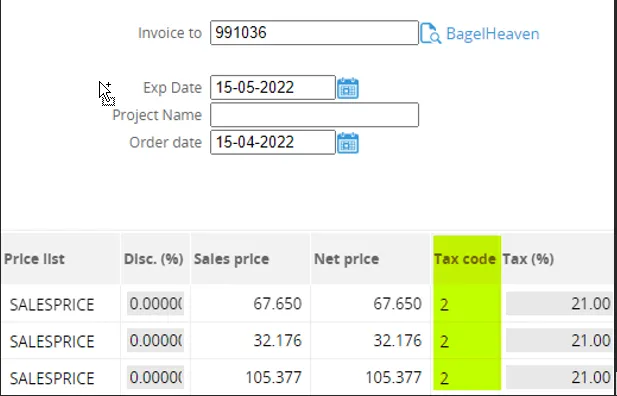
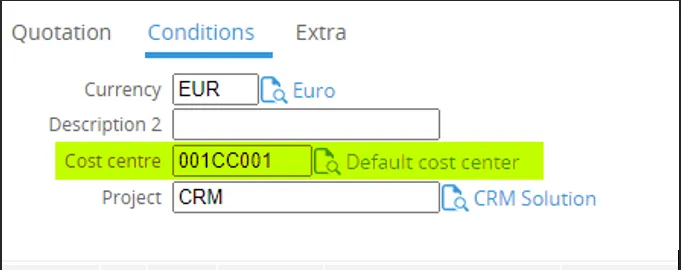
ExactGlobeCostcenter / ExactSynergyCostcenter
This view is used in the Shipping via field in the quotation header, when create a new quotation via Modules / Customers / Entry / Quotation / Conditions section / click browse field or click F2 in the Cost centre field.
ExactGlobeSelectionCode / ExactSynergySelectionCode
This view is used in the Selection code field in the quotation header, when create a new quotation via Modules / Customers / Entry / Quotation / Conditions section / click browse field or click F2 in the Selection code field.


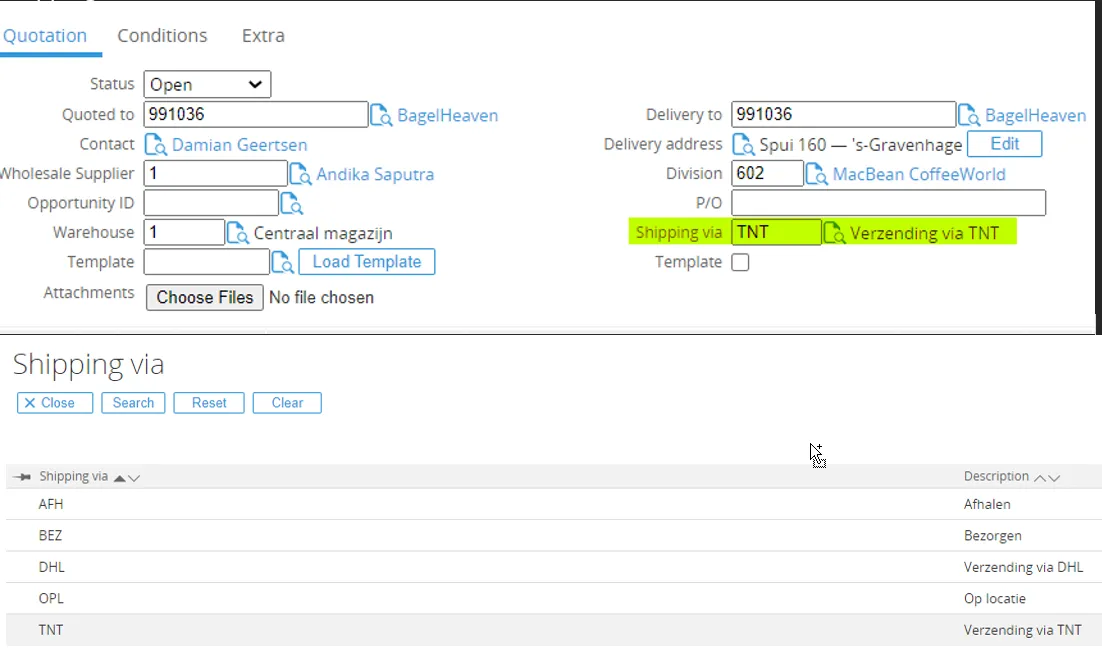
ExactGlobeDeliveryMethod / ExactSynergyDeliveryMethod
This view is used in the Shipping via field in the quotation header, when create a new quotation via Modules / Customers / Entry / Quotation / Quotation sections / click browse field or click F2 in the Shipping via field.
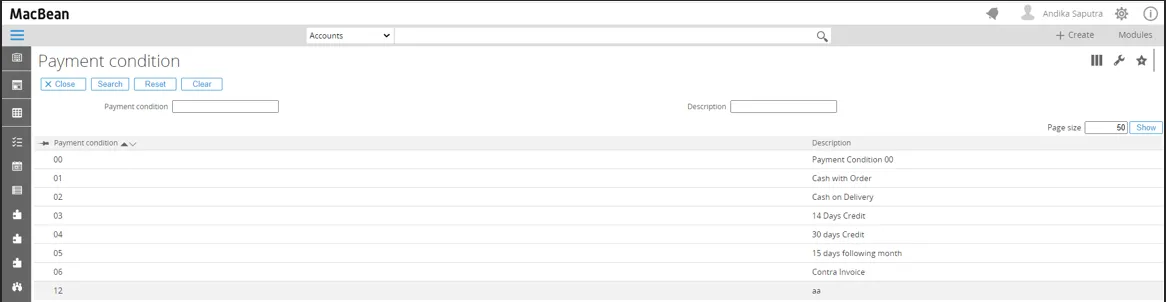
ExactGlobePaymentConditions / ExactSynergyPaymentConditions
This view is used in the Payment condition field in the quotation header, when create a new quotation via Modules / Customers / Entry / Quotation / Conditions section / click browse field or click F2 in the Payment condition field.

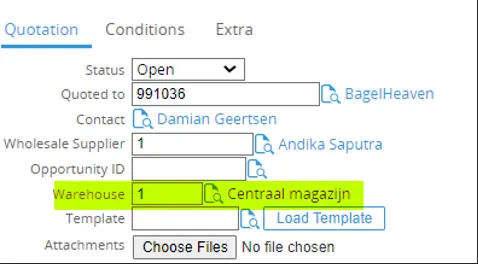
ExactGlobeWarehouse / ExactSynergyWarehouse
This view is used in the Warehouse field in the quotation header, when create a new quotation via Modules / Customers / Entry / Quotation / Conditions section / click browse field or click F2 in the Warehouse field.

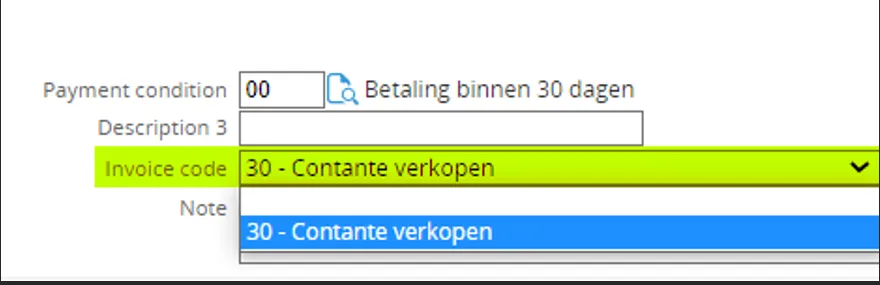
ExactGlobeInvoiceCodes / ExactSynergyInvoiceCodes
This view is used in the Invoice code field in the quotation header, when create a new quotation via Modules / Customers / Entry / Quotation / Conditions section / select combo box in the Invoice code field.
Change item view/browser
Section titled “Change item view/browser”For the item lookup/browser in the quotation lines, the ExactGlobeItems view is used. You can make changes to this view if more columns are needed. Instructions for maintaining a view can be found in the RPA ConnectIt manual.
After you have imported the view, you will see several item views that can be used:
- ExactGlobeItems
- xactGlobeItems2 — also makes use of item classes in Exact Globe
- ExactGlobeItemsByCustomerPriceList — the customer is passed on as a parameter to the view and to Exact Globe, to only show items linked to the pricelist associated with the customer.
To use a view other than the standard view rename the view you want to use to ExactGlobeItems (first rename the default view to ExactGlobeItemsDefault for example).
Enable quotations for the customer portal
Section titled “Enable quotations for the customer portal”The quotation also can be shown to the customer via customer portal. Some additional setup is needed to make the quote available for the customer.
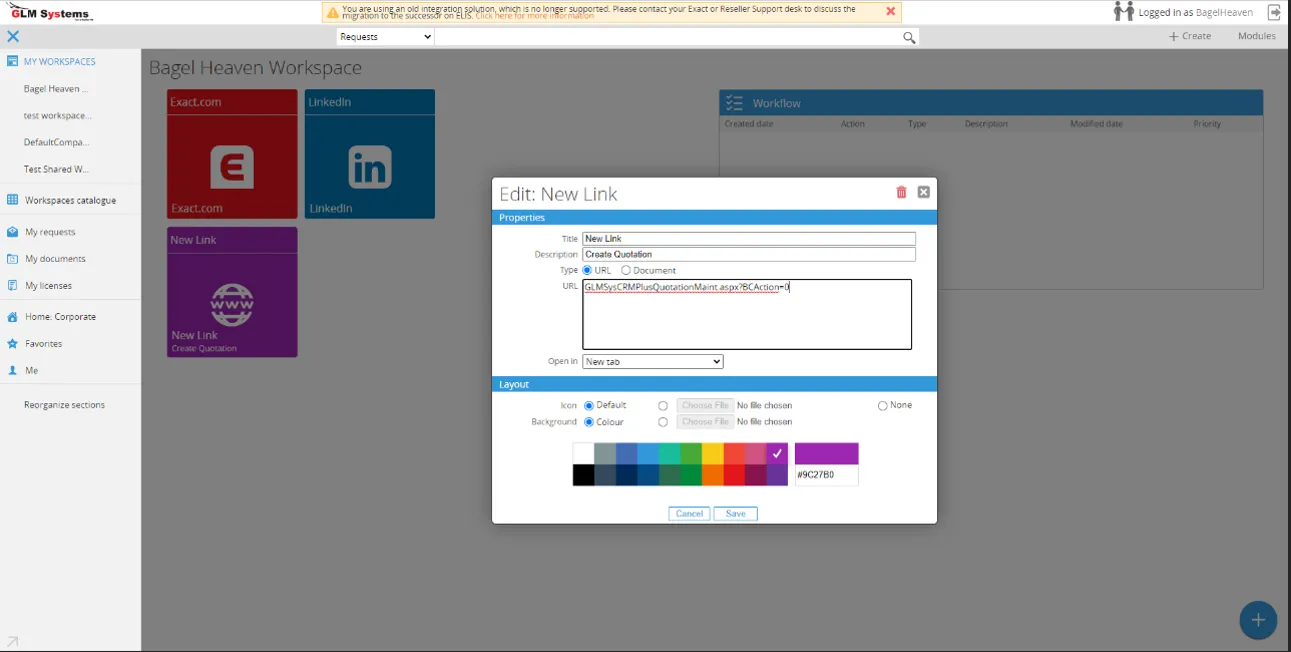
The customer menu is not available in the customer portal. To give the customer access to the quotation page and quotation search page add a new link widget to the customer workspace.
For the quotation page add a widget which is using the following link GLMSysCRMPlusQuotationMaint.aspx?BCAction=0
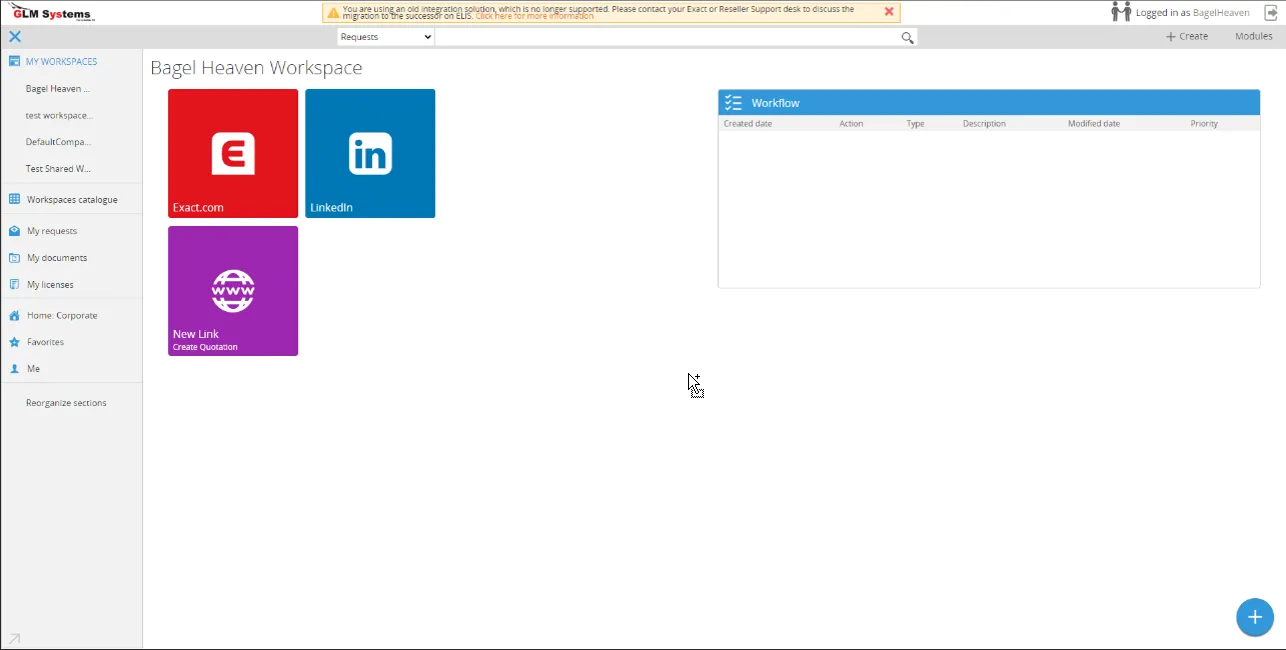
For the quotation search page add a widget which is using the following link GLMSysCRMPlusQuotationSearch.aspx
Sales cycle
Section titled “Sales cycle”CRM Plus quotation integrates with standard Synergy sales cycle, from opportunity to quotation. Instructions for creating sales cycles and their use can be found in documents provided by Exact Software.
Go to Modules > Customers > Setup > Opportunity management > Sales cycles. Click New button to create new Sales cycles.

Fill in the description header, description line, then press f2 or click browse to select a request type, then select request status in the combo box, and click Save button to save new cycles.
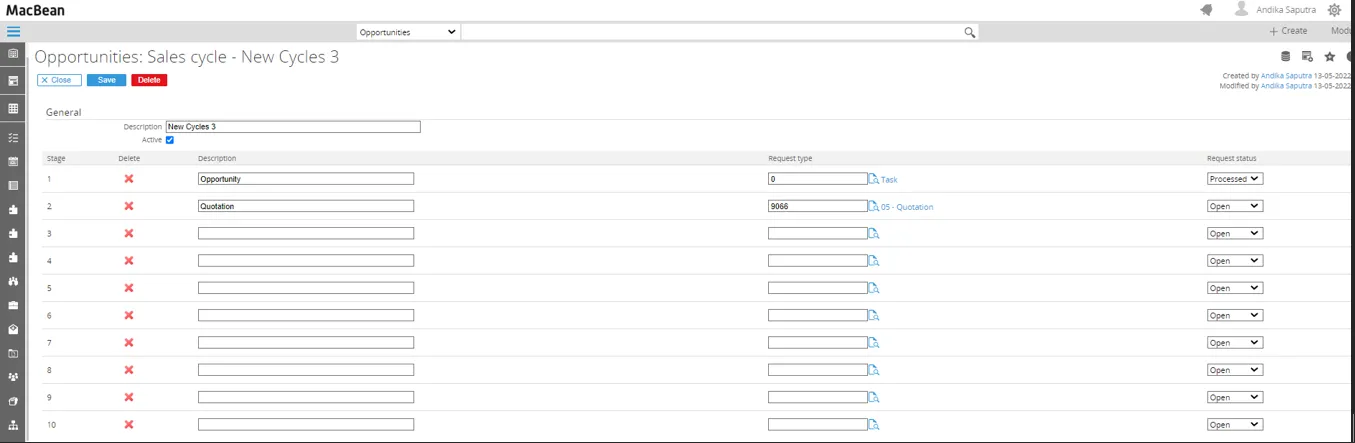
Opportunity
Go to Modules > Customers > Entry > Entry > Opportunity to create new opportunity.
Fill in the description field, select Account, select Contact, fill in the Probability (%) field, select Project, fill in Planned amount field, select End Date, select Source, select Sales cycles, select Currency, then fill in remarks field, and click save to save the opportunity.
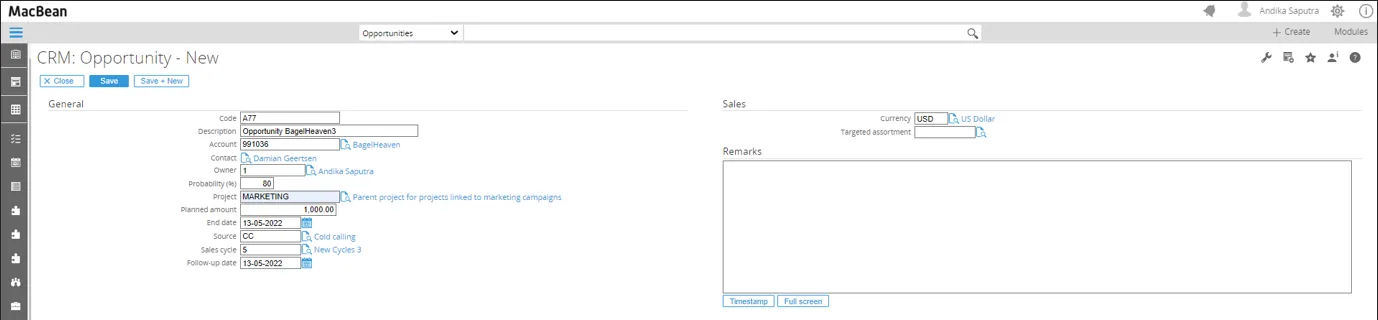
Opportunity will be created
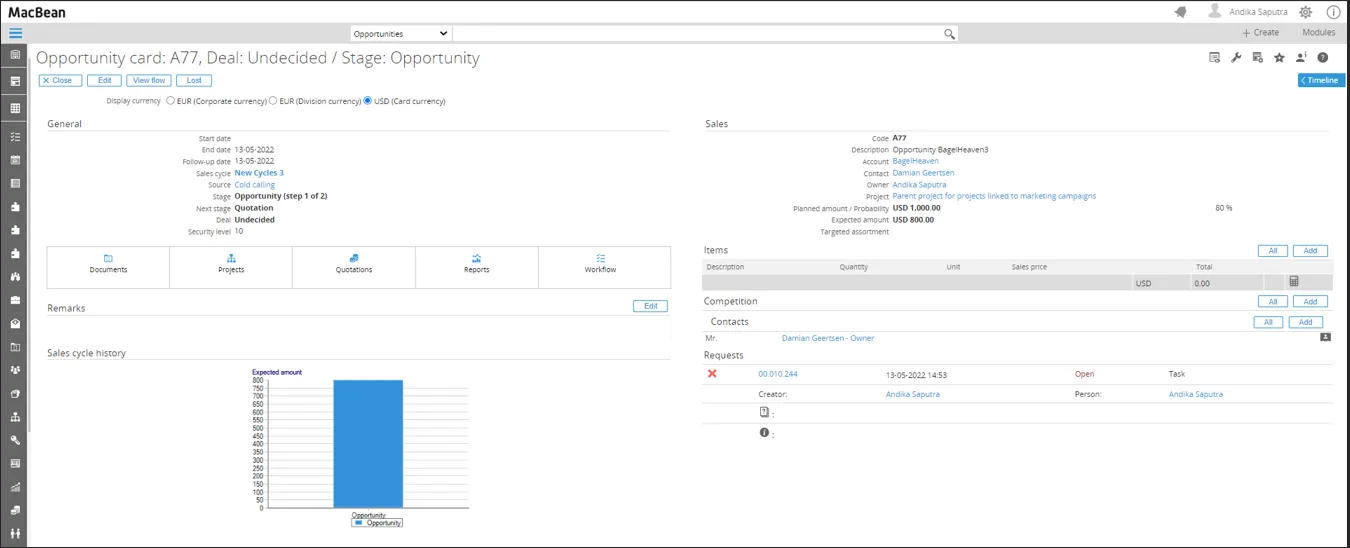
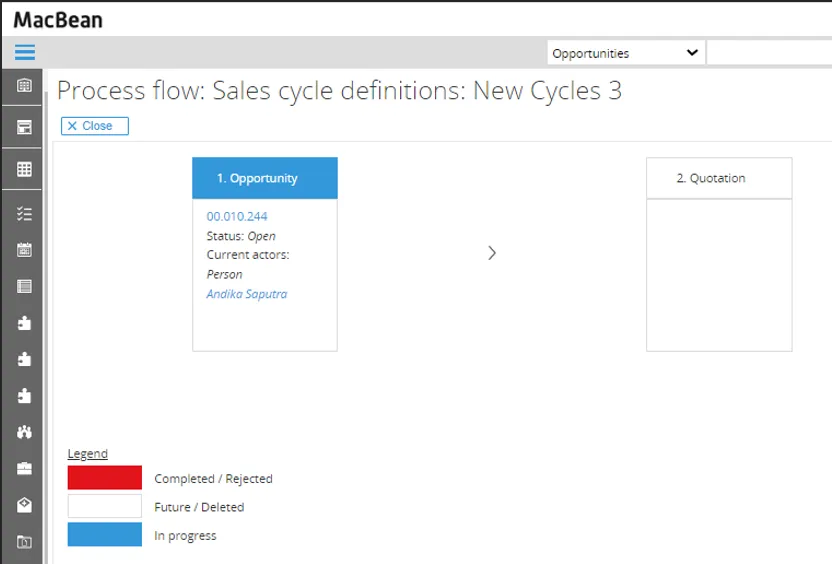
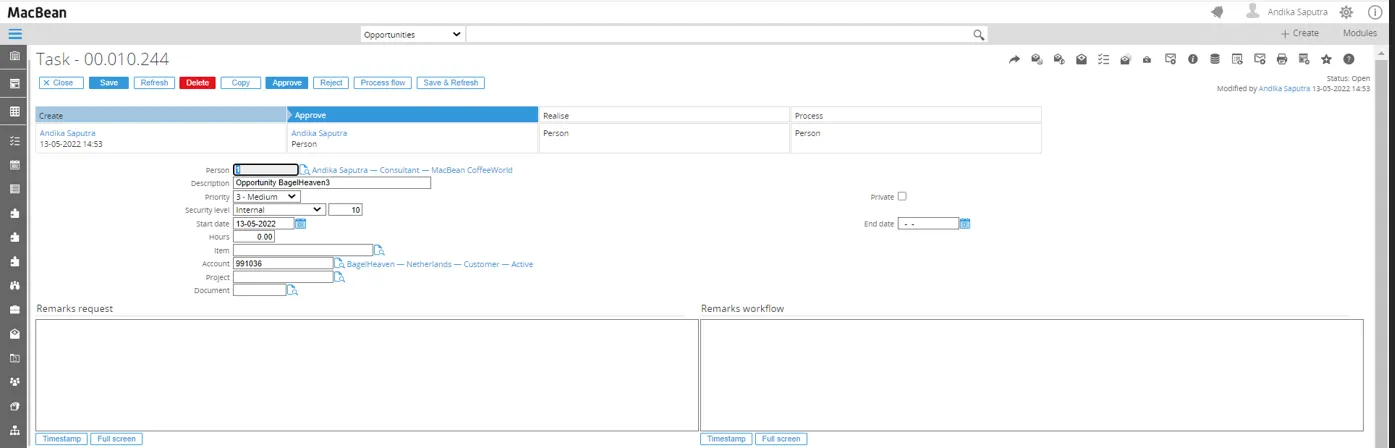
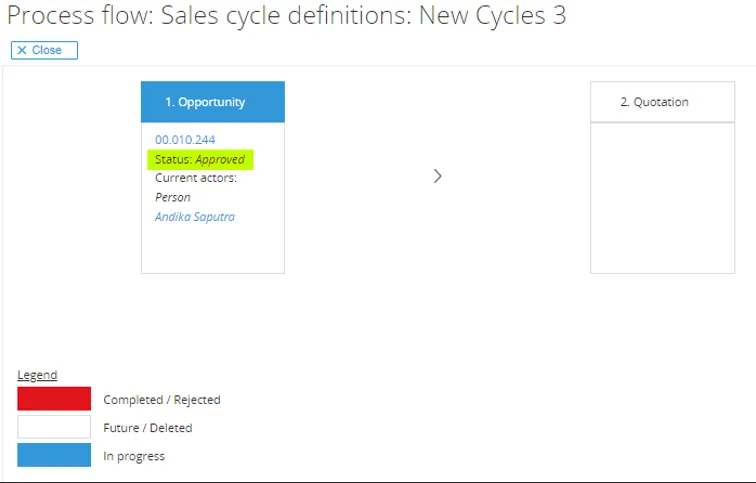
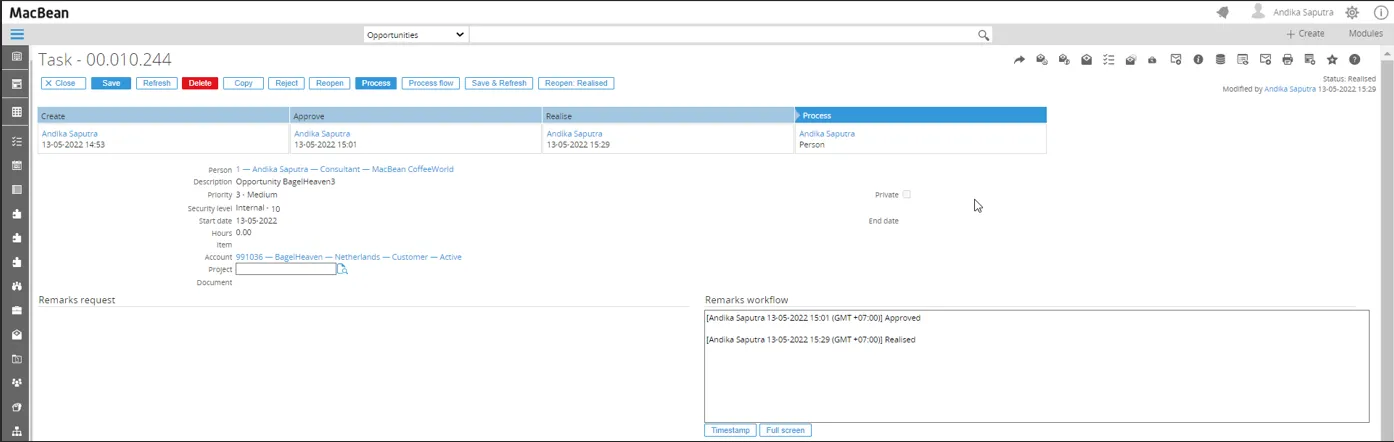
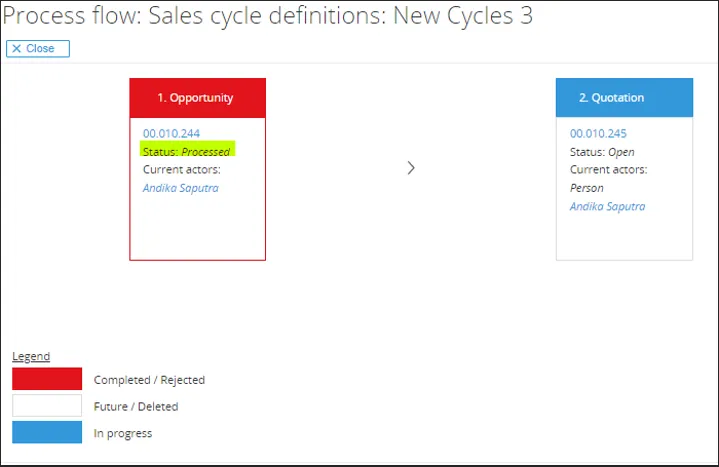
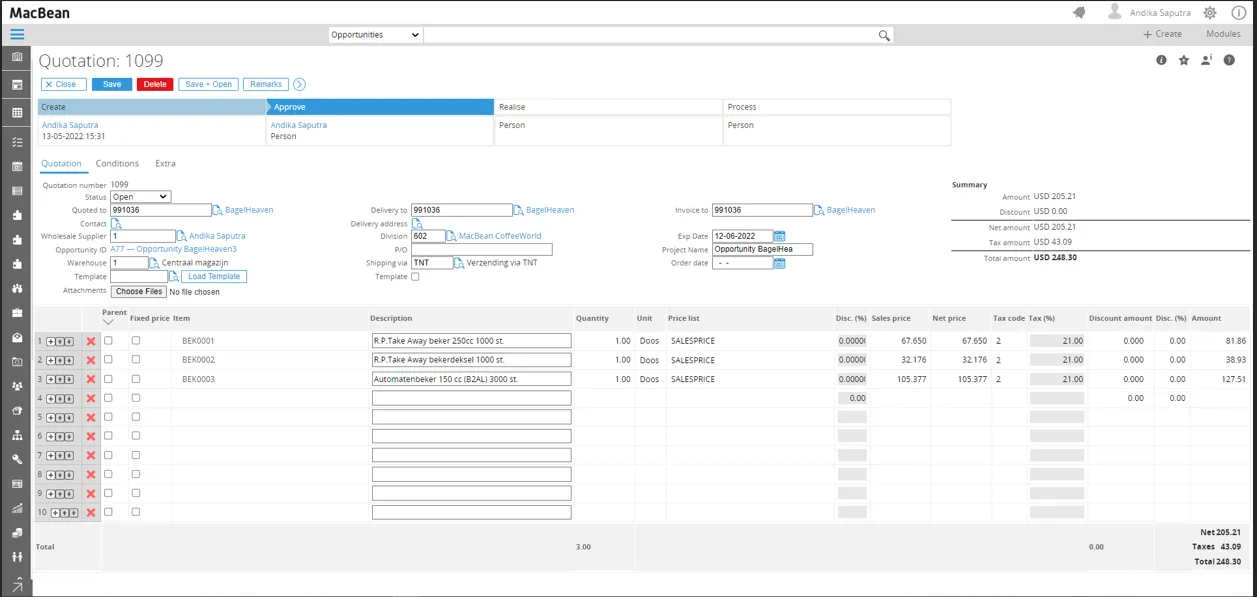
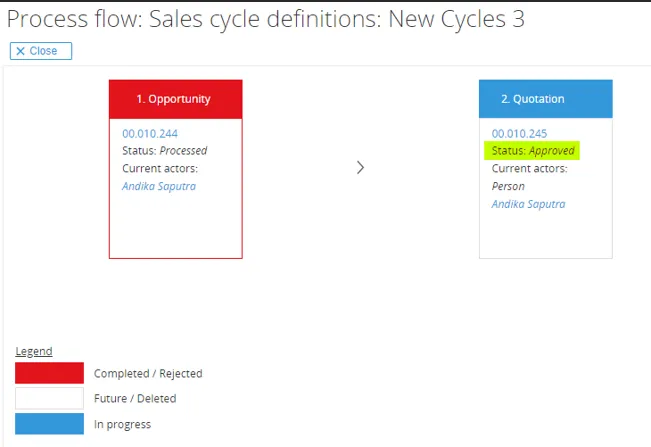
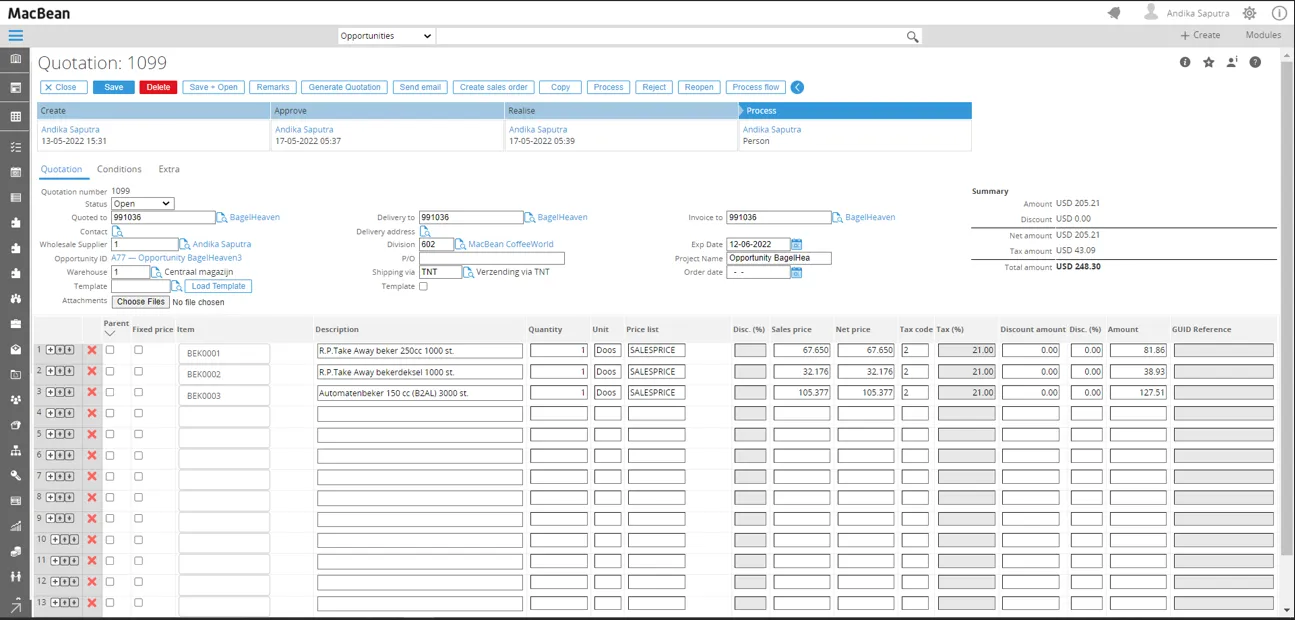
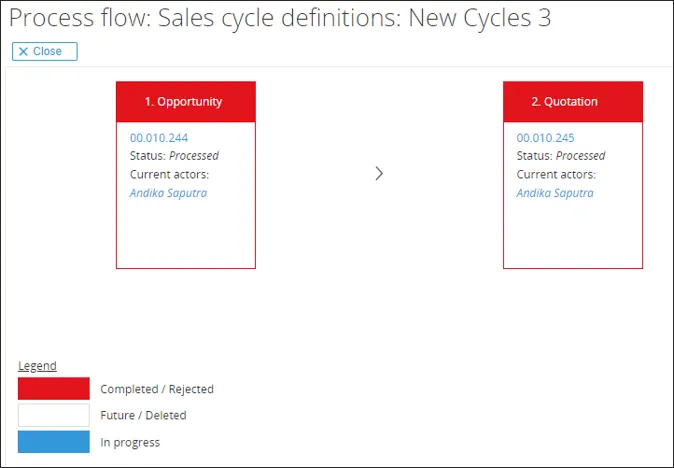
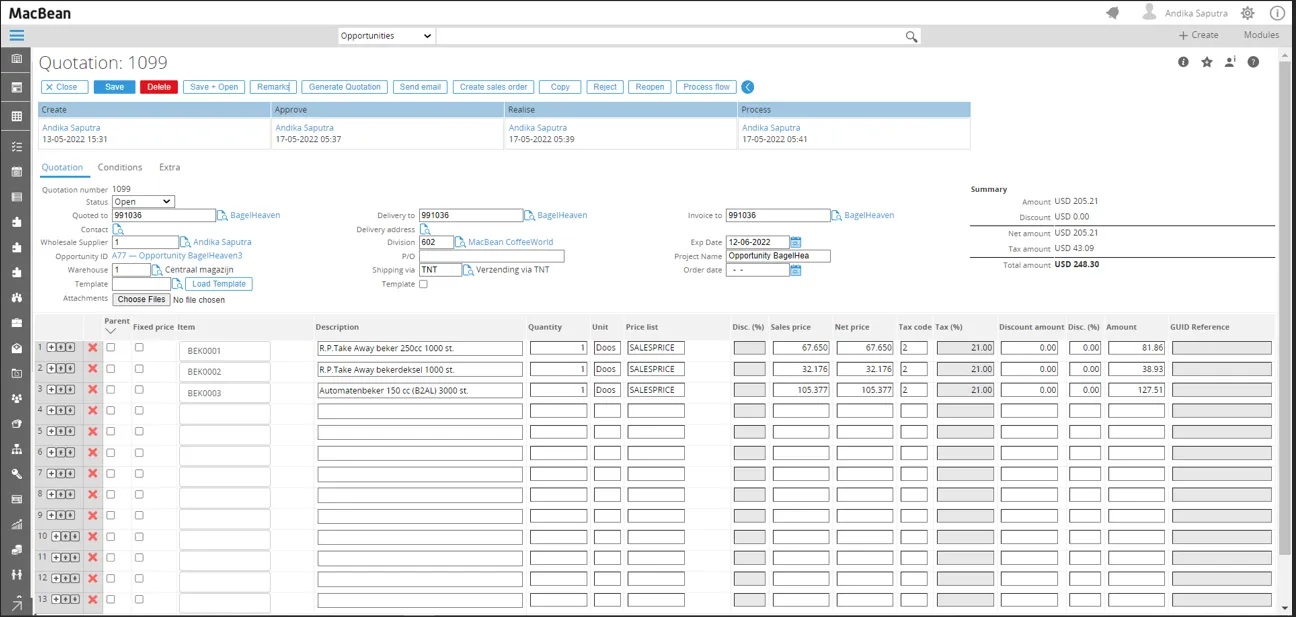
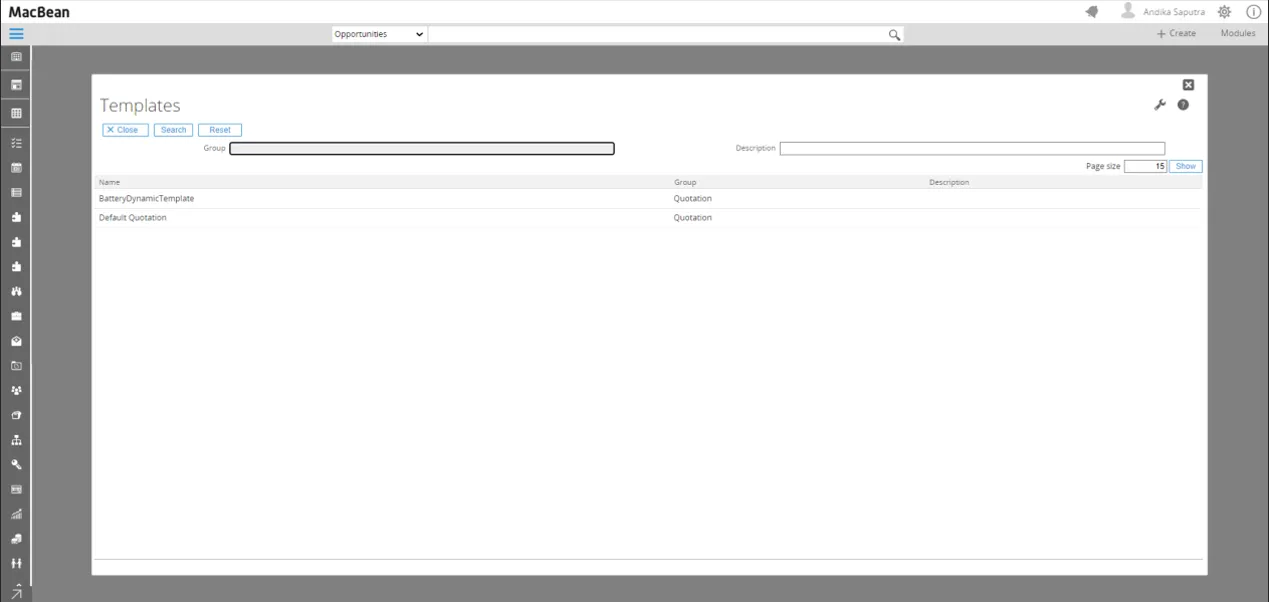
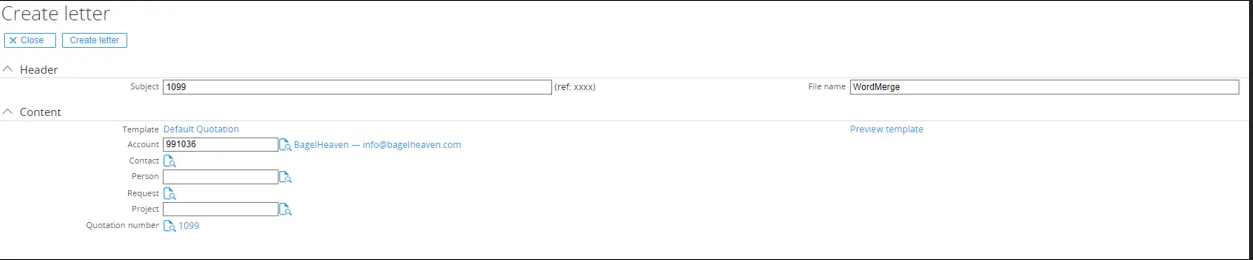
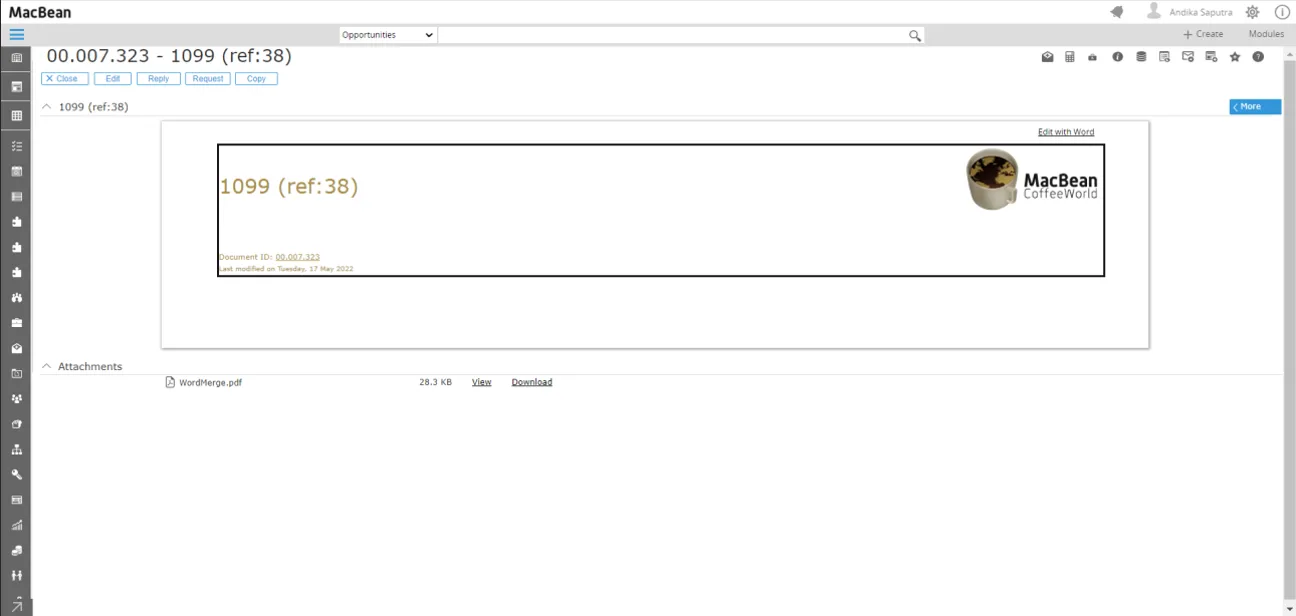
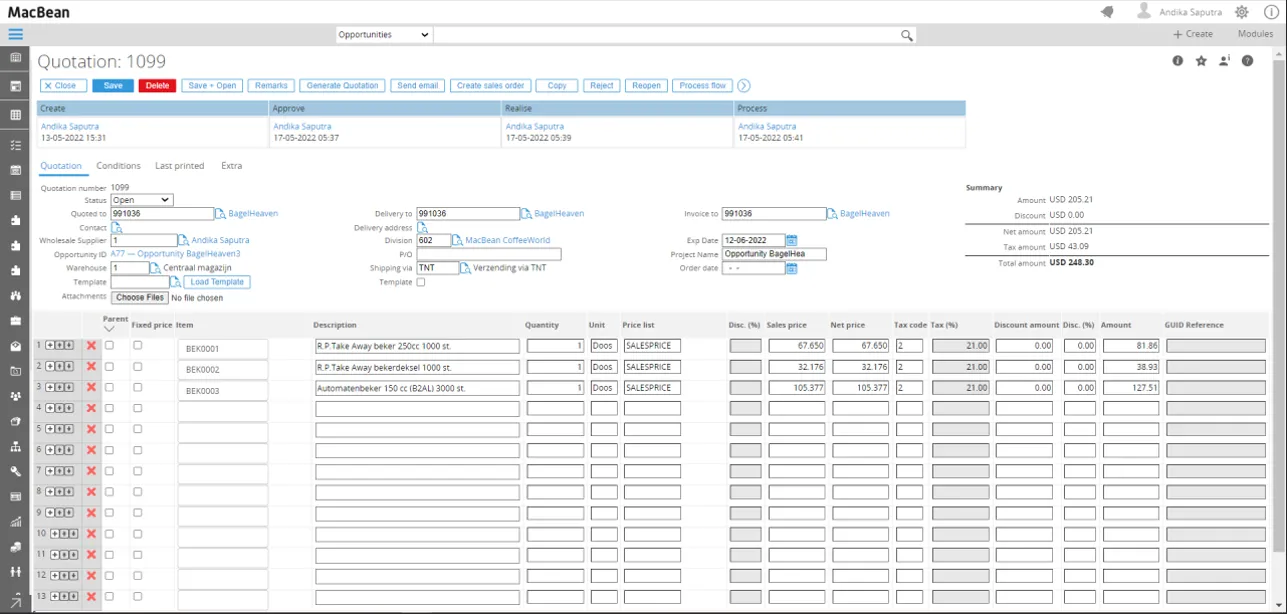
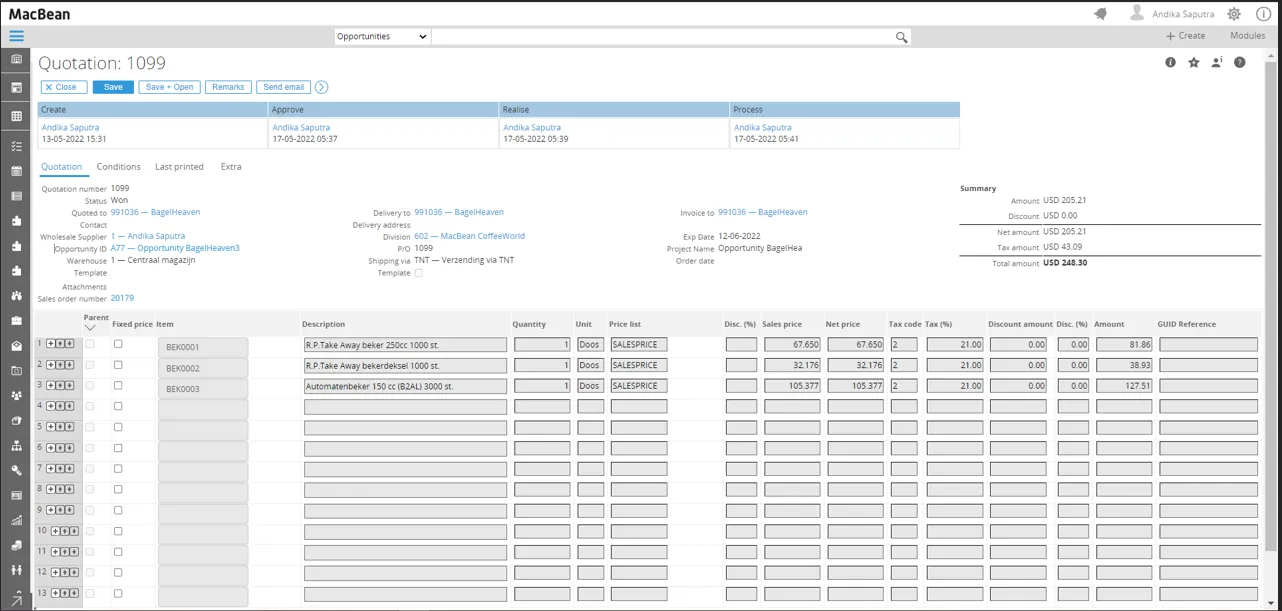
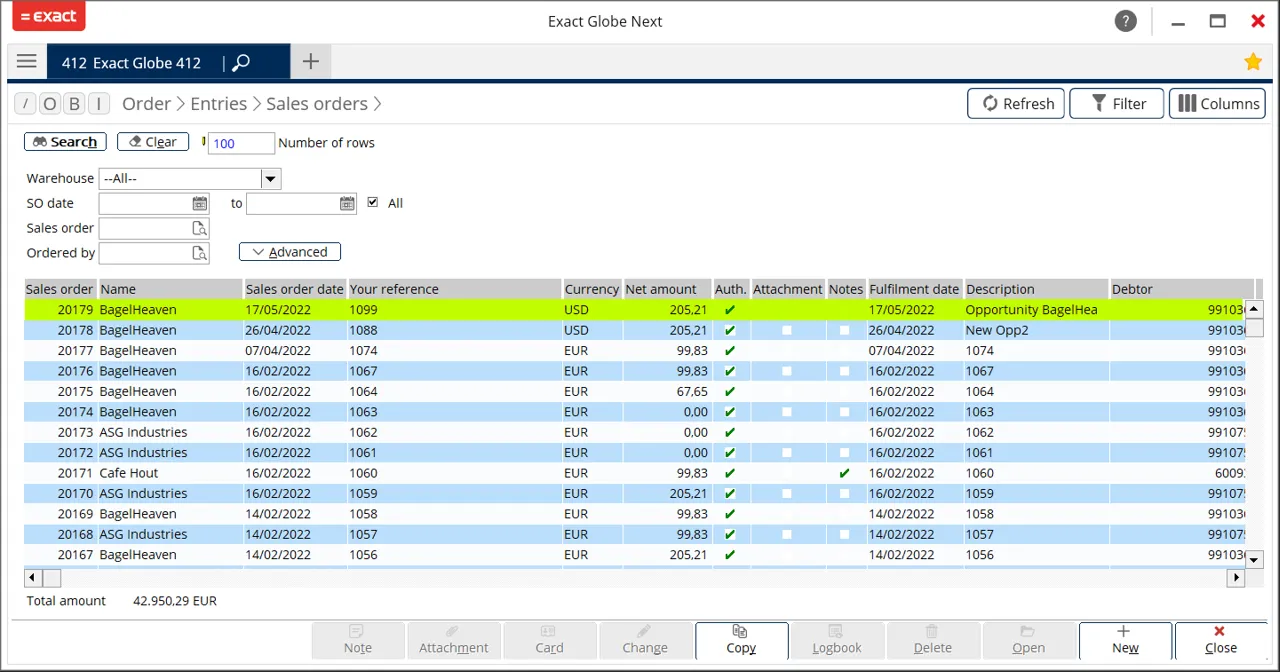
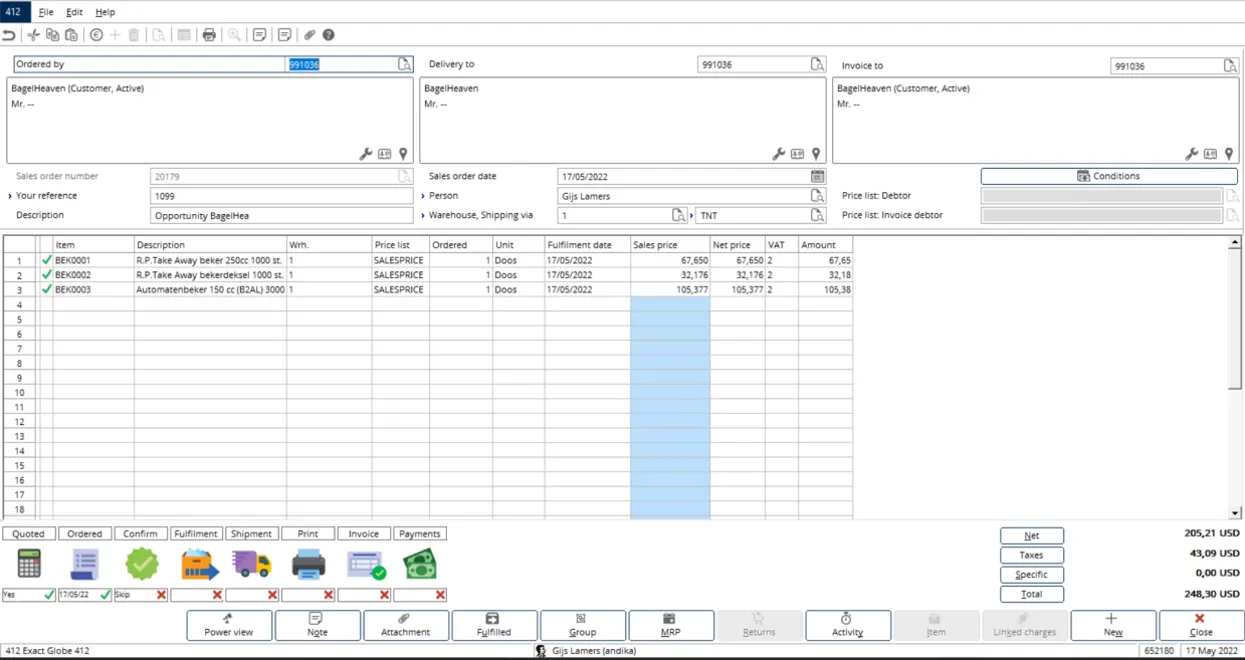
Quotation is ready for use
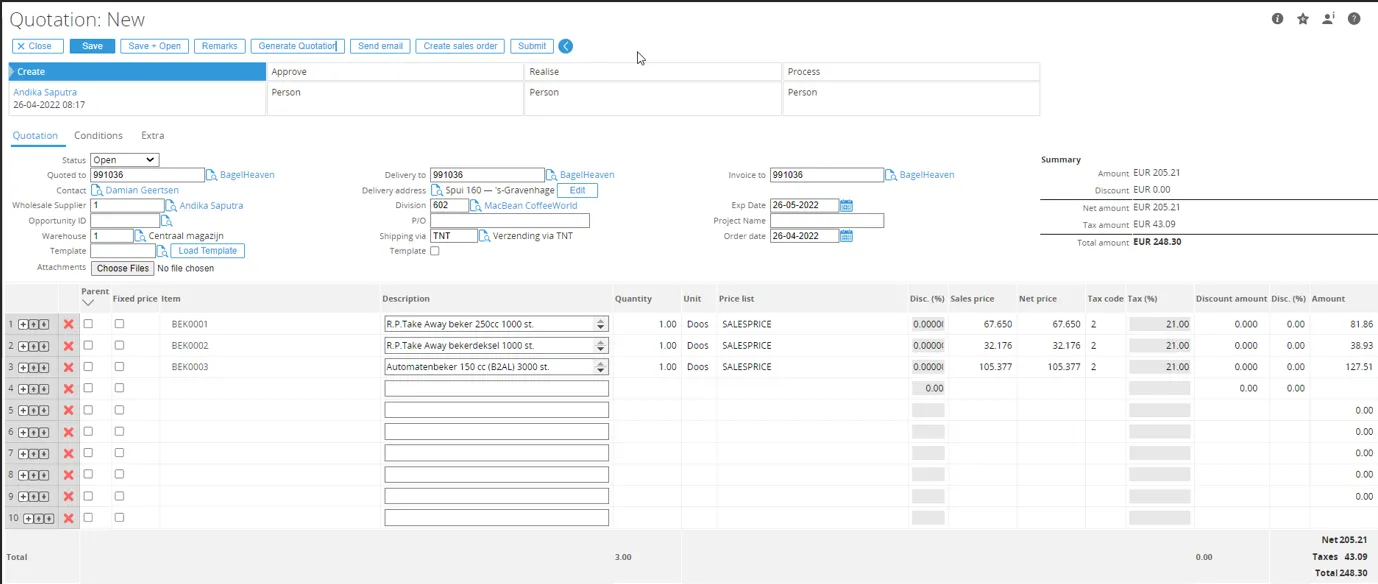
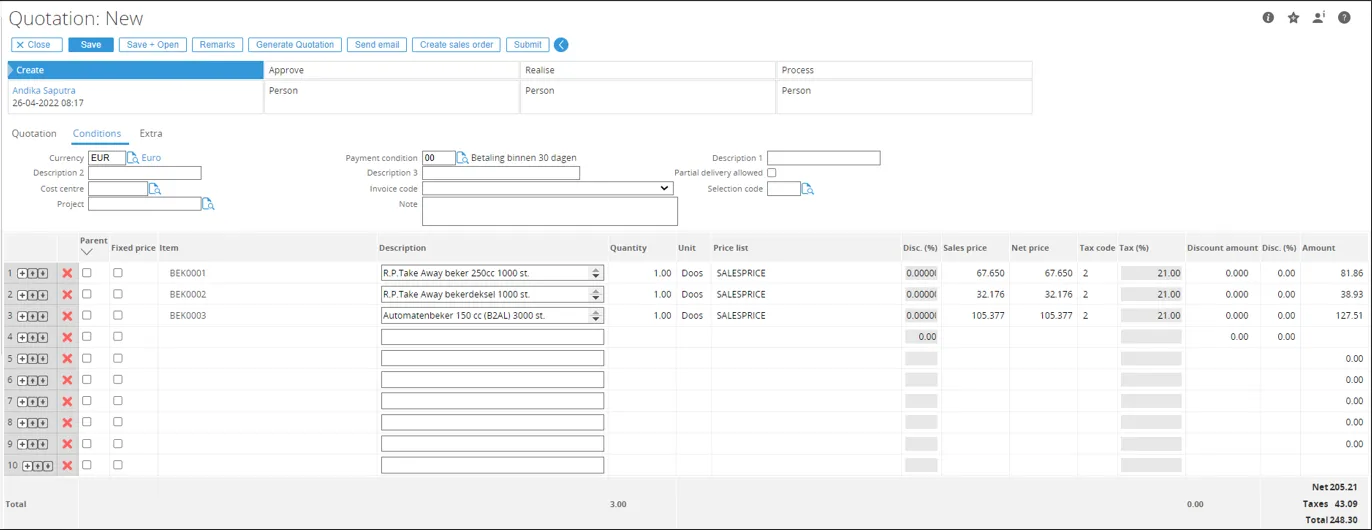
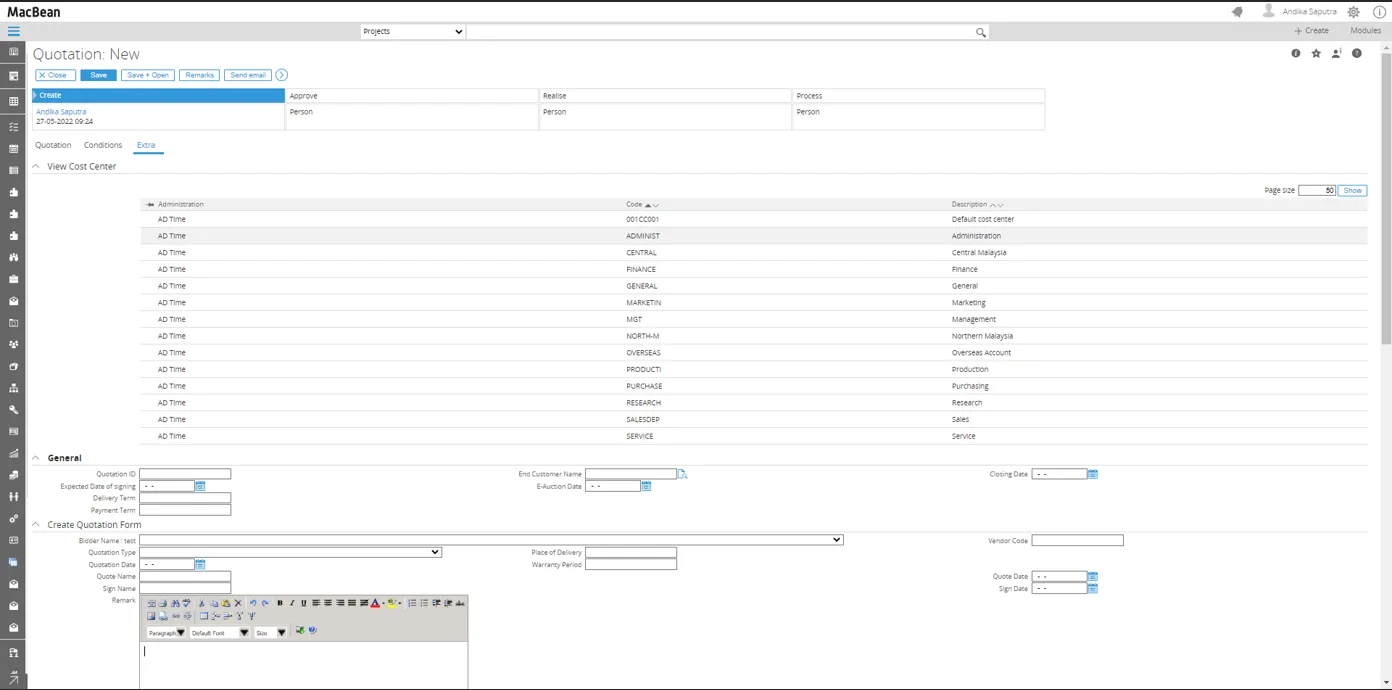
Calculation fields
Section titled “Calculation fields”There’s a script file on the installer folder named “GLMSysCRMPlusQuotationAddOn.js”, in this script we can add another custom script inside the functions which related to those specific function.
function GridRowAddded() {}function QuotationItemChangedAddOn(index, itemcode) {}function QuotationQuantityOrPriceChangedAddOn(row, action) {function GridRowAddded() { //your custom code here}
function QuotationItemChangedAddOn(index, itemcode) { //your custom code here}
function QuotationQuantityOrPriceChangedAddOn(row, action) { //your custom code here}Below is the details when will the function be called.
-
GridRowAdded: This function will be called when the row of Quotation Line being added.
-
QuotationItemChangedAddOn: This function will be called when the item field on the Quotation Line is being changed. “index” parameter determine from which index Quotation Line is being called, “itemcode” parameter determine from which itemcode is function being called.
-
QuotationQuantityOrPriceChangeAddOn: This function will be called when the quantity or price field on the quotation line is being changed. “row” parameter determine from which row Quotation Line is being called, “action” parameter determine from which action is being called was its quantity changed or price changed.
The available action:
ItemChanged = 0 QuantityChanged = 1 PriceChanged = 2 DiscountPercentageChanged = 3 NetPriceChanged = 4 CurrencyChanged = 5 AmountChanged = 6 DeliveryDateChanged = 7 DiscountAmountChanged = 8 DeleteLine = 11 TaxCodeChanged = 12 ItemPriceChanged = 13 PriceListChanged = 14 UnitChanged = 15 GetItemSuggestion = 16 AvailableStock = 17 NettPriceHistory = 18 NettPriceHistoryCount = 19
For example :
QuotationItemChangedAddOn(index, itemcode) {}CalculatLineAmountAddOn(index);{}function QuotationQuantityOrPriceChangedAddOn(row, action) {CalculatLineAmountAddOn(row);}Below an example to recalculate the amount field 3 as “total price” and total amount when item changed / quantity changed / Price changed based on another free fields.
xml function CalculatLineAmountAddOn(index)xml function CalculatLineAmountAddOn(index) {var amountPrecision = SysGetValue('AmountPrecision');var qty = parseFloat(SysGetValue(index + ' LineQuantity').replace(",", ""));var pricePerUom = parseFloat(SysGetValue(index + '_LinePrice').replace(",", ""));var cartagePrice = parseFloat(SysGetValue(index + '_LineAmountField2').replace(",", ""));
if (isNaN(cartagePrice)) {cartagePrice = 0;SysSetValue(index + ' LineAmountField2', SysFormatNumber(0, amountPrecision));}
var totalPrice = pricePerUom + cartagePrice;var amount = (pricePerUom + cartagePrice) * qty;var taxPercentage = parseFloat(SysGetValue(index + 'LineTaxPercentage').replace(",", ""));```if (isNaN(taxPercentage))if (isNaN(taxPercentage)) {taxPercentage = 0;
var taxAmount = amount * (taxPercentage / 100);var totalAmount = amount + taxAmount;
SysSetValue(index + 'LineAmountField3', SysFormatNumber(totalPrice, amountPrecision));SysSetValue(index + ' LineAmount', SysFormatNumber(totalAmount, amountPrecision));
UpdateSummaryAddOn();QuotationItemChangedAddOn(index, itemcode) { //your custom code here}
CalculatLineAmountAddOn(index);{ //your custom code here}
function QuotationQuantityOrPriceChangedAddOn(row, action) { CalculatLineAmountAddOn(row);}Below an example to recalculate the amount field 3 as “total price” and total amount when item changed / quantity changed / Price changed based on another free fields.
function CalculatLineAmountAddOn(index) {  var amountPrecision = SysGetValue('AmountPrecision');  var qty = parseFloat(SysGetValue(index + ' LineQuantity').replace(",", ""));  var pricePerUom = parseFloat(SysGetValue(index + '_LinePrice').replace(",", ""));  var cartagePrice = parseFloat(SysGetValue(index + '_LineAmountField2').replace(",", ""));
  if (isNaN(cartagePrice)) {    cartagePrice = 0;    SysSetValue(index + ' LineAmountField2', SysFormatNumber(0, amountPrecision));  }
  var totalPrice = pricePerUom + cartagePrice;  var amount = (pricePerUom + cartagePrice) * qty;  var taxPercentage = parseFloat(SysGetValue(index + 'LineTaxPercentage').replace(",", ""));
  if (isNaN(taxPercentage)) {    taxPercentage = 0;
    var taxAmount = amount * (taxPercentage / 100);    var totalAmount = amount + taxAmount;
    SysSetValue(index + 'LineAmountField3', SysFormatNumber(totalPrice, amountPrecision));    SysSetValue(index + ' LineAmount', SysFormatNumber(totalAmount, amountPrecision));
    UpdateSummaryAddOn();  }}
Quotation - Troubleshooting
Section titled “Quotation - Troubleshooting”No Valid license Installed
Section titled “No Valid license Installed”When an error message like this appears, please contact your implementation partner or us so that we can review your Exact Synergy Enterprise license from Exact and determine if changes were made to it that affect the GLM Licensing.
Error Message CRMPlus No valid license installed. Number: 140965:101:007 Name: Exact Synergy Enterprise.
We are recommending that accounts before they update their Synergy License (either for new Functionality, Annual Contract or Additional Users – we are contacted first so that we may review and if necessary, provide a new license proactively.)
Pricelist and unit browser error
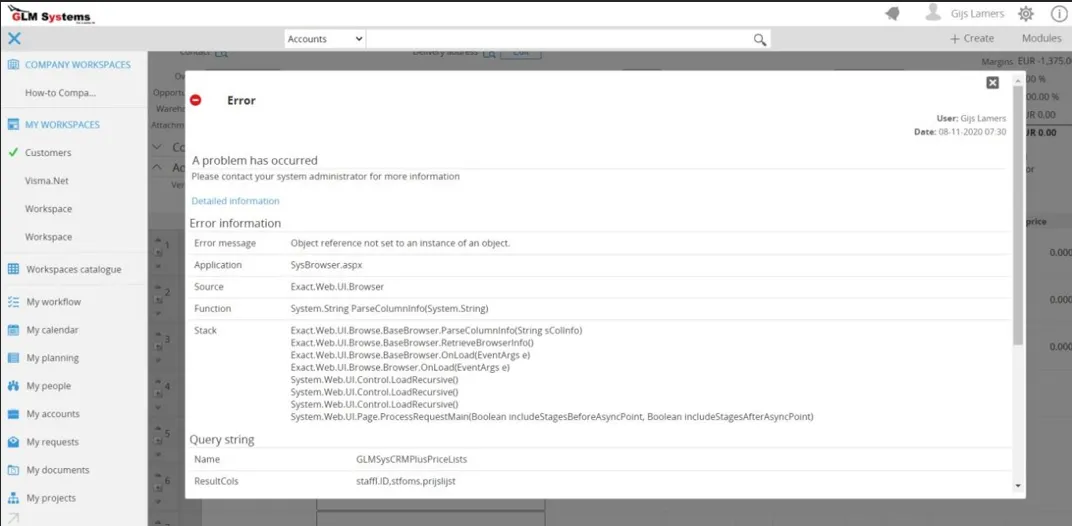
Section titled “Pricelist and unit browser error”It could be that when another pricelist is selected an ‘Object reference not set to an instance of an object’ message is shown as in the screenshot below. To solve this, follow the steps described in Add Exact Globe Browsers. After this run IISRESET or clear the cache from Synergy via System > Reports > Activity Session as the browsers are stored in the cache.
Non-existing property ‘UnitCode’ retrieved for Repository
Section titled “Non-existing property ‘UnitCode’ retrieved for Repository”
When this error message is shown when generating the sales order, the property UnitCode is missing from the business component ‘BOSalesOrderLineEG’. Standard this property is not available, the installation xml folder has a modified Repository.Sales.xml which has this property. The Repository.Sales.xml would be overwritten when an Exact Synergy update is done, this could be an update of a service pack or update to a newer version of Exact Synergy. To solve this, try to re-install the installation and do a rebuild of the repository in System > Setup > Repository > Rebuild.
After the repository rebuild run IISRESET or clear the cache from Synergy via System > Reports >Activity > Session as the browsers are stored in the cache.
Error Back office sales order header/ lines checking
Section titled “Error Back office sales order header/ lines checking”
When this error message is shown when generating the sales order, make sure the username and password that entered on the RPA Exact Globe connection are correct.
Error when choosing an item on Quotation Lines
Section titled “Error when choosing an item on Quotation Lines”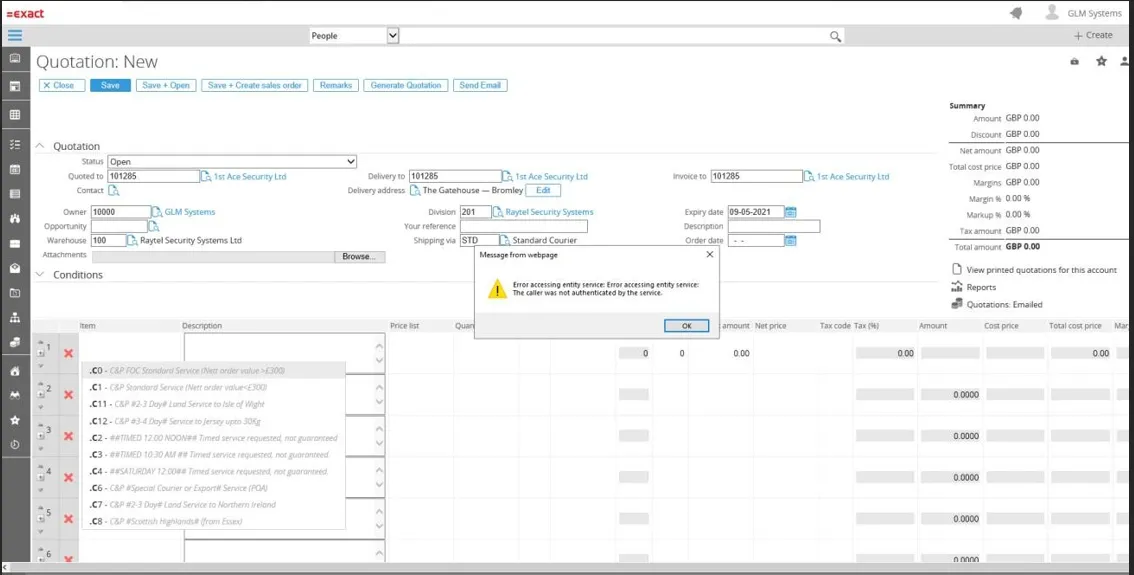
When accessing synergy through another machine/server the back office cannot authenticate without fixed credential and will show the error ‘Error accessing entity service: The caller was not authenticated by the service’ after choosing an item in the quotation lines.
To solve this, make sure the back office connection is using fixed credentials, you can go to back office connection, go to System go to / Setup /Back office / Back office connection.
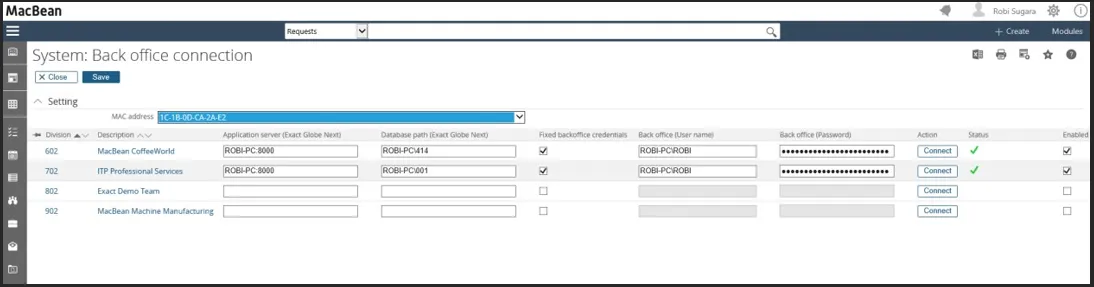
‘The user does not exist.’ error when creating a new quotation or opening a quotation
Section titled “‘The user does not exist.’ error when creating a new quotation or opening a quotation”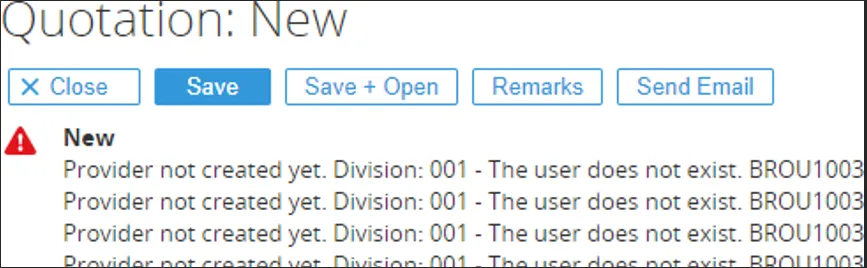
The user must exist in Exact Globe with the same user name (System / HR & Security / People). In the error that is shown, it will also show the username that is missing. For the user that is created, access to Exact Globe is not needed. After creating the user in Exact Globe, you can continue.
You have insufficient right to perform this operation when using a browser/lookup
Section titled “You have insufficient right to perform this operation when using a browser/lookup”When clicking for example Shipping via browser and you see the ‘You have insufficient rights to perform this operation’ import the ExactGlobe views again from the Templates\Exact Globe folder. In the ExactGlobe views the view are set to security level so that the customer also can browse on the data.

Error the letter could not be created
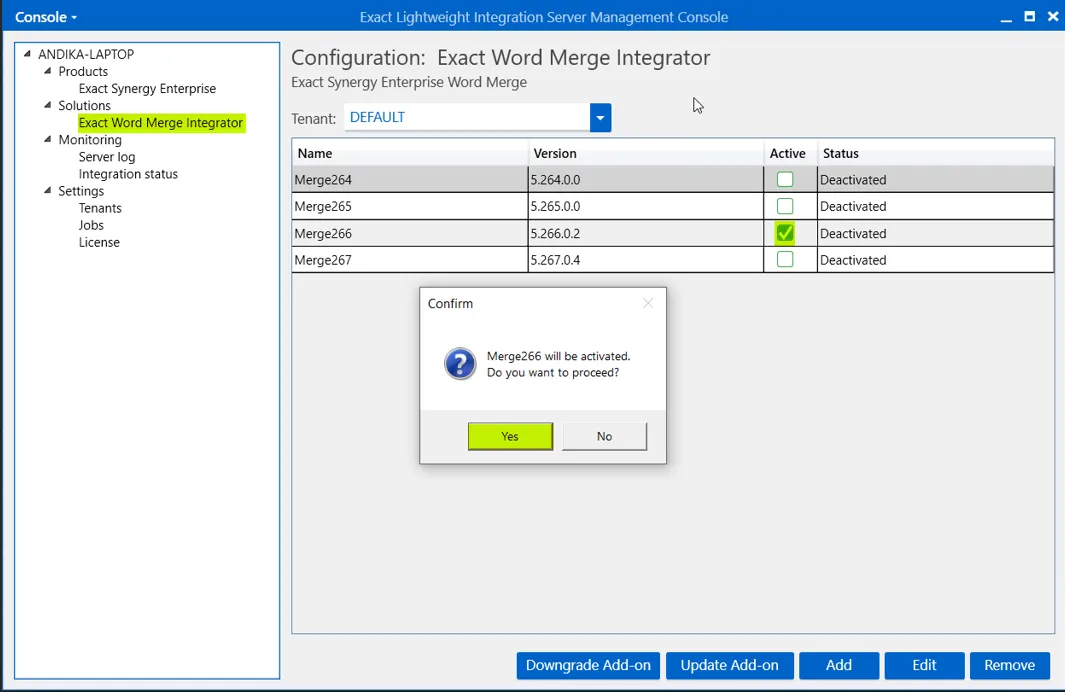
Section titled “Error the letter could not be created”This error will appear in the process of generating quotation, when Configuration: Exact Word Merge Integrator configuration is not set to Active.
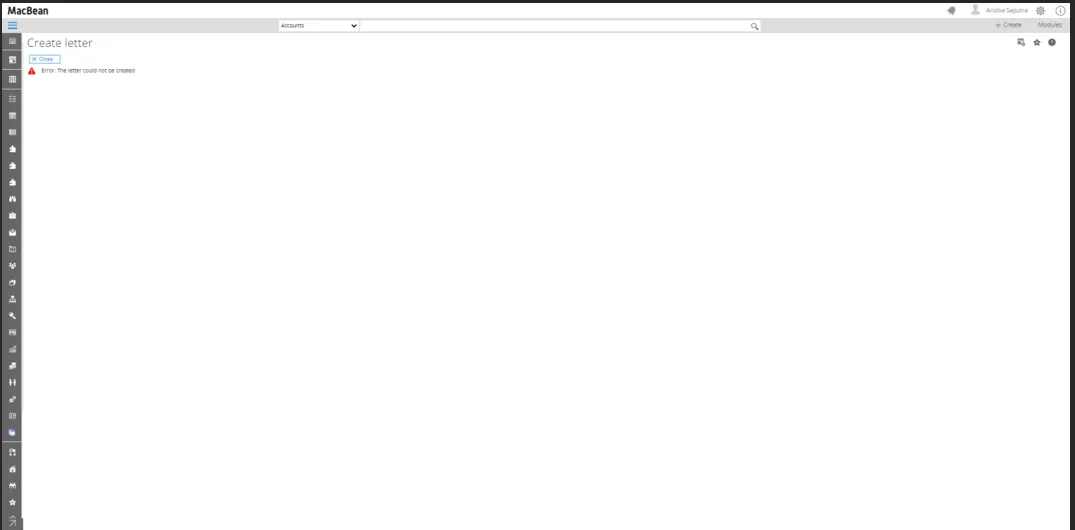
To activate Configuration: Exact Word Merge Integrator, Open Exact Lightweight Integration Server Console (ELIS), then Connect to the server, click on Exact Word Merge Integrator, then tick Active to Word Merge Name to be activated, then click Yes.
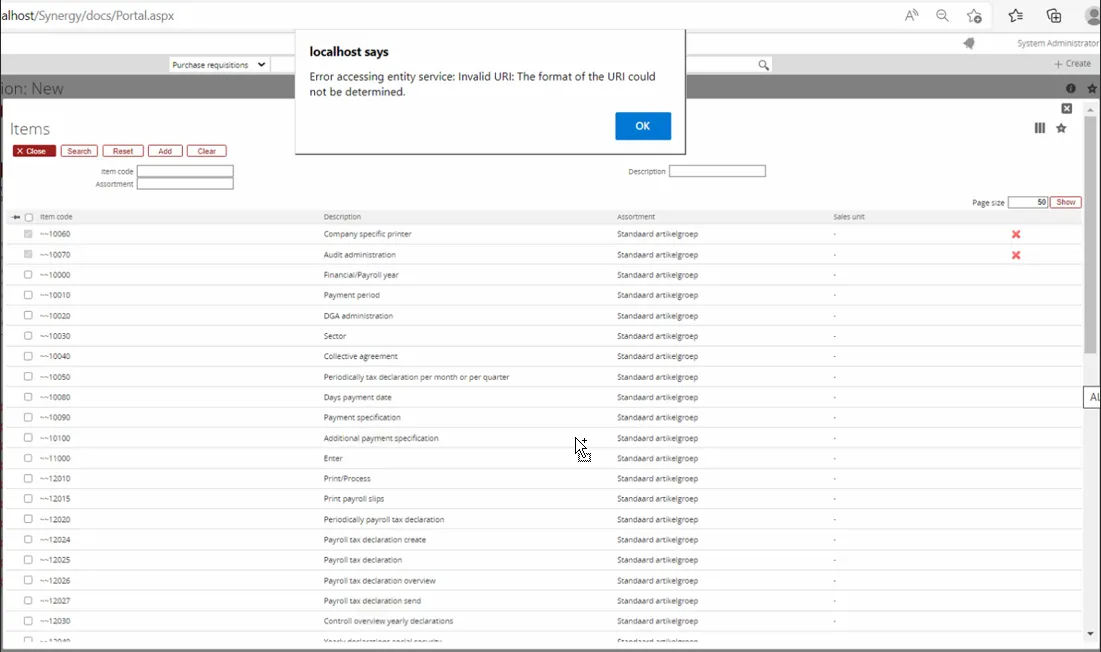
Error object reference
Section titled “Error object reference”This error will appear

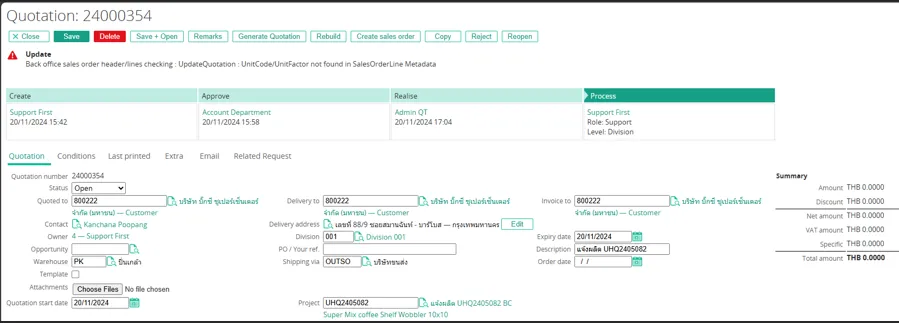
Issue failed create sales order – Unitcode/Unitfactor not found in SalesorderLine Metada
Section titled “Issue failed create sales order – Unitcode/Unitfactor not found in SalesorderLine Metada”This issue occurs when trying to create a sales order. The problem is caused by the metadata for salesorderline Exact Globe not being copied or installed yet. To fix it you can Install the CRMPlus Globe 419 is already on the installer with folder name “CRM Plus Quotation – Setup -2021108”, When install it you can pointing to the directory Exact Globe folder for example “C:\Program Files (x86)\Exact Software”or you can copy manually the XMD folder to the XMD folder on the Exact Globe folder.
Seacrh screens filters from – to not working as numbers
Section titled “Seacrh screens filters from – to not working as numbers”If the column designed to display numerical values in the output, then changes the domain into ‘5NumberPresc0’.
