Logistic Plus - Troubleshooting
Server Error or Compilation error
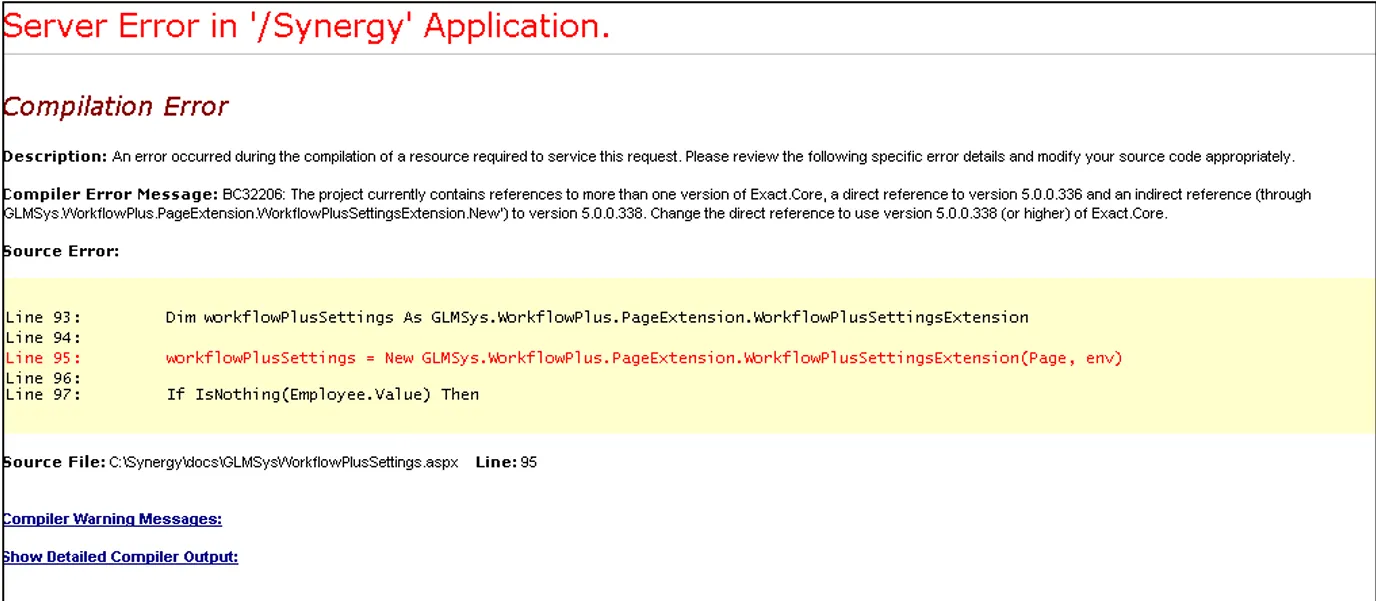
Section titled “Server Error or Compilation error”When opening the Logistics Plus settings application and a message as shown above is given this means there is a conflict in versions.
In this case let your vendor know which Synergy version you are currently using to make sure the correct version of the CRM Plus settings tool is installed.
To solution for this problem will be either updating Synergy to make sure you have the latest versions
of all components or installing a different version of the CRM Plus tool.
Insufficient Rights
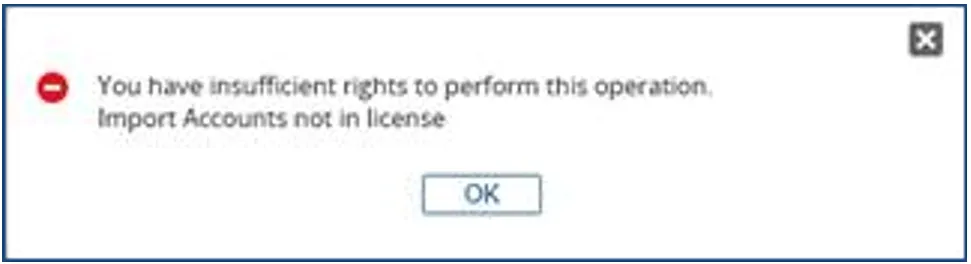
Section titled “Insufficient Rights”You may receive an error message like this, if your license happens to be missing some tools.
Contact us for assistance with creating a new license for your tools. A new license may be required.
Other Errors which are Displayed
Section titled “Other Errors which are Displayed”Should you encounter any other errors, please contact us to assist in the problem resolution. Updates from Exact (Patches or Version Releases) or other customizations done by Synergy consultants or your staff may require a new installer from us.
Keeping at a current level of installers may mean that new functionality may be available for your organization that were created due to customer product suggestion requests.
Report of Errors within Synergy Enterprise
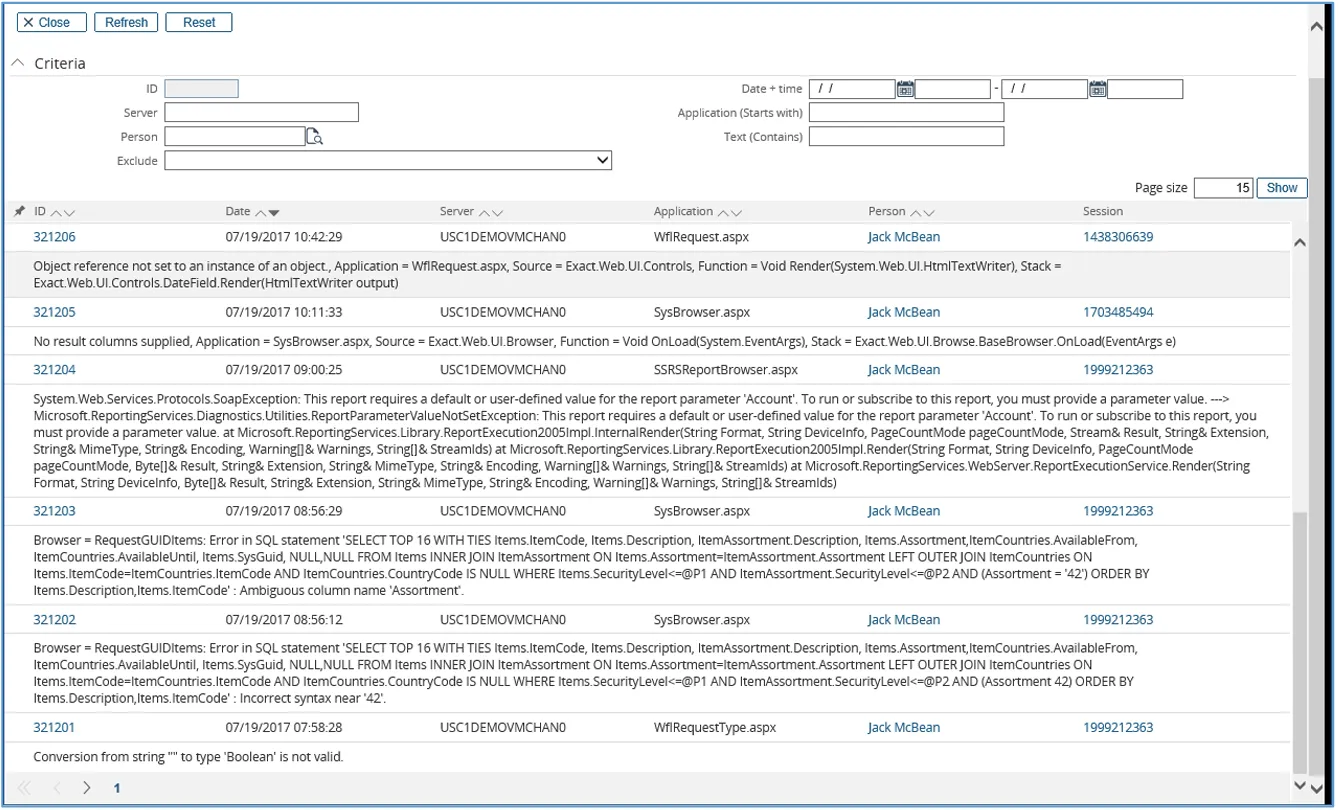
Section titled “Report of Errors within Synergy Enterprise”In the path of System / Reports / Log / Errors, you will find a listing of Errors that have occurred in your Synergy environment. This information is useful to us when a problem with any of our Tools appear.
You are able to filter the error log by a number of criteria, but the fastest way to look at an error is to click on the “Show” button. This error log report page will display.
If an Error is reported to us, this page will be used to understand what occurred during its creation. It
is vital for us to see this screen with the error message.
Logistic Plus - Resolution of Many Issue
Section titled “Logistic Plus - Resolution of Many Issue”description: This troubleshooting guide provides solutions to common problems, helping users quickly resolve technical challenges and ensure smooth operation. Errors may appear within your Synergy when other Applications are installed. The following steps may be taken to try to correct any issues that occur. If you wish assistance, please contact us or your Tool Representative.
Database: Update Screen
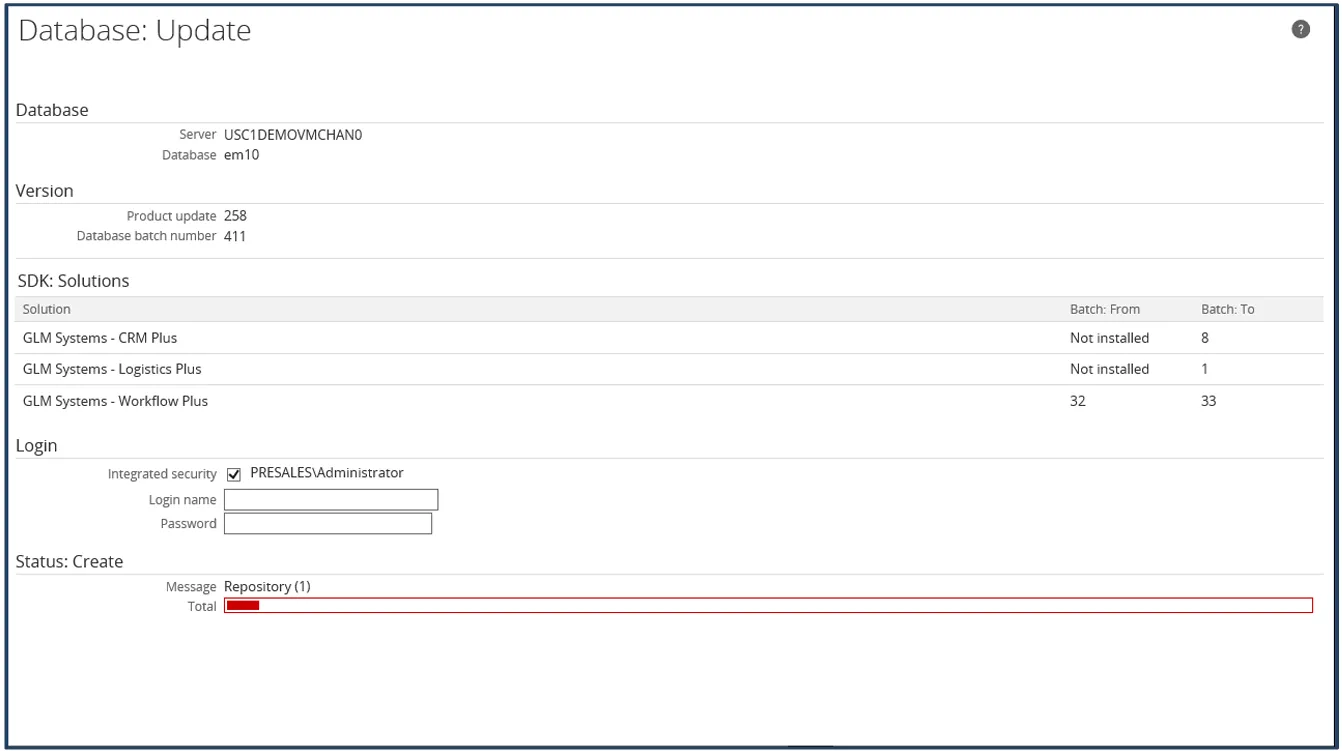
Section titled “Database: Update Screen”When you install a Tool for the first time or reinstalling (with new functionality for you to use), a
Database: Update screen may appear. If this appears, please click on the “Update” button.
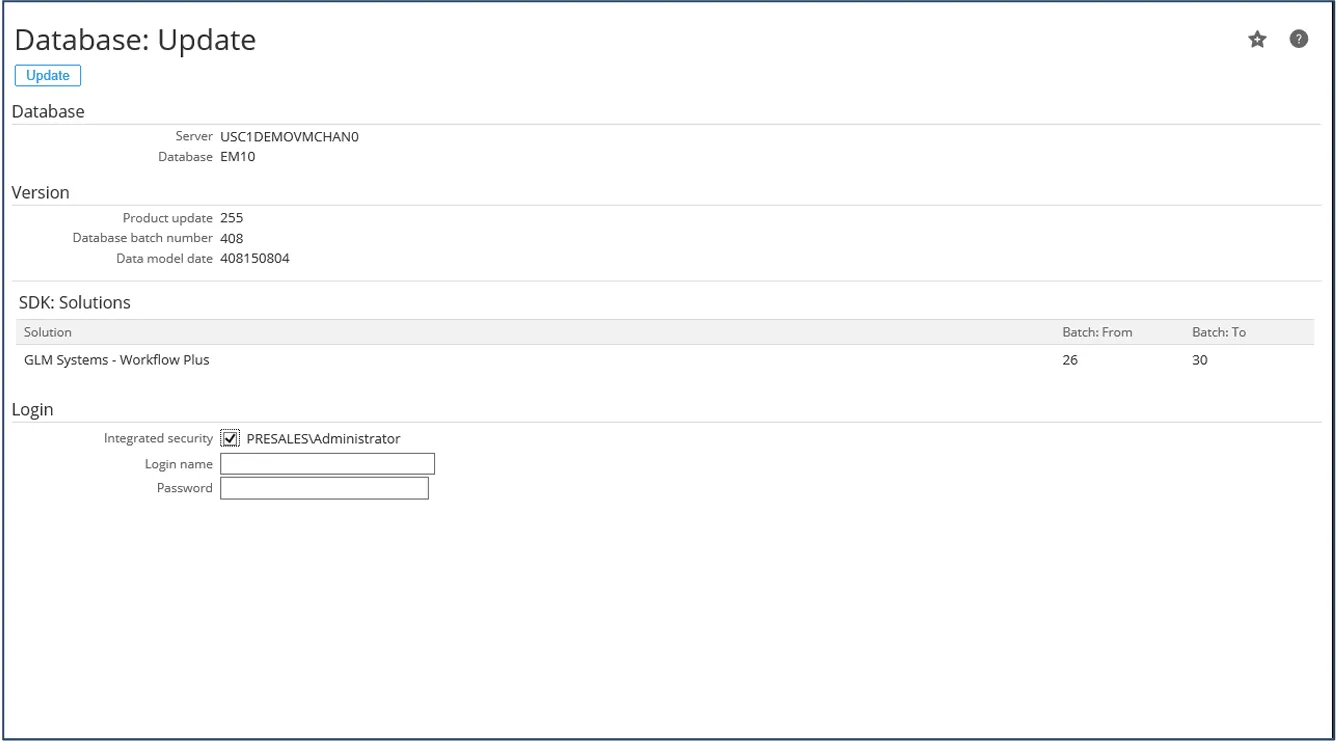
While running, there will be a line bar in the Status: Create displaying progress with the function.
When completed, it will display “Done” on the screen.
Clear Session and Cache
Section titled “Clear Session and Cache”When reinstalling the software, for new functionality – you may not find the new functionality working.
This may be due to some data still left in the Session or Cache still within Synergy.
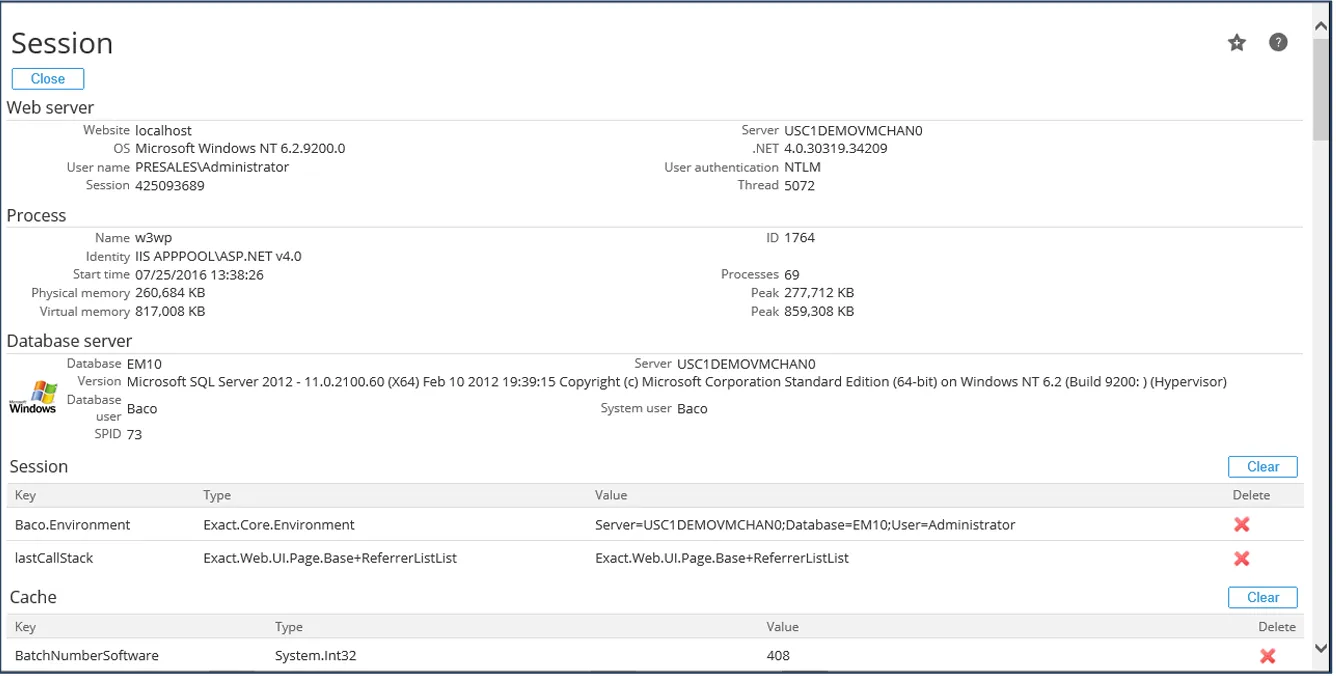
To “Clear” this data, please go the Cache screen by selecting Modules / System / Reports / Activity / Session. Use the “Clear” button on each of these two sections (Session & Cache). Immediately information may appear in those sections, so do not be alarmed.
It may be necessary to use the bottom scroll bar to find the buttons for the “Clear”.
After this process, the first time you visit a page within Synergy, you may find a small time delay.
Once this page have been viewed, it then becomes cached and faster to open.
Rebuild the Repository
Section titled “Rebuild the Repository”To make the uninstall process complete, or when reinstalling the software, for new functionality – you may not find the new functionality working. This may be due to some data still left in the Repository still within Synergy.
You will find the Repository at Modules / System /Setup / Repository / Rebuild.
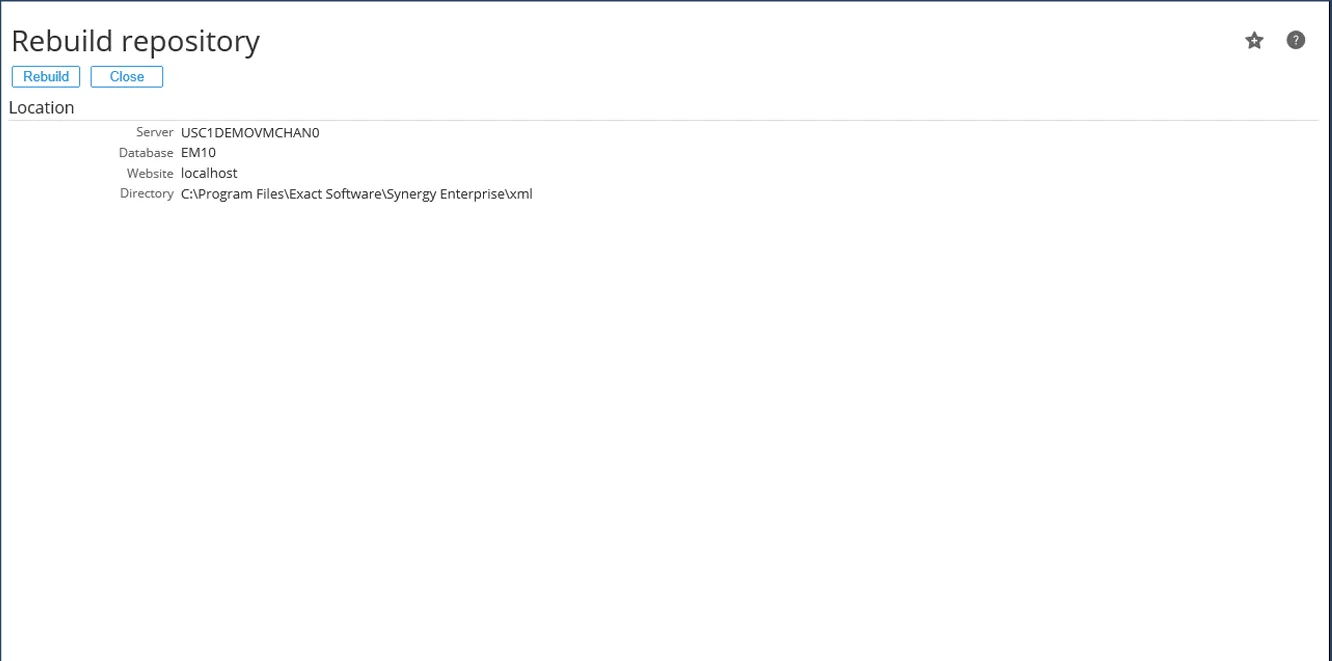
If this screen appears, please click on the “Rebuild” button.
While running, there will be a line bar in the Status: Create displaying progress with the function.
When completed, it will display “Done” on the screen.
After this process, the first time you visit a page within Synergy, you may find a small time delay.
Once this page have been viewed, it then becomes cached and faster to open.
Reset IIS
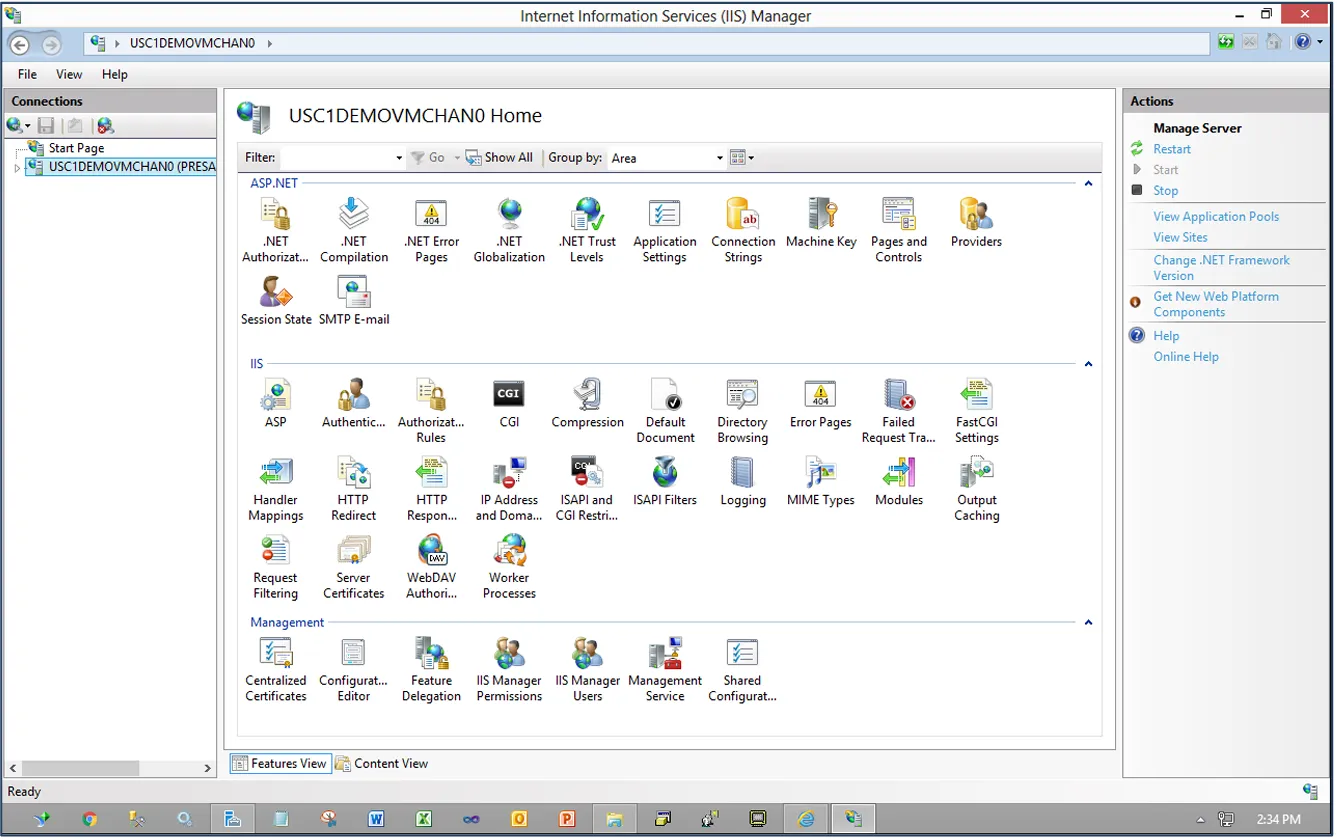
Section titled “Reset IIS”When reinstalling the software, for new functionality – you may not find the new functionality working.
This may be due to some data still left in the still left in your software and the IIS server must be
Restarted.
After this process, the first time you visit a page within Synergy, you may find a small time delay.
Once this page have been viewed, it then becomes cached and faster to open.
Reviewing Customizations
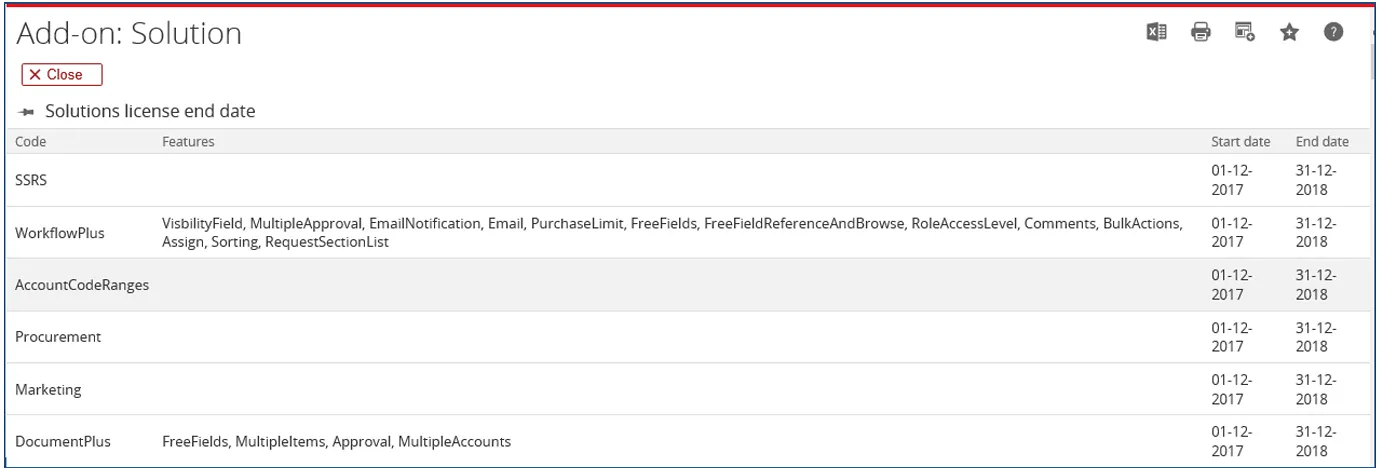
Section titled “Reviewing Customizations”To Review Customizations and Tools in the Synergy Enterprise environment, follow the path Modules / System / Reports / Add-ons / Solutions. This will provide you with the following information:
First Section “Solution license end date”
This will display all of the GLM System Tools, including the options that have been purchased by the
Account. In many cases, customers select and purchase various sub-modules that make business
sense to fulfill requirements. Next to the Features includes the Start date and End Date of the license,
which is used for Annual Maintenance follow-up.
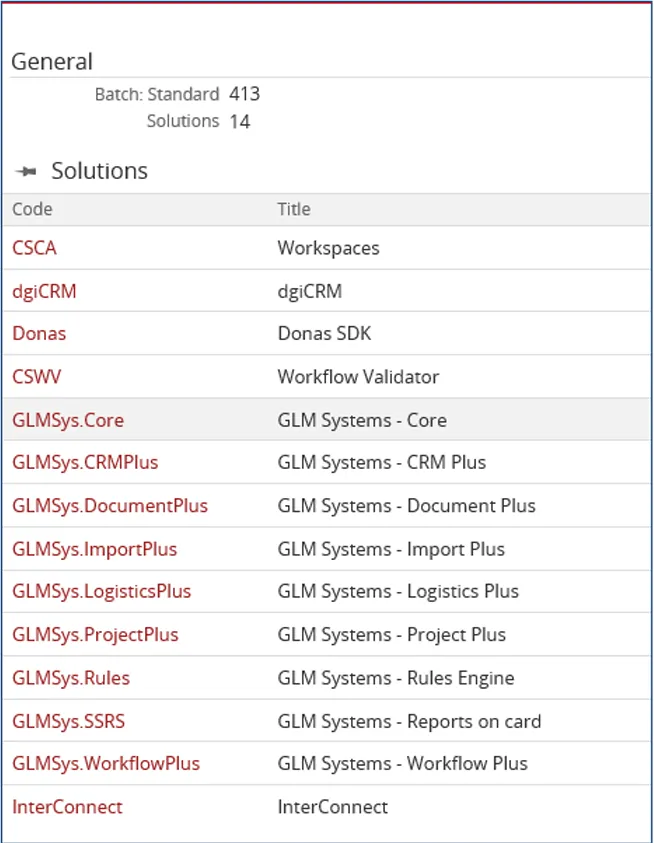
Second Section “Solutions”
This section will display all solutions installed within your Synergy Enterprise environment. Some of
these customizations may be from your Software provider, such as “InterConnect”, which is a Macola
Tool, while others such as “dgiCRM” is a Tool for CRM activities created by The Donas Group, Inc.
Requirements for Customizations
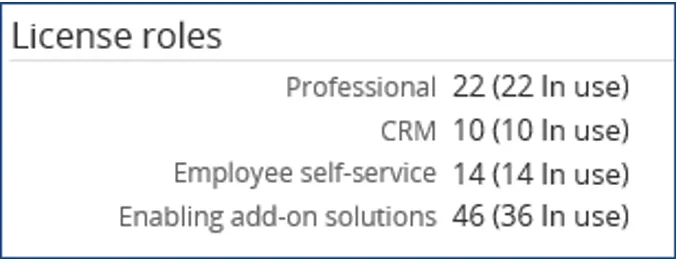
Section titled “Requirements for Customizations”All customizations for Synergy Enterprise require the Exact Software “Enabling add-on solutions role” to be in their license.
In this example, we see that there are:
- Professional Role (22 licenses purchased and 22 in use)
- CRM Role (10 licenses purchased and 10 in use)
- Employee Self Service Role (14 licenses purchased and 14 in use)
- Enabling Add-on Solutions Role (46 licenses purchased and only 36 in use)
This means that some of the resources are unable to use the functionality of these tools
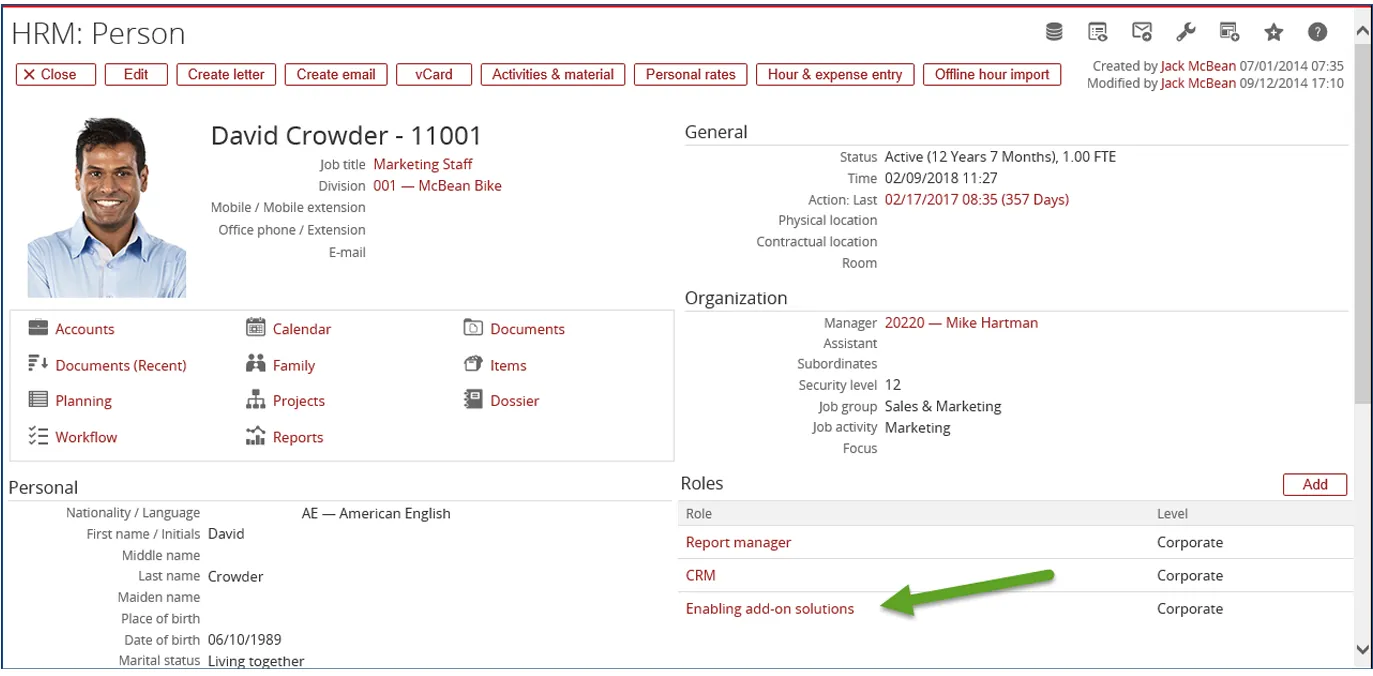
Customizations will be enabled only to those Resources which have this role linked to their HR Card.
Here is an example of a Resource that has this role in their HR Card.
Uninstall
Section titled “Uninstall”Uninstalling of the Logistics Plus add-on consist of the following steps:
Run the installer
Open the GLMSysAddOnInstaller.exe and select install mode ‘Uninstall’. Select or enter the location of
the Synergy installation folder.
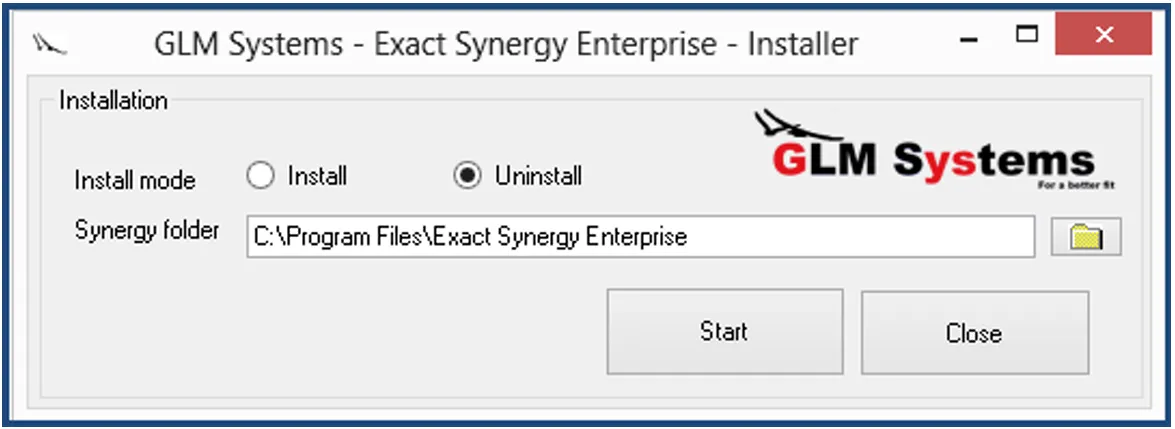
To uninstall, click ‘Start’. The uninstall will remove the customization files from your Synergy folder and will copy back the original Synergy files.
Rebuild Repository
Section titled “Rebuild Repository”To make the uninstall process complete, open Synergy and rebuild the repository via System / Setup / Repository / Rebuild.
Database Triggers - Optional
Section titled “Database Triggers - Optional”In some instances, it is necessary to delete SQL database triggers within some of the tables. Contact us for more infomration and assistance.
Options for Disengaging Synergy Customizations
Section titled “Options for Disengaging Synergy Customizations”Option – Disengage all Customizations
Under Modules / System / Setup / Add-Ons / Settings, select the Disable add-ons and click it. Close
the browser and all customizations in Synergy will disappear when opened by the Administrator.
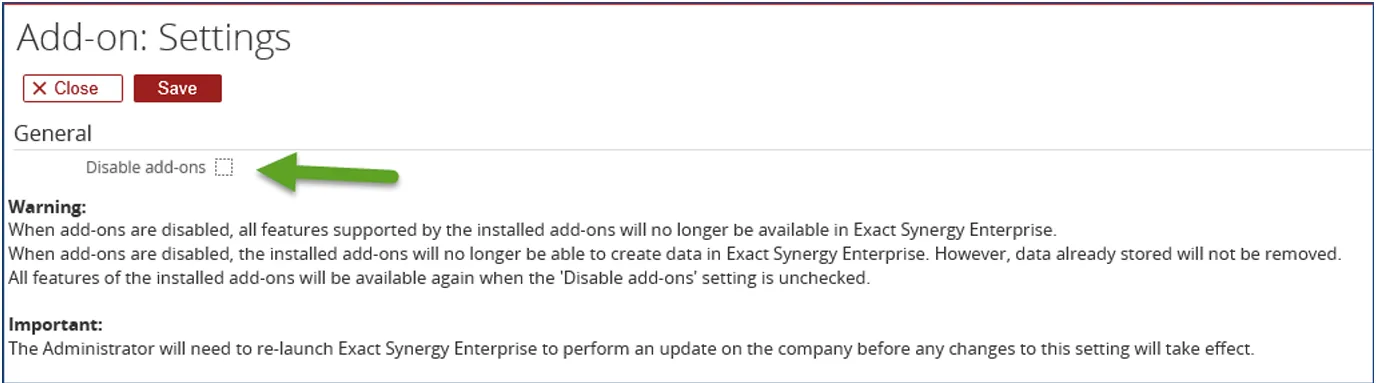
This will also turn off all customizations done by Exact, Macola, JobBOSS or MAX personnel and including those done by other consultants.
To turn back customizations, follow the same path and unclick the “Disable add-ons”. Close the browser and all customizations in Synergy will appear when opened by the Administrator.
Option – Disengage GLM System Modifications
Section titled “Option – Disengage GLM System Modifications”To disable a GLM Systems Tool, a System Administrator may go to the Synergy Installation Directory and under the XML directory, there will be three files for each of the tools.
As an example, the files for the CRM Plus Tool include:
a. Custom.GLMSys.CRMPlus.xmlb. Repository.GLMSys.CRMPlus.xmlc. Repository.zGLMSys.CRMPlus.xmlTo disable the tool, place a “z” in front of each of these files, as this example demonstrates:
a. zCustom.GLMSys.CRMPlus.xmlb. zRepository.GLMSys.CRMPlus.xmlc. zRepository.zGLMSys.CRMPlus.xmlThis will temporarily disable the tool without Installing. This must be done for all of the Tools which are being utilized by the Account.